Are you trying to connect your Roku to your Cellspot Wi-Fi router but don’t know where to start? You’re not alone, and the good news is it’s easier than you think.
Getting your Roku linked to your Cellspot router means smoother streaming, fewer interruptions, and endless entertainment right at your fingertips. In this guide, you’ll find simple, step-by-step instructions that anyone can follow. Stick with me, and by the end, your Roku will be up and running on your Cellspot Wi-Fi in no time.
Ready to dive in? Let’s get started!

Credit: www.ebay.com
Prepare Your Devices
Preparing your devices is the first step to connect Roku to the Cellspot Wi-Fi router. This stage ensures that everything is ready for a smooth and quick setup. Take a moment to check your Roku device and gather the necessary information from your Cellspot router. Proper preparation avoids delays and connection issues.
Check Roku Compatibility
Not all Roku models support all types of Wi-Fi connections. Verify your Roku device’s compatibility with your Cellspot router. Look for the model number on the Roku box or on the device itself. Visit the official Roku website to confirm if your model supports the Wi-Fi frequency and network standards used by your Cellspot router.
Check if your Roku supports:
- 2.4 GHz and/or 5 GHz Wi-Fi bands
- 802.11ac or 802.11n wireless standards
- Latest software updates installed
Locate Cellspot Router Details
Find your Cellspot router’s network name (SSID) and password before connecting Roku. These details are usually on a sticker on the router’s back or bottom. The SSID is the network name you will select on your Roku device. The password is required to access the Wi-Fi network.
If you changed the default network name or password, use your updated credentials. Keep these details handy to avoid searching during setup. Knowing your router’s details ensures a fast and error-free connection process.
Power On And Reset
Getting your Roku device to work seamlessly with your Cellspot Wi-Fi router involves powering on and resetting both devices properly. Ensuring everything is set up correctly can make a world of difference in the streaming experience. But how do you make sure you’re doing it right? Let’s dive into the essential steps to get your Roku and Cellspot router up and running without a hitch.
Turn On Roku Device
Begin by connecting your Roku to the television using an HDMI cable. Once connected, locate the power button or simply plug in the power cord. Watch as the Roku logo dances on the screen, signaling that your device is booting up. Excited yet? Think about the seamless streaming experience that awaits you.
Have you ever struggled with your remote control? Ensure the batteries are fresh and the remote is synced to the Roku. A quick tip: hold the pairing button for three seconds to establish a connection. Once powered on, navigate through the initial setup screen on your TV.
Restart Cellspot Router
Your router is the gateway to endless streaming possibilities, so it’s crucial to keep it in tip-top shape. To restart your Cellspot router, unplug the power cord from the outlet. Wait for a minute—this brief pause allows the router to reset itself, clearing any temporary glitches.
Ever wondered why your streaming service buffers? Often, it’s a simple issue with the router. After plugging it back in, observe the lights blinking back to life. Allow it a few minutes to reconnect to your internet service provider. Now, check if your Roku is connected to the Wi-Fi network.
Why not make this a habit? Regularly resetting your router can prevent many connectivity issues, ensuring your streaming experience remains uninterrupted. Are you ready to enjoy your favorite shows without buffering?
Access Roku Network Settings
Accessing your Roku’s network settings is essential for connecting it to your Cellspot Wi-Fi router. This allows you to manage your wireless connection and ensure smooth streaming without interruptions. Understanding where and how to find these settings saves you time and frustration.
Navigate To Settings Menu
Start by turning on your Roku device and using the remote to reach the main screen. From here, look for the Settingsoption, usually represented by a gear icon. Selecting this menu opens a list of customizable options for your Roku.
Don’t rush through this step; navigating properly ensures you access the right controls for your network setup. Have you noticed how many hidden options are tucked away in these menus? Exploring them can give you better control over your Roku experience.
Select Wireless Setup
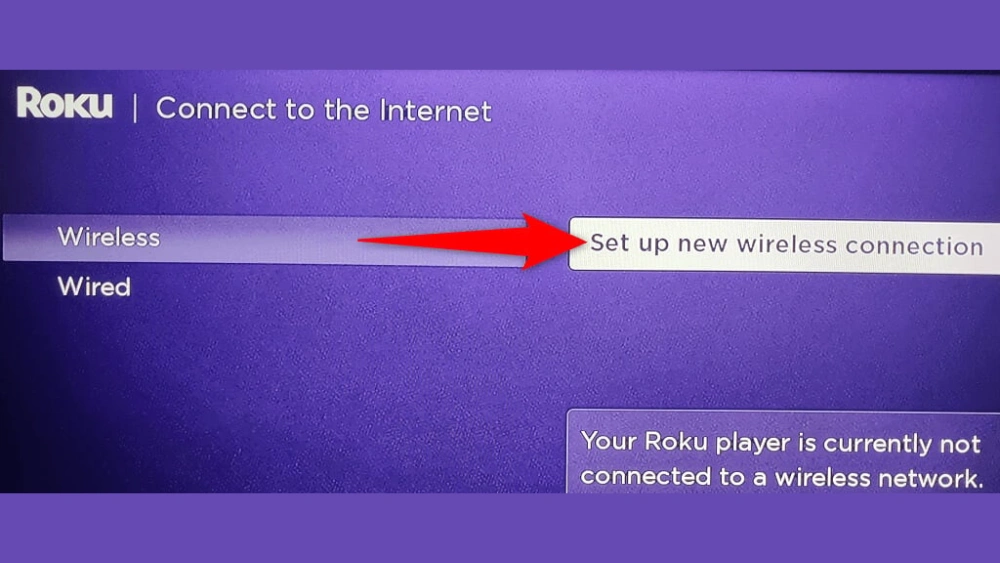
Within the Settings menu, find and select Network, then choose Set up connection. This leads you to the wireless setup screen where you can connect to your Cellspot Wi-Fi router. Your Roku will scan for available wireless networks and display them.
Make sure your Cellspot router is powered on and broadcasting its network name. Selecting it will prompt you to enter the password. If you’ve ever mistyped your Wi-Fi password, you know how this step can make or break your connection.
Connect To Cellspot Wi Fi
Connecting your Roku device to the Cellspot Wi Fi router is simple and fast. This step lets your Roku stream movies, shows, and more without interruptions. Follow clear steps to join the Cellspot network and enter your Wi Fi password. Your Roku will then be ready to use the internet through Cellspot.
Choose Cellspot Network
Turn on your Roku device and open the Settings menu. Select the “Network” option to see available Wi Fi networks. Look for the network named “Cellspot.” This is the Wi Fi signal from your Cellspot router. Highlight and select it to start connecting.
Enter Wi Fi Password
After selecting the Cellspot network, a password box will appear. Enter the Wi Fi password exactly as provided by your Cellspot router. Use the remote to type each character carefully. Once done, confirm the password and wait for Roku to connect. A successful connection message will show on the screen.
Test Your Connection
Once you’ve connected your Roku to the Cellspot Wi-Fi router, it’s crucial to test your connection. This ensures everything is working smoothly and you can enjoy seamless streaming without interruptions. Taking a few moments to confirm your network status and try streaming content can save you from frustration later.
Check Network Status
Start by checking the network status directly on your Roku device. Navigate to Settings > Network > Check Connection. This will tell you if your Roku is properly connected to your Cellspot Wi-Fi and if the internet speed is sufficient.
If the connection test fails, you might see error messages or prompts to reconnect. This gives you a chance to troubleshoot early—maybe move your Roku closer to the router or restart the devices. Have you noticed how often a simple restart resolves connection glitches?
Stream A Test Video
After confirming the network status, try streaming a video to test real-world performance. Pick a video on a popular app like YouTube or Netflix and watch it for a few minutes. Pay attention to buffering, video quality, and any lag.
If the video plays smoothly, your connection is solid. If not, consider adjusting your router’s placement or checking for other devices hogging bandwidth. Streaming a test video helps you pinpoint problems you might not catch from just a connection check.

Credit: www.youtube.com
Troubleshoot Connection Issues
Connection issues between your Roku and Cellspot Wi-Fi router can disrupt streaming. Troubleshooting these problems helps restore a smooth viewing experience. Simple checks often resolve the issue quickly. Start by identifying common problems and learning when to reset your devices for the best results.
Common Problems And Fixes
- Roku not detecting Wi-Fi:Ensure the router is broadcasting a visible network. Restart the router to refresh signals.
- Weak Wi-Fi signal:Place the router closer to your Roku device. Remove obstacles like walls or electronics that cause interference.
- Incorrect Wi-Fi password:Double-check the password entered on Roku. Re-enter it carefully to avoid typos.
- Network congestion:Disconnect other devices using the same Wi-Fi. This frees up bandwidth for Roku streaming.
- IP address conflicts:Restart the router to assign new IP addresses. This prevents device clashes on the network.
When To Reset Devices
Resetting devices can fix many connection issues. Try a soft reset first. Turn off the Roku and unplug the router for 30 seconds. Plug in the router and wait for full reboot. Then power on the Roku and check the connection.
If problems continue, perform a factory reset on Roku. This clears all settings and restores defaults. Use this as a last resort because it erases saved data and apps.
Reset your Cellspot router if it shows no internet or unstable signals. Find the reset button on the back. Press and hold for about 10 seconds until lights blink. This resets network settings to factory defaults.

Credit: www.ebay.com
Frequently Asked Questions
How Do I Connect Roku To Cellspot Wi-fi Router?
To connect Roku to Cellspot Wi-Fi, go to Roku’s Settings > Network > Set up connection. Choose Wireless and select your Cellspot network. Enter the Wi-Fi password and confirm. Roku will connect and test the network automatically.
Why Won’t Roku Connect To Cellspot Wi-fi?
Roku may not connect due to incorrect password, weak signal, or router issues. Restart Roku and Cellspot router. Ensure Wi-Fi password is correct. Check if your router firmware is updated. Try moving Roku closer to the router for a stronger signal.
Can Roku Use 5ghz On Cellspot Wi-fi?
Yes, Roku supports 5GHz Wi-Fi. If your Cellspot router broadcasts dual bands, select the 5GHz network during Roku setup. The 5GHz band offers faster speeds but shorter range compared to 2. 4GHz. Choose the band that best fits your streaming location.
How To Troubleshoot Roku Wi-fi Connection Problems?
Restart both Roku and Cellspot router. Check Wi-Fi password accuracy. Move Roku closer to the router. Update Roku software via Settings. Reset network settings on Roku if needed. If problems persist, contact your internet provider or Roku support.
Conclusion
Connecting your Roku to the Cellspot Wi-Fi router is simple and fast. Just follow the steps carefully. Check your Wi-Fi settings on both devices. Make sure the network name and password match. Restart your router or Roku if needed. This helps fix common connection issues.
Enjoy smooth streaming once connected. Stay patient and try again if problems appear. Now, your Roku and Cellspot Wi-Fi work well together. Happy watching!