
Want to chat with your friends while gaming or stream your gameplay with clear sound? Connecting a mic to your Xbox is the key.
But if you’ve ever felt stuck or unsure how to do it, you’re not alone. This guide will walk you through simple steps to get your mic working perfectly on your Xbox. By the end, you’ll be ready to communicate like a pro, making your gaming experience more fun and immersive.
Keep reading—you’re just moments away from unlocking better sound and clearer conversations.
Mic Compatibility With Xbox
Understanding which microphones work with your Xbox is key to a smooth gaming or streaming experience. Not all mics are built the same, and Xbox has specific requirements and limitations. Let’s break down what types of mics you can use and how they connect to your console.
Supported Mic Types
Your Xbox supports a range of microphones, but compatibility depends on the connection type and the mic’s design. Most commonly, Xbox works well with:
- USB microphones:Plug-and-play with Xbox Series X, Series S, and Xbox One. These mics are easy to set up and usually recognized immediately.
- 3.5mm headset microphones:Many gaming headsets come with a built-in mic that connects via the 3.5mm jack on Xbox controllers.
- Wireless headsets with built-in mics:Official Xbox wireless headsets connect directly to the console without extra adapters.
Keep in mind, standalone XLR mics or studio microphones typically need an audio interface or adapter to work with Xbox, making them less straightforward for casual gamers.
Wired Vs Wireless Mics
Choosing between wired and wireless microphones depends on your setup and preferences. Wired mics usually offer more stable sound quality with no signal loss, which is crucial if you want clear communication during competitive games.
Wireless mics give you freedom of movement and reduce cable clutter. However, they might introduce slight latency or require charging, which can be inconvenient in long gaming sessions.
Think about where and how you game. Do you prefer sitting close to your console with minimal fuss? A wired mic might be ideal. Want to move around or stream from different spots? Wireless could be the way to go.
Preparing Your Xbox For Mic Setup
Before you plug in your microphone to your Xbox, it’s essential to get your console ready. Preparing your Xbox ensures a smooth connection and prevents any frustrating interruptions during your gaming or chatting sessions. Taking a few minutes to check updates and tweak settings can make a big difference in how well your mic works.
Checking System Updates
Your Xbox needs the latest software to support new accessories like microphones. Head to the Settingsmenu, then select System, and click on Updates. If there’s a pending update, install it right away to avoid compatibility issues.
Keeping your system updated not only fixes bugs but also improves overall performance. Have you ever missed a chat because your Xbox didn’t recognize your mic? Updating your console can prevent that from happening.
Configuring Audio Settings
Once your system is updated, it’s time to adjust the audio settings to make sure your mic is detected and works properly. Navigate to Settings> General> Volume & audio output. Here, you can manage your mic monitoring and chat mixer levels.
Set the mic monitoring volume so you can hear your own voice through the headset, which helps prevent you from speaking too loudly or softly. Also, adjust the chat mixer to balance game sounds and chat audio according to your preference.
Have you checked if your mic is set as the default input device? This step is often overlooked but crucial. Confirm it’s selected so your Xbox listens to the right device during gameplay or party chats.
Connecting A Wired Mic
Connecting a wired mic to your Xbox might seem daunting at first, but it’s surprisingly straightforward. Whether you’re looking to enhance your gaming experience or communicate clearly with your team, a wired mic can make a significant difference. Below, you’ll find practical ways to connect your wired mic using the controller jack and USB port. Dive in and discover which method suits your setup best.
Using The Controller Jack
One of the simplest ways to connect your wired mic is through the controller jack. Most Xbox controllers come equipped with a 3.5mm headphone jack. Simply plug your mic into this jack, and you’re ready to go.
- Ensure your mic has a 3.5mm connector. If not, consider using an adapter.
- After connecting, check if the mic is recognized. You can do this by accessing the audio settings on your Xbox.
- If you’re experiencing audio issues, try adjusting the mic sensitivity in the settings.
Have you ever noticed a difference in gameplay communication when using a wired mic? Crisp audio can be a game-changer!
Connecting Via Usb Port
If your wired mic uses a USB connection, you’re in luck. Xbox consoles support USB audio devices, offering another straightforward connection option.
- Connect your mic’s USB cable directly to an available USB port on your Xbox console.
- Once connected, navigate to the audio settings to ensure the mic is active and working.
- Consider using a USB hub if you need additional ports for other devices.
Have you tried using a USB mic for streaming or recording? The clarity and quality might surprise you!
Connecting your mic efficiently can transform your gaming and communication experience. Which method will you try first?

Credit: www.youtube.com
Connecting A Wireless Mic
Connecting a wireless mic to your Xbox can dramatically improve your gaming and streaming experience. It frees you from cables, giving you the freedom to move and speak naturally. But not all wireless mics connect the same way, so understanding the options available is key to a smooth setup.
Pairing Bluetooth Mics
Surprisingly, Xbox consoles do not support direct Bluetooth connections for audio devices like microphones. This means you can’t just pair any Bluetooth mic to your Xbox as you would with a phone or laptop.
So, if you own a Bluetooth mic, how can you still use it? One workaround is to connect the mic to your PC or a Bluetooth transmitter that supports Xbox-compatible connections. Then, route the audio through the Xbox app or compatible hardware.
Have you tried using a Bluetooth adapter with your Xbox? Many gamers find that specific transmitters designed for consoles can bridge the gap, but this often requires extra equipment and can introduce slight audio delays.
Using Official Xbox Accessories
The easiest way to ensure your wireless mic works seamlessly is to use official Xbox accessories. Xbox offers wireless headsets with built-in mics that connect directly through the Xbox Wireless protocol, not Bluetooth.
These accessories connect instantly and provide crystal-clear voice chat without lag. For example, the Xbox Wireless Headset pairs effortlessly and offers customizable sound profiles through the Xbox Accessories app.
Using official gear also guarantees firmware updates and better compatibility. If you want hassle-free setup and reliable performance, sticking to Xbox-certified wireless microphones or headsets is the way to go.
Testing And Adjusting Mic Settings
After connecting your mic to the Xbox, ensuring it works perfectly is the next key step. Testing and adjusting your mic settings helps you get clear audio, whether you’re chatting with friends or streaming gameplay. Small tweaks in volume and sensitivity can make a huge difference in your overall experience.
Mic Volume And Sensitivity
Start by checking your mic volume in the Xbox settings menu. If your voice sounds too quiet or too loud, adjusting the volume slider can fix that instantly. You can also test your mic by speaking into it and watching the input meter to see if it’s picking up sound correctly.
Sensitivity controls how much background noise your mic picks up. Too high, and it picks up unwanted sounds; too low, and your voice might cut out. Try adjusting sensitivity while speaking normally to find the right balance that captures your voice clearly without extra noise.
Troubleshooting Common Issues
Sometimes your mic might not work as expected even after adjusting settings. Check if your mic is properly plugged in and recognized by the Xbox. If the mic input shows no activity, try unplugging and reconnecting it or restarting your console.
Another frequent problem is muted audio. Make sure the mute button on your headset or controller isn’t accidentally pressed. Also, verify that the correct input device is selected in your Xbox audio settings.
If you still face issues, testing the mic on another device can help identify if the problem lies with the headset or the console. Have you experienced any unusual audio glitches or delays? Sometimes updating the console software fixes hidden bugs affecting microphone performance.

Credit: www.youtube.com
Tips For Clear Chat Audio
Clear chat audio improves communication during Xbox gaming sessions. It makes teamwork easier and games more fun. Simple changes help reduce noise and boost sound quality. Focus on key tips to get the best voice clarity.
Reducing Background Noise
Background noise distracts teammates and lowers audio quality. Find a quiet space to play and chat. Turn off fans, air conditioners, and loud devices nearby. Use a microphone with noise-canceling features if possible. Keep the mic close to your mouth to catch your voice clearly. Avoid tapping or moving the mic during chats. Use headphones with a built-in mic to reduce echo and outside sounds.
Optimizing Room Setup
Room setup affects how sound travels and is picked up. Soft materials like curtains and carpets absorb sound and reduce echo. Avoid empty rooms with hard surfaces that cause sound reflection. Position yourself away from noisy electronics or busy areas. Adjust your mic settings on Xbox for the best volume balance. Test chat audio before playing to ensure clear communication. A good room setup helps your voice come through crisp and clear.
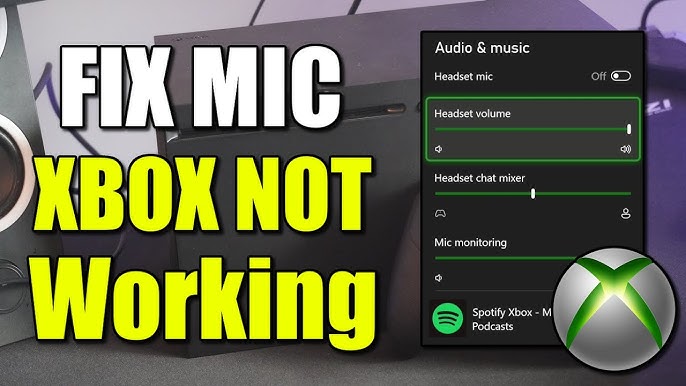
Credit: www.youtube.com
Frequently Asked Questions
How Do I Connect A Mic To Xbox Series X?
To connect a mic, plug it into the Xbox controller’s 3. 5mm jack or use a compatible USB mic. Xbox will automatically detect it.
Can I Use A Usb Microphone With Xbox?
Yes, Xbox supports many USB microphones. Simply plug your USB mic into the console’s USB port for instant use.
Why Isn’t My Mic Working On Xbox?
Check if the mic is properly connected and unmuted. Also, verify audio settings and update your Xbox software.
How To Adjust Mic Settings On Xbox?
Go to Settings > Devices & Accessories > select your controller > adjust mic monitoring and volume levels as needed.
Conclusion
Connecting a mic to your Xbox is simple and fast. Just follow the steps carefully. Use the right cables and ports for a smooth setup. Test your mic to ensure clear sound. Enjoy chatting with friends during your games. A good mic makes gaming more fun and social.
Keep your gear ready for the best experience. Now, you can easily add voice to your Xbox play.