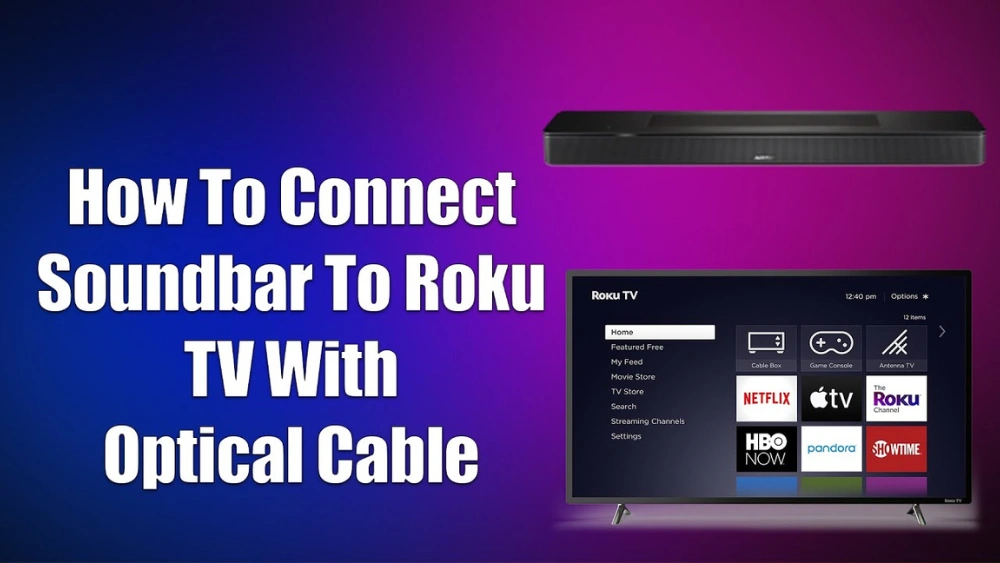
Are you tired of dull, lifeless sound from your Roku TV? Connecting a soundbar can instantly boost your audio experience, making every movie, show, and game come alive.
If you’re wondering how to do this using an optical cable, you’re in the right place. This simple connection can deliver clear, powerful sound without the hassle of complicated setups. Keep reading, and you’ll learn exactly how to connect your soundbar to your Roku TV with an optical cable—step by step—so you can enjoy immersive sound in no time.
Check Compatibility
Before you connect your soundbar to your Roku TV using an optical cable, it’s crucial to check if both devices are compatible. This ensures a smooth connection and avoids frustration later on. Taking a moment to verify compatibility can save you time and enhance your audio experience.
Identify Optical Ports
Look closely at the back of your Roku TV and soundbar to find the optical ports. These ports are usually labeled as “Optical,” “Digital Audio Out,” or “TOSLINK.”
The optical port is a small, square-shaped socket with a protective flap or a clear plastic cover. If you don’t see this port on either device, an optical cable connection won’t work.
Have you ever tried to plug in a cable only to realize the port wasn’t there? Spotting these ports first prevents that hassle.
Verify Soundbar Support
Just because your soundbar has an optical port doesn’t guarantee it supports input from the Roku TV. Check the soundbar’s manual or specifications online to confirm it accepts optical audio input.
Some soundbars require you to switch input modes manually. Make sure you understand how to select the optical input on your soundbar.
Also, verify if your soundbar supports the audio formats your Roku TV outputs over the optical connection. Otherwise, you might get no sound or poor quality.

Credit: www.youtube.com
Gather Necessary Equipment
Before connecting your soundbar to a Roku TV using an optical cable, gather all the necessary equipment. Having the right tools ready makes the setup quick and easy. This step saves time and avoids frustration during installation.
Optical Cable Types
Choose the correct optical cable for your devices. Most soundbars and Roku TVs use TOSLINK cables. These cables have a square-shaped connector with a small door to protect the fiber optic tip. Some optical cables come with different connectors, so check your device’s port first.
- TOSLINK cables: Standard for most TVs and soundbars
- Mini-TOSLINK cables: Smaller connector, less common
- Fiber optic cables: Transmit digital audio through light
Pick a cable length that suits your room setup. Too short cables limit placement, while too long cables may clutter the area.
Additional Accessories
Some setups need extra accessories for smooth connection. Check if your soundbar or Roku TV requires these items:
- Optical cable adapters: Help fit different port sizes
- Audio converters: Change signal types if ports don’t match
- Cable clips or ties: Keep cables neat and secure
Having these accessories on hand ensures a clean and functional connection.
Prepare Your Devices
Preparing your devices before connecting a soundbar to a Roku TV with an optical cable is essential. This step ensures a smooth setup and avoids any damage to your equipment. Take your time to get everything ready for the best audio experience.
Power Off Devices
Turn off both your Roku TV and soundbar before starting the connection. This prevents any electrical issues or interference during setup. Unplug them from the power source if possible. It keeps the devices safe while you work on the connections.
Locate Optical Inputs And Outputs
Find the optical output port on your Roku TV. It is usually labeled as “Optical Out” or “Digital Audio Out.” Next, locate the optical input on your soundbar, often marked as “Optical In.” Both ports look like small, square-shaped sockets. Make sure they are clean and free of dust for a secure connection.
Connect The Optical Cable
Connect the optical cable from your soundbar to the Roku TV’s optical audio output. Ensure both ends fit securely for clear sound transmission. This connection delivers high-quality audio for a better viewing experience.
Connecting your soundbar to your Roku TV using an optical cable can dramatically improve your audio experience. Optical cables are known for delivering clearer sound, making them a popular choice for home entertainment setups. This connection method is straightforward and doesn’t require any technical expertise. Let’s dive into the process, ensuring you get the best sound quality possible.Plug Into Roku Tv
Start by locating the optical port on your Roku TV. It’s usually labeled as “Optical” or “Digital Audio Out.” The port is often found on the back of your TV alongside other connection options. Once you’ve found the port, gently insert one end of the optical cable into it. Make sure the cable clicks into place, indicating a secure connection. Using the right port is crucial for sound clarity, so double-check that you’ve connected to the optical output. This ensures the sound travels from your TV to the soundbar without any loss in quality.Attach To Soundbar
Now, turn your attention to your soundbar. Find the optical input port, which should be similar to the one on your Roku TV. Insert the other end of the optical cable into this port. Again, listen for a click to confirm a secure fit. Once connected, power on both your TV and soundbar. You should immediately notice the improved audio quality. The optical connection allows for a richer sound, enhancing your viewing experience. Does the sound from your favorite show feel more immersive? If you notice a significant improvement, you’re on the right track! This simple yet effective setup can transform your living room into a mini-theater, maximizing your entertainment enjoyment.Configure Roku Tv Audio Settings
Configuring your Roku TV audio settings is essential to get the best sound quality through your soundbar when using an optical cable. This setup ensures that audio signals are correctly routed and decoded. A quick adjustment here can make a noticeable difference in your viewing experience.
Access Audio Menu
Start by turning on your Roku TV and pressing the Home button on your remote.
Navigate to Settingsand then select Audio.
This menu is where you control all sound output options, so take a moment to familiarize yourself with it.
Select Optical Output
Within the Audio menu, look for the Audio outputoption.
Choose Opticalas your preferred audio output. This tells the Roku TV to send sound through the optical cable to your soundbar.
If you don’t see this option, make sure your optical cable is properly connected and your soundbar is powered on.
Adjust Audio Format
After selecting the optical output, find the Audio formatsettings.
Pick a format compatible with your soundbar, such as Dolby Digitalor PCM. If you’re unsure, start with PCM, as it works with most devices.
Test the sound by playing a video or music. If you notice any audio issues, switch formats until you find the one that sounds best.
Credit: www.youtube.com
Set Up Soundbar Audio Input
Setting up your soundbar’s audio input correctly is key to enjoying crisp, clear sound from your Roku TV using an optical cable. This process ensures that the soundbar receives the right signal type and plays audio without glitches or delays. Let’s focus on configuring your soundbar to recognize the optical input and verify that everything is working perfectly.
Choose Optical Input Mode
Most soundbars come with multiple input options like HDMI, Bluetooth, and optical. To get started, you need to switch your soundbar to the optical input mode. This is often done using the remote control or a button on the soundbar itself.
- Look for a button labeled “Input,” “Source,” or something similar on your soundbar’s remote.
- Press it repeatedly until “Optical” or “Digital Audio” appears on the soundbar’s display.
- If your soundbar lacks a display, check the manual for the right input selection method.
Choosing the optical input tells your soundbar to listen for signals coming through the optical cable, avoiding confusion with other sources. Have you ever noticed sound issues because the wrong input was selected? This step prevents that common problem.
Test Sound Output
After selecting the optical input, testing the sound output is essential. You want to confirm that your Roku TV is sending audio through the optical cable and that your soundbar is playing it correctly.
- Turn on your Roku TV and play a video or music with clear audio.
- Check if the sound is coming from the soundbar, not the TV’s built-in speakers.
- If there’s no sound, double-check that the optical cable is securely connected at both ends.
- Also, verify your Roku TV’s audio settings to ensure optical output is enabled.
Testing this early saves time and frustration. If you don’t hear sound, ask yourself: have I checked every connection and setting? Troubleshooting now is easier than later when you want to enjoy your favorite shows.
Troubleshooting Tips
Connecting a soundbar to a Roku TV using an optical cable usually works smoothly. Still, some issues can occur. Troubleshooting helps fix common problems quickly. Below are key tips to solve audio issues and ensure a clear sound experience.
No Sound Issues
Check if the optical cable is fully plugged into both devices. Sometimes the cable looks connected but is loose. Make sure the TV volume is not muted or set too low. Verify the soundbar is powered on and set to the correct input mode. On the Roku TV, go to settings and select the audio output as “Optical” or “Digital Sound Out.” This ensures the TV sends sound through the optical cable.
Audio Delay Problems
Audio delay happens when sound does not match the picture. Adjust the soundbar’s audio delay settings. Many soundbars have a remote or app to change this. On Roku TV, check if any audio processing options cause delay and turn them off. Restart both devices to refresh connections. Keep the optical cable away from other electronics that might cause interference.
Cable And Connection Checks
- Inspect the optical cable for any visible damage or bends.
- Replace the cable if it looks worn out or broken.
- Confirm that the optical ports on the TV and soundbar are clean and free of dust.
- Try using a different optical cable to rule out cable defects.
- Test the soundbar with another device to confirm it works properly.
Optimize Sound Quality
Optimizing sound quality enhances your viewing experience greatly. Connecting your soundbar to Roku TV using an optical cable delivers clear audio. Yet, fine-tuning settings on both devices ensures the best sound output. Adjusting your soundbar and TV audio helps balance volume, clarity, and bass. This way, every word and sound effect comes through perfectly.
Adjust Soundbar Settings
Start by accessing your soundbar’s menu or remote control. Look for audio settings like bass, treble, and sound modes. Many soundbars include presets such as movie, music, or dialogue. Choose the mode that fits your current content. Lower or raise bass and treble to avoid distortion or flat sound.
Some soundbars offer an equalizer (EQ). Use the EQ to manually balance frequencies. Small tweaks improve vocals and background sounds. Try these tips:
- Increase bass slightly for action scenes or music.
- Boost treble for clearer dialogue and vocals.
- Use surround sound mode for an immersive experience.
Fine-tune Tv Audio
Next, check your Roku TV’s audio settings. Go to the settings menu and select audio or sound options. Set the audio output to “Optical” or “Digital Audio Out.” This ensures sound passes through the optical cable correctly.
Disable your TV’s internal speakers to avoid echo or sound overlap. Adjust volume levels on the TV to a moderate level. Let the soundbar handle most of the audio output.
Some Roku TVs offer sound enhancements like night mode or speech clarity. Enable these features for improved listening in different environments. Experiment with settings until the sound feels balanced and natural.

Credit: www.youtube.com
Frequently Asked Questions
How Do I Connect A Soundbar To Roku Tv?
To connect, plug one end of the optical cable into the Roku TV’s optical out port. Connect the other end to the soundbar’s optical input. Select the optical input on your soundbar. Adjust the Roku TV audio settings to use the optical output.
Can I Use An Optical Cable With Any Roku Tv?
Most Roku TVs have an optical audio output. Check your model’s specifications to confirm. Optical cables provide high-quality digital audio. They are compatible with most soundbars supporting optical input.
Why Is My Soundbar Not Working With Roku Tv Optical Cable?
Ensure the optical cable is firmly connected on both ends. Check if the Roku TV audio output is set to optical. Verify the soundbar input source is set to optical. Replace the cable if damaged or try a different input on the soundbar.
Does Optical Cable Support Surround Sound On Roku Tv?
Yes, optical cables support Dolby Digital 5. 1 surround sound on Roku TVs. However, some advanced formats like Dolby Atmos require HDMI ARC or eARC connections. Optical cables deliver excellent audio quality for most home theater setups.
Conclusion
Connecting your soundbar to Roku TV with an optical cable is simple. Just plug the cable into both devices and select the right input on your TV. This connection gives clear, high-quality sound for a better experience. No extra settings or apps are needed.
Enjoy your favorite shows with improved audio right away. Keep the cable secure to avoid interruptions. Now, your home entertainment feels more complete and enjoyable. Try it today and hear the difference yourself.