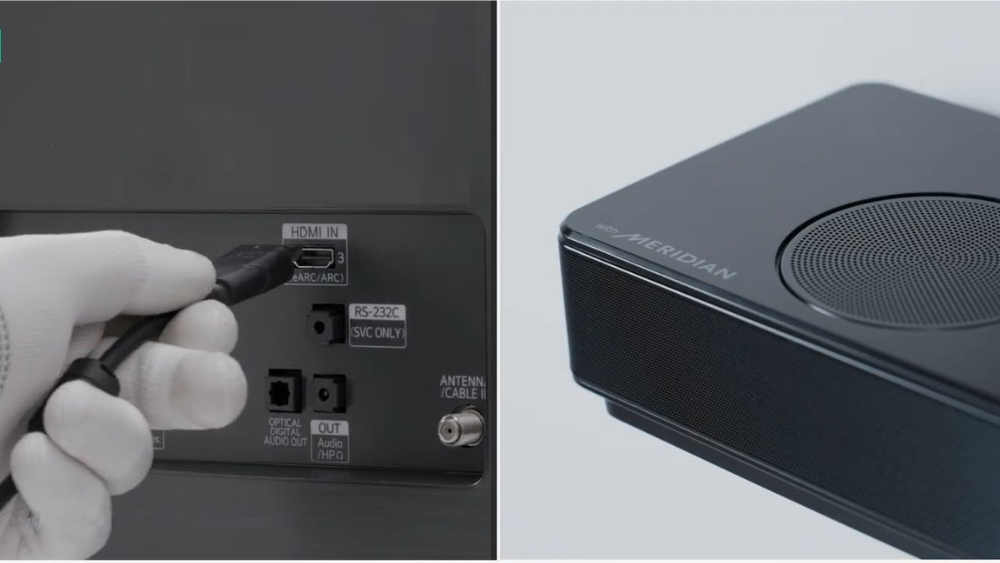
Are you ready to take your TV sound to the next level? Connecting your LG soundbar to your LG TV can transform your watching experience with richer, clearer audio.
But if you’re not sure how to make the connection, don’t worry—you’re in the right place. This guide will walk you through simple, step-by-step instructions to get your soundbar hooked up quickly and easily. By the end, you’ll enjoy immersive sound that makes every movie, show, and game more exciting.
Keep reading to discover how effortless it can be to boost your home entertainment setup.

Credit: www.youtube.com
Choosing The Right Connection Method
Choosing the right connection method is key to enjoying clear, powerful sound from your LG soundbar and TV. Each option offers unique benefits and works best in different setups. Understanding these options helps you pick the easiest and most effective way to connect your devices.
Some connections support high-quality audio and control features, while others offer simple setups. Your choice depends on the ports available on your TV and soundbar, and the type of audio experience you want.
Hdmi Arc
HDMI ARC (Audio Return Channel) is the best choice for most LG TVs and soundbars. It sends audio and control signals through a single HDMI cable. This connection allows you to control the soundbar volume with your TV remote. It also supports high-quality sound formats like Dolby Atmos.
Look for the HDMI port labeled “ARC” on both devices. Use a high-speed HDMI cable to connect them. This method reduces cable clutter and offers the best audio experience.
Optical Cable
Optical cable is a common alternative when HDMI ARC is unavailable. It transmits digital audio signals using light, ensuring clear sound quality. This connection supports surround sound formats but lacks some control features.
Connect the optical cable to the “Optical Out” port on the TV and “Optical In” on the soundbar. Secure the cable properly to avoid signal loss. Optical cables are good for stable, high-quality sound without HDMI.
Bluetooth
Bluetooth offers a wireless connection between your LG TV and soundbar. It removes cables and allows flexible placement of the soundbar. The setup is simple through the TV’s Bluetooth menu.
Sound quality over Bluetooth may not match wired connections. It can experience some audio delay or interference. Use Bluetooth if you want convenience and don’t mind slight sound quality changes.
Auxiliary Cable
Auxiliary (3.5mm) cable connects the TV’s headphone jack to the soundbar’s aux input. It is an easy and cheap option, especially for older TVs without digital audio outputs.
This connection offers basic stereo sound. It does not support surround sound or advanced audio formats. Use the aux cable for simple setups or as a backup connection.
Preparing Your Devices
Preparing your devices is a key step before connecting your LG soundbar to your LG TV. This process ensures smooth setup and optimal sound quality. Taking time to get ready helps avoid common connection issues and saves time.
Check Compatibility
Ensure your LG soundbar and LG TV support compatible connection options. Look for HDMI ARC, Optical, or Bluetooth features on both devices. Consult the user manuals or product specifications for confirmation. Compatibility guarantees the best audio experience and easy setup.
Power Off Devices
Turn off both your LG TV and soundbar before starting the connection. This step prevents electrical damage and signal interference. Unplugging devices from the power source is even safer during cable connections. Powering off prepares devices for a clean and safe setup.
Gather Necessary Cables
Collect the right cables based on your connection type. For HDMI ARC, use a high-speed HDMI cable. For Optical connections, find a Toslink optical cable. Have a Bluetooth remote or device ready if you plan a wireless link. Having all cables and tools ready speeds up installation.
Connecting Via Hdmi Arc
Connecting your LG soundbar to your LG TV via HDMI ARC is a straightforward process that can enhance your audio experience significantly. HDMI ARC (Audio Return Channel) simplifies the connection and enables seamless audio transmission between your TV and soundbar. Let’s dive into how you can easily set this up.
Locate Hdmi Arc Ports
First, identify the HDMI ARC port on your LG TV. Typically, you’ll find this labeled as “HDMI (ARC)” on the back panel of your TV. ARC ports allow bidirectional communication between your devices, making it possible to control the soundbar with your TV remote.
Next, locate the HDMI ARC port on your soundbar. This is usually marked similarly and can be found on the rear or side of the soundbar. Ensuring both devices have ARC capabilities is crucial for this setup.
Connect Hdmi Cable
With the ports located, connect one end of your HDMI cable to the HDMI ARC port on the TV and the other end to the soundbar’s ARC port. Ensure the cable is securely plugged in to avoid connectivity issues.
Using a high-speed HDMI cable can improve audio quality and reduce signal loss. If you have one handy, it’s worth using it for this connection.
Enable Hdmi Arc On Tv
To activate HDMI ARC on your LG TV, navigate to the settings menu. Look for ‘Sound’ or ‘Audio’ settings and find the option to enable ARC. This may be under ‘Sound Out’ settings.
Enabling ARC might require you to toggle some settings or restart the TV. If the sound doesn’t come through immediately, double-check that ARC is turned on.
Configure Soundbar Settings
Finally, adjust the settings on your soundbar to receive audio via HDMI ARC. This often involves selecting the correct input mode on the soundbar’s control panel or remote.
Check the soundbar’s manual for specific instructions if you’re unsure. Setting the input correctly ensures the audio is routed through the soundbar, providing a superior listening experience.
Does your audio sound crisper and more immersive now? Taking a few minutes to set up HDMI ARC can transform your viewing experience. Do you have any tips or tricks for connecting devices seamlessly? Share your thoughts below!

Credit: www.youtube.com
Connecting Via Optical Cable
Connecting your LG soundbar to your LG TV using an optical cable is a straightforward way to enjoy crystal-clear audio. This method ensures digital sound quality, free from interference often found in analog connections. If you want a simple setup without compromising sound, the optical cable is a solid choice.
Locate Optical Ports
First, find the optical ports on both your TV and soundbar. The port is usually labeled as “Optical,” “Digital Audio Out,” or “Optical Out.” On LG TVs, it’s often on the back or side panel and looks like a small square with a protective flap.
Check your soundbar’s rear panel for a matching input labeled “Optical In.” If you’re unsure, consult the user manual or look for a small light inside the port when the cable is unplugged.
Attach Optical Cable
Take your optical cable and gently remove the protective caps on both ends. Align the cable’s connector with the port carefully; it fits only one way. Push it in firmly but avoid forcing it to prevent damage.
Once connected, the cable will securely snap into place. This connection carries digital audio signals, so any loose or poor connection can affect sound quality.
Set Tv Audio Output
Next, turn on your TV and navigate to the audio settings menu. Look for the option labeled “Sound Out” or “Audio Output.”
- Select “Optical” or “Digital Out” as your preferred audio output.
- Disable the TV speakers if you want all sound to come through the soundbar exclusively.
This step tells your TV to send sound through the optical cable instead of the built-in speakers.
Adjust Soundbar Input
Finally, power on your soundbar and switch its input source to “Optical” or “Digital In.” Most LG soundbars have a dedicated input button or use the remote control for this.
You should see a confirmation on the soundbar’s display, indicating it’s ready to receive audio from the TV. Play some content to check if the sound is coming through clearly.
If you don’t hear anything, double-check all connections and inputs. Sometimes toggling the input settings again fixes minor glitches.
Connecting Via Bluetooth
Connecting your LG soundbar to an LG TV via Bluetooth offers a clean, wire-free setup. This method allows audio to stream wirelessly, enhancing your viewing experience. The process is simple and quick, requiring only a few steps to pair both devices.
Activate Bluetooth On Tv
First, turn on your LG TV and press the Settings button on the remote. Navigate to the “Sound” menu and select “Sound Out.” Choose “Bluetooth” as the output option. The TV will start searching for nearby Bluetooth devices automatically.
Put Soundbar In Pairing Mode
Next, power on your LG soundbar. Press and hold the Bluetooth button on the soundbar until the Bluetooth indicator starts blinking. This blinking light signals that the soundbar is ready to pair with the TV.
Complete Pairing Process
On the TV screen, wait for the soundbar name to appear in the Bluetooth device list. Select the soundbar and confirm the connection. The TV will notify you once pairing succeeds, and the blinking light on the soundbar will turn solid.
Test Wireless Connection
Play any video or music on your TV. Check if the sound comes through the soundbar. Adjust the volume using the TV remote to ensure the connection works perfectly without wires.

Credit: www.youtube.com
Connecting Via Auxiliary Cable
Connecting your LG soundbar to your LG TV using an auxiliary cable is a straightforward and reliable way to enjoy improved audio without the hassle of complicated setups. This method is perfect if you want a quick connection that delivers clear sound for movies, music, and games. Let’s walk through the simple steps to get your devices talking to each other via the auxiliary input.
Identify Auxiliary Ports
First, locate the auxiliary ports on both your LG TV and soundbar. These ports are usually labeled as “AUX,” “Audio In,” or feature a headphone symbol. They are typically 3.5mm jacks, similar to standard headphone plugs.
If you don’t see a 3.5mm port on your TV, check for RCA audio outputs (red and white ports). In that case, you might need a 3.5mm to RCA cable to connect the soundbar properly.
Plug In Auxiliary Cable
Take your auxiliary cable and plug one end into the TV’s auxiliary output port. Then, connect the other end to the soundbar’s auxiliary input. Make sure both ends are firmly inserted to avoid loose connections that can cause audio issues.
It’s a good idea to test the cable for any damage before connecting. A faulty cable can lead to static or no sound at all, which can be frustrating to troubleshoot later.
Set Audio Output On Tv
Next, turn on your LG TV and navigate to the audio settings menu. Look for the “Sound Out” or “Audio Output” option. Select “Headphones,” “External Speaker,” or “Auxiliary” as the output to ensure the TV sends sound through the auxiliary port.
If you skip this step, your TV might continue to send audio through its built-in speakers, leaving your soundbar silent. Have you ever wondered why your new sound system didn’t work right away? This setting is often the reason.
Select Input On Soundbar
Finally, power on your LG soundbar and select the AUX input mode. You can do this using the remote or the buttons on the soundbar itself. This tells the soundbar to listen for audio coming through the auxiliary cable.
If you don’t select the correct input, your soundbar won’t play any sound despite being connected. Take a moment to confirm the input; it can save you from unnecessary troubleshooting later.
Troubleshooting Common Issues
Troubleshooting common issues when connecting your LG soundbar to your LG TV can save you a lot of time and frustration. Sometimes, even a simple setting or loose connection causes problems that seem complex. Let’s look at some frequent problems and how you can quickly fix them to enjoy your soundbar’s full potential.
No Sound Output
If your soundbar is connected but you hear no sound, first check the volume settings on both the TV and the soundbar. Are they muted or set too low? Also, verify the input source on the soundbar matches the cable connection (e.g., HDMI ARC or optical).
Try switching between audio output options on your TV’s sound settings. Many LG TVs let you choose between TV speakers and external speakers—make sure external speakers or soundbar is selected.
Connection Drops
Have you noticed the sound cutting out randomly? This can happen due to wireless interference or a loose cable connection. If you’re using Bluetooth, ensure there are no obstacles blocking the signal and that your soundbar firmware is up to date.
For wired connections, inspect all cables and replace any that look damaged. A poor-quality HDMI or optical cable often causes connection instability.
Audio Delay Problems
Does the sound lag behind the picture? This delay can ruin your viewing experience, especially during fast-paced scenes. Check if your TV has an audio sync or lip-sync adjustment in the settings and try tweaking it.
Sometimes, disabling advanced audio processing features on your soundbar reduces delay. If you use an HDMI ARC connection, try switching to an optical cable to see if delay improves.
Resetting Devices
When all else fails, resetting your LG TV and soundbar often clears hidden glitches. Turn off both devices, unplug them from power for about a minute, then plug back in and power on.
Your soundbar might have a dedicated reset button or reset option in its menu—use it to restore factory settings. Remember, after resetting, you’ll need to reconnect and reconfigure your devices.
Optimizing Sound Settings
Once your LG soundbar is connected to your LG TV, fine-tuning the sound settings can make a big difference in your listening experience. Optimizing these settings ensures you get clear dialogue, rich bass, and immersive sound effects tailored to your preferences. Let’s dive into how you can adjust these options for the best audio performance.
Adjust Volume Levels
Balancing the volume between your TV and soundbar is crucial. If the TV speakers are still active, they might clash with the soundbar, causing echo or uneven sound. Turn off your TV speakers or reduce their volume while increasing the soundbar’s volume for clearer, more powerful audio.
Try watching a dialogue-heavy scene and tweak the volume until voices sound natural without distortion. You might find that lowering the TV volume to zero and controlling all sound through the soundbar works best for you.
Select Sound Modes
Your LG soundbar offers multiple sound modes designed for different types of content. Whether you’re watching movies, listening to music, or playing games, selecting the right mode can enhance your experience. Modes like “Cinema,” “Music,” or “Surround” change the audio profile to suit the content.
Test these modes by switching between your favorite shows and songs. Notice how the bass, treble, and surround effects shift. Which mode makes you feel more engaged? Don’t hesitate to change modes depending on what you’re watching or listening to.
Update Firmware
Keeping your soundbar’s firmware updated can improve its performance and add new features. LG regularly releases updates that fix bugs and optimize sound quality. Check the soundbar’s settings menu or LG’s official website to see if a new update is available.
Updating firmware might seem technical, but it’s usually a simple process done via Wi-Fi or USB. Have you checked your soundbar’s firmware lately? An update could solve any audio issues you’ve been experiencing without extra effort.
Use Remote Controls Effectively
Mastering the remote controls for both your LG TV and soundbar can save you frustration. Many LG soundbars allow you to control volume, mute, and sound modes directly from the TV remote through HDMI-CEC. This means fewer remotes to juggle and smoother adjustments.
Explore your remotes to find shortcuts or customizable buttons. For example, some remotes let you quickly switch sound modes or toggle between input sources. Have you tried syncing your remotes yet? It can make managing your audio setup much more convenient.
Frequently Asked Questions
How Do I Connect My Lg Soundbar To My Lg Tv?
Use an HDMI ARC cable or optical cable to connect the soundbar to the TV. Select the correct input on your TV settings to enable soundbar output.
Can I Use Bluetooth To Connect Lg Soundbar To Lg Tv?
Yes, if both devices support Bluetooth, enable pairing mode on both. Connect through the TV’s Bluetooth settings for wireless audio streaming.
What Is The Best Cable For Lg Soundbar And Tv Connection?
HDMI ARC is the best cable for optimal audio quality and easy control. Optical cables are a good alternative if HDMI ARC is unavailable.
How To Fix No Sound From Lg Soundbar Connected To Lg Tv?
Check cable connections and TV audio output settings. Ensure the soundbar is powered on and set to the correct input source.
Conclusion
Connecting your LG soundbar to your LG TV is simple and quick. Use the right cable or Bluetooth for the best sound experience. Check the TV and soundbar settings to match them correctly. A good connection makes your movies and shows much better.
Enjoy clear and powerful audio every time you watch. Keep this guide handy for easy setup whenever you need. Sound and picture working together bring your entertainment to life.