
Are you ready to experience rich, crystal-clear sound from your Harman Kardon Bluetooth speaker? Connecting your speaker might seem tricky at first, but it’s actually quick and simple.
Whether you want to enjoy your favorite tunes, podcasts, or calls, this guide will walk you through every step. By the end, you’ll know exactly how to pair your device and get the most out of your speaker’s powerful audio.
Keep reading, and let’s get your music playing like never before!
Prepare Your Speaker
Getting your Harman Kardon Bluetooth speaker ready is the first step to enjoy great sound. Proper preparation ensures a smooth connection and clear audio. Follow these simple actions to prepare your speaker for pairing.
Charge The Battery
Make sure the speaker battery is fully charged. Use the original charging cable for best results. Charging usually takes a few hours. A full battery prevents interruptions during use. Check the battery indicator light to confirm charging status.
Turn On The Speaker
Press the power button to switch on your speaker. The button is often marked with a power symbol. Wait for the speaker to start up completely. You might hear a sound or see a light indicating it is on. Keep the speaker on until you finish pairing.
Activate Bluetooth Mode
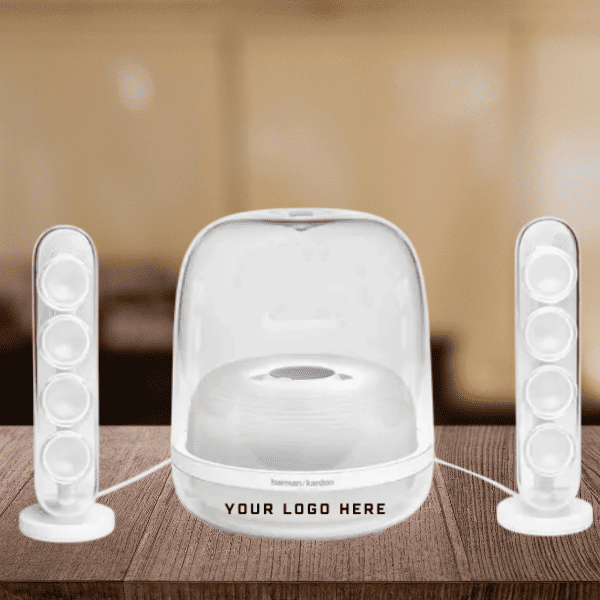
Enable Bluetooth mode to allow device connection. Press the Bluetooth button on the speaker until a light blinks. The blinking light means the speaker is ready to pair. If the light does not blink, press and hold the button. Stay close to your device during this process.
Credit: promotionalwears.com
Enable Bluetooth On Your Device
Before you can enjoy the rich, immersive sound of your Harman Kardon Bluetooth speaker, you need to enable Bluetooth on your device. This step is crucial because it allows your phone, tablet, or computer to search for and connect to the speaker wirelessly. Without turning on Bluetooth, your device won’t recognize the speaker, making it impossible to pair and play your favorite tunes.
Open Bluetooth Settings
Start by unlocking your device and navigating to the settings menu. Look for the Bluetooth option—it’s usually listed under “Connections” or “Wireless & Networks.”
Tap on Bluetooth to open the settings page where you can manage your device’s Bluetooth connections. Here, you will see a toggle switch to turn Bluetooth on or off.
Switch it on to activate Bluetooth. You’ll know it’s active when the toggle turns blue or green, depending on your device. This simple action makes your device ready to detect nearby Bluetooth devices like your Harman Kardon speaker.
Make Device Discoverable
Once Bluetooth is on, your device needs to be discoverable so the speaker can find it. On most devices, this happens automatically when you open the Bluetooth settings page.
However, some devices require you to manually enable discoverability. Look for a setting or option called “Visible to other devices” or “Make device discoverable,” and activate it.
Remember, discoverability usually lasts for a limited time, often a couple of minutes. This window gives your Harman Kardon speaker enough time to detect and connect to your device. Have you noticed how quickly some devices disappear from the list if you don’t connect right away? That’s because discoverability turned off to save battery.
Pairing The Speaker With Your Device
Begin by turning on the Harman Kardon speaker and enabling Bluetooth on your device. Search for the speaker’s name in the Bluetooth list, then tap to connect. Once paired, your device will play audio through the speaker automatically.
Pairing your Harman Kardon Bluetooth speaker with a device is simple. Connecting enables you to enjoy quality sound in minutes. Follow these easy steps to ensure a seamless pairing process.Search For Available Devices
Turn on Bluetooth on your phone or tablet. Access the Bluetooth settings. Your device will start searching for available devices nearby. Ensure your Harman Kardon speaker is powered on. It should be in pairing mode. This helps your device recognize it faster.Select Your Harman Kardon Speaker
Look for your Harman Kardon speaker in the list of devices. It might appear with the brand name or model number. Click on the speaker name to select it. This action initiates the pairing process.Confirm The Pairing
Your device might ask for confirmation to pair. Accept the pairing request. Wait a few seconds for the devices to connect. Once paired, your speaker will be ready to play music or audio from your device. Enjoy your favorite tunes with enhanced sound quality.Troubleshooting Connection Issues
Experiencing trouble connecting your Harman Kardon Bluetooth speaker can be frustrating, especially when you just want to enjoy your favorite tunes. Connection issues can stem from various causes, but most of them are fixable with a few simple steps. Let’s look at some practical ways to get your speaker back online quickly.
Reset The Speaker
Resetting your Harman Kardon speaker often clears out any glitches causing connection problems. Locate the reset button or check the manual for the reset process specific to your model. Usually, holding the power button for about 10 seconds or pressing a dedicated reset button will restore factory settings.
After the reset, the speaker will forget all previously paired devices, so you’ll need to set up the connection again. Have you noticed how a quick reset can resolve issues that seemed complicated at first?
Forget And Re-pair Device
Your phone or computer might be holding onto outdated connection data. Go to your device’s Bluetooth settings and find your Harman Kardon speaker under paired devices. Select “Forget” or “Remove” to delete the old connection.
Once done, turn off Bluetooth on your device, then turn it back on. Re-scan for your speaker and pair as if it’s the first time. This process often clears hidden errors and refreshes the connection.
Check For Interference
Bluetooth signals can be disrupted by other wireless devices or physical obstacles. Are you trying to connect in a room crowded with Wi-Fi routers, microwaves, or cordless phones? These can block or weaken the Bluetooth signal.
Move your speaker and device closer together, and away from electronics that might interfere. Even a small change in position can improve connection quality significantly. Have you tried changing spots to see if it helps?
Optimizing Sound Quality
Optimizing sound quality is key to getting the most out of your Harman Kardon Bluetooth speaker. Small adjustments can make a big difference in how your music sounds. Paying attention to volume and speaker placement helps you create a richer, clearer audio experience.
Adjust Volume Levels
Start by setting your device’s volume to a moderate level before adjusting the speaker’s volume. Avoid maxing out either one, as this can cause distortion and reduce sound clarity.
Try increasing the speaker’s volume gradually until you hear the sound crisp and balanced. If the bass feels overwhelming or the highs are too sharp, lower the volume slightly. This simple practice can prevent sound from becoming muddy or harsh.
Position The Speaker Properly
Where you place your Harman Kardon speaker matters. Position it on a stable surface, away from corners or walls, to prevent unwanted echoes or bass buildup.
Experiment with different spots in the room to find where the sound feels the most natural. Have you noticed how moving a speaker just a few feet can change the entire listening experience? Try placing it at ear level and facing towards your main listening area for the best results.

Credit: www.avforums.com

Credit: www.londondrugs.com
Frequently Asked Questions
How Do I Pair Harman Kardon Bluetooth Speaker?
Turn on your speaker and enable Bluetooth on your device. Select “Harman Kardon” from the device list to pair. Confirm pairing if prompted. The speaker will connect automatically next time.
Why Won’t My Device Connect To Harman Kardon Speaker?
Ensure the speaker is in pairing mode and Bluetooth is active on your device. Restart both devices if needed. Check for interference and make sure the speaker isn’t connected to another device.
Can I Connect Multiple Devices To Harman Kardon Bluetooth Speaker?
Most Harman Kardon speakers support one active connection at a time. You can switch between devices but simultaneous playback from multiple devices is usually not supported.
How To Reset Harman Kardon Bluetooth Speaker Connection?
Turn off the speaker. Press and hold the Bluetooth and volume up buttons for 5-10 seconds. The speaker will reset and enter pairing mode. Reconnect your device afterward.
Conclusion
Connecting to your Harman Kardon Bluetooth speaker is quick and simple. Just follow the steps carefully. Make sure your speaker is charged and in pairing mode. Use your device’s Bluetooth settings to find the speaker. Tap to connect, and enjoy clear, wireless sound.
If connection issues arise, restart both devices and try again. This guide helps you get music playing without hassle. Now, you can enjoy your favorite songs anytime, anywhere. Easy setup means more time for great sound and less frustration.