Are you ready to boost your TV’s sound and enjoy crystal-clear audio right at home? Connecting your Vizio soundbar to your TV can transform your viewing experience, making every movie, show, and game come alive.
But if you’ve ever felt stuck or unsure about the setup, don’t worry—you’re not alone. In this guide, you’ll discover simple, step-by-step instructions that make connecting your Vizio soundbar quick and hassle-free. Keep reading, and you’ll be enjoying rich, powerful sound in no time.
Preparing Your Devices
Preparing your devices is a key step before connecting the Vizio soundbar to your TV. It ensures smooth setup and better sound quality. Taking a few moments to get ready saves time and avoids issues later. Follow these simple tips to prepare both your TV and soundbar properly.
Check Compatibility
Confirm that your TV supports the connection type of the Vizio soundbar. Most soundbars connect via HDMI ARC, optical cable, or Bluetooth. Check your TV’s ports and settings menu to identify available options. Verify the soundbar’s input matches one of these ports. Compatibility ensures a seamless connection and clear audio output.
Gather Necessary Cables
Collect all cables needed for the connection before starting. The most common cables are:
- HDMI cable (preferably HDMI ARC compatible)
- Optical audio cable
- Power cords for both devices
Having these cables ready helps avoid interruptions during setup. Keep them within easy reach for quick access.
Power On Both Devices
Turn on your TV and Vizio soundbar before connecting them. Powering both devices allows the TV to detect the soundbar automatically. Use the remote controls or power buttons on each device. Make sure both devices display a ready or home screen. This step prepares them for a smooth connection process.
Credit: www.vizio.com
Connecting Via Hdmi Arc
Connecting your Vizio soundbar to your TV using HDMI ARC provides a simple and high-quality audio experience. HDMI ARC (Audio Return Channel) allows the TV to send audio signals back to the soundbar using a single HDMI cable, eliminating the need for extra wires. This connection supports better sound synchronization and often enables control of the soundbar’s volume with your TV remote.
Locate Hdmi Arc Ports
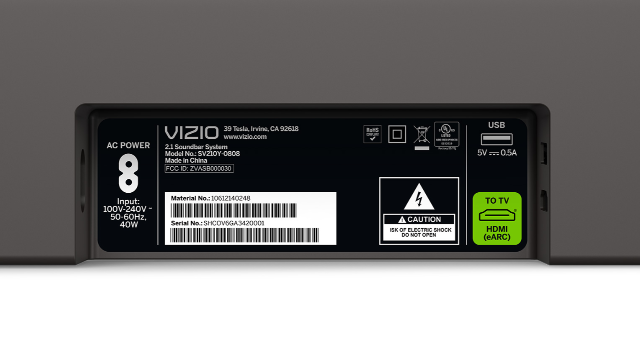
First, find the HDMI ARC port on both your TV and Vizio soundbar. Look for an HDMI port labeled ARCon the back or side of your TV. On the soundbar, the HDMI port should also be marked as ARCor sometimes HDMI Out.
If you don’t see the label clearly, check your TV and soundbar manuals. Knowing the exact location saves you time and avoids plugging cables into the wrong ports.
Connect Hdmi Cable
Use a high-speed HDMI cable to connect the HDMI ARC port on your TV to the HDMI ARC port on your Vizio soundbar. Make sure the cable is firmly inserted on both ends to avoid connection issues.
If your cable feels loose or the sound cuts out, try a different cable. A good connection ensures stable audio transmission and better sound quality.
Select Hdmi Input On Tv
After connecting the cable, turn on your TV and soundbar. Go to your TV’s input settings and select the HDMI input that corresponds to the ARC port. This step tells your TV to send audio to the soundbar instead of its internal speakers.
Also, enable CEC (Consumer Electronics Control) in your TV’s settings if available. This lets you control the soundbar volume with your TV remote, making your setup cleaner and easier to use.
Using Optical Cable Connection
Connecting your Vizio soundbar using an optical cable provides excellent sound quality. It’s a straightforward process that enhances your viewing experience. Optical cables transmit digital audio signals, ensuring clear sound without interference. Follow these simple steps to connect your soundbar to your TV.
Find Optical Ports
First, locate the optical ports on both your TV and soundbar. These are often labeled as “Optical” or “Digital Audio Out.” Check the back or side panels of your devices. Use a flashlight if needed to spot these small ports. Ensure both devices have optical ports before proceeding.
Attach Optical Cable
Take your optical cable and remove the protective caps. Insert one end into the TV’s optical port. Make sure it clicks into place securely. Then, connect the other end to the soundbar’s optical port. Double-check both connections for tightness. Loose cables can cause sound issues.
Adjust Tv Audio Settings
Turn on your TV and navigate to the audio settings. Look for the option to select audio output. Choose “Optical” or “Digital Audio Out” as your preferred setting. This directs sound to your Vizio soundbar. Test the sound by playing a video or music. Adjust soundbar settings if necessary to achieve desired volume.

Credit: www.reddit.com
Pairing With Bluetooth
Pairing your Vizio soundbar with your TV using Bluetooth creates a wireless audio experience. It removes the need for cables and offers flexibility in speaker placement. Follow clear steps to ensure a smooth connection and enjoy better sound quality.
Enable Bluetooth On Tv
First, open your TV’s settings menu. Look for the Bluetooth option under “Sound” or “Connections.” Turn on Bluetooth to make your TV discoverable. Some TVs show a list of available devices once Bluetooth is active.
Activate Soundbar Pairing Mode
Next, power on your Vizio soundbar. Press the Bluetooth button on the remote or the soundbar itself. A blinking light indicates the soundbar is ready to pair. Keep the soundbar close to the TV during this step.
Complete Bluetooth Connection
On your TV, select the Vizio soundbar from the list of devices. Confirm the pairing request if prompted. Wait a few seconds for the devices to connect. Once connected, the soundbar light will stop blinking and stay solid.
Configuring Sound Settings
Configuring the sound settings is essential for a great audio experience. Proper settings make sure your Vizio soundbar and TV work well together. This part helps you adjust sound output and volume. Testing the performance confirms the setup is correct. Follow these steps to enjoy clear, balanced audio.
Adjust Tv Audio Output
Start by accessing your TV’s audio settings menu. Change the audio output to “External Speakers” or “Audio System.” This directs sound from the TV to the soundbar. Some TVs require selecting the correct HDMI ARC or Optical output. Make sure the TV speakers are turned off to avoid echo. Save the settings before exiting the menu.
Set Soundbar Volume Levels
Use the soundbar remote to adjust volume levels. Set a comfortable volume that matches your room size. Avoid setting the TV volume too high, as it can cause distortion. Balance the soundbar volume with other devices if connected. Remember, controlling volume from the soundbar often provides the best results.
Test Soundbar Performance
Play different types of audio, such as movies, music, and dialogue. Listen carefully for clarity and balance in the sound. Check if the bass and treble levels suit your preference. Adjust the soundbar’s equalizer settings if available. Ensure no lag or delay between video and audio. This confirms the soundbar is correctly synced with your TV.

Credit: www.youtube.com
Troubleshooting Common Issues
Troubleshooting common issues can save time and improve your sound experience. Problems might occur with sound, delay, or connection. Understanding these issues helps to fix them quickly. Below are simple solutions for frequent problems with Vizio soundbars and TVs.
No Sound From Soundbar
Check the volume on both the TV and the soundbar. Make sure the soundbar is powered on. Confirm the correct input source is selected on the soundbar. Inspect the cables for damage or loose connections. Try using a different cable or port. Ensure the TV audio output is set to the soundbar, not the TV speakers. Restart both devices to reset settings. If using Bluetooth, verify the devices are paired properly.
Audio Delay Problems
Audio delay causes sound to lag behind the picture. Adjust the audio sync settings on your TV or soundbar. Some models have a delay or lip-sync option in the audio menu. Lower the delay value in small steps and test. Use a wired connection instead of Bluetooth for better sync. Avoid using multiple devices between the TV and soundbar. Restart devices to clear temporary glitches.
Connection Drops
Connection drops interrupt sound playback. Check for wireless interference from other devices near the soundbar. Keep the soundbar and TV close to improve signal strength. Update the firmware on both the TV and soundbar to fix bugs. Use a wired connection to avoid wireless dropouts. Reset network settings on the soundbar if using Wi-Fi. Power cycle both devices to refresh connections.
Frequently Asked Questions
How Do I Connect Vizio Soundbar To Tv Wirelessly?
You can connect your Vizio soundbar to TV via Bluetooth. Enable Bluetooth on both devices, then pair them. This provides a cable-free audio experience. Ensure both devices are within range for a stable connection.
What Cables Are Needed To Link Vizio Soundbar To Tv?
Common cables include HDMI ARC, optical audio, and AUX cables. HDMI ARC offers the best sound quality and control. Choose the cable compatible with your TV and soundbar ports for an easy setup.
Why Is My Vizio Soundbar Not Connecting To Tv?
Connection issues may stem from wrong input selection, loose cables, or Bluetooth pairing errors. Check cable connections and input settings. Restart devices and try pairing again. Update firmware if problems persist.
Can I Use Hdmi Arc To Connect Vizio Soundbar?
Yes, HDMI ARC is recommended for connecting your Vizio soundbar. It transmits audio and allows volume control via the TV remote. Ensure your TV supports HDMI ARC and use a compatible HDMI cable.
Conclusion
Connecting your Vizio soundbar to your TV is simple and quick. Choose the right cable or wireless option for your devices. Follow the steps carefully to avoid any issues. Once connected, enjoy clearer sound and better volume. Check your TV and soundbar settings to improve audio quality.
Regularly update your devices for best performance. Now, your home entertainment feels much better. Easy setup, great sound. What’s next? Just sit back and enjoy your favorite shows.