
Are you wondering if your Smart TV can get even smarter with a Fire Stick 4K? You’re not alone.
Many people ask whether this popular streaming device works seamlessly with their existing TV setup. Imagine unlocking a whole new world of shows, movies, and apps without buying a new television. Sounds exciting, right? Keep reading to discover how the Fire Stick 4K can transform your viewing experience and whether it’s the right fit for your Smart TV.
Credit: www.amazon.in
Fire Stick 4k Basics
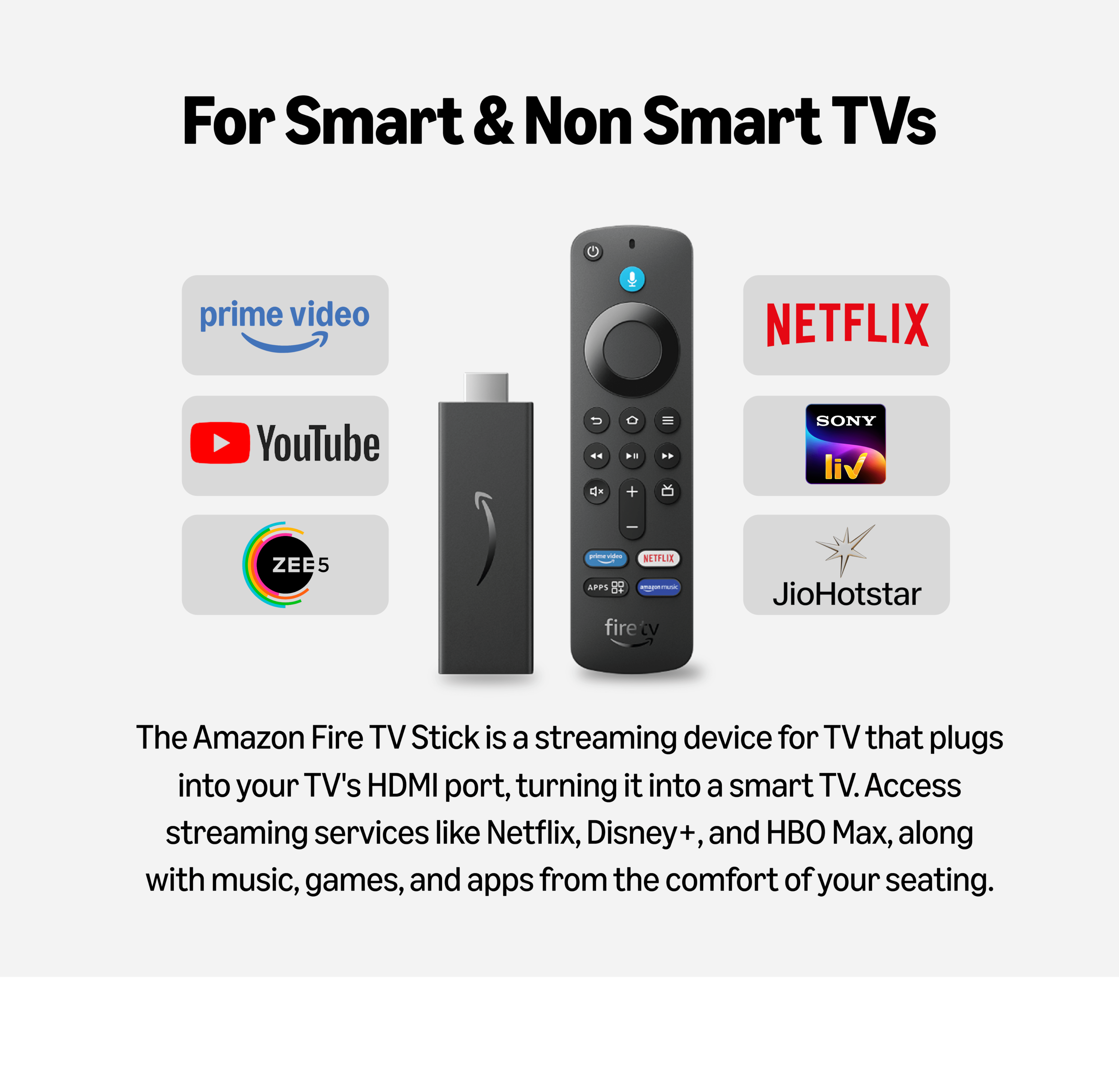
The Fire Stick 4K is a popular streaming device that enhances your TV experience. It plugs into the HDMI port of your TV and lets you access many apps and services. This device streams content in high resolution, making movies and shows look clear and sharp.
Understanding the basics of the Fire Stick 4K helps you decide if it works with your smart TV. It offers several features and has specific compatibility needs. This section covers the essential points to know before using it on your smart TV.
Key Features
- Supports 4K Ultra HD streaming for crisp picture quality
- Includes Alexa voice remote for easy control
- Access to popular apps like Netflix, Prime Video, and YouTube
- Fast performance with quad-core processor
- Supports HDR, HDR10+, and Dolby Vision for vibrant colors
- Simple setup with plug-and-play design
Compatibility Requirements
- TV must have an HDMI port to connect the Fire Stick 4K
- Smart TV needs at least HDCP 2.2 support for 4K streaming
- Internet connection with good speed for smooth streaming
- Power source nearby for the Fire Stick’s USB power cable
- Compatible with most smart TVs, including Samsung, LG, Sony
- Older TVs without HDMI ports will not support the device
Smart Tv Compatibility
The Fire Stick 4K is designed to enhance your streaming experience, but you might wonder if it works seamlessly with your smart TV. Understanding its compatibility with different TV models is key to getting the most out of this device. Let’s dive into what you need to know about using the Fire Stick 4K on your smart TV.
Supported Tv Brands
The Fire Stick 4K generally works with a wide range of TV brands, as long as they meet basic requirements. Brands like Samsung, LG, Sony, Vizio, and TCL are known to support the Fire Stick without issues. However, some older models or less common brands might have limitations, especially with certain smart TV operating systems.
Have you checked if your TV’s software needs an update before plugging in the Fire Stick? Sometimes, updating your smart TV can solve compatibility hiccups and improve performance. It’s worth looking into your TV’s manual or online support to confirm if your model plays well with external streaming devices.
Hdmi Port Necessity
The most important factor for using Fire Stick 4K on any smart TV is having an available HDMI port. The Fire Stick plugs directly into HDMI, so without it, the device won’t connect or display properly. This is a straightforward requirement but often overlooked.
If your TV has multiple HDMI ports, you’re in luck—just pick one and plug in. But if you find your HDMI ports are all in use, consider getting an HDMI switch. This small gadget allows you to connect multiple devices to a single HDMI port, making it easier to use your Fire Stick without unplugging other devices constantly.
Can you imagine missing out on 4K streaming because of a simple port issue? Make sure your setup supports the Fire Stick physically before worrying about software compatibility.
Setup Process
Setting up the Fire Stick 4K on your Smart TV is straightforward, but it does require a few clear steps to get everything running smoothly. The process involves connecting the device, configuring it to your preferences, and linking it to your Wi-Fi and Amazon account. Each step is designed to be user-friendly, even if you’re not very tech-savvy.
Connecting Fire Stick 4k
Start by plugging the Fire Stick 4K into an available HDMI port on your Smart TV. Make sure to connect the included power adapter to ensure the device has enough power. Switch your TV input to the HDMI port where the Fire Stick is connected—you should see the Fire Stick welcome screen within seconds.
It’s worth double-checking the HDMI connection if the screen stays black. Sometimes a loose plug can cause this simple issue. Have you ever tried connecting a device only to find the port was the problem?
Initial Configuration
Once the Fire Stick powers on, you’ll be guided through the initial setup. Use the remote to select your preferred language and accept the terms and conditions. This step customizes your experience and prepares the Fire Stick for use.
Be patient during this phase, as the device may update itself automatically. Interrupting the process can slow things down or cause errors. It’s a bit like giving your Fire Stick its first “breath” of fresh software air.
Wi-fi And Account Setup
Next, connect the Fire Stick to your home Wi-Fi network. The remote lets you choose your network and enter the password. A stable internet connection is crucial here to avoid buffering and ensure smooth streaming.
Then, sign in to your Amazon account or create one if you don’t have it. This account links your Fire Stick to your purchased content and apps. If you share your account with family, consider how this might affect recommendations and viewing history.
Benefits Of Using Fire Stick 4k On Smart Tvs
Using a Fire Stick 4K with a smart TV improves the overall viewing experience. It brings new features and better control. The device adds value to even the newest smart TVs.
This section highlights key benefits of using Fire Stick 4K on smart TVs. It covers streaming options, user interface, and app availability.
Enhanced Streaming Options
The Fire Stick 4K supports many streaming services. It offers access to popular platforms like Netflix, Hulu, and Amazon Prime Video. The device streams in 4K Ultra HD for sharp images. It supports HDR and Dolby Vision for richer colors and contrast. This means better picture quality compared to some built-in smart TV apps.
User Interface Advantages
The Fire Stick 4K has a simple and clean interface. Navigating through apps and content is fast and smooth. The remote includes voice control with Alexa for easy searches. It organizes content in one place, reducing time spent searching. The interface updates regularly to add new features and improve performance.
App Availability
The Fire Stick 4K offers thousands of apps. Many apps are not always available on smart TV stores. This includes games, fitness apps, and niche streaming services. The device also supports regular updates, ensuring apps stay current. Users gain access to a wider variety of entertainment options.
Potential Issues And Fixes
While the Fire Stick 4K is a fantastic tool for streaming your favorite content, using it on a Smart TV can sometimes present unexpected challenges. Understanding potential issues and their fixes can ensure a seamless viewing experience. Let’s dive into some common problems and how you can resolve them.
Connection Problems
Sometimes, connecting your Fire Stick 4K to a Smart TV can be tricky. You might find that the device isn’t recognized or fails to connect properly.
- Ensure your HDMI port is functional by testing it with another device.
- Check the power source; a weak connection can impede the Fire Stick’s functionality.
- Verify your Wi-Fi connection is stable and strong, as this is crucial for streaming.
Have you ever experienced a sudden drop in connectivity? It might be worth considering a Wi-Fi extender to boost your signal.
Performance Troubleshooting
Performance lags can be a real buzzkill when you’re ready to binge-watch. If your Fire Stick 4K is sluggish, it might be time to investigate.
- Clear cache and app data to free up memory and enhance speed.
- Unplug the device for a few seconds and restart it to refresh its system.
- Disable unused apps running in the background to optimize performance.
Have you noticed performance improving after a simple restart? It’s a quick fix that often surprises users with its effectiveness.
Software Updates
Keeping your Fire Stick 4K software up-to-date is crucial for smooth operation. However, update issues can sometimes arise.
- Ensure your device is connected to the internet for automatic updates.
- Manually check for updates in the settings menu if automatic updates fail.
- Consider resetting the device to factory settings if persistent update problems occur.
Could a simple software update be the key to resolving your streaming issues? It’s worth checking regularly to avoid missing out on new features.

Credit: www.instagram.com
Comparing Fire Stick 4k With Built-in Smart Tv Apps
When deciding whether to use a Fire Stick 4K or rely on your smart TV’s built-in apps, understanding the differences can help you get the best streaming experience. Both options offer access to popular streaming services, but they vary in performance, content, and overall ease of use. Let’s break down how they compare in speed, content variety, and user experience.
Speed And Responsiveness
The Fire Stick 4K generally provides faster navigation and quicker app launches than many built-in smart TV systems. Its dedicated hardware and regular updates keep it running smoothly without the lag you might notice on some TV platforms.
Many smart TVs use less powerful processors, which can make apps slow to load or respond. If you’ve ever waited several seconds just to switch between apps on your TV, the Fire Stick 4K’s speed might surprise you.
Content Variety
The Fire Stick 4K offers access to thousands of apps and games through the Amazon Appstore, including niche streaming services that might not be available on your TV’s default apps. This wider content range means you’re less likely to miss out on new or less popular platforms.
Smart TV apps usually cover the big names like Netflix, Hulu, and Disney+, but smaller or regional apps may be missing. Do you want access to international content or specialty channels? Fire Stick 4K can fill those gaps easily.
User Experience
Using the Fire Stick 4K often feels more intuitive thanks to its consistent interface across different TV brands. It also supports Alexa voice commands, which can make searching for shows or controlling playback hands-free.
On the other hand, built-in smart TV apps can vary widely in design and functionality depending on the manufacturer. You might find yourself adapting to different layouts if you change TV brands, while the Fire Stick 4K keeps your experience uniform.
Accessories To Enhance Fire Stick 4k Use
Enhancing your Fire Stick 4K experience on a smart TV is easy with the right accessories. These tools improve convenience, sound quality, and storage options. They make streaming smoother and more enjoyable. Here are some accessories that can boost your Fire Stick 4K use.
Remote Controls
The Fire Stick 4K comes with a basic remote. You can upgrade to a remote with voice control for easier navigation. Some remotes have programmable buttons for quick access to apps. Bluetooth remotes offer better range and responsiveness. A replacement remote can solve issues if the original stops working.
Audio Devices
Improve your sound with external audio devices. Bluetooth speakers connect wirelessly to the Fire Stick 4K. Soundbars provide clear, rich audio for movies and shows. Headphones offer private listening without disturbing others. These audio devices create a better viewing experience on your smart TV.
Storage Expansion
The Fire Stick 4K has limited built-in storage. Use USB drives or microSD cards for extra space. This allows you to install more apps and save offline content. An OTG cable lets you connect external storage devices. Extra storage keeps your Fire Stick running smoothly without slowdowns.
Tips For Optimal Performance
Ensure your Smart TV supports HDMI input for the Fire Stick 4K. Use a strong Wi-Fi connection and keep the device updated for smooth streaming. Avoid placing the Fire Stick near other electronics to reduce signal interference.
Optimizing your Fire Stick 4K on a Smart TV ensures smooth streaming and vibrant visuals. This section offers practical tips to enhance performance, making your viewing experience delightful.Network Settings
A stable internet connection is key for seamless streaming. Connect your Fire Stick 4K to a 5GHz Wi-Fi network. This frequency provides faster speeds and less interference. Ensure your router is close to your TV. Avoid physical obstructions for better signal strength.Power Management
Proper power management prevents unexpected shutdowns. Use the original power adapter for consistent performance. Connect your Fire Stick directly to a wall outlet. Avoid using the TV’s USB port for power. This ensures a stable power supply.Screen Resolution Adjustments
Adjust screen resolution for crisp images. Set your TV resolution to match Fire Stick capabilities. Choose 4K resolution for ultra-high-definition content. Access settings from your Fire Stick menu. Ensure your TV supports 4K for optimal display.
Credit: sc.microless.com
Frequently Asked Questions
Can Fire Stick 4k Work With Any Smart Tv?
Yes, Fire Stick 4K works with most Smart TVs that have an HDMI port. It streams content easily, enhancing your TV’s capabilities.
Do I Need Internet For Fire Stick 4k On Smart Tv?
Yes, an active internet connection is necessary for Fire Stick 4K to stream movies, shows, and apps on your Smart TV.
Will Fire Stick 4k Improve My Smart Tv’s Streaming Quality?
Fire Stick 4K offers 4K Ultra HD streaming, which can improve picture quality if your Smart TV supports 4K resolution.
Can I Use Fire Stick 4k Without A Smart Tv?
Yes, Fire Stick 4K can connect to any TV with an HDMI port, even if it’s not a Smart TV.
Conclusion
Fire Stick 4K works well with most smart TVs. It adds more apps and streaming options. Setup is simple and quick to do. You just need an HDMI port on your TV. This device lets you enjoy movies and shows easily.
It also supports high-quality video for a better experience. Using Fire Stick 4K can make your TV more fun. It fits well with smart TVs of different brands. So, it’s a good choice for many users. Consider it if you want extra streaming features.