
Is your Wi-Fi acting up or is your old router just not cutting it anymore? Replacing your Wi-Fi router might seem tricky, but it’s easier than you think.
Imagine faster speeds, stronger signals, and no more frustrating drops. In this guide, you’ll learn exactly how to swap out your old router step-by-step. By the end, you’ll have a smooth, reliable connection that keeps all your devices happy. Ready to upgrade your internet experience?
Let’s get started!
Signs You Need A New Router
Knowing when to replace your Wi-Fi router can save you a lot of frustration. Your router is the gateway to your online world, and if it’s not performing well, everything slows down. Watch out for clear signs that your device is struggling to keep up with your internet needs.
Slow Internet Speeds
Is your internet crawling despite a high-speed plan? Slow speeds often point to an aging router that can’t handle modern demands. You might notice pages loading forever or buffering during your favorite shows.
Think about the last time you ran a speed test. If results consistently fall below what your provider promises, your router might be the bottleneck. This is especially true if multiple devices are connected and the slowdown happens across all of them.
Frequent Disconnections
Do you find yourself constantly reconnecting to Wi-Fi? Frequent dropouts can disrupt work, streaming, and gaming sessions. This instability often signals that your router’s hardware or software is wearing out.
Sometimes interference or placement causes this, but if you’ve ruled those out, the router might be the culprit. Imagine how much time you waste troubleshooting or resetting your connection every day.
Outdated Technology
Is your router several years old? Technology evolves fast, and routers do too. Older models often lack support for newer standards like Wi-Fi 6, which improve speed and device capacity.
Using an outdated router can limit your internet experience and security. Ask yourself: does your current router support all your devices efficiently? If not, it might be time to upgrade to enjoy better performance and protection.
Choosing The Right Router
Choosing the right Wi-Fi router is important for a smooth internet experience. The right router matches your needs and home setup. It ensures fast speeds, wide coverage, and strong security. Picking a router without these features can cause slow connections and dead zones.
Consider Internet Speed Compatibility
Match the router to your internet plan speed. A slow router limits your fast internet connection. Check the router’s maximum speed rating. Choose one that supports your provider’s speed or higher. This keeps your connection fast and stable.
Look For Coverage Area
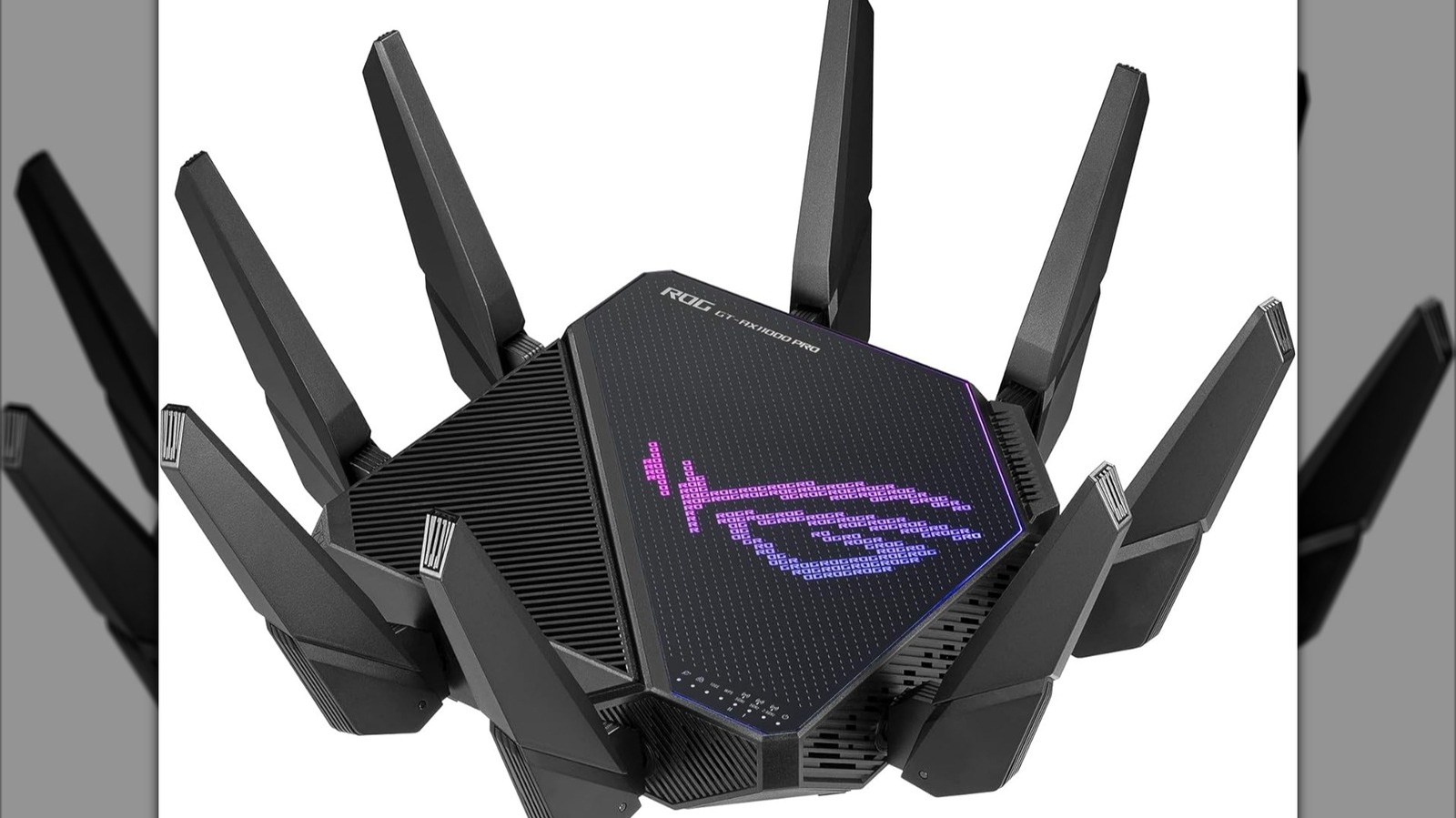
Think about the size of your home. Bigger homes need routers with wider coverage. Some routers have multiple antennas for better range. Others support mesh systems that cover large spaces well. Choose a router that can reach all your rooms.
Check For Security Features
Security keeps your network safe from hackers. Look for routers with WPA3 encryption. This is the latest and strongest security standard. Also, find routers that offer automatic updates. Regular updates fix security risks and bugs. Some routers include parental controls and guest networks too.
Preparing For Replacement
Preparing to replace your Wi-Fi router is a crucial step that many overlook. Taking time to get ready can save you from unexpected downtime and lost settings. It also helps you avoid frustration during the setup of your new device.
Backup Current Settings
Before disconnecting your old router, log into its admin panel and save your current configuration. This includes network name (SSID), passwords, and any custom settings like port forwarding or parental controls.
Many routers have an option to export these settings as a file. Keep this file safe on your computer or a USB drive. It makes setting up the new router faster and ensures you don’t forget important details.
Gather Necessary Tools
Make sure you have everything you need before starting the replacement. This usually means having a screwdriver, Ethernet cables, and your new router’s manual within reach.
Also, check if your new router requires any specific tools or software. Having all tools ready helps avoid interruptions and keeps the process smooth. Have you ever started a task only to realize you’re missing something crucial?
Schedule Downtime
Replacing your router means your internet will be offline for a while. Pick a time when you won’t need internet urgently, like late evening or early morning.
Let others in your household know about the planned downtime. This prevents surprises and lets everyone prepare. What’s worse than losing Wi-Fi during an important call or streaming session?
Removing The Old Router
Begin by unplugging the old router from the power source and disconnecting all cables. Carefully remove it from its place to prepare for the new device.
Removing the old router is an important step in setting up a new network. It ensures that no interference occurs between devices. This process requires care to avoid damaging cables and components. Follow these instructions to safely remove your old router.Power Off And Unplug
Turning off the router is the first step. Locate the power button on the device. Press it to shut down the router. Next, unplug the power cable from the wall socket. This stops electricity from reaching the router. Safety is key here. Unplugging prevents electrical shocks and device damage.Disconnect Cables
The router connects to your devices with cables. Carefully remove each cable. Start with the Ethernet cable. Gently pull it from the port on the router. Repeat the process for all connected cables. Ensure no cables are tangled. This prevents future connection issues.Remove Mounts Or Stands
Many routers sit on stands or mounts. Check if your router is mounted on a wall. If so, locate the screws holding it in place. Use a screwdriver to remove the screws. If your router stands on a desk, simply lift it off. Be gentle to avoid damaging the mount or stand. Once removed, clean the area to prepare for the new router.Setting Up The New Router
Setting up a new router is a crucial step to enjoy fast and stable internet. This process involves connecting the router correctly and placing it where it works best. Follow these simple steps to get your new router ready for use.
Connect To Modem And Power Source
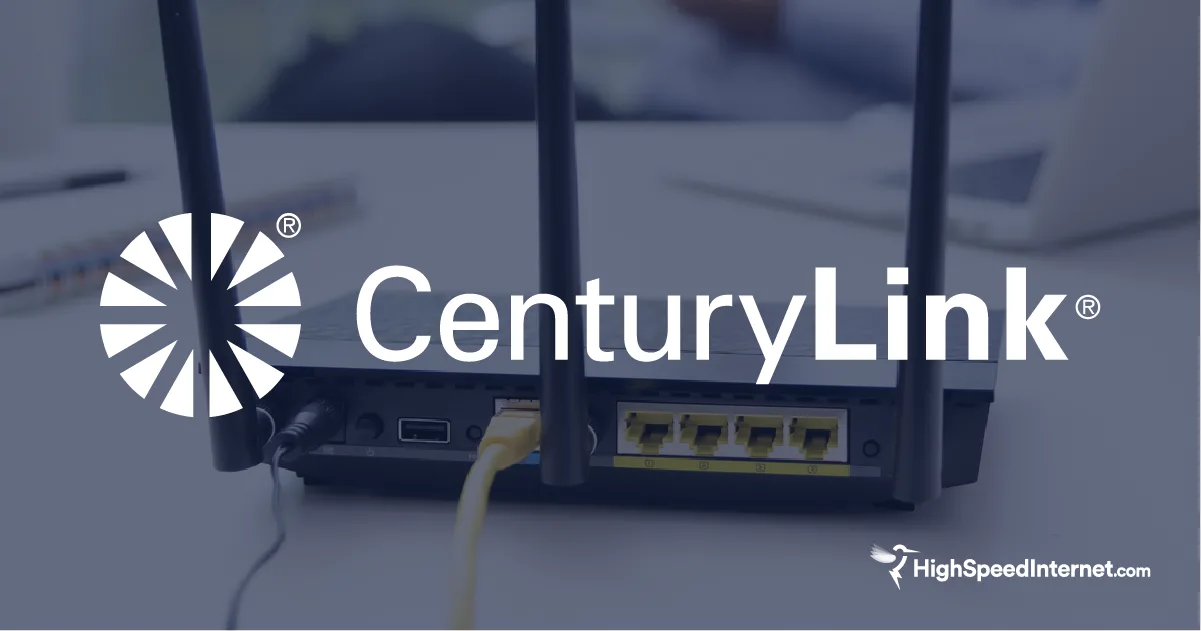
First, unplug your old router from the modem. Use an Ethernet cable to connect the new router’s WAN or Internet port to the modem. Then, plug the router into a power outlet using the provided adapter. Make sure all cables are secure and properly connected.
Position Router For Optimal Coverage
Place the router in a central location in your home. Avoid walls, metal objects, and electronic devices that can block the signal. Higher spots like shelves or tables work best. Clear space around the router helps the Wi-Fi reach every corner.
Power On And Initialize
Turn on the router by pressing its power button. Wait a few minutes for the lights to stabilize. Use a computer or phone to connect to the router’s default Wi-Fi network. Open a browser and follow the setup instructions on the screen to finish the process.
Credit: www.highspeedinternet.com
Configuring Router Settings
Configuring your new router is a crucial step that determines the security and performance of your home network. It’s not just about plugging it in; you need to set it up so that your devices connect smoothly and your data stays safe. Let’s walk through how to access the router’s interface, customize your network name and password, and keep your firmware up to date for the best experience.
Access Router Interface
First, you need to access the router’s control panel. Open a web browser on a device connected to the router, and type the router’s IP address into the address bar—common ones are 192.168.0.1or 192.168.1.1.
Not sure what your router’s IP is? Check the label on the back or bottom of the device, or look it up in your device’s network settings. Once you enter the IP, you’ll be prompted to log in with a username and password, which often defaults to admin/adminor admin/passwordunless changed.
If you can’t find the login info, try resetting your router to factory settings, but remember this erases all custom configurations. Have you ever struggled to find these details? Keeping a note of them saves time and frustration later.
Set Network Name And Password
After logging in, locate the wireless settings section to change your Wi-Fi name (SSID) and password. Choose a network name that’s easy to recognize but doesn’t reveal personal information about you or your location.
For your password, opt for a strong combination of letters, numbers, and symbols. Avoid simple passwords like “password123” to keep your network secure from unauthorized users.
Think about how often you share your Wi-Fi password. Changing it regularly reduces the risk of unauthorized access and keeps your network safer. Have you updated your Wi-Fi password lately?
Update Firmware
Firmware updates fix bugs, improve performance, and patch security vulnerabilities. In the router’s interface, find the firmware or system update section to check if your router’s software is current.
Download and install any available updates carefully. Interrupting the update process can cause issues, so make sure your device stays powered on and connected during this time.
Regular firmware updates are often overlooked but are essential for maintaining a secure and reliable Wi-Fi connection. When was the last time you checked for an update?
Testing And Troubleshooting
Testing and troubleshooting are key after replacing your Wi-Fi router. It ensures the new device works well and provides stable internet access.
Start by checking the internet speed. This step confirms if the router delivers the expected performance. Next, verify that all your devices connect properly to the network. Finally, resolve common issues that may arise during setup or use.
Check Internet Speed
Use a reliable speed test website or app. Measure both download and upload speeds. Compare results with your internet plan. Slow speeds could mean a setup issue or router fault.
Verify Device Connections
Ensure all devices connect to the new router’s Wi-Fi network. Check for any dropped or weak connections. Re-enter Wi-Fi passwords if needed. Confirm that wired devices use the correct Ethernet ports.
Resolve Common Issues
- Restart the router and modem to refresh connections.
- Move the router to a central, open location for better signal.
- Update the router firmware to fix bugs and improve security.
- Check cables for damage or loose plugs.
- Reset network settings on devices having trouble connecting.
Credit: www.slashgear.com
Tips For Maintaining Fast Wi-fi
Maintaining fast Wi-Fi is crucial for seamless online activities, whether you’re streaming your favorite shows, working from home, or gaming. A new router can boost your Wi-Fi speed, but it won’t do much good without proper maintenance. Here are some practical tips to ensure your Wi-Fi remains lightning fast.
Regular Firmware Updates
Updating your router’s firmware is like giving it a brain upgrade. Manufacturers release updates to improve performance, security, and add new features. Check for updates at least once a month. Most routers have an easy update process through their web interface. Staying on top of updates can prevent bugs and ensure your router operates at its peak.
Optimal Router Placement
Where you place your router is as important as the router itself. Position it in a central location in your home, away from walls and obstacles. Elevate it if possible; I found placing mine on a bookshelf improved my signal strength dramatically. Avoid corners and cabinets, as these can limit the signal range and strength.
Limit Interference
Wi-Fi signals can be disrupted by various household items. Microwaves, cordless phones, and even baby monitors can interfere with your connection. Consider using dual-band routers to mitigate interference. Switching to a less crowded channel in your router settings can also help. Have you noticed a sudden drop in speed? Check for interference sources and adjust accordingly.

Credit: www.youtube.com
Frequently Asked Questions
How Do I Safely Replace My Wi-fi Router?
Turn off your modem and unplug the old router. Connect the new router to the modem and power it on. Follow the setup instructions to configure your network securely.
What Should I Consider When Buying A New Wi-fi Router?
Check compatibility with your internet service provider. Look for latest Wi-Fi standards, speed, range, and security features. Consider the number of devices you’ll connect.
How Do I Transfer Settings To A New Router?
Log into the old router’s interface to save settings. Use the new router’s setup wizard to import or manually configure important settings like Wi-Fi name and password.
How Often Should I Replace My Wi-fi Router?
Replace your router every 3 to 5 years or when it no longer supports your internet speed. Upgrading improves security and network performance.
Conclusion
Replacing a Wi-Fi router can improve your internet speed and coverage. Start by choosing the right router for your needs. Follow the steps carefully to set it up without trouble. Remember to secure your network with a strong password. Check your connection once the new router is running.
Enjoy faster and more reliable internet at home. This simple upgrade makes online activities easier and more fun. Keep your router updated to maintain good performance. A better Wi-Fi experience is just a few steps away.