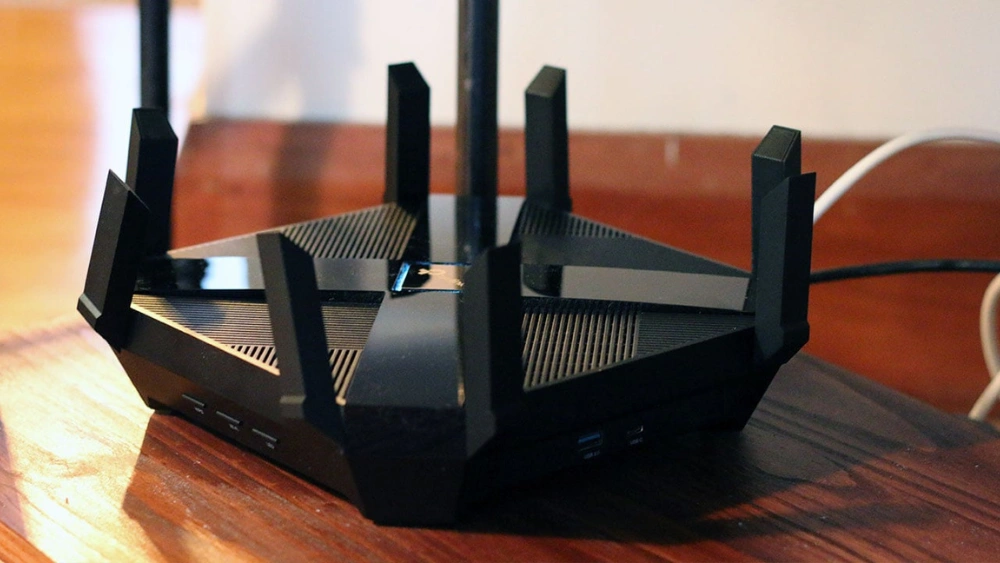
Are you tired of weak Wi-Fi signals that don’t reach every corner of your home or office? Imagine having a Wi-Fi router powerful enough to cover ultra long distances without dropping your connection.
You might think it’s complicated or expensive, but it’s easier than you believe. You’ll discover simple, step-by-step methods to turn your regular router into an ultra long range Wi-Fi powerhouse. Keep reading, and you’ll learn how to boost your signal, save money, and enjoy fast, reliable internet wherever you need it most.

Credit: www.youtube.com
Choosing The Right Router
Choosing the right router is key to building an ultra long range Wi-Fi setup. The router acts as the heart of your network. It needs to send strong signals across long distances without losing speed or reliability. Picking a router with the right features ensures stable coverage and better performance.
Many routers look similar but offer very different results. Focus on components that boost signal strength and processing power. These features help maintain fast connections even at far distances. Understanding these aspects makes your choice clearer and more effective.
High-gain Antennas
High-gain antennas increase the reach of your Wi-Fi signal. They focus the signal in specific directions rather than spreading it everywhere. This focus helps the signal travel farther and penetrate walls better.
- Choose routers with detachable high-gain antennas.
- Look for antennas rated 5dBi or higher.
- Consider adding external antennas for even longer range.
High-gain antennas improve signal strength and coverage, making them essential for long range Wi-Fi.
Dual-band Vs Tri-band
Routers operate on different frequency bands, usually 2.4 GHz and 5 GHz. Dual-band routers use both bands, while tri-band routers add an extra 5 GHz band. More bands help reduce congestion and improve speed.
- Dual-band routers work well for most long range needs.
- Tri-band routers handle more devices and heavy traffic.
- Choose tri-band if many devices connect simultaneously.
More bands mean better handling of multiple devices without slowing down your network.
Processor And Ram
A router’s processor and RAM affect its performance and stability. Strong hardware handles data faster and supports more devices. It also reduces lag and connection drops.
- Look for routers with at least dual-core processors.
- Choose models with 256MB RAM or higher.
- Higher specs support better long range data management.
Good processor and RAM ensure smooth Wi-Fi even over long distances and many devices.
Credit: www.signalbooster.com
Upgrading Antennas
Upgrading antennas is a simple way to extend your Wi-Fi router’s range. The stock antennas on most routers are small and meant for short distances. Replacing them with better antennas can send your signal farther and stronger. This upgrade can improve the connection quality in larger homes or outdoor areas.
Directional Antennas
Directional antennas focus the Wi-Fi signal in one direction. This improves the signal strength over longer distances. They are ideal for targeting a specific area, like a backyard or another building. Types include Yagi, panel, and parabolic antennas. Each type offers different range and focus levels. Choose one based on how far and where you want the signal.
Antenna Placement Tips
- Place antennas as high as possible to avoid obstructions.
- Point directional antennas toward the area needing coverage.
- Keep antennas away from metal objects and thick walls.
- Use cables to position antennas outside or near windows.
- Test different angles and locations for the best signal.
Diy Antenna Boosters
DIY antenna boosters can enhance Wi-Fi signals without extra cost. Common boosters include:
- Aluminum foil reflectors to focus signals.
- Pringles can antennas for directional gain.
- Wire mesh reflectors to reduce signal loss.
These simple tools help concentrate the signal and extend range. They work best combined with upgraded antennas and good placement.
Optimizing Router Settings
Optimizing your router settings can dramatically boost your Wi-Fi range without needing extra hardware. Small tweaks can make a big difference in signal strength and stability. Let’s look at key settings that you can adjust to push your router’s performance further.
Channel Selection
Wi-Fi channels can get crowded, especially in apartment buildings or dense neighborhoods. Choosing the right channel reduces interference from other networks and devices.
Check your router’s admin panel for a channel scanner or use apps like WiFi Analyzer to see which channels nearby networks use the least. Typically, channels 1, 6, and 11 are best for 2.4 GHz networks because they don’t overlap.
Switching to a less crowded channel can improve your connection quality and range. Have you noticed how sometimes your Wi-Fi slows down during certain hours? That might be when neighbors’ networks get busier on the same channel.
Transmit Power Adjustment
Most routers let you adjust the transmit power, which controls how strong the Wi-Fi signal is. Increasing it can extend your coverage area but might cause more interference or heat.
Start by setting the transmit power to 100% and test your connection quality around your home. If you experience drops or interference, try lowering it slightly until you find a balance between range and stability.
Remember, max power isn’t always better. Sometimes dialing it back helps your network perform smoother, especially in homes with many walls or electronic devices.
Firmware Updates
Router manufacturers regularly release firmware updates that fix bugs and improve performance. Keeping your router’s firmware up to date can unlock new features and enhance stability.
Check the router’s admin page or the manufacturer’s website for the latest updates. Some routers can update automatically, but manual checks ensure you don’t miss critical improvements.
Have you ever experienced random Wi-Fi drops? Firmware updates often address these issues, so keeping your router current is a simple step to better long-range Wi-Fi.
Using External Amplifiers
Expanding the range of your Wi-Fi can be a game-changer, especially if you’re dealing with large areas or obstacles that typically disrupt signal strength. External amplifiers are a powerful solution for boosting your Wi-Fi signal far beyond its usual limits. Whether you’re streaming videos on your patio or conducting virtual meetings from a cozy garden nook, using external amplifiers can help you maintain a stable and strong connection. But how do these amplifiers work, and what should you consider before using them?
Signal Boosters
Signal boosters are essential tools that amplify your existing Wi-Fi signal, pushing it further than the standard range. You might have noticed that in certain parts of your home or office, the Wi-Fi signal seems to fade away. Signal boosters can fill these gaps, ensuring consistent coverage. Consider placing them strategically around your space for optimal performance. Many people find success by positioning them near windows or in hallways where signals are weakest.
Power Amplifiers
Power amplifiers take your Wi-Fi’s output and give it a significant boost, making it possible to reach devices far away from the router. They are particularly useful in areas with lots of interference, like thick walls or electronic devices. It’s crucial to choose an amplifier that matches your router’s specifications to avoid any compatibility issues. Think of it like pairing a high-performance car with the right fuel – the wrong mix can lead to disappointing results.
Legal Considerations
While amplifying your Wi-Fi signal is tempting, it’s important to stay within legal limits. Different countries have regulations about Wi-Fi signal strength and frequency use. Ignoring these can lead to penalties or interference with other networks. Always check local laws before installing external amplifiers. This ensures your setup is both effective and compliant, avoiding any unnecessary complications down the road.
Placement Strategies
Correct placement of your Wi-Fi router greatly extends its signal range. Small changes in location can produce big improvements in coverage. Focus on positioning the router to reduce obstacles and interference for clearer signals.
Elevated Positions
Place the router higher than most furniture or objects. Elevated spots help signals travel farther without blockage. Mount the router on a wall or shelf to avoid floor-level obstructions. Higher placement also reduces interference from other electronics.
Avoiding Interference
Keep the router away from devices that emit radio waves. Microwaves, cordless phones, and baby monitors can disrupt Wi-Fi signals. Metal objects and thick walls also block or weaken the signal. Find a spot with minimal electronic noise and clear paths.
Line Of Sight Importance
Wi-Fi signals perform best with a clear line of sight. Walls, doors, and furniture reduce signal strength and speed. Position the router where signals face open space toward your devices. This creates a stronger, more reliable connection over long distances.
Extending Range With Repeaters
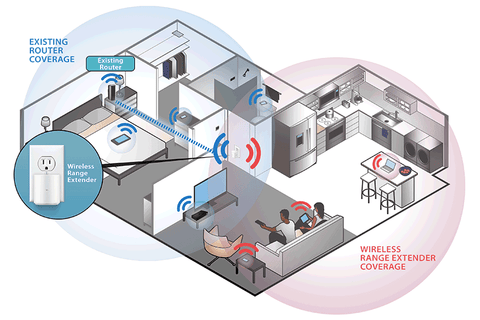
Extending the range of a Wi-Fi network is key to covering large areas. Repeaters help boost signal strength beyond the main router’s reach. They catch the original signal and send it further. This method avoids dead zones and keeps connections stable across distances.
Choosing the right repeater setup depends on your space and device needs. Different tools offer varied ways to expand coverage. Understanding these options helps create a strong, ultra long range Wi-Fi network.
Wi-fi Extenders
Wi-Fi extenders catch your router’s signal and rebroadcast it. They are simple devices placed between the router and weak signal spots. Extenders work best within line of sight but can face signal loss from walls or floors.
- Easy to install and affordable
- Boosts coverage in specific areas
- Can reduce speed slightly due to signal repeating
Position extenders carefully for best results. Avoid placing them too far from the router or too close to strong signals.
Mesh Network Systems
Mesh networks use multiple nodes to cover large areas with one seamless Wi-Fi signal. Each node talks to others, creating a strong and flexible network. This setup reduces dead spots and keeps devices connected while moving around.
- Works well in large homes and offices
- Automatic switching between nodes for smooth connections
- Easy to expand by adding more nodes
Mesh systems require buying compatible nodes and some initial setup but offer great coverage and speed.
Wired Access Points
Wired access points connect to your main router using Ethernet cables. They provide strong Wi-Fi signals in distant rooms or floors without speed loss. This method creates a stable and fast connection across large spaces.
- Requires running cables but delivers reliable performance
- Ideal for multi-story buildings or offices
- Supports many devices without slowing down
Wired access points work best in permanent setups where running cables is possible and practical.
Testing And Troubleshooting
Testing and troubleshooting your ultra long range Wi-Fi router is essential to ensure it performs at its best. Without proper checks, you might not realize the full potential of your setup or miss out on easy fixes that could boost your signal strength and speed. Let’s dive into ways you can measure and improve your router’s performance effectively.
Speed And Range Tests
Start by measuring the actual speed and range of your Wi-Fi signal. Use apps like Speedtest or Wi-Fi Analyzer on your smartphone or laptop to get precise readings. Walk around your space to see how far the signal reaches before it drops below usable levels.
Compare these results with your internet plan’s expected speeds. If the speed is significantly lower at close range, it might indicate a problem with the router’s setup or hardware. Recording these results will help you track improvements as you make adjustments.
Interference Identification
Interference is a common culprit behind poor Wi-Fi performance. Devices like microwaves, cordless phones, and neighboring Wi-Fi networks can cause signal disruptions. Identify these by checking if your signal drops or speeds slow down when certain appliances are in use.
- Switch your router to a less crowded channel and monitor any changes.
- Try moving your router away from potential interference sources.
- Consider using the 5GHz band, which is less prone to interference but has a shorter range.
Have you noticed your connection weakening at specific times or locations? That could be a sign of intermittent interference you need to tackle.
Adjusting For Optimal Performance
Small tweaks can have a big impact on your router’s performance. Adjust the antenna direction to cover the areas where you need the strongest signal. Elevate your router if possible, as higher placement often improves range.
Also, updating your router’s firmware can fix bugs and improve stability. If your router supports it, enable Quality of Service (QoS) to prioritize bandwidth for important devices or applications.
Don’t hesitate to experiment with these settings while running speed and range tests to see what combination works best for your environment. What’s one change you can make right now to boost your Wi-Fi’s reach?

Credit: www.ebay.com
Frequently Asked Questions
How Can I Extend Wi-fi Range With Common Materials?
Using directional antennas or DIY parabolic reflectors can boost Wi-Fi signals. Position antennas higher and clear obstacles for better reach.
What Frequency Bands Improve Ultra Long Range Wi-fi?
Lower frequency bands like 2. 4 GHz travel farther with less obstruction. Combining 2. 4 GHz with 5 GHz enhances speed and coverage.
Which Router Settings Optimize Long-distance Wi-fi?
Adjust channel width to 20 MHz for stability. Increase transmission power carefully to avoid interference. Enable QoS for better performance.
Are External Antennas Better For Long-range Wi-fi?
Yes, high-gain external antennas focus signals directionally. They significantly increase coverage compared to built-in antennas.
Conclusion
Building an ultra long range Wi-Fi router can improve your internet reach. Small changes make a big difference in signal strength. Use quality parts and position your router well. Test different antennas to find the best fit. Keep your setup simple and steady.
Enjoy better connections across larger areas. Stay patient and adjust as needed. This guide helps you extend Wi-Fi with ease.