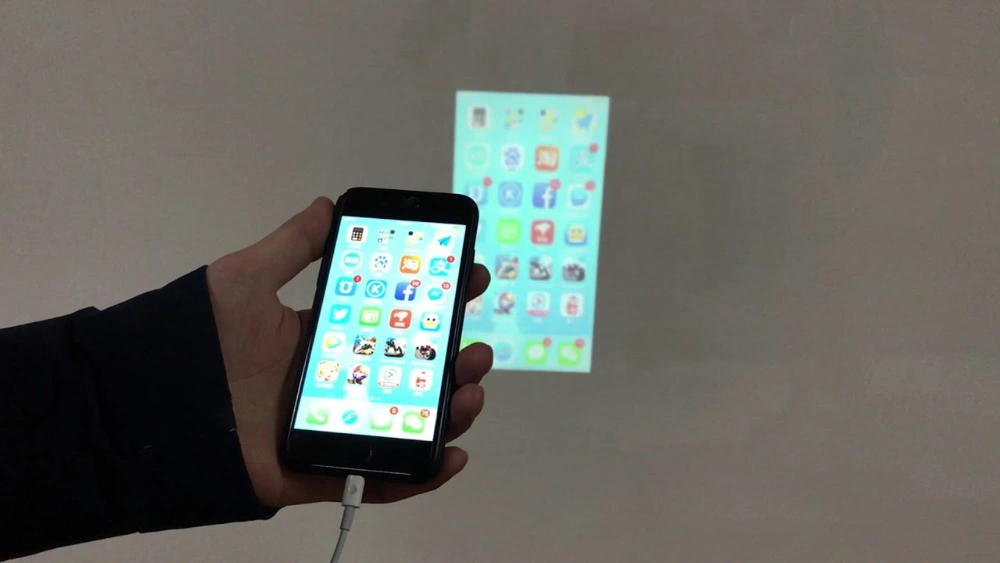
Want to share your iPhone screen on a big projector but don’t know where to start? Connecting your iPhone to a projector can seem tricky, but it’s easier than you think.
Whether you’re preparing for a presentation, watching movies, or showing photos to friends, this guide will walk you through simple steps to get it done quickly. By the end, you’ll have the confidence to hook up your iPhone and enjoy your content on the big screen without any hassle.
Keep reading—you’re just a few easy moves away from turning your small screen into a stunning display.

Credit: www.youtube.com
Choosing The Right Projector
Choosing the right projector is key to a smooth connection with your iPhone. The right match ensures clear images and easy setup. Not all projectors work well with iPhones. Understanding the types and features helps avoid frustration.
Types Of Projectors Compatible With Iphone
Projectors connect to iPhones mainly through HDMI or wireless options. Some popular types include:
- Portable Projectors:Small, easy to carry, often support wireless casting.
- Home Theater Projectors:High resolution, great for movies and presentations.
- Business Projectors:Reliable, usually have multiple input options for devices.
Wireless projectors can connect via AirPlay or apps. Wired projectors require adapters. Choose a type that fits your usage and space.
Checking Projector Ports And Features
Check the projector’s ports before buying. Common ports include:
- HDMI:Most common for high-quality video and audio.
- VGA:Older port, less common for iPhone use.
- USB:Some projectors support direct USB connections.
- Wireless:Supports AirPlay or Miracast for wireless streaming.
Make sure the projector supports the connection type you want. Also, check resolution and brightness for clear images. A projector with good brightness works well in different lighting conditions.
Essential Cables And Adapters
Connecting your iPhone to a projector requires specific cables and adapters. These tools help transfer your phone’s screen to a larger display. Choosing the right adapter or cable depends on your projector’s input options and your iPhone model.
Using the correct accessories ensures a smooth, clear connection. It also prevents compatibility issues that can disrupt your presentation or movie time. Below are the essential cables and adapters to consider for hooking up your iPhone to a projector.
Using Lightning To Hdmi Adapter
The Lightning to HDMI adapter is the most common choice. It plugs into your iPhone’s Lightning port and connects to the projector’s HDMI input. This adapter supports high-definition video and audio transmission.
- Connect the adapter to your iPhone.
- Use an HDMI cable to link the adapter to the projector.
- Switch the projector input to HDMI.
- Your iPhone screen will appear on the projector instantly.
This wired option offers a stable and fast connection. It is ideal for presentations, videos, and gaming with minimal lag.
Wireless Options With Airplay
AirPlay lets you mirror your iPhone screen wirelessly. It works with projectors that support Apple TV or AirPlay-compatible devices. No cables needed.
- Connect your iPhone and projector to the same Wi-Fi network.
- Swipe down to open Control Center on your iPhone.
- Select “Screen Mirroring” and pick your projector or Apple TV.
- Your screen will display wirelessly on the projector.
Wireless connection is convenient and clutter-free. It may have slight delays depending on your network speed.
Other Useful Accessories
Several other accessories enhance your iPhone to projector setup. They improve convenience and functionality during use.
- HDMI Cables:High-quality cables ensure clear video and audio.
- Lightning Extension Cables:Provide extra length for flexible device placement.
- Portable Power Banks:Keep your iPhone charged during long presentations.
- Adapters for VGA or DVI:Useful for older projectors without HDMI ports.
Choosing the right accessories depends on your projector and usage needs. Always check compatibility before buying any cables or adapters.
Connecting Iphone Via Wired Method
Connecting an iPhone to a projector using a wired method offers a stable and fast way to display your content. This approach reduces lag and does not rely on Wi-Fi, making it ideal for presentations or watching videos. The process requires a few simple tools and steps to get your iPhone screen mirrored perfectly.
Using a wired connection also ensures a consistent signal without interruptions. It works well with most projectors that have HDMI or VGA ports. This method is straightforward and works with almost all iPhone models.
Step-by-step Wired Setup
- Get a compatible adapter for your iPhone. Usually, a Lightning to HDMI or Lightning to VGA adapter is needed.
- Connect the adapter to your iPhone’s charging port.
- Plug an HDMI or VGA cable into the adapter.
- Attach the other end of the cable to the projector’s input port.
- Turn on the projector and select the correct input source.
- Your iPhone screen should now appear on the projector display.
Troubleshooting Common Issues
- Check if the adapter is firmly connected to the iPhone and cable.
- Confirm the projector is set to the right input source (HDMI or VGA).
- Try restarting both the iPhone and the projector.
- Ensure the cable is not damaged or loose.
- Update your iPhone to the latest iOS version for best compatibility.
- Use a certified adapter to avoid connection problems.

Credit: www.youtube.com
Connecting Iphone Wirelessly
Connecting your iPhone to a projector wirelessly offers great convenience. It removes the need for cables and allows easy sharing of photos, videos, and presentations. Wireless connection also keeps your space tidy and flexible.
Several options exist for wireless connection. The best fit depends on your projector model and the apps you use. Understanding these methods helps ensure smooth and clear projection from your iPhone.
Setting Up Airplay Mirroring
AirPlay Mirroring is Apple’s built-in feature for wireless display. It works with Apple TV or projectors that support AirPlay. To start:
- Ensure your iPhone and projector (or Apple TV) are on the same Wi-Fi network.
- Swipe down from the top-right corner of your iPhone to open Control Center.
- Tap “Screen Mirroring” and select your Apple TV or compatible device.
- Your iPhone screen will appear on the projector instantly.
AirPlay provides smooth streaming and minimal delay. It is ideal for presentations and videos.
Using Third-party Apps
Some projectors do not support AirPlay. Third-party apps can bridge this gap. Apps like “LetsView,” “ApowerMirror,” or “Mirroring360” offer wireless screen mirroring. To use these apps:
- Download the app on both your iPhone and the projector or connected device.
- Connect both devices to the same Wi-Fi network.
- Open the app on both devices and follow the prompts to link them.
- Start mirroring your screen or stream content wirelessly.
These apps add flexibility and support various projector brands.
Tips For Stable Wireless Connection
- Use a strong and stable Wi-Fi network with minimal interference.
- Keep your iPhone close to the router for better signal strength.
- Avoid walls or obstacles between devices that can block the signal.
- Close unused apps on your iPhone to improve performance.
- Restart your router and devices if the connection is unstable.
Following these tips helps maintain a clear and steady wireless projection.
Optimizing Display Settings
Connecting your iPhone to a projector is a brilliant way to share content with a larger audience. But to ensure your display is crystal clear and engaging, optimizing the display settings is crucial. Whether you’re giving a presentation or watching a movie, tweaking these settings can make all the difference. Let’s dive into some practical ways to get the most out of your display experience.
Adjusting Resolution And Aspect Ratio
Imagine your presentation is blurry or stretched—definitely not what you want. To avoid this, adjust the resolution settings on your iPhone to match the projector’s native resolution. This ensures that images are sharp and clear.
Also, check the aspect ratio. Most projectors default to 16:9, but your content might be in 4:3. Adjust this setting accordingly to avoid awkward cropping or stretching. A quick tip: play a video to test if the settings are perfect before you start your main event.
Managing Sound Output
Ever had the sound coming from your iPhone instead of the projector’s speakers? It can make even the best presentations seem amateurish. To manage sound output, ensure your iPhone’s audio settings are configured to output sound through the projector or connected speaker system.
If the projector has built-in speakers, make sure they’re active. Alternatively, consider connecting external speakers for a richer sound experience. Double-check the volume levels to ensure everyone in the room can hear without distortion.
These simple adjustments can elevate your presentation from good to great. What display setting tricks have you discovered that work wonders? Share your insights and make your next presentation unforgettable!

Credit: www.youtube.com
Common Problems And Fixes
Connecting an iPhone to a projector can sometimes bring unexpected issues. Knowing common problems helps fix them quickly. This section covers frequent troubles and simple solutions. Follow these tips to enjoy smooth presentations or videos.
No Signal On Projector
Seeing “No Signal” on the projector screen means no data reaches the device. Check if the cable is firmly connected to both iPhone and projector. Use a compatible adapter, like Lightning to HDMI. Restart both devices to refresh the connection. Try a different cable or port to rule out hardware problems. Make sure the projector input source matches your connection type.
Audio Issues
Sometimes sound does not come from the projector. Check the iPhone volume and mute settings first. The projector might need manual audio input selection. Try connecting external speakers to the projector’s audio output. Use an adapter that supports audio if using HDMI. Verify the app playing the video has sound enabled. Restart apps or the iPhone to reset audio settings.
Lag And Latency Troubleshooting
Delay between iPhone actions and projector display can disrupt presentations. Reduce distance between devices to improve wireless connection. Use a direct HDMI cable connection instead of wireless methods. Close background apps on the iPhone to free up processing power. Lower video quality settings to reduce lag during streaming. Restart the projector and iPhone to clear temporary glitches.
Frequently Asked Questions
How Do I Connect My Iphone To A Projector Wirelessly?
You can connect wirelessly using AirPlay with an Apple TV or AirPlay-compatible projector. Ensure both devices are on the same Wi-Fi network. Then, open Control Center on your iPhone, tap Screen Mirroring, and select the projector or Apple TV from the list.
What Cable Is Needed To Link Iphone To A Projector?
Use a Lightning to HDMI adapter (Apple Digital AV Adapter) to connect your iPhone to an HDMI projector. Plug the adapter into your iPhone’s Lightning port, then connect an HDMI cable from the adapter to the projector. This setup supports video and audio output.
Can I Use A Vga Projector With My Iphone?
Yes, but you’ll need a Lightning to VGA adapter. Connect the adapter to your iPhone, then connect a VGA cable from the adapter to the projector. This method supports video only; use external speakers for audio if needed.
Why Won’t My Iphone Display On The Projector?
Check all connections and ensure the correct input source is selected on the projector. Verify your adapter or cables are compatible and undamaged. Restart devices and update iOS if necessary. Wireless connections require both devices on the same Wi-Fi network.
Conclusion
Connecting your iPhone to a projector is simple and quick. Use the right cable or adapter to match your devices. Check your projector’s input options before starting. Adjust settings on your iPhone for the best display. Enjoy sharing videos, photos, or presentations on a big screen.
This setup works well for meetings, classes, and movie nights. Practice a few times to feel confident. Now, you can easily show your content to a larger audience anytime.