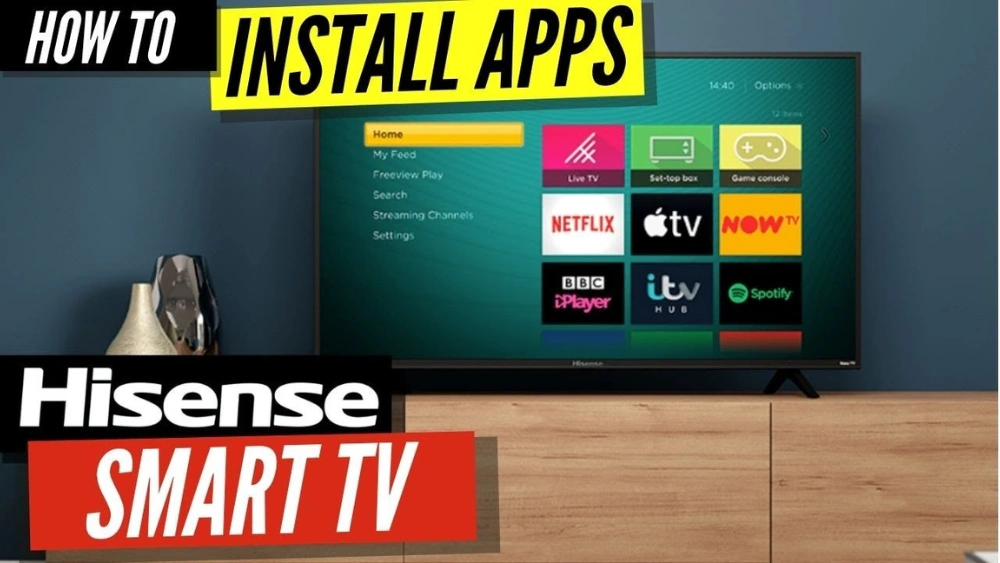
Want to get the most out of your Hisense 4K Smart TV? Downloading apps is the key to unlocking endless entertainment, from streaming your favorite shows to playing games and more.
But if you’re unsure where to start or worried about complicated steps, don’t worry. This guide will show you exactly how to download apps on your Hisense 4K Smart TV with simple, clear instructions. By the end, you’ll be ready to customize your TV experience like a pro.
Keep reading to discover how easy it really is!
Credit: cellencooper.medium.com
Hisense 4k Smart Tv Basics
Understanding the basics of your Hisense 4K Smart TV is key to making the most out of its features. Before diving into downloading apps, it’s important to know what your TV offers and where to find those apps. This knowledge helps you avoid frustration and makes your viewing experience smoother.
Key Features
Your Hisense 4K Smart TV comes with several features designed to enhance your entertainment:
- Ultra HD Resolution:Enjoy crystal-clear picture quality with 4K resolution that brings every detail to life.
- Smart Connectivity:Connect easily to Wi-Fi to access streaming services and online content.
- Voice Control:Use built-in voice assistants to search for shows, control volume, and more without the remote.
- Multiple HDMI Ports:Connect gaming consoles, Blu-ray players, or sound systems for a complete home theater setup.
Knowing these features helps you understand what your TV can handle and what apps might be the best fit.
Supported App Stores
Downloading apps on your Hisense 4K Smart TV depends on the app stores it supports. Most Hisense TVs run on the Roku TV platform, but some models use Android TV.
- Roku Channel Store:If your TV runs Roku, you’ll find thousands of apps here, including Netflix, Hulu, and Disney+.
- Google Play Store:For Android TV models, the Google Play Store offers a wide range of apps tailored for TV use.
- Pre-installed Apps:Many popular apps come pre-installed, saving you time and effort.
Which app store your TV supports will determine the variety of apps available. Have you checked which platform your Hisense TV uses? This simple step can save you time and guide your app choices.
Preparing Your Tv
Before you start downloading apps on your Hisense 4K Smart TV, it’s important to get your TV ready. Proper preparation ensures a smooth experience and saves you from common setup frustrations. Two key tasks to focus on are connecting your TV to Wi-Fi and creating or signing into your Hisense account.
Connecting To Wi-fi
Without a stable internet connection, downloading apps won’t be possible. Begin by accessing your TV’s settings menu using the remote control.
- Navigate to the “Network” or “Internet” section.
- Choose your Wi-Fi network from the list of available options.
- Enter your Wi-Fi password carefully to avoid connection errors.
Once connected, your TV will confirm the successful link. If you face issues, try restarting your router or moving the TV closer to the Wi-Fi source. Have you ever realized how a weak Wi-Fi signal can turn a simple app download into an endless waiting game?
Creating Or Signing Into Hisense Account
Your Hisense account is your gateway to accessing the app store and personalizing your experience. If you don’t have an account yet, it’s easy to create one directly on your TV.
- Go to the “Settings” and select “Account” or “User” options.
- Choose to create a new account by entering your email and a secure password.
- If you already have an account, simply sign in with your credentials.
Having an account helps you save your favorite apps and sync settings across devices. Think about how many times you’ve re-downloaded apps because you skipped this step—avoiding that saves time and hassle.
Accessing The App Store
Accessing the app store on your Hisense 4K Smart TV opens a world of entertainment. This is where you find and download apps for movies, games, and more. Knowing how to reach the app store is the first step to customizing your TV experience.
Navigating To The App Store
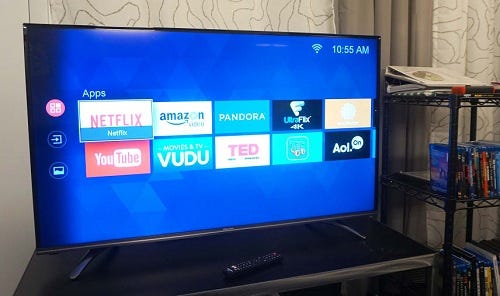
Turn on your Hisense TV and use the remote control. Press the “Home” button to open the main menu. Look for the icon labeled “App Store” or “Apps.” Select it using the OK or Enter button on your remote. This will take you directly to the app store interface.
Browsing Available Apps
Once inside the app store, you can explore many apps. Apps are usually sorted into categories like “Popular,” “New,” or “Recommended.” Use the arrow keys on your remote to move through the lists. Click on any app to see details and user ratings. This helps you decide which apps to download.
Credit: www.tiktok.com
Downloading And Installing Apps
Downloading and installing apps on your Hisense 4K Smart TV can significantly enhance your viewing experience. With a plethora of apps available, from streaming services to games, you can tailor your TV to suit your entertainment needs. Imagine having all your favorite apps at your fingertips, ready to be accessed with just a few clicks. Let’s explore the simple steps to add apps to your Smart TV.
Searching For Specific Apps
Begin your app journey by accessing the App Store on your Hisense TV. Use the remote control to navigate to the ‘Apps’ section. Here, you’ll find a search bar that allows you to type the name of the app you’re looking for. If you’re unsure what app to download, consider browsing the categories to discover new favorites.
Starting The Download
Once you’ve found the app you want, click on it to access its detailed page. Here, you’ll find information about the app’s features and user ratings. To initiate the download, simply press the ‘Download’ button. This will start the process, and you’ll see a progress bar indicating how much of the app has been downloaded.
Installing The App
After the download is complete, your TV will automatically proceed to install the app. This usually happens seamlessly, but keep an eye on the installation progress. Once installed, the app will be available in your ‘Apps’ section. Open it to start exploring the content it offers.
Adding apps to your Hisense TV is a straightforward process. Have you tried downloading an app that transformed your TV experience? Share your thoughts and let others know your must-have apps!
Managing Installed Apps
Managing installed apps on your Hisense 4K Smart TV keeps your device running smoothly. It helps you organize apps and save storage space. Regular app management ensures better performance and a clutter-free interface.
Knowing how to open, update, and remove apps makes your TV experience more enjoyable. Each task is simple and quick to do with the remote control.
Launching Apps
To open an app, press the Homebutton on your remote. The app menu appears on the screen. Use the arrow keys to highlight the app you want to launch. Press the OKbutton to start the app. The app will load and be ready to use.
You can also pin favorite apps to the home screen for faster access. Just select the app, press and hold the OKbutton, then choose Pin to Home.
Updating Apps
Keeping apps updated improves their performance and adds new features. Open the App Storefrom the home menu. Navigate to the My Appssection. Here, you will see a list of installed apps and their update status.
Select the app with an available update. Press OKand then choose Update. Wait for the download and installation to finish. Updated apps run better and offer more stability.
Deleting Unwanted Apps
Remove apps you no longer use to free up space on your TV. Open the App Storeand go to My Apps. Highlight the app to delete, then press and hold the OKbutton. Select Deletefrom the options.
Confirm the deletion to uninstall the app. This keeps your app list tidy and your TV memory optimized. You can always reinstall deleted apps later if needed.

Credit: www.youtube.com
Troubleshooting Common Issues
Downloading apps on your Hisense 4K Smart TV should be straightforward, but sometimes issues pop up. Troubleshooting these common problems can save you time and frustration. Understanding what might be causing the hiccup helps you fix it faster and get back to enjoying your favorite apps.
App Store Not Loading
If the app store refuses to load, check your internet connection first. A weak or unstable Wi-Fi signal can prevent the store from opening properly. Try restarting your router and reconnecting your TV to the network.
Sometimes, the TV’s software needs a quick update to fix bugs affecting the app store. Head to the settings menu and look for system updates. If the problem persists, clear the app store cache by going to the app settings and selecting “Clear Data.”
Download Failures
Download failures are often linked to storage space issues. Check how much free space is left on your TV by navigating to the storage section in settings. If space is tight, delete unused apps or files to free up room.
Another cause might be an unstable internet connection interrupting the download. You can pause and resume the download or try downloading at a different time when your network is less busy. Also, restarting the TV often resolves temporary glitches that block downloads.
App Compatibility Problems
Not every app will work perfectly on your Hisense 4K Smart TV. Some apps require specific versions of the operating system or hardware features your TV may not support. Check the app’s description in the store to see if your TV model is listed as compatible.
If an app installs but won’t open or crashes frequently, try updating your TV’s firmware. Developers often release patches that improve app compatibility. If issues continue, consider reaching out to the app developer or Hisense support for guidance.
Tips For Optimizing App Performance
Optimizing app performance on your Hisense 4K Smart TV helps apps run smoothly. It improves speed and reduces crashes. Simple actions can keep your apps working well over time.
Clearing Cache
Cache stores temporary data to speed up apps. Too much cache can slow down your TV. Clear cache regularly to free up space and improve performance.
- Go to Settings on your Hisense TV.
- Find the Apps section and select the app.
- Choose Clear Cache to remove stored data.
- Restart the app to see the improvement.
Ensuring Software Updates
Updates fix bugs and add new features. Keeping your TV software updated helps apps run better. Check for updates often to avoid performance issues.
- Open Settings on your TV.
- Select System or About section.
- Choose Software Update or Check for Updates.
- Download and install any available updates.
- Restart your TV after updating.
Frequently Asked Questions
How Do I Access The App Store On Hisense 4k Smart Tv?
To access the app store, press the “Home” button on your remote. Navigate to the “App Store” or “Google Play Store” icon. Select it to open and browse available apps for download.
Can I Download Apps Without A Hisense Account?
No, you need to sign in with a Hisense or Google account. This allows app downloads and updates. Creating an account is free and quick on your TV.
What Apps Are Compatible With Hisense 4k Smart Tv?
Hisense TVs support popular apps like Netflix, YouTube, Hulu, and Amazon Prime Video. Compatibility depends on the TV’s operating system, usually Android TV or Roku.
How Do I Update Apps On My Hisense Smart Tv?
Go to the app store and select “My Apps. ” Choose the app you want to update. If an update is available, select “Update” to install the latest version.
Conclusion
Downloading apps on your Hisense 4K Smart TV is simple and quick. Follow the steps carefully and use the remote to navigate. You can find many useful apps in the app store. Enjoy streaming your favorite shows and movies anytime.
Keep your TV connected to the internet for smooth downloads. Try exploring new apps to enhance your viewing experience. With practice, the process becomes easier and faster. Stay updated with app versions to avoid issues. Start downloading today and make the most of your smart TV.