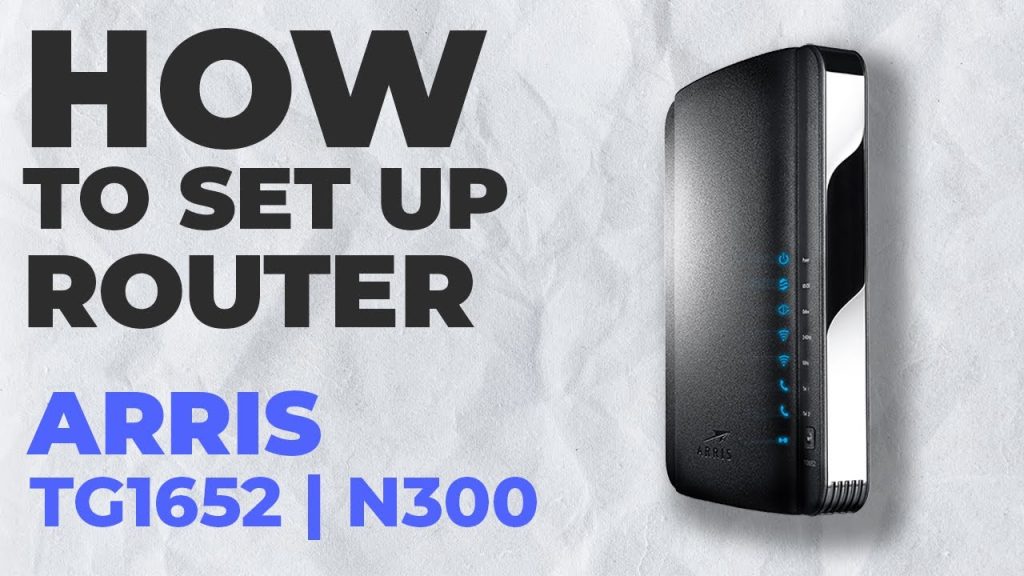
Setting up your Wi-Fi router might seem tricky, but it doesn’t have to be. Imagine having fast, reliable internet in every corner of your home, without any frustrating drops or slowdowns.
This guide will walk you through simple steps to get your Wi-Fi up and running smoothly. Whether you’re connecting for work, streaming, or gaming, you’ll learn how to make your network secure and strong. Keep reading, and you’ll have your perfect Wi-Fi setup in no time.

Credit: www.youtube.com
Choosing The Right Router
Choosing the right router can make a huge difference in your internet experience. It’s not just about picking the most expensive model; it’s about finding one that fits your specific needs. Understanding the types, key features, and balancing budget with performance will help you make a smart choice.
Types Of Routers
Routers come in several types, each suited for different needs:
- Single-Band Routers:Operate on the 2.4 GHz frequency. Ideal for basic web browsing and small homes.
- Dual-Band Routers:Use both 2.4 GHz and 5 GHz bands. Perfect if you want faster speeds and less interference.
- Tri-Band Routers:Add an extra 5 GHz band for heavy usage. Great for multiple devices streaming or gaming simultaneously.
- Mesh Routers:Designed to cover large areas by using multiple units. Useful if your home has dead zones or multiple floors.
Think about the size of your space and the number of devices you connect daily. Are you streaming HD videos or just checking emails? Your answers should guide your choice.
Key Features To Consider
Focus on features that directly impact your internet speed and reliability:
- Wi-Fi Standards:Look for routers supporting Wi-Fi 5 (802.11ac) or Wi-Fi 6 (802.11ax) for better speed and range.
- Speed Ratings:Check the maximum speed the router can handle. Match this with your internet plan to avoid bottlenecks.
- Security:Ensure the router supports WPA3 encryption to keep your network safe from hackers.
- Ports:More Ethernet ports mean you can connect wired devices like gaming consoles or smart TVs easily.
Remember, a router with advanced features won’t help if your internet plan is slow. Also, security is often overlooked but crucial for protecting your personal data.
Budget Vs. Performance
You don’t always need to buy the most expensive router. Sometimes mid-range models offer the best value for your money.
Consider how many devices you use and the types of online activities you do. If you mostly browse or stream, a budget router might be enough.
On the other hand, if you work from home, play online games, or have many connected devices, investing in a higher-performance router pays off.
Ask yourself: Are you paying for features you won’t use? Or are you limiting your internet’s potential by going too cheap? Finding the right balance saves money and delivers a better experience.
Preparing For Setup
Preparing for your Wi-Fi router setup is more than just plugging in cables. Taking a moment to get everything ready saves you time and frustration later. It ensures your router works efficiently and covers your entire home or office with a strong signal.
Unboxing And Checking Components
Start by carefully unboxing your router. Check that all parts are included—typically the router itself, power adapter, Ethernet cable, and an instruction manual. Missing components can stall your setup, so verify these before moving forward.
Inspect each item for damage. A cracked router or frayed cables might cause connection problems. If anything looks off, contact the seller immediately rather than trying to set up with faulty equipment.
Selecting The Best Location
Choosing where to place your router impacts your Wi-Fi performance the most. Avoid hiding it in a cabinet or behind large objects. Instead, position it in a central, elevated spot for wider coverage.
Think about where you use the internet most. Is it your home office, living room, or bedroom? Placing the router near those areas improves your experience. Walls, microwaves, and cordless phones can interfere with signals, so keep the router away from them.
Gathering Necessary Information
Before setup, collect key details about your internet service. You’ll need your ISP account info, such as username and password, especially for DSL connections. Also, have your network name (SSID) and Wi-Fi password ready if you plan to customize them.
Check if your ISP provided any special instructions or settings for the router. Having this information handy can prevent unnecessary troubleshooting. Are you ready to configure your router confidently with all the right info at your fingertips?
Connecting Your Router
Connecting your router is the first practical step after unboxing. This part sets the foundation for your internet connection. Clear, correct connections ensure smooth, reliable Wi-Fi performance. Follow these simple instructions to connect your router properly and prepare it for setup.
Wiring The Router
Locate the Ethernet cable that connects your modem to the router. Plug one end into the modem’s Ethernet port. Insert the other end into the router’s WAN or Internet port. Use the included power cable to connect the router to an electrical outlet. Avoid using extension cords or power strips to prevent signal loss.
Powering Up
Press the power button on the router, if it has one. Wait for the lights on the router to turn on. The power light should glow steadily. The Internet or WAN light may blink while establishing a connection. This process usually takes a few minutes. Avoid unplugging the router during this time.
Initial Device Connection
Use a computer or smartphone to find the router’s Wi-Fi network. The network name (SSID) is usually printed on a sticker on the router. Select the network and enter the default password shown on the same sticker. Alternatively, connect your device to the router with an Ethernet cable. Once connected, open a web browser to access the router’s setup page. This page allows you to customize settings and secure your network.

Credit: www.youtube.com
Configuring Router Settings
Configuring your router settings is essential for a secure and smooth internet experience. It helps protect your network and personal information. This process starts by accessing the router’s admin panel, where all settings can be controlled. Changing default login credentials prevents unauthorized access. Setting up a unique Wi-Fi name and password improves security and makes it easier to identify your network. Follow these simple steps to configure your router properly.
Accessing The Admin Panel
Connect your device to the router using Wi-Fi or an Ethernet cable. Open a web browser and enter the router’s IP address in the address bar. Common IP addresses include 192.168.0.1or 192.168.1.1. Press Enter to open the login page. You will need the admin username and password, usually found on the router label or manual.
Changing Default Login Credentials
Once logged in, locate the settings for the admin account. Change the default username and password to something strong and unique. Use a combination of letters, numbers, and symbols. This step secures your router from hackers and unauthorized users. Save the changes before exiting the admin panel.
Setting Up Wi-fi Name And Password
Find the wireless settings section in the admin panel. Change the default Wi-Fi name (SSID) to a name you can recognize easily. Avoid using personal information. Set a strong Wi-Fi password with at least 8 characters. Mix uppercase and lowercase letters, numbers, and symbols. Save your settings to apply the new network name and password.
Enhancing Security
Securing your Wi-Fi router protects your network from unauthorized access. Change default passwords and enable WPA3 encryption for stronger defense. Regular updates keep your router safe from new threats.
Enhancing the security of your Wi-Fi router is crucial to safeguarding your personal data and ensuring a seamless internet experience. Imagine having your private information at risk due to a poorly secured network. By adopting a few simple strategies, you can fortify your router and protect yourself from potential threats. Let’s dive into some practical steps that will boost your network security.Enabling Wpa3 Or Wpa2 Encryption
Ensure your Wi-Fi network is encrypted using WPA3 or WPA2. These encryption protocols are like the armored gates to your digital fortress, making it harder for hackers to infiltrate your network. Most modern routers come with these options, so delve into your router settings and switch from outdated WEP to WPA3 or WPA2.Disabling Wps
Wireless Protected Setup (WPS) might seem convenient, but it opens doors for security breaches. It’s like leaving your front door ajar for intruders. Disable WPS from your router settings to prevent unauthorized access. While it may require a bit more effort to connect new devices, the security payoff is substantial.Updating Firmware Regularly
Regular firmware updates are a vital part of maintaining your router’s security. Manufacturers release updates to patch vulnerabilities, much like software updates on your phone or computer. Set a reminder to check for these updates periodically. You wouldn’t drive a car with outdated safety features, right? Treat your router with the same diligence.Optimizing Performance
Optimizing your Wi-Fi router’s performance ensures fast and stable internet. Small changes can reduce interference and improve connection quality. Focus on settings that match your home environment and device needs.
Choosing The Right Wi-fi Channel
Wi-Fi signals use channels to send data. Many routers default to crowded channels, causing slow speeds. Select a less busy channel for better performance. Use apps or router tools to find the clearest option.
- 2.4 GHz band: Use channels 1, 6, or 11 to avoid overlap.
- 5 GHz band: Offers more channels and less interference.
Changing the channel reduces signal clash with neighbors’ networks.
Adjusting Bandwidth Settings
Bandwidth controls how much data your router sends at once. Higher bandwidth supports faster speeds but can cause more interference. Lower bandwidth may improve stability in crowded areas.
- Use 20 MHz for crowded environments to reduce overlap.
- Use 40 MHz or 80 MHz for higher speeds in clear areas.
Choose bandwidth based on your home’s size and device use.
Using Quality Of Service (qos)
QoS lets you prioritize important devices or apps. It ensures smooth streaming and gaming by managing traffic flow. Enable QoS to give priority to video calls or online games.
- Assign higher priority to work laptops or smart TVs.
- Limit bandwidth for less important devices.
QoS balances network speed for all connected devices.
Troubleshooting Common Issues
Setting up a Wi-Fi router is simple, but issues can still happen. Common problems like slow speeds, connection drops, or router glitches can disrupt your internet. Troubleshooting these issues helps keep your network stable and fast. This section explains easy ways to fix common router problems.
Resetting The Router
Resetting the router clears its memory and restores factory settings. It can fix many common issues. To reset:
- Find the reset button, usually a small hole on the back.
- Use a paperclip to press and hold the button for 10 seconds.
- Release the button and wait for the router to restart.
After resetting, you may need to reconfigure your Wi-Fi name and password. This step often resolves connection problems and freezes.
Fixing Slow Speeds
Slow speeds can come from many causes. Check these points to improve speed:
- Move the router to a central, open spot in your home.
- Reduce the number of devices connected to the network.
- Change the Wi-Fi channel in router settings to avoid interference.
- Ensure the router firmware is up to date.
These tips help your router deliver faster, steadier internet.
Resolving Connection Drops
Connection drops annoy many users. To fix this:
- Check for loose cables or power interruptions.
- Restart both your modem and router.
- Update your device’s wireless adapter drivers.
- Reduce interference by moving away from microwaves or cordless phones.
Stable connections improve with regular maintenance and proper setup.

Credit: www.youtube.com
Maintaining Your Router
Setting up a Wi-Fi router involves connecting it to your modem and configuring the settings. Regularly update the router’s firmware to keep it secure and running smoothly. Place the router in a central spot for the best signal coverage throughout your home.
Maintaining your router ensures smooth and secure internet connectivity. Regular care and updates help your device run efficiently. Let’s explore some key aspects of router maintenance.Regular Firmware Updates
Routers need updates to function well. Firmware updates fix bugs and improve security. Check the router’s settings page for updates. Install updates promptly to protect your network.Monitoring Connected Devices
Know which devices are on your network. Access the router settings to view connected devices. This helps identify unauthorized users. You can also limit access to specific devices. This strengthens your network security.Backup And Restore Settings
Backing up your router settings is crucial. It saves time if you reset or replace the router. Most routers offer a backup option in settings. Save the file to your computer. Restoring settings is easy with this backup. It ensures your network returns to normal swiftly.Frequently Asked Questions
How Do I Connect My Wi-fi Router To The Modem?
To connect your router, use an Ethernet cable from the modem’s LAN port to the router’s WAN port. Power on both devices and wait for the router’s indicator light to stabilize. This ensures your internet signal is properly distributed to your Wi-Fi network.
What Is The Best Location To Place My Wi-fi Router?
Place your router in a central, elevated spot free from obstructions. Avoid placing it near walls, metal objects, or electronic devices. A good location improves signal strength and coverage throughout your home or office.
How Can I Secure My Wi-fi Network Effectively?
Set a strong password using WPA3 or WPA2 encryption in your router’s settings. Disable WPS and change the default admin password. These steps protect your network from unauthorized access and keep your data safe.
Why Is My Wi-fi Router Not Connecting To The Internet?
Check if the modem has an active internet connection and cables are securely plugged in. Restart both modem and router. Verify router settings and contact your ISP if issues persist for further assistance.
Conclusion
Setting up your Wi-Fi router does not have to be hard. Follow each step with care and patience. You will have a strong, reliable internet connection soon. Check your device’s settings and keep your password safe. This helps protect your network from others.
A good Wi-Fi setup improves your online experience every day. Stay connected, work, and enjoy streaming without interruptions. Simple steps lead to smooth internet use at home or work. Keep your router updated for better speed and security. You can do this easily by following the guide.