Have you ever copied something important and then wondered where it went? Finding the clipboard on your PC can save you time and frustration.
Whether you want to see what you copied or manage multiple items, knowing how to access the clipboard is a game-changer. In this guide, you’ll discover simple steps to find and use your clipboard easily. Keep reading, and you’ll never lose track of your copied content again.
Locate Clipboard On Windows
Locating the clipboard on your Windows PC is simpler than you might think, yet many users overlook the built-in tools that make managing copied content easier. The clipboard stores everything you cut or copy, but accessing it directly can enhance your productivity and help you keep track of multiple items. If you often find yourself needing to paste something you copied earlier, knowing exactly where to find the clipboard is a game changer.
Using Clipboard History Feature
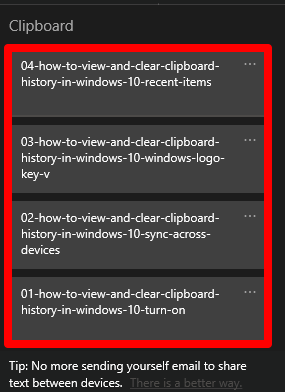
Windows 10 and later versions include a Clipboard History feature that stores multiple copied items. To enable it, press Windows key + V. If it’s not enabled, you’ll see a prompt to turn it on.
Once activated, Clipboard History displays a list of recent items you copied. You can then click any item from this list to paste it instantly. This feature is especially useful if you’re juggling several pieces of text or images and want quick access without copying and pasting repeatedly.
Accessing Clipboard Via Settings
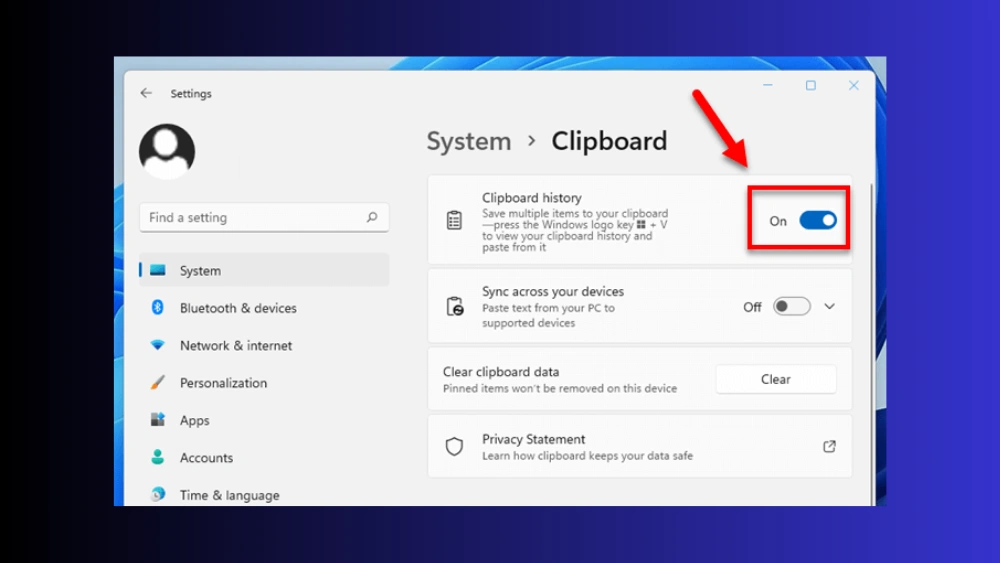
You can also find clipboard settings through the Windows Settings app. Open Settings, then go to System > Clipboard. Here, you can toggle Clipboard History on or off and clear your clipboard data if needed.
This section also offers syncing options, allowing your clipboard content to be shared across devices linked to your Microsoft account. Have you ever copied something on your PC and wished you could paste it on your phone? This setting makes it possible.
Shortcut Keys For Clipboard
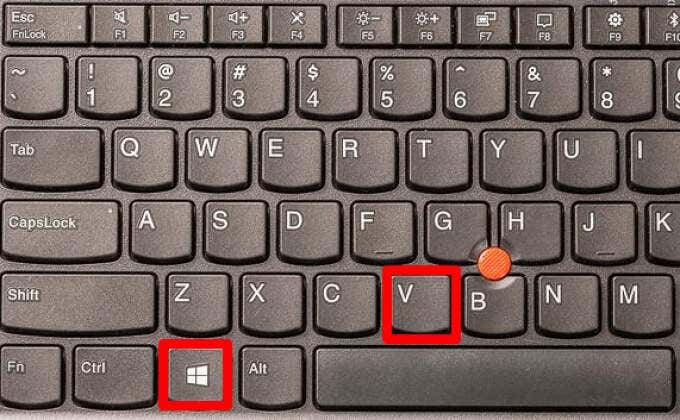
Using shortcut keys is the fastest way to access your clipboard without digging through menus. The key combination Windows key + Vopens the Clipboard History panel immediately.
Additionally, Ctrl + Ccopies, and Ctrl + Xcuts content, while Ctrl + Vpastes the most recent item. These shortcuts are ingrained in Windows users’ habits, but combining them with Clipboard History expands your options beyond just the last copied item.
Credit: helpdeskgeek.com
Find Clipboard On Mac
Finding the clipboard on a Mac is not as direct as on some other operating systems. Mac does not offer a visible clipboard window by default. The clipboard stores text, images, or files you copy. Accessing it helps you manage copied content efficiently. Several ways exist to view or use the clipboard on Mac.
Using Clipboard Viewer
Mac has a hidden clipboard viewer called the Clipboard Viewer. Access it through the Finder app. Open Finder, then click “Edit” in the top menu. Select “Show Clipboard” from the drop-down menu. The clipboard contents will appear in a small window. This works well for viewing text or images copied recently.
Access Clipboard With Terminal
The Terminal app can also show clipboard contents. Open Terminal from the Utilities folder. Type pbpasteand press Enter. The text content of the clipboard will display in Terminal. This method only shows text, not images or files. It is quick and useful for simple clipboard checks.
Third-party Clipboard Apps
Several apps enhance clipboard management on Mac. These apps save multiple clipboard items. They allow easy switching between copied texts or images. Popular apps include Paste, CopyClip, and ClipMenu. Download and install from trusted sources. These apps provide a history of clipboard items. They improve productivity by organizing copied content.
Clipboard Access Tips
The clipboard on your PC is a handy tool for managing copied data. It stores text, images, and more for easy access and transfer. By mastering clipboard access tips, you can boost productivity and streamline your workflow.
Enabling Clipboard Sync Across Devices
Syncing your clipboard across devices is simple. First, go to your PC settings. Search for “Clipboard.” Find the option to “Sync across devices.” Turn it on. This allows you to copy text on one device and paste it on another. Useful for working on multiple gadgets.
Managing Clipboard Content
Clipboard history helps manage copied items. Open clipboard settings and activate “Clipboard history.” Press Windows key + V to view past copied content. Use this to easily access previous copies. It saves time and effort.
Clearing Clipboard Data
Clearing clipboard data is important for privacy. Open clipboard settings on your PC. Find the “Clear clipboard data” option. Click to remove all stored items. This ensures sensitive information is not accessible. Regular clearing keeps your clipboard secure.
Credit: helpdeskgeek.com
Troubleshooting Clipboard Issues
Clipboard issues can disrupt your workflow and cause unnecessary frustration. Whether the clipboard stops working entirely or clipboard history disappears, these problems often have simple fixes. Understanding how to troubleshoot these issues empowers you to regain control quickly and keep your productivity on track.
Fixing Clipboard Not Working
If copying and pasting suddenly stop responding, first check if your keyboard shortcuts (Ctrl+C, Ctrl+V) are functioning properly. Sometimes, third-party apps interfere with clipboard operations, so try closing unnecessary programs.
You can also clear the clipboard manually by copying a small piece of text to reset it. Running the Windows Troubleshooter for keyboard and system issues can highlight hidden problems affecting clipboard behavior.
Dealing With Missing Clipboard History
Clipboard history is a handy feature but may be disabled by default. To enable it, go to Settings > System > Clipboardand toggle on the Clipboard history option.
If clipboard history was working before but suddenly vanished, check if a recent Windows update or system cleanup tool disabled it. Restarting your PC often restores this feature.
Restarting Clipboard Services
Sometimes clipboard problems stem from services running in the background. You can restart the Clipboard User Service by following these steps:
- Press Win + Rand type services.msc.
- Find Clipboard User Servicein the list.
- Right-click and select Restart.
This simple action can solve clipboard freezing or failure to capture copied content.
Have you noticed any patterns when your clipboard stops working? Identifying triggers can help prevent future interruptions.

Credit: www.youtube.com
Frequently Asked Questions
How Do I Open Clipboard On Windows 10?
Press Windows key + V to open the clipboard history. If it’s disabled, go to Settings > System > Clipboard and turn on Clipboard history.
Where Is Clipboard Located On My Pc?
The clipboard is a virtual space in your system memory. It temporarily stores copied or cut items for pasting elsewhere.
Can I Access Clipboard History On My Pc?
Yes, Windows 10 and later versions allow clipboard history access. Enable it via Settings to view and manage multiple copied items.
How To Clear Clipboard On Windows Pc?
Open clipboard with Windows key + V, then click Clear All. Alternatively, restart your PC to clear the clipboard automatically.
Conclusion
Finding the clipboard on your PC is simple with the right steps. You can access it quickly and use it to copy and paste text or images. Knowing how to find the clipboard helps you work faster and stay organized.
Try these methods to keep your copied items handy. Practice a few times, and it will become easy. Stay confident, and your PC tasks will feel smoother every day.