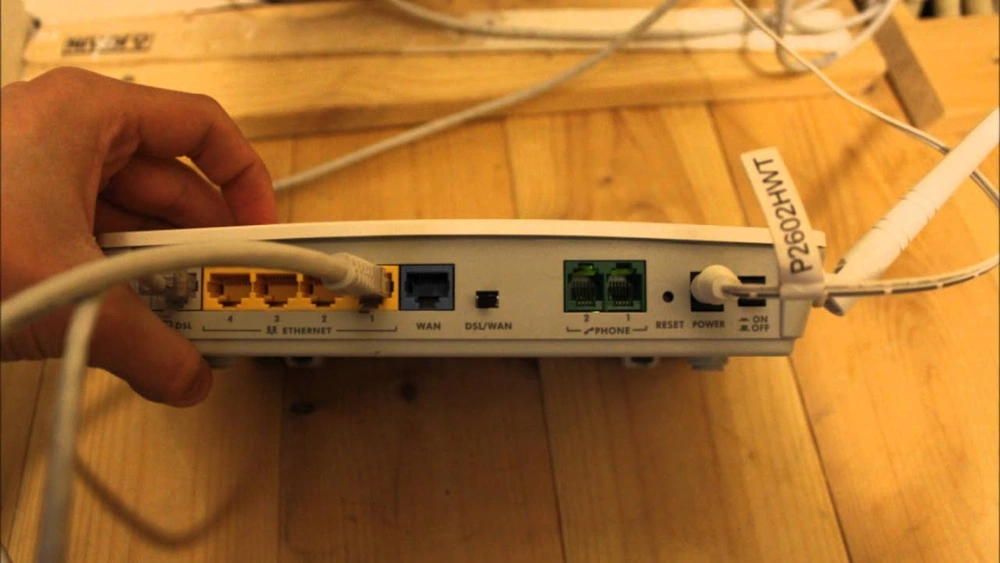
Is your Wi-Fi acting up again? Slow speeds, dropped connections, or no internet at all can be incredibly frustrating.
But before you call your provider or buy a new router, there’s a simple fix you might not have tried: resetting your Wi-Fi router. You’ll learn exactly how to reset your router quickly and safely to get your internet back on track.
Keep reading—this easy trick could save you time, money, and a lot of stress.
Reasons To Reset Your Router
Resetting your Wi-Fi router can solve many common problems. It helps refresh the device and restore normal function. Sometimes, a simple reset fixes issues that seem complex. Here are key reasons why resetting your router can help.
Common Connectivity Issues
Many connection problems come from router errors. The device may stop sending a strong signal. Devices might fail to connect or lose internet access. Resetting clears temporary glitches in the system. It often restores stable connections quickly.
Performance Improvement
Over time, routers can slow down. Memory and cache fill up with data. This causes slower speeds and lag. Restarting the router frees up resources. It gives the device a fresh start. Performance often improves after a reset.
Security Concerns
Routers can be vulnerable to hacking or attacks. Resetting changes temporary settings back to default. It can remove unauthorized access or malware. Regular resets help maintain security. This protects your personal information and devices.
Credit: www.xcitium.com
Types Of Router Resets
Resetting your Wi-Fi router can solve a variety of connectivity issues, but not all resets are the same. Understanding the types of router resets helps you choose the right approach for your problem. Each reset targets different levels of troubleshooting and impacts your settings differently.
Soft Reset
A soft reset simply involves restarting your router without changing any settings. You can do this by unplugging the power cable, waiting about 30 seconds, then plugging it back in. This quick action clears temporary glitches and refreshes your connection without any risk of losing your custom configurations.
Think of it as giving your router a brief nap to reboot its system. If your internet feels slow or drops occasionally, try a soft reset first before moving to more drastic steps.
Hard Reset
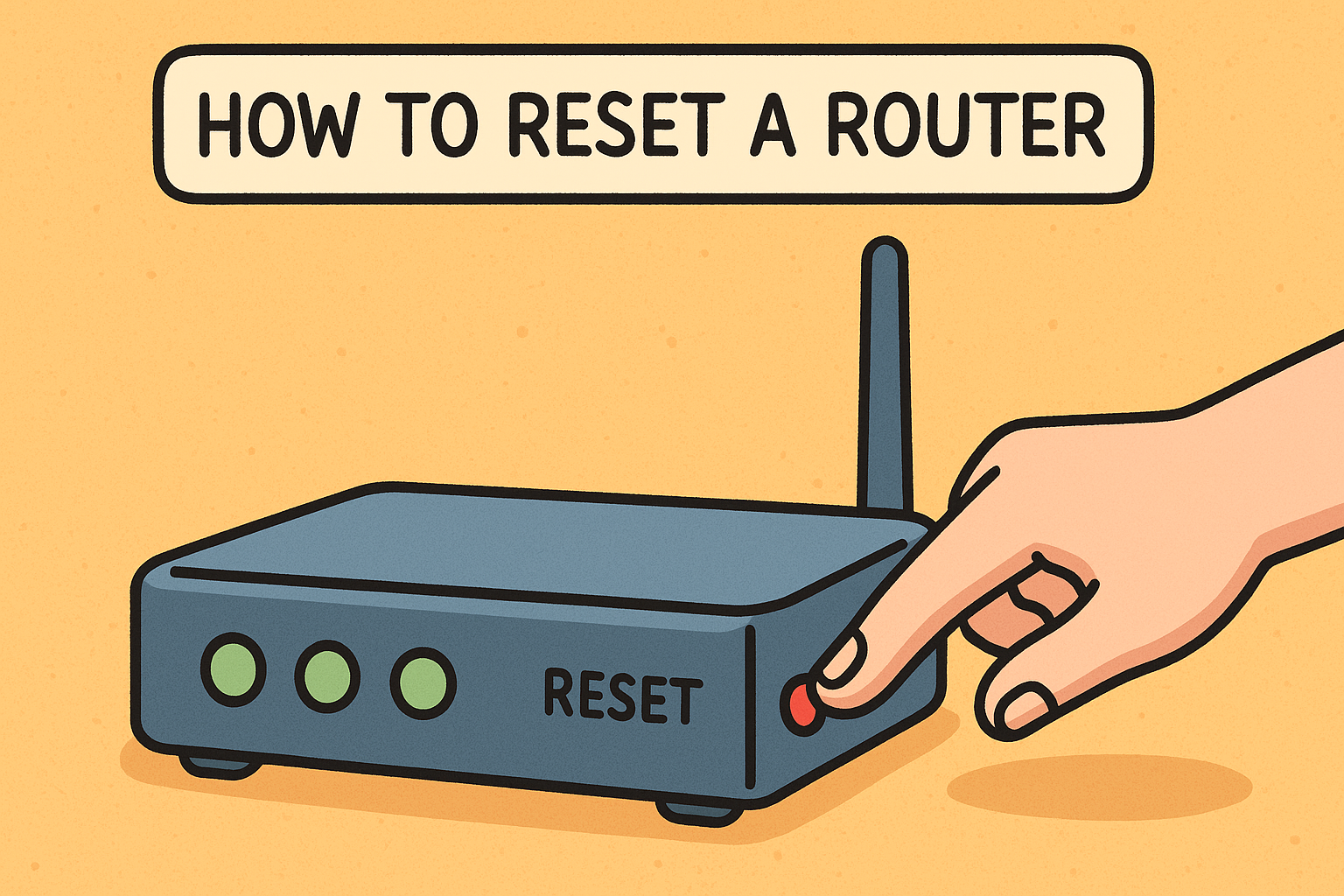
A hard reset is a bit more intense. It usually involves pressing a small reset button on your router for 10-30 seconds while the device is powered on. This action clears some temporary data but keeps most of your settings intact.
Use a hard reset if your router is unresponsive or if certain features aren’t working right. It’s like giving your router a stronger jolt that helps it recover without wiping everything.
Factory Reset
Factory reset is the most comprehensive type of reset. It restores your router to its original settings, erasing all custom configurations, passwords, and network names. You typically perform this by pressing and holding the reset button for 30 seconds or more.
Only use a factory reset if nothing else works or if you want to start fresh. Keep in mind, you’ll need to set up your network again from scratch, including your Wi-Fi name and password.
Preparation Before Resetting
Resetting a Wi-Fi router can fix many connection issues. Preparing well before the reset saves time and avoids losing important settings. This section explains key steps to take before pressing the reset button.
Backup Router Settings
Backing up router settings keeps your network information safe. You can restore these settings after the reset. Most routers offer a backup option in their settings menu. Save the backup file to your computer or cloud storage.
This file includes Wi-Fi passwords, network names, and custom configurations. Without a backup, you may need to set up the router from scratch.
Gather Necessary Information
Collecting key information ensures a smooth reset process. Write down your internet provider’s details, like username and password. Note your Wi-Fi network name (SSID) and password too.
Keep the router’s IP address handy. This address helps access the router’s control panel later. Having this information ready avoids delays and confusion.
Check Router Model And Manual
Knowing your router model helps find the correct reset instructions. Look for the model number on the device label or box. Download the manual from the manufacturer’s website if needed.
The manual explains reset types and button locations. Some routers have soft reset options, while others need a hard reset. Following the manual helps avoid mistakes during reset.
Step-by-step Reset Guide
Resetting your Wi-Fi router can solve many connectivity issues. This step-by-step guide helps you restore your router to optimal performance. You will learn how to perform a soft reset, execute a hard reset, and restore factory defaults. Follow each step carefully for the best results.
Performing A Soft Reset
A soft reset is the simplest way to refresh your router. It doesn’t erase any settings. To start, unplug the router from power. Wait for 30 seconds. Plug it back in. This can resolve minor connection issues.
Executing A Hard Reset
A hard reset is more thorough. It resets the router to its initial state. Locate the reset button on your router. Use a pin to press and hold the button for 10 seconds. Release the button. Your router will reboot.
Restoring Factory Defaults
Restoring factory defaults wipes all custom settings. Use this method if nothing else works. Access the router settings through a web browser. Log in with admin credentials. Find the reset option in settings. Click to restore factory defaults. Wait for the process to complete.
Reconfiguring Your Router
After resetting your Wi-Fi router, reconfiguring it is essential to restore your internet connection and customize settings to your needs. This process ensures your network runs smoothly and securely. Let’s look at how you can access and adjust these settings with ease.
Accessing Router Settings
Start by connecting your device to the router using an Ethernet cable or Wi-Fi. Open a web browser and type the router’s IP address into the address bar—common ones are 192.168.1.1or 192.168.0.1. If unsure, check the label on your router or its manual for the exact address.
Next, enter your login credentials. If you haven’t changed them, default usernames and passwords like admin/adminor admin/passwordusually work. Once logged in, you’ll see the dashboard where you can manage all the router settings.
Setting Up Wi-fi Network
Now it’s time to set your Wi-Fi network name (SSID) and password. Choose a name that’s easy to recognize but not too personal. For the password, use a strong combination of letters, numbers, and symbols to keep your network secure.
Consider selecting the right security protocol, typically WPA2or WPA3, for better protection. You can also set up separate guest networks to keep visitors off your main network. Have you ever wondered how a simple password change can block unwanted users immediately?
Updating Firmware
Firmware updates improve your router’s performance and fix security vulnerabilities. Check the router’s settings menu for a “Firmware Update” or “Router Upgrade” option. If an update is available, download and install it carefully—do not turn off the router during this process.
Many routers can update automatically if you enable this option. Keeping firmware up-to-date minimizes risks and ensures compatibility with new devices. When was the last time you checked your router’s firmware?
Credit: www.youtube.com
Troubleshooting After Reset
Resetting your Wi-Fi router often solves many connection problems. After the reset, some issues may still appear. Knowing how to troubleshoot helps restore your internet quickly. It saves time and reduces frustration.
Common Post-reset Issues
Sometimes, the router resets but the internet does not come back. The device may lose saved Wi-Fi names and passwords. Settings like parental controls or custom DNS might disappear too.
Here are frequent problems after a reset:
- No internet connection despite the router being on.
- Wi-Fi network name changed to the default one.
- Device does not connect automatically to Wi-Fi.
- Slow internet speed or unstable connection.
- Lost custom settings like port forwarding or guest networks.
To fix these, re-enter your Wi-Fi name and password. Restart your modem and router together. Check if cables are firmly plugged in. Update router firmware if available.
When To Contact Support
If problems continue after basic checks, it may be time to get help. Contact your internet provider or router manufacturer. They can guide you through advanced troubleshooting. They can also check if your device has hardware issues.
Reach out to support when:
- Internet stays offline after a reset and reboot.
- Router won’t power on or lights flash abnormally.
- Settings reset repeatedly without your action.
- Firmware update fails or causes errors.
- You feel unsure about making complex changes.
Getting expert help ensures your network works safely and well. Keep your router’s model and serial number ready before calling support.
Tips To Maintain Router Health
Maintaining your router’s health is key to steady internet performance. Simple care steps keep your network fast and secure. These tips help avoid common issues and extend your router’s life.
Regular Firmware Updates
Firmware updates fix bugs and improve security. Check the router’s settings for update options. Download and install updates from the official website only. Set reminders to update regularly for best results.
Optimal Router Placement
Place your router in a central, open area. Avoid corners, thick walls, and metal objects nearby. Higher positions often improve signal strength. Keep it away from electronic devices that cause interference.
Scheduled Resets
Resetting your router clears memory and refreshes connections. Schedule resets weekly or biweekly to avoid slowdowns. Use the reset button or restart from the settings menu. This simple step boosts speed and stability.

Credit: www.youtube.com
Frequently Asked Questions
How Do I Reset My Wi-fi Router Safely?
To reset your Wi-Fi router safely, locate the reset button. Press and hold it for 10 seconds using a paperclip. Release it, and wait for the router to reboot. This restores factory settings without causing hardware damage.
What Happens When You Reset A Wi-fi Router?
Resetting a Wi-Fi router clears all settings, including passwords and custom configurations. It restores the router to its original factory state. This helps fix connectivity issues but requires reconfiguring the router afterward.
How Often Should I Reset My Wi-fi Router?
Reset your Wi-Fi router only when needed, such as during connectivity problems or slow speeds. Frequent resets are unnecessary and won’t improve performance. Regular restarts, however, can help maintain stable connections.
Can Resetting My Router Improve Wi-fi Speed?
Yes, resetting your router can improve Wi-Fi speed temporarily. It clears cache and refreshes the connection. However, long-term speed issues may need other solutions like firmware updates or better placement.
Conclusion
Resetting your Wi-Fi router can fix many common problems. It helps refresh your connection and clear errors. Always follow the steps carefully to avoid issues. Keep your login details handy before starting the reset. After resetting, your network settings may change, so update devices if needed.
A simple reset often improves speed and reliability. Try this method before calling for support. Stay patient and check your connection again. Small actions like these keep your internet running smoothly.