Are you ready to upgrade your TV sound without the hassle? Connecting a soundbar to your TV can instantly boost your viewing experience with clearer, richer audio.
But if you’re wondering how to hook up a soundbar to your TV the right way, you’re in the right place. This simple guide will walk you through every step, making sure you get the best sound with no confusion.
Keep reading, and soon you’ll enjoy your favorite shows and movies like never before.
Choosing The Right Soundbar
Choosing the right soundbar is key to a better TV sound experience. The right match improves clarity, depth, and volume. Consider your room size, TV type, and listening habits. A good soundbar fits your needs and space. Let’s explore the types, compatibility, and budget tips.
Types Of Soundbars
Soundbars come in different forms and features. Each type suits different preferences and rooms.
- Basic Soundbars:Simple models, easy to use, improve TV sound significantly.
- Soundbars with Subwoofers:Include extra bass for richer, deeper sound.
- Surround Soundbars:Provide a multi-speaker setup for immersive experience.
- Smart Soundbars:Built-in voice assistants and wireless connectivity.
Compatibility With Your Tv
Check your TV’s audio output options before buying a soundbar. Common connections include HDMI ARC, optical, and Bluetooth.
- HDMI ARC offers the best sound quality and easy control.
- Optical cables deliver clear digital sound but fewer features.
- Bluetooth allows wireless connection but may reduce audio quality.
Match the soundbar’s input with your TV’s output ports. This ensures a smooth connection and better sound.
Budget Considerations
Soundbars come at many price points. Decide how much to spend based on features and quality.
- Low-cost models offer basic sound improvements for small rooms.
- Mid-range soundbars provide better sound and extra features.
- High-end soundbars deliver premium sound with advanced tech.
Balance your budget with your listening needs and room size. Spending wisely leads to better satisfaction.
Credit: greensafaris.com
Connecting Your Soundbar
Connecting your soundbar to your TV can transform your viewing experience with richer, clearer sound. You have several options depending on your TV’s ports and your soundbar’s capabilities. Let’s look at the most common and effective ways to make this connection smoothly.
Using Hdmi Arc
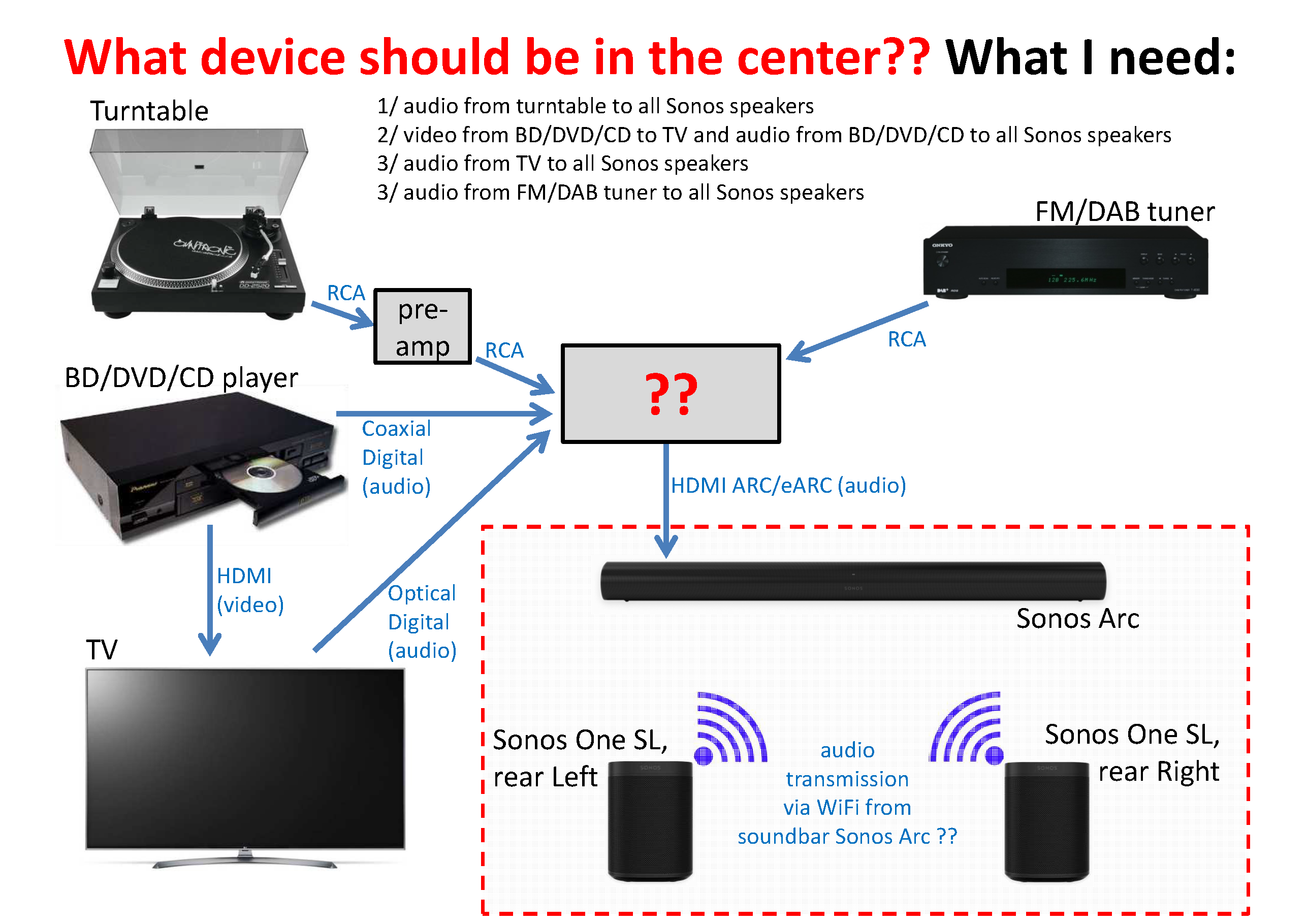
HDMI ARC (Audio Return Channel) is often the best choice for connecting your soundbar. It allows both audio and control signals to travel through a single HDMI cable.
Check if your TV and soundbar have HDMI ARC ports—usually labeled “ARC.” Plug one end of the HDMI cable into your TV’s ARC port and the other into the soundbar’s ARC port. This setup supports high-quality audio and lets you control the soundbar volume with your TV remote.
Have you noticed that some remotes stop working after connecting devices? Using HDMI ARC avoids this by syncing controls seamlessly.
Optical Cable Connection
If your TV or soundbar lacks HDMI ARC, an optical cable is a reliable alternative. This cable transmits audio signals as light, preserving sound quality.
Locate the optical output on your TV and the optical input on your soundbar. Connect them with an optical cable, making sure the protective caps on the cable ends are removed. Then, switch your TV’s audio output to optical in the sound settings menu.
Optical cables don’t carry control signals, so you might need to use separate remotes. But the clear, crisp sound is worth this minor inconvenience.
Auxiliary And Bluetooth Options
For simpler setups, or if you want a wireless connection, auxiliary (AUX) cables and Bluetooth offer flexibility. AUX cables use a 3.5mm jack, similar to headphone plugs, for a direct wired connection.
Plug one end into the TV’s headphone or audio out jack and the other into the soundbar’s AUX input. This method is straightforward but may not deliver the best sound quality compared to HDMI or optical.
Bluetooth lets you connect your soundbar wirelessly. Pairing your devices is quick—just enable Bluetooth on both your TV and soundbar, then select your soundbar from the TV’s Bluetooth menu.
Wireless freedom is great, but be aware of potential audio delay or interference, especially if you have many devices nearby.
Setting Up Your Tv For Soundbar Use
Connect your soundbar to the TV using an HDMI or optical cable for clear audio. Adjust TV settings to output sound through the soundbar. Place the soundbar near your TV for the best sound experience.
Setting up your TV for soundbar use transforms your home audio experience. Connecting a soundbar can enhance movie nights and music sessions. Proper setup ensures clear sound and synchronizes audio with video. Follow these steps to optimize your TV settings for soundbar use.Adjusting Audio Settings
Begin by accessing your TV’s audio settings menu. Navigate to the settings using your remote control. Look for the audio output option. Select the external speaker or soundbar option. This directs sound from your TV to the soundbar.Disabling Tv Speakers
Disabling built-in TV speakers prevents audio conflicts. Access the sound settings again. Locate the option to turn off internal speakers. Disable them to ensure sound only comes from the soundbar. This step enhances sound clarity.Syncing Audio And Video
Audio-video sync is crucial for a seamless experience. If audio lags, it disrupts viewing. Use your TV’s audio sync feature. Adjust settings until sound matches the video perfectly. This ensures a smooth viewing experience.
Credit: www.youtube.com
Troubleshooting Common Issues
Troubleshooting common issues can help get your soundbar working perfectly with your TV. Small problems often cause big frustrations. Checking a few things can save time and improve your audio experience.
Start by confirming all cables are secure and properly connected. Power on both devices and select the right input source on your TV. These basics fix many issues quickly.
No Sound From Soundbar
Check the soundbar volume and mute status. Sometimes the soundbar is muted or set to low volume. Make sure the TV volume is not muted or too low either.
Verify the audio output settings on your TV. Your TV might be set to use internal speakers instead of the soundbar. Change the setting to external speakers or HDMI ARC.
Try disconnecting and reconnecting the cables. Loose or faulty cables cause no sound problems. Use high-quality HDMI or optical cables for best results.
Audio Delay Problems
Audio delay makes sound and picture out of sync. This happens if the TV and soundbar process audio differently. Some soundbars have a built-in audio delay setting. Adjust it to match the TV’s timing.
Turn off any sound enhancements or equalizers on both devices. These features can slow down audio processing. Use the default audio settings for smoother sync.
Try switching the audio output format. Some formats cause delay. Set the TV to output PCM or stereo sound to reduce lag.
Connection Drops
Connection drops interrupt your audio unexpectedly. Check if cables are firmly plugged in. Replace any damaged or worn cables.
For wireless soundbars, ensure the Bluetooth or Wi-Fi signal is strong. Keep the soundbar close to the TV. Avoid obstacles like walls or metal objects between devices.
Restart both the TV and soundbar. Sometimes a simple reboot fixes connection issues. Update the firmware on both devices to improve stability.
Enhancing Your Sound Experience
Enhancing your sound experience goes beyond simply hooking up your soundbar to your TV. It’s about creating an immersive audio environment that makes every movie, game, or show more enjoyable. Small tweaks and additional components can dramatically improve how you perceive sound in your space.
Using Sound Modes
Most soundbars come with multiple sound modes designed for different types of content. Try switching between modes like “Movie,” “Music,” or “Dialogue” to see which one fits your current activity best. You might find that the “Dialogue” mode makes conversations clearer during news or talk shows, while “Movie” mode adds more depth to action scenes.
Don’t be afraid to experiment with the equalizer settings if your soundbar has them. Adjusting bass, treble, and midrange can tailor the sound to your room and preferences. How often do you actually explore these modes instead of sticking to the default setting?
Positioning The Soundbar
Where you place your soundbar greatly affects sound quality. Ideally, position it directly under or above your TV, centered with the screen. This placement ensures sound comes from the right direction, matching what you see on the screen.
Keep the soundbar away from corners or enclosed spaces to avoid muffled audio. If you have a wall-mounted TV, mounting the soundbar on the wall just below the screen can create a clean look and better sound projection. Have you checked how your current placement might be impacting your listening experience?
Adding Subwoofers Or Surround Speakers
Adding a subwoofer can significantly boost the bass, making explosions and sound effects more impactful. Many soundbars support wireless subwoofers, allowing you to place them where they sound best without messy cables.
Surround speakers take things a step further by adding depth and directionality to your audio. This setup mimics a cinema experience right in your living room. If you want to feel like you’re in the middle of the action, consider expanding your sound system with these additions.
Think about your room size and layout before buying extra speakers. Sometimes, a well-placed subwoofer alone can make the biggest difference without complicating your setup.

Credit: www.youtube.com
Frequently Asked Questions
How Do I Connect A Soundbar To My Tv?
To connect a soundbar, use an HDMI ARC, optical cable, or Bluetooth. Check your TV’s audio output options and choose the best connection type for clear sound.
Can I Use Bluetooth To Hook Up My Soundbar?
Yes, many modern soundbars support Bluetooth. Pair your TV and soundbar by enabling Bluetooth on both devices, then select the soundbar from your TV’s Bluetooth menu.
What Is Hdmi Arc And Why Use It?
HDMI ARC (Audio Return Channel) sends audio from TV to soundbar using one cable. It simplifies setup and supports high-quality sound formats for better audio experience.
Do I Need An Optical Cable For My Soundbar?
An optical cable provides digital audio from TV to soundbar. Use it if HDMI ARC or Bluetooth isn’t available, as it delivers clear, high-quality sound.
Conclusion
Connecting a soundbar to your TV is simple and quick. Just follow the steps carefully. Use the right cables for the best sound quality. Adjust the settings on your TV and soundbar as needed. Enjoy clearer, richer audio for movies and shows.
This small change can greatly improve your viewing experience. Take your time, and you will have great sound in no time. Now, your entertainment feels more immersive and fun.