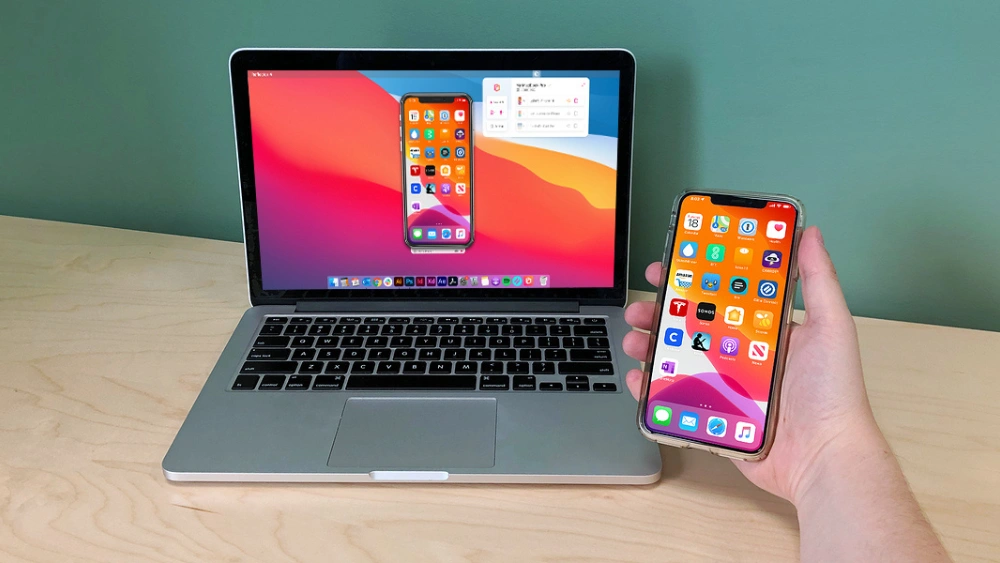
Do you want to see your iPhone screen on your Chromebook without any hassle? Whether you’re sharing photos, watching videos, or giving a presentation, screen mirroring can make everything easier and more fun.
But how do you connect these two devices that seem worlds apart? You’ll discover simple, step-by-step methods to mirror your iPhone screen to your Chromebook quickly and smoothly. Keep reading, and you’ll be amazed at how easy it is to bring your devices together in just minutes.
Prepare Your Devices
Before you start screen mirroring from your iPhone to your Chromebook, getting your devices ready is crucial. Proper preparation ensures a smooth connection and minimizes frustration. Let’s look at two key steps to prepare your devices effectively.
Check Network Connection
Both your iPhone and Chromebook need to be on the same Wi-Fi network for screen mirroring to work properly. If your devices are connected to different networks, the mirroring process will fail or lag significantly.
Take a moment to verify the Wi-Fi network on each device:
- On your iPhone, go to Settings > Wi-Fiand confirm the active network.
- On your Chromebook, click the network icon in the bottom-right corner to see the connected Wi-Fi.
If you notice any issues, reconnect both devices to a stable, high-speed Wi-Fi. Have you ever tried screen mirroring only to realize your phone was on mobile data? That’s a common pitfall to avoid.
Update Software
Outdated software can cause compatibility problems between your iPhone and Chromebook. To prevent unexpected glitches, make sure both devices have the latest updates installed.
- On your iPhone, open Settings > General > Software Updateand install any available updates.
- On your Chromebook, click the clock, select Settings > About Chrome OS, then click Check for updates.
Updating software not only improves performance but also introduces new features that might enhance your mirroring experience. Have you checked for updates recently? It’s a quick step that pays off.
Enable Screen Mirroring On Iphone
Enabling screen mirroring on your iPhone is the first step to sharing your device’s display with your Chromebook. It allows you to project your apps, videos, and photos directly onto a larger screen, making it easier to collaborate or enjoy content together. The process is straightforward once you know where to look.
Access Control Center
Start by unlocking your iPhone and swiping down from the top-right corner of the screen. This action opens the Control Center, where you’ll find quick access to various settings and features.
If you have an older iPhone with a Home button, swipe up from the bottom of the screen instead. This small difference can trip up many users, but once you get the hang of it, accessing the Control Center becomes second nature.
Select Screen Mirroring Option
Inside the Control Center, look for the icon labeled Screen Mirroring. It looks like two overlapping rectangles. Tap on it to see a list of nearby devices available for mirroring.
Make sure your Chromebook is ready to receive the connection, often through an app or a built-in feature that supports AirPlay or similar protocols. Selecting your Chromebook from the list will start the mirroring process.
Have you ever noticed how quick and seamless this step can be when both devices are on the same Wi-Fi network? Ensuring your iPhone and Chromebook are connected to the same network can save you a lot of frustration.
Set Up Chromebook For Mirroring
Connect your Chromebook and iPhone to the same Wi-Fi network for smooth screen mirroring. Use compatible apps or built-in features to start sharing your iPhone screen on the Chromebook instantly. Adjust settings for a clear and stable display.
Setting up your Chromebook to mirror an iPhone screen is simple. Begin by ensuring your Chromebook is ready for the mirroring process. This involves installing the necessary apps and adjusting mirroring settings. With the right setup, you can view your iPhone screen on your Chromebook seamlessly.
Install Required Apps
To start, install essential apps on your Chromebook. The App Store offers various apps for screen mirroring. Choose an app that supports both Chromebook and iPhone. Some popular options include Reflector, AirServer, and ApowerMirror. Open the app store on your Chromebook and search for these apps. Click ‘Install’ and wait for the process to complete. Once installed, open the app to ensure it functions properly.
Configure Mirroring Settings
After installation, configure the settings for screen mirroring. Open the app you installed. Navigate to the settings menu within the app. Look for options related to device connection. Enable the necessary permissions for connection. Set your Chromebook and iPhone to the same network. This ensures a stable connection. Adjust any additional settings for optimal display. Save your configurations and exit the settings menu.
Credit: www.tiktok.com
Connect Iphone To Chromebook
Connecting your iPhone to a Chromebook opens up new ways to share content seamlessly. Whether you want to stream videos, display photos, or mirror your screen for presentations, the process is straightforward once you know the right steps.
Getting these two devices to communicate requires a few simple actions on both ends. You’ll need to ensure both your iPhone and Chromebook are ready to recognize each other and establish a secure connection.
Choose Chromebook From Iphone
Start by opening the Control Center on your iPhone. Tap the “Screen Mirroring” icon—you’ll see a list of available devices appear.
Look for your Chromebook’s name in the list. If it doesn’t show up, make sure both devices are on the same Wi-Fi network and that your Chromebook’s mirroring feature is active.
Once you spot your Chromebook, tap on it. Your iPhone will attempt to connect, sending a prompt to your Chromebook to accept the connection.
Allow Connection On Chromebook
On your Chromebook, a notification will pop up asking you to allow your iPhone to mirror its screen. This step protects your privacy and prevents unwanted connections.
Click “Allow” or “Accept” to establish the link. If you don’t see the prompt, check your Chromebook’s notification area or settings for pending connection requests.
After acceptance, your iPhone’s screen should appear on your Chromebook. At this point, you can enjoy all your iPhone content on a bigger screen without cables or extra apps.
Troubleshoot Common Issues
Screen mirroring from an iPhone to a Chromebook can sometimes face glitches. These common issues may interrupt your smooth streaming experience. Troubleshooting helps fix these problems quickly. This section covers easy ways to solve connection problems and enhance streaming quality.
Fix Connection Problems
First, check if both devices connect to the same Wi-Fi network. Different networks cause connection failures. Restart your Wi-Fi router to clear any temporary bugs. Also, reboot both your iPhone and Chromebook to refresh their systems.
Ensure your Chromebook supports screen mirroring apps. Some older models may not work well. Update your iPhone and Chromebook software to the latest version. Updates often fix bugs and improve compatibility.
Disable VPN or firewall settings that might block the connection. Use a screen mirroring app with good reviews and clear instructions. Follow all app permissions for smooth operation.
Improve Streaming Quality
Close all other apps on both devices to free up memory and bandwidth. A crowded system slows down streaming. Move closer to your Wi-Fi router to get a stronger signal.
Lower the video resolution in the mirroring app settings if streaming lags. High resolution needs more bandwidth and processing power. Turn off Bluetooth if it is not needed; it can interfere with Wi-Fi signals.
Clear cache and temporary files on both devices regularly. This helps improve performance. Use a wired connection to your Chromebook’s router if possible. It offers a more stable and faster connection than Wi-Fi.
Credit: www.tiktok.com
Credit: www.tiktok.com
Frequently Asked Questions
How Do I Enable Screen Mirroring From Iphone To Chromebook?
To enable screen mirroring, connect both devices to the same Wi-Fi network. Use a compatible app like AirDroid or LonelyScreen on your Chromebook. Open the app on both devices and select your Chromebook from the iPhone’s screen mirroring options to start casting.
Which Apps Work Best For Iphone To Chromebook Mirroring?
Top apps for mirroring include AirDroid, LonelyScreen, and ApowerMirror. These apps offer smooth streaming and easy setup. They support wireless mirroring and provide good video quality. Choose an app based on your specific needs and device compatibility.
Can I Mirror Iphone Audio To Chromebook Too?
Yes, most screen mirroring apps also stream audio from your iPhone. Ensure your Chromebook’s volume is on and not muted. Some apps allow separate audio control for better sound quality during mirroring sessions.
Is Screen Mirroring From Iphone To Chromebook Free?
Many apps offer free basic mirroring features with ads or limited time. Premium versions remove ads and add extra functions like HD streaming. Check app details to find the best free or paid option that suits your needs.
Conclusion
Screen mirroring your iPhone to a Chromebook is simple and useful. Just follow the steps carefully. You can show photos, videos, or apps on a bigger screen. This method saves time and makes sharing easy. Keep your devices connected to the same Wi-Fi network.
Try it out and enjoy the clear view on your Chromebook. Sharing content has never been this easy or fast. Give it a shot today and see the difference.