
Is your Samsung tablet acting slow or frozen? Sometimes, the simplest fix is just a quick reboot.
But do you know the best way to reboot your device safely and effectively? Whether your screen is unresponsive or apps are crashing, this guide will help you get your tablet back to smooth performance in no time. Keep reading, and you’ll learn exactly how to reboot your Samsung tablet like a pro—no tech skills needed.
Your tablet’s health depends on it!
Reasons To Reboot Your Tablet
Rebooting your Samsung tablet might seem like a simple task, but it plays a crucial role in keeping your device running smoothly. Sometimes, a quick restart can fix issues that slow you down or cause frustration. Understanding why you should reboot can save you time and effort, and even prevent more serious problems.
Fixing Performance Issues
Have you noticed your tablet freezing or apps lagging? Rebooting clears temporary files and frees up memory, which often resolves these slowdowns. It’s like giving your tablet a fresh start without deleting any of your data.
I once had a tablet that kept crashing during video calls. A quick reboot stopped the crashes immediately, letting me get back to work without delay. Could a restart be the simple fix for your sluggish device?
Resolving Connectivity Problems
Struggling with Wi-Fi or Bluetooth connections? Restarting your tablet resets network settings and can reconnect your device to networks that were acting up. This step often fixes dropped connections or slow internet speeds.
Imagine trying to stream your favorite show, only for the Wi-Fi to cut out repeatedly. A reboot helped me reconnect within seconds, avoiding a frustrating wait. Why spend time troubleshooting complex network settings when a reboot might do the trick?
Applying System Updates
Updates are essential for security and new features, but they sometimes require a reboot to take effect. Restarting ensures that your tablet installs these updates properly and runs the latest software version.
Skipping a reboot after an update can leave your tablet vulnerable or cause apps to behave oddly. When was the last time you rebooted after an update? It might be the key to smoother performance and better protection.
Soft Reboot Methods
Soft reboot methods help restart your Samsung tablet without losing any data. These techniques fix minor glitches and improve performance. They are quick and easy to perform, suitable for everyday use.
Using The Power Button
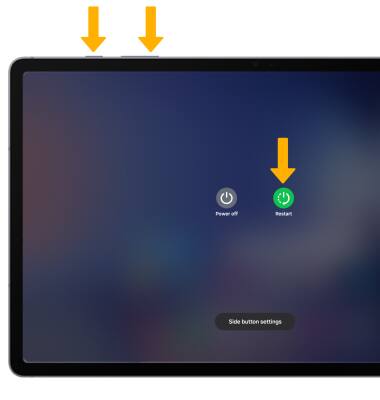
Press and hold the power button for a few seconds. A menu appears on the screen. Tap the “Restart” option to reboot your tablet. If there is no restart option, choose “Power Off” instead. After the tablet turns off, press the power button again to turn it back on.
Restarting Through Settings
Open the “Settings” app from your home screen or app drawer. Scroll down and tap “General Management.” Select “Reset” or “Restart” depending on your model. Tap “Restart” and confirm your choice. The tablet will reboot without deleting any files or apps.
Hard Reboot Techniques
Rebooting your Samsung tablet can resolve many issues. A hard reboot is essential when your device freezes or becomes unresponsive. It refreshes the system without wiping your data. Let’s explore these techniques to help your tablet run smoothly again.
Force Restart
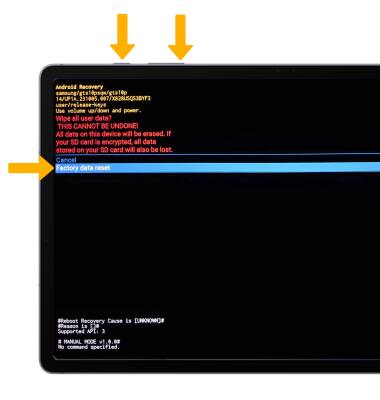
A force restart is simple. Press and hold the Power and Volume Down buttons together. Hold them for about 10 seconds until the Samsung logo appears. This method is effective when your screen is stuck or buttons don’t respond. It’s safe and doesn’t harm your data.
When To Use Hard Reboot
Consider a hard reboot when your tablet freezes frequently. It’s useful when apps crash or the device runs slow. Use it if your tablet won’t turn on or off normally. It’s a quick fix for many software glitches. Always ensure your data is backed up regularly.

Credit: www.youtube.com
Rebooting Without Power Button
Sometimes, the power button on your Samsung tablet might stop working or become unresponsive. This can leave you wondering how to reboot the device without using the button. Fortunately, there are alternative ways to restart your tablet that don’t require physical access to the power key, making it easier to keep your device running smoothly.
Using Accessibility Features
Samsung tablets come with built-in accessibility options that can help you control your device without the power button. One such feature is the Assistive Menu, which adds a floating on-screen button for quick access to functions like reboot, volume control, and screenshots.
To enable this, go to Settings > Accessibility > Interaction and Dexterity, then turn on the Assistive Menu. Once activated, tap the floating button and select the restart option to reboot your tablet.
This method is handy because it doesn’t require any additional apps. Have you tried customizing your tablet’s accessibility settings before? You might find other useful shortcuts that simplify your daily use.
Third-party Apps
If the built-in options don’t work or aren’t available on your model, third-party apps can fill the gap. Apps like Quick Rebootor Reboot Managerlet you restart your tablet with a simple tap on the screen.
Most of these apps require root access to perform a full reboot, but some offer a soft reboot option that works without rooting. Always check the app’s permissions and user reviews to ensure it’s safe and reliable.
Using an app to reboot your tablet can save you from hardware repairs or replacements. What’s your experience with using apps to control hardware functions? It might be worth giving these a try if your power button is acting up.
Tips To Avoid Reboot Issues
Reboot issues can be frustrating, especially when you rely on your Samsung tablet daily. Avoiding these problems means taking simple, proactive steps that keep your device running smoothly. Let’s look at some practical tips that can help you prevent reboot troubles and save you time and hassle.
Keep Software Updated
Software updates often include important fixes for bugs that might cause reboot problems. By regularly checking for and installing updates, you ensure your tablet has the latest protections and improvements.
Have you ever ignored an update only to face sudden glitches later? Staying current with updates is one of the easiest ways to avoid unexpected reboots.
Manage Storage Space
Low storage can cause your tablet to slow down or reboot unexpectedly. Keep an eye on your storage and delete apps or files you no longer need.
Try this: go to your tablet’s settings and check storage usage. Clear cache and uninstall unused apps to free up space. This simple habit can prevent many performance issues.
Regularly Restart Your Device
Restarting your tablet regularly helps clear temporary files and refresh system processes. You don’t have to wait for problems to arise—make it a habit.
Think about how a quick restart can improve your tablet’s speed and stability. You might notice fewer glitches and smoother operation just by rebooting once a week.
Credit: www.att.com
Credit: www.att.com
Frequently Asked Questions
How Do I Soft Reboot My Samsung Tablet?
To soft reboot, press and hold the Power button for 10 seconds. Release it when the screen goes black. Your tablet will restart normally.
What Is The Hard Reboot Method For Samsung Tablets?
Press and hold the Power and Volume Down buttons together for 10-15 seconds. This forces a hard reboot without erasing data.
When Should I Reboot My Samsung Tablet?
Reboot your tablet if it freezes, runs slowly, or apps crash. Rebooting clears temporary issues and improves performance.
Will Rebooting Delete My Data On Samsung Tablet?
No, rebooting simply restarts the device. It does not delete your apps, files, or settings.
Conclusion
Rebooting your Samsung tablet can fix many common problems. A simple restart often clears glitches and speeds up your device. Remember to save your work before rebooting to avoid losing data. If the tablet still acts slow, try a forced reboot or factory reset.
Regularly restarting your tablet helps keep it running smoothly. Now, you can handle basic troubleshooting with ease. Keep this guide handy for quick fixes anytime.