Are you ready to share your Mac’s screen with a bigger audience? Whether it’s for a presentation, movie night, or a classroom lesson, connecting your Mac to a projector can make a huge difference.
But if you’re not sure how to do it, don’t worry. This guide will walk you through simple steps to get your Mac and projector working together smoothly. By the end, you’ll feel confident and ready to impress everyone with your setup.
Keep reading to discover how easy it can be!

Credit: www.youtube.com
Check Mac And Projector Ports
Checking the ports on your Mac and projector is the first step to connect them properly. Different Mac models and projectors have various types of video ports. Identifying these ports helps you find the right cable or adapter for the connection.
Identify Mac Video Outputs
Mac computers come with several video output options. Knowing which port your Mac has makes connecting easier. Common Mac video ports include:
- Thunderbolt 3 (USB-C)– A small, oval port found on newer Macs.
- HDMI– A wider, flat port for direct video and audio output.
- Mini DisplayPort– A small rectangle port found on some older Macs.
Check your Mac’s side or back for these ports. The model year can also indicate which outputs are available.
Identify Projector Inputs
Projectors support various input types for video signals. Knowing the available inputs helps pick the right cable. Common projector inputs include:
- HDMI– The most common input for high-definition video and audio.
- VGA– An older, blue-colored port for analog video only.
- DisplayPort– A digital video input often used in newer projectors.
- USB-C– Sometimes found on modern projectors for direct video input.
Look at the projector’s back panel or side to find these ports. Match the projector input with your Mac’s output for the best connection.

Credit: www.youtube.com
Gather Necessary Adapters And Cables
Before you connect your Mac to a projector, you need to gather the right adapters and cables. Macs often come with limited ports, so having the correct accessories is essential to ensure a smooth connection. Without the proper adapters, your projector might not recognize your Mac’s display, leading to frustration and delays.
Common Mac Adapters
Macs, especially newer models, may not include traditional HDMI or VGA ports. Instead, they often have Thunderbolt 3 (USB-C) or Mini DisplayPort connections. You might need adapters such as:
- USB-C to HDMI:Ideal for most modern projectors that support HDMI input.
- USB-C to VGA:Useful if your projector only has VGA input, common in older models.
- Mini DisplayPort to HDMI or VGA:Common for older Macs that don’t have USB-C ports.
Think about the type of Mac you have and check its ports carefully. I once tried connecting my MacBook Pro without an adapter and had to rush out to buy one last minute—don’t let that happen to you!
Choosing The Right Cable
Once you know your adapter, pick the correct cable to match the projector’s input. HDMI cables are widely used and support both video and audio, making them a popular choice. VGA cables only carry video, so if you want sound, you’ll need an extra audio cable.
Ask yourself: does your projector support HDMI, VGA, or something else? Also, consider cable length. A cable that’s too short can limit your setup options, while an excessively long cable can cause signal loss or clutter.
Test your adapters and cables before an important presentation to avoid last-minute surprises. A few minutes of preparation can save you from a lot of stress.
Connect Mac To Projector
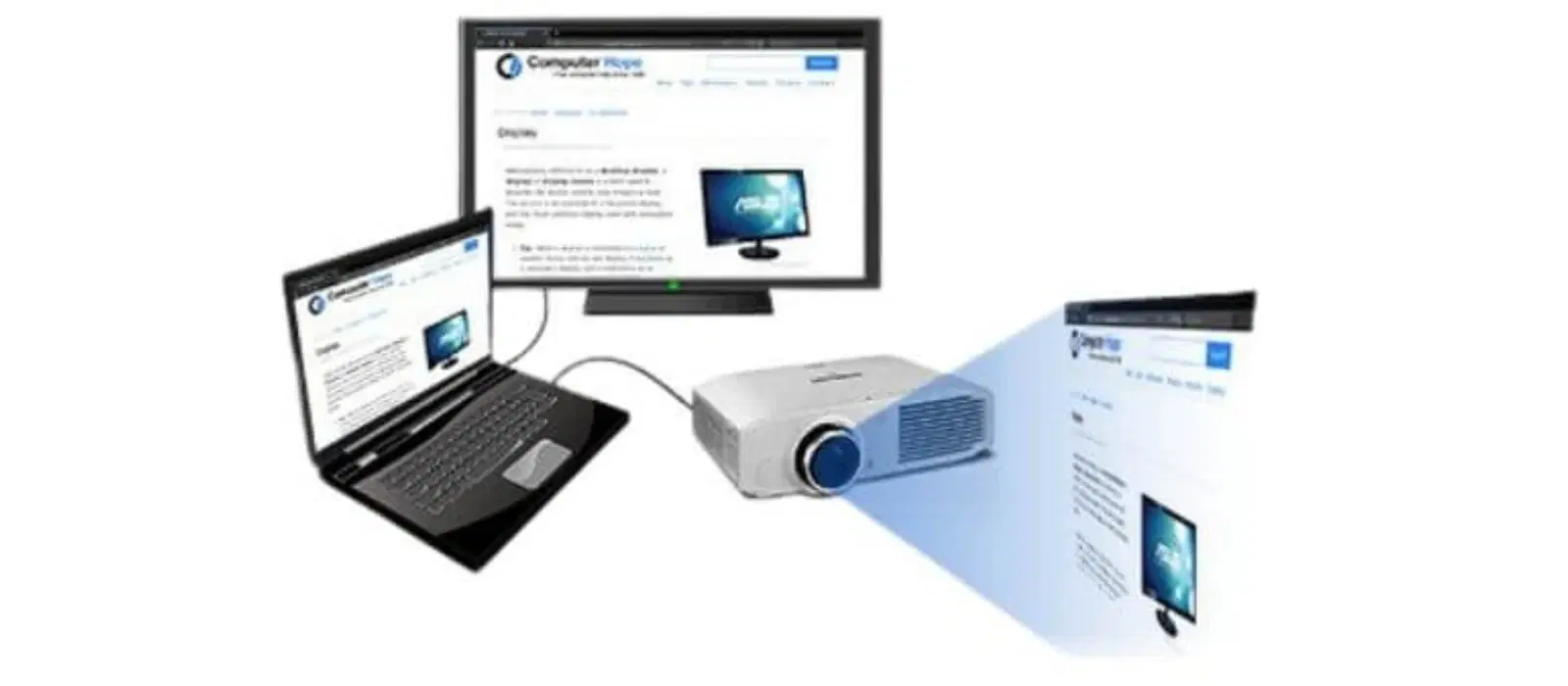
Connecting your Mac to a projector allows you to share your screen with a larger audience. It is useful for presentations, movies, and meetings. The process is simple and quick with the right tools and steps.
Step-by-step Connection Guide
Check the ports on your Mac and the projector. Common ports include HDMI, USB-C, and VGA. Use the right cable or adapter for your Mac model.
- Turn off both Mac and projector before connecting.
- Plug the cable into your Mac’s port.
- Connect the other end of the cable to the projector.
- Turn on the projector and then your Mac.
- Open System Preferences on your Mac.
- Select Displays and choose the projector as the display.
- Adjust resolution and screen arrangement if needed.
Secure Cable Connections
Ensure all cable connections are tight and secure. Loose connections can cause flickering or no display. Use cable locks or clips if available. Avoid bending or twisting cables too much. Check cables for any damage before use. Secure cables to prevent accidental unplugging during use.
Credit: www.tataneu.com
Configure Display Settings On Mac
Configuring display settings on your Mac ensures the projector shows content correctly. Adjusting these settings helps avoid blurry images or incorrect screen sizes. It also lets you choose how you want to share your screen.
Open Display Preferences
Click the Apple menu at the top-left corner of your screen. Select System Preferences, then click Displays. Your Mac detects connected displays, including the projector. The Display Preferences window opens, showing options for all connected screens.
Mirror Or Extend Display
You can choose to mirror your Mac screen on the projector or use it as a second screen. Select the Arrangementtab in Display Preferences. Check the box next to Mirror Displaysto show the same screen on both devices. Uncheck it to extend your desktop across both screens.
Adjust Resolution And Refresh Rate
Choose the best resolution for clear images. In the Displaytab, select Scaledto see resolution options. Pick one that fits your projector’s native resolution. Adjust the refresh rate for smoother video playback if your projector supports it. This setting is also found under the Displaytab.
Troubleshoot Connection Issues
Check cable connections and ensure the projector is powered on. Adjust display settings on your Mac to detect the projector correctly. Restart both devices if the connection still fails.
Troubleshooting connection issues between your Mac and projector can be frustrating. A seamless connection is crucial for presentations or movie nights. When problems arise, they can disrupt your plans. Understanding common issues and their solutions can save time. Below, explore solutions to typical projector connection problems. `htmlNo Signal On Projector
Sometimes, the projector shows no signal from your Mac. First, check the cable connections. Make sure cables are firmly attached. Loose cables can cause signal issues. Check if the projector is set to the correct input source. Select the input source that matches the Mac connection. Ensure your Mac’s display settings are correct. Go to “System Preferences” and choose “Displays”. Click “Detect Displays” to reconnect the projector. htmlDisplay Flickering Or Distortion
Display flickering or distortion can ruin your viewing experience. Check the cable for any damage or wear. Replace it if necessary. Adjust the display resolution on your Mac. Go to “System Preferences”, then “Displays”. Choose a resolution compatible with the projector. Update your Mac’s software. Outdated software can cause display issues. Restarting both devices can also help. A fresh start often resolves minor technical glitches. htmlAudio Output Problems
Tips For Smooth Presentations
Ensuring your presentation runs without a hitch involves more than just connecting your Mac to a projector. Smooth delivery depends on preparation and the right tools. Paying attention to a few key tips can save you from last-minute technical glitches and keep your audience focused on your message.
Test Setup Beforehand
Never rely on the connection working perfectly the first time. Set up your Mac and projector before the actual presentation. This helps you spot issues like resolution mismatches or audio problems early on.
Try mirroring and extending your display to see which mode suits your presentation best. Testing gives you confidence and minimizes stress during your talk. Have you ever faced unexpected technical troubles that threw off your flow?
Keep Software Updated
Outdated software can cause compatibility issues between your Mac and the projector. Regularly update your macOS and any presentation apps you use, like Keynote or PowerPoint. This keeps features working smoothly and fixes bugs that might interfere with your display.
Also, check for firmware updates for your projector if available. Updated software reduces unexpected crashes and connection drops. How often do you check for updates before an important presentation?
Use Reliable Cables And Adapters
Your connection quality depends heavily on the cables and adapters you use. Invest in good-quality HDMI or VGA cables and compatible adapters designed specifically for your Mac model. Cheap or worn-out cables can cause flickering, no signal, or poor image quality.
Carry a backup cable or adapter just in case. This small step can save you from scrambling for replacements when time is tight. Have you ever been saved by having a spare cable during a presentation?
Frequently Asked Questions
How Do I Connect A Mac To A Projector Wirelessly?
To connect wirelessly, use AirPlay with an Apple TV or compatible smart projector. Ensure both devices share the same Wi-Fi network. Select the AirPlay icon on your Mac and choose the projector to mirror your display seamlessly.
What Adapter Do I Need For Mac To Hdmi Projector?
Most Macs require a USB-C to HDMI adapter. Connect the adapter to your Mac’s USB-C port, then plug an HDMI cable from the adapter to the projector. This setup supports high-quality video and audio transmission.
How To Adjust Display Settings On Mac For Projector?
Go to System Preferences > Displays. Click the “Arrangement” tab to mirror or extend your display. You can also adjust resolution and refresh rate for optimal projector compatibility and clarity.
Why Is My Mac Not Detecting The Projector?
Check cable connections and ensure the projector is on the correct input source. Restart both devices. If using an adapter, verify it’s compatible. Updating your Mac’s software can also resolve detection issues.
Conclusion
Connecting your Mac to a projector is simple and quick. Use the right cable or adapter for your Mac model. Adjust the display settings to fit your screen perfectly. Test the connection before your presentation or movie time. This ensures clear visuals and smooth playback.
Remember, practice helps you avoid last-minute problems. With these easy steps, you can share your Mac’s screen confidently. Enjoy your presentations or entertainment on a bigger display without stress.