
Is your Wi-Fi signal weak in some corners of your home? You’re not alone.
Many people struggle with slow internet in certain rooms or outdoor spaces. What if you could fix this without buying expensive new equipment? Using a spare router you already have can boost your Wi-Fi coverage and improve your online experience.
You’ll learn simple steps to extend your Wi-Fi range quickly and easily. Keep reading to discover how to turn that old router into a powerful Wi-Fi extender for your home.
Benefits Of Extending Wi Fi
Extending Wi Fi with a spare router brings several key benefits. It helps improve your internet experience at home or office. The extra router works as a bridge, spreading the signal farther. This makes it easier to connect devices in hard-to-reach spots. The advantages include better coverage, stronger connections, and saving money.
Improved Coverage
A spare router boosts Wi Fi signal to weak areas. This means no more dead zones in your home. Rooms far from the main router get better signal strength. Outdoor spaces can also enjoy faster internet. It creates a larger network area for all devices.
Better Connectivity
Devices get a more stable connection with extended Wi Fi. This reduces dropouts and slow speeds. Streaming, gaming, and video calls run smoothly. Multiple devices share the network without lag. It ensures a consistent online experience everywhere.
Cost Savings
Using a spare router avoids buying new equipment. It makes use of what you already have. This saves money on Wi Fi extenders or mesh systems. Setup is simple and does not need extra fees. A smart choice for budget-friendly network upgrades.
Choosing The Right Spare Router
Choosing the right spare router is crucial to successfully extend your Wi-Fi network. Not every router will fit your needs or work seamlessly with your existing setup. Taking time to select a compatible and feature-rich router can save you hours of frustration and improve your overall Wi-Fi experience.
Compatibility Check
Start by confirming that your spare router supports the same Wi-Fi standards as your main router, such as 802.11n, 802.11ac, or 802.11ax (Wi-Fi 6). This ensures they can communicate efficiently without slowing down your network.
Also, check if the spare router can be configured as an access point, repeater, or bridge. Not all routers have these modes, and lacking them can limit your ability to extend Wi-Fi smoothly.
Ask yourself: Does this router support the exact network frequency bands I use (2.4 GHz and/or 5 GHz)? Matching bands avoids connectivity issues and improves performance.
Router Features To Look For
Look for routers with multiple Ethernet ports if you want to connect wired devices as well. This adds flexibility and can enhance the stability of your network extension.
Consider routers that support guest networks or Quality of Service (QoS) settings. These features let you prioritize bandwidth and secure your network better when extending Wi-Fi.
Pay attention to the router’s antenna type and strength. External antennas typically provide better range and signal stability, which is vital for reaching distant parts of your home.
Firmware Updates
Check if the spare router receives regular firmware updates from the manufacturer. Updated firmware fixes security issues and improves device performance over time.
Older routers without firmware support can become vulnerable and may not work well with newer devices. This can cause slow connections or frequent dropouts.
If the official firmware is outdated, look into third-party firmware options like DD-WRT or OpenWrt. These can add advanced features and keep your router current, but require some technical know-how.
Preparing Your Spare Router
Getting your spare router ready is a crucial part of extending your Wi-Fi network effectively. Without proper preparation, you might face conflicts between devices or unstable connections. Taking time to configure your router properly ensures a smooth setup and better network performance.
Resetting To Factory Settings
Start by resetting your spare router to its factory settings. This removes any previous configurations that could interfere with your current network. Usually, you just need to press and hold the reset button on the router for about 10 seconds until the lights blink.
Resetting clears passwords, custom IP addresses, and other settings. It’s like giving your router a fresh start, which helps avoid unexpected issues later. Have you ever struggled with a device that had unknown settings? Resetting solves that hassle.
Accessing Router Settings
Once your router is reset, you need to log into its settings page. Connect your computer to the router via Ethernet or Wi-Fi, then open a web browser and type the router’s default IP address, often something like 192.168.1.1.
You’ll be prompted for a username and password, which can usually be found on a label on the router or in its manual. If you’re unsure, look up your router model online for default credentials. This access lets you control all the configurations necessary for extending your Wi-Fi.
Disabling Dhcp Server
One of the most important steps is to disable the DHCP server on your spare router. DHCP assigns IP addresses to devices, and if both routers run DHCP, they can clash and cause connection problems.
Inside the router’s settings, find the DHCP option—usually under “Network” or “LAN” settings—and turn it off. This lets your main router handle all IP assignments, keeping your network organized and conflict-free.
Have you ever wondered why some devices lose connection randomly? DHCP conflicts often cause this. Disabling DHCP on your spare router stops that issue before it starts.
Credit: www.wirelesshack.org
Connecting Routers Using Ethernet Cable
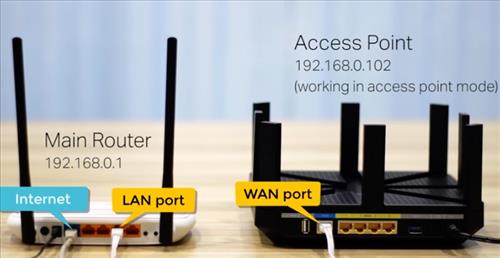
Connecting routers using an Ethernet cable creates a stable and fast link. This method helps extend your Wi-Fi without losing speed. It is a reliable way to cover larger areas in your home or office. The setup requires a few simple steps to get both routers communicating smoothly.
Wiring Setup
Start by powering off both routers. Use a standard Ethernet cable to connect one router’s LAN port to the second router’s LAN port. Avoid the WAN port on the second router for this connection. This setup turns the second router into a network switch or access point. Plug both routers back in and power them on.
Configuring Ip Addresses
Access the second router’s settings through a web browser. Change its IP address to match the main network but outside the main router’s DHCP range. For example, if the main router is 192.168.1.1, set the second to 192.168.1.2. Disable the DHCP server on the second router to avoid IP conflicts. Save changes and restart the router.
Testing The Connection
Connect a device to the second router via Wi-Fi or Ethernet. Check if the internet is working correctly. Use the ping command to test the connection between routers. If the device accesses the internet and ping succeeds, the setup works. Adjust settings if the connection has issues.
Setting Up Wireless Repeater Mode
Set up a spare router as a wireless repeater to boost your Wi-Fi signal. Connect the router to your main network and configure it in repeater mode. This simple trick improves coverage in areas with weak signals, enhancing your overall internet experience.
Setting up a spare router as a wireless repeater is a smart way to boost Wi-Fi coverage in your home. It allows your existing network to reach areas with weak signals. This method is cost-effective and can significantly improve connectivity.Checking Repeater Compatibility
Before proceeding, ensure your spare router supports repeater mode. Check its manual or look online. Compatibility is crucial for a successful setup. Some routers might need firmware updates. Verify this requirement to avoid issues later.Configuring Ssid And Password
Access your router’s settings through its IP address. Locate the wireless settings section. Set the SSID to match your main router. Ensure the password is identical too. This allows seamless connectivity for all devices.Placement Tips
Position the repeater router halfway between the main router and the dead zone. Avoid walls and large furniture. They can block signals. Place it at an elevated location for better coverage. Optimal placement enhances signal strength.
Credit: www.youtube.com
Troubleshooting Common Issues
Troubleshooting common issues is key to a smooth Wi-Fi extension using a spare router. Problems can arise, but many are easy to fix. Understanding typical issues helps save time and frustration. Below are some common challenges and simple solutions to keep your network strong and stable.
Connection Problems
Lost or weak connections often occur due to poor router placement. Place the spare router halfway between the main router and the weak signal area. Check all cables for secure connections. Restart both routers to refresh the network. Make sure the spare router is set to the correct mode, like repeater or access point. Incorrect settings can block connections.
Slow Speeds
Slow Wi-Fi speeds can frustrate users. Avoid interference from other electronics like microwaves and cordless phones. Use the 5 GHz band for faster speeds if the spare router supports it. Limit the number of devices connected to the spare router. Update the router’s firmware to improve performance. Check for bandwidth-heavy apps and pause them if needed.
Ip Conflicts
IP conflicts happen when two devices share the same IP address. This causes network confusion and disconnects. Assign a static IP address to the spare router outside the main router’s DHCP range. Alternatively, enable DHCP on only one router. Restart devices after making changes. Clear old network profiles on your computer or phone. This prevents conflicts and keeps connections stable.
Alternative Methods To Extend Wi Fi
Extending your Wi Fi doesn’t always mean using a spare router. There are several alternative ways to boost your signal and improve coverage, each with its own advantages and setup process. Understanding these options can help you decide which fits your space and needs best.
Using Powerline Adapters
Powerline adapters use your home’s electrical wiring to carry internet signals. You plug one adapter near your main router and connect it via Ethernet. Then, plug the second adapter in a distant room to create a new Wi Fi access point or wired connection.
This method is especially useful if your home has thick walls or floors that block wireless signals. I once struggled with dead zones in my basement, but after trying powerline adapters, the connection was solid without extra wiring. Have you checked if your home’s electrical setup is compatible? It’s worth testing before investing.
Wi Fi Mesh Systems
Mesh systems consist of multiple units working together to blanket your entire home with Wi Fi. Each unit communicates with the others, creating a seamless network that keeps your devices connected as you move around.
Unlike traditional extenders, mesh nodes share the same network name, so you don’t have to switch manually. I noticed a huge difference when I switched to a mesh system—streaming and video calls stayed strong even in corners far from the router. Could this be a simpler solution for your larger home or multi-story setup?
Range Extenders
Range extenders pick up your existing Wi Fi signal and rebroadcast it to areas with weak coverage. They’re usually affordable and easy to set up but might reduce overall speed since they use the same channel to receive and send data.
If you’re on a budget or only need a slight boost in a particular room, extenders can do the job. However, you might experience slower speeds compared to mesh systems or powerline adapters. Have you noticed any lag or buffering where your signal is weakest? An extender might be a quick fix for that spot.

Credit: www.techadvisor.com
Frequently Asked Questions
How Can I Use A Spare Router To Extend Wi-fi?
You can set your spare router as a Wi-Fi repeater or access point. Connect it to your main router via Ethernet or Wi-Fi. Configure the spare router’s settings to match your main network. This boosts your Wi-Fi range and improves signal strength effectively.
What Settings Are Needed To Extend Wi-fi With A Spare Router?
Set the spare router to bridge or repeater mode if available. Disable its DHCP server to avoid IP conflicts. Assign it a static IP within your main router’s range. Match the SSID and password for seamless network access. Save and reboot the router to apply changes.
Can Any Spare Router Work To Extend Wi-fi?
Most modern routers support Wi-Fi extension features. However, older routers may lack repeater or bridge modes. Check your router’s manual or firmware for compatibility. Using routers from the same brand often simplifies setup. Always update firmware for best performance and security.
Is Ethernet Connection Better Than Wi-fi For Extending Wi-fi?
Yes, Ethernet provides a more stable and faster connection. It reduces interference and latency compared to wireless links. Use Ethernet to connect the spare router to the main router. This creates a reliable backbone for extending Wi-Fi coverage. It’s ideal for large homes or offices.
Conclusion
Extending your Wi-Fi with a spare router saves money and boosts coverage. You can enjoy better signals in every corner of your home. Setting it up takes just a few easy steps. No need to buy extra equipment or call a technician.
A spare router can make your internet more reliable. Try this method and see the difference yourself. Stronger Wi-Fi means smoother streaming and faster downloads. Keep your connection steady without extra cost or hassle. Simple, smart, and effective.