
Have you ever struggled to set the time on your smartwatch because the app just won’t cooperate? You’re not alone.
Sometimes, you want a quick fix without downloading or opening any app. Imagine being able to adjust your watch’s time right from the device itself—fast, easy, and hassle-free. You’ll discover simple steps to set the time on your Android smartwatch without using any app.
Keep reading, and you’ll never have to rely on complicated software just to keep your watch accurate.
Credit: www.tiktok.com
Check Smartwatch Settings
Checking your smartwatch settings is the key to setting the time without an app. Most Android smartwatches let you change the time directly through their built-in menus. This section helps you find the right options to adjust the time manually.
Accessing The Menu
Start by waking up your smartwatch screen. Swipe down or press the side button to open the main menu. The menu shows several icons representing different settings and functions. Look for a gear icon, which usually means “Settings.”
Tap the gear icon to enter the settings menu. This area controls many features of your watch, including the date and time. Navigating here is simple and uses touch or physical buttons depending on your watch model.
Locating The Time Settings
Inside the settings menu, scroll until you find the “Date & Time” option. It might be under a section called “System” or “General.” Tap on “Date & Time” to open time adjustment options.
- Look for options like “Set Time” or “Manual Time.”
- Turn off “Automatic Time” if it is enabled. This option syncs time from your phone or network.
- Use the plus and minus buttons or on-screen controls to set the hour and minutes.
After setting the time, save your changes and exit the menu. Your smartwatch now shows the correct time without using any app.
Manually Adjust Time
Manually adjusting the time on your smartwatch without relying on an app can save you a lot of hassle, especially if you want quick changes or don’t have access to your phone. Smartwatches usually have built-in settings that let you set the time directly on the device. This hands-on approach puts you in control and ensures your watch shows the correct time anytime you need.
Selecting Time Format
First, decide if you want your watch to show time in 12-hour or 24-hour format. This choice affects how you read the time throughout your day. You can usually find this option in the settings menu under “Time” or “Clock.”
Choosing the 24-hour format is great if you prefer military time or want to avoid confusion between AM and PM. On the other hand, the 12-hour format might feel more natural if you’re used to it. Have you ever mixed up AM and PM? Switching formats can help prevent that.
Setting Hours And Minutes
Once you’ve selected your preferred time format, the next step is setting the actual hours and minutes. Use the watch’s buttons or touchscreen to adjust these values. Typically, you tap or press to increase or decrease the numbers.
Take your time to get the exact minute right; even a small difference can throw off your schedule. Some watches let you scroll through numbers quickly, which speeds up the process. How often do you find your watch a few minutes off? Manually setting it ensures precision without waiting for sync.
Sync Without App
Syncing your smartwatch without using an app might seem tricky, but it’s more straightforward than you think. You don’t always need to rely on dedicated software to get your device’s time updated. Instead, you can use your Android phone’s built-in features to sync the watch directly.
Using Bluetooth Connection
Bluetooth is your smartwatch’s lifeline to your phone without the app. First, make sure Bluetooth is enabled on both your Android device and smartwatch. This wireless link allows your watch to receive time updates directly from your phone’s system clock.
Once connected, your watch should automatically pick up the correct time from your phone. If it doesn’t, check your watch settings for an option like “Sync Time” or “Set Time via Bluetooth” and activate it. This simple step often fixes time discrepancies without extra tools.
Pairing With Android Device
Pairing your smartwatch manually with your Android phone can bypass the need for an app. Open your phone’s Bluetooth settings and scan for nearby devices. When your smartwatch appears, tap to connect.
After pairing, your phone will share its time and date with the watch. Sometimes, you might need to confirm the sync on your watch’s screen. This direct connection keeps your watch’s time accurate without downloading anything extra.
Have you ever tried syncing devices without an app? It’s a quick way to avoid clutter and keep things simple. Give it a shot and see how smoothly your watch updates through Bluetooth pairing alone.

Credit: www.youtube.com
Troubleshooting Time Issues
Time errors on your smartwatch can disrupt daily use. These issues may cause confusion or missed notifications. Troubleshooting helps fix the clock without extra apps. Understanding common problems speeds up the repair process. Sometimes, a simple reset restores proper function.
Common Problems And Fixes
- Wrong time displayed:Check if the watch is set to manual mode.
- Time zone mismatch:Adjust the time zone directly on the watch settings.
- Time not updating:Restart the watch to refresh its system.
- Watch stuck on a specific time:Remove and reinsert the battery if possible.
- Daylight saving time errors:Toggle the daylight saving option off and on.
Resetting The Smartwatch
Resetting the smartwatch often solves persistent time problems. This clears temporary glitches and restores factory settings.
To reset:
- Go to the watch’s settings menu.
- Find the “Reset” or “Factory Reset” option.
- Confirm the reset and wait for the watch to restart.
After reset, set the time manually on the watch. This should fix most time display issues.
Tips For Accurate Timekeeping
Keeping accurate time on your smartwatch is essential for daily tasks. A few simple tips can ensure your watch reflects the correct time consistently. Here’s how you can maintain precise timekeeping on your smartwatch without using an app.
Regular Manual Updates
Manually updating the time on your smartwatch can prevent discrepancies. Check your watch’s settings regularly. Look for the option to set the time manually. Adjust the time based on a reliable source, like a wall clock or phone. This habit ensures your watch stays precise.
Using Network Time
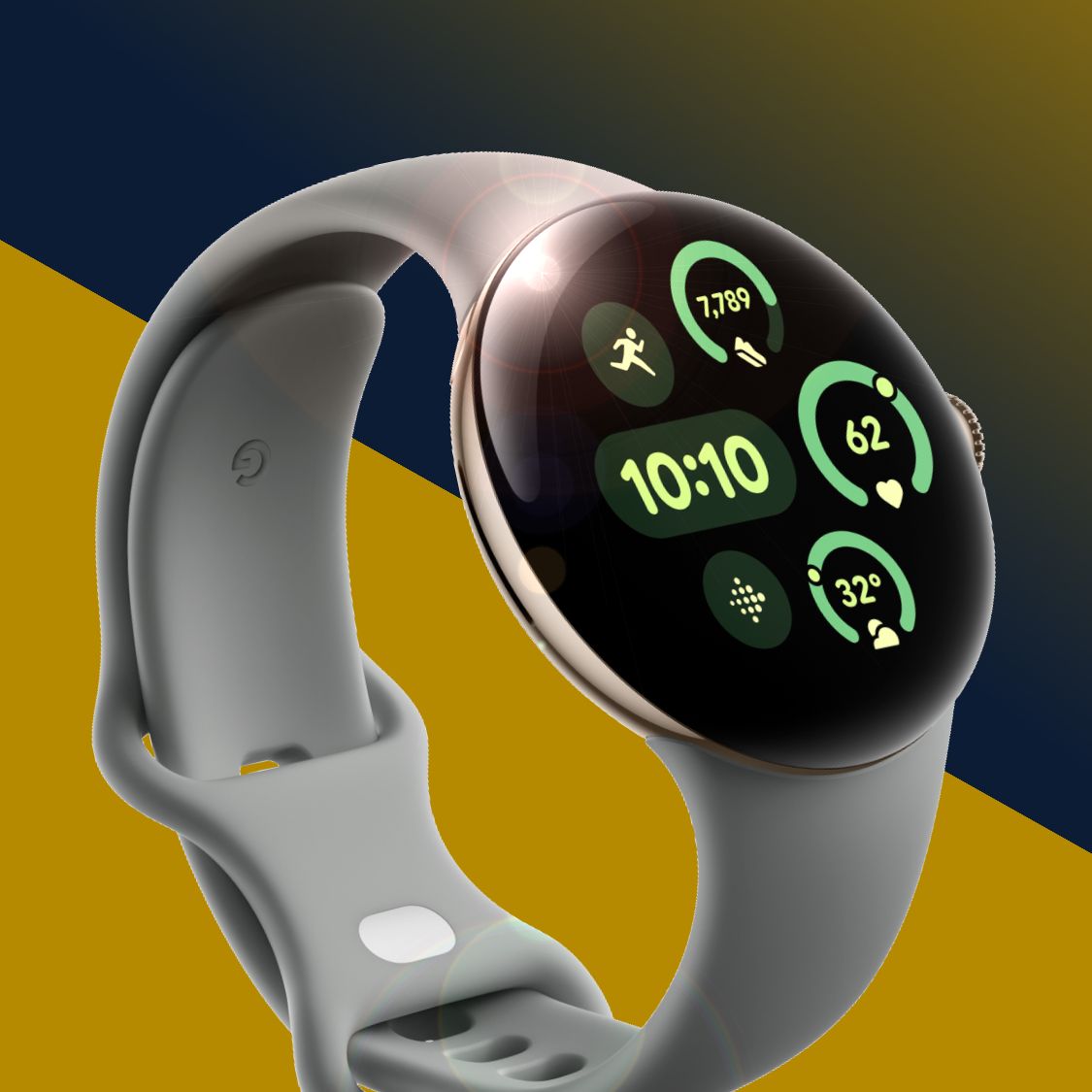
Network time can be a reliable method for timekeeping. Ensure your smartwatch is connected to a network. Access the settings and choose the option to sync with network time. This helps your smartwatch automatically update to the correct time. It reduces the need for frequent manual checks.
Credit: www.techradar.com
Frequently Asked Questions
How Do I Manually Set Time On Android Smartwatch?
To set time manually, access your smartwatch’s settings. Find “Date & Time” options. Disable automatic time sync. Then, set the time and date yourself. Save the changes to update your watch’s clock without using an app.
Can I Set Time Without A Paired Phone App?
Yes, most smartwatches allow manual time setting. Navigate to the watch’s settings menu. Locate time and date settings. Turn off automatic updates. Enter the correct time manually, bypassing the need for a connected phone app.
Why Won’t My Smartwatch Update Time Manually?
Manual time updates might fail if automatic sync is enabled. Check if “Automatic Date & Time” is turned on. Disable it first. Some smartwatches require disabling sync with the phone to allow manual time changes.
Will Manual Time Setting Affect Smartwatch Functions?
Setting time manually does not affect core functions. However, some apps may rely on network time. Ensure your watch’s time is accurate to avoid syncing issues with notifications or alarms.
Conclusion
Setting the time on your smartwatch without an app is simple. Just follow the steps carefully on your device. You can change the time directly from the watch settings. This method saves you from downloading extra apps. It works well for most Android smartwatches.
Keep your watch updated to avoid time errors. Now, you can manage your watch time anytime, anywhere. No need to rely on your phone or internet. Enjoy the freedom of setting your watch manually.