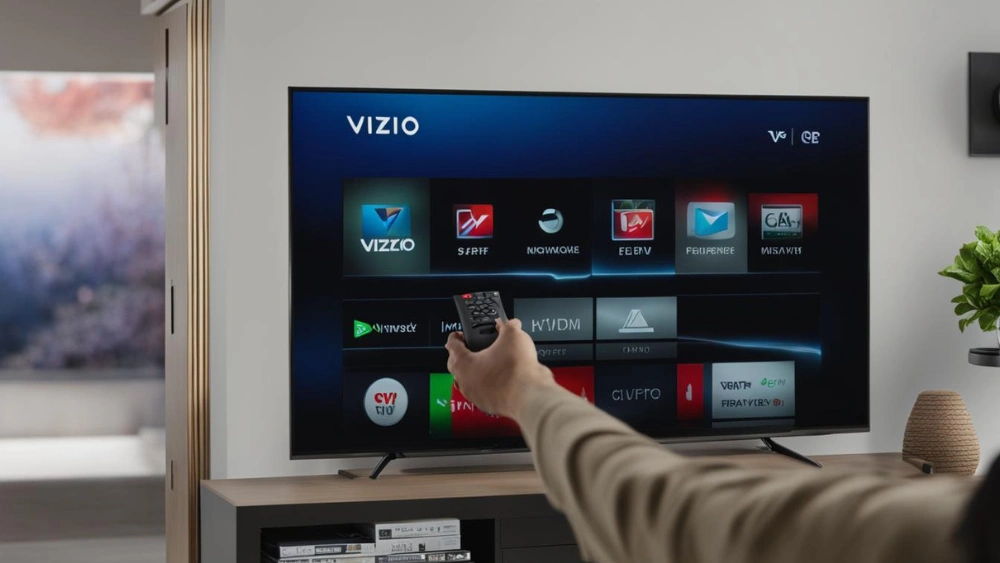
Looking to make the most of your Vizio 4K Smart TV? Downloading apps can turn your TV into a powerhouse of entertainment, offering everything from streaming services to games and useful tools.
But if you’re not sure how to get started, it can feel confusing and frustrating. Don’t worry—this guide will walk you through every simple step to download apps on your Vizio 4K Smart TV. By the end, you’ll know exactly how to find, install, and enjoy your favorite apps without any hassle.
Ready to unlock the full potential of your TV? Let’s dive in.
Vizio 4k Smart Tv Basics
Getting comfortable with your Vizio 4K Smart TV is the first step before downloading apps. Understanding its basic features and how to navigate its interface can save you time and frustration. Let’s look at what makes this TV stand out and how its remote control helps you interact with it smoothly.
Key Features
- 4K Ultra HD Resolution:Enjoy crystal-clear picture quality with four times the pixels of Full HD.
- SmartCast Platform:Access popular streaming apps and cast content directly from your phone or tablet.
- Voice Control:Use built-in voice assistants like Google Assistant or Alexa to control the TV hands-free.
- Multiple HDMI Ports:Connect gaming consoles, Blu-ray players, and other devices easily.
- Automatic Updates:Your TV regularly updates its software to keep apps and features running smoothly.
Knowing these features helps you decide which apps will enhance your viewing experience. For example, if you love streaming, the SmartCast platform is your gateway to many popular services without needing extra devices.
Remote Control Overview
The Vizio remote is designed to be straightforward yet powerful. It includes dedicated buttons for quick access to Netflix, Prime Video, and other popular streaming apps, so you don’t have to navigate through menus every time.
Besides the standard navigation buttons, the remote has:
- Voice Command Button:Press and speak to search for shows, change channels, or control volume.
- Input Button:Easily switch between HDMI devices without hassle.
- Menu Button:Access settings and app options quickly.
Have you ever tried navigating a smart TV without a proper remote? It can be frustrating. The Vizio remote minimizes this pain by putting essential controls right at your fingertips, making the process of downloading and managing apps much easier.
Credit: www.makeuseof.com
Connecting To The Internet
Connecting your Vizio 4K Smart TV to the internet is the essential first step before downloading any apps. Without a stable connection, your TV can’t access the app store or stream content smoothly. Let’s look at the ways you can connect and how to handle common connection issues.
Wired Vs Wireless Setup
You can connect your Vizio TV to the internet either through a wired Ethernet connection or wirelessly via Wi-Fi. A wired connection uses an Ethernet cable plugged directly into your router, providing a more stable and faster connection. This is especially helpful if your Wi-Fi signal is weak or inconsistent.
Wireless setup offers more flexibility since you don’t need cables running across your room. However, Wi-Fi speeds and reliability depend heavily on your router’s strength and distance from the TV. If your TV is far from the router or there are many walls in between, you might notice slower speeds or dropped connections.
Which option suits you better depends on your home layout and how reliable your Wi-Fi signal is. Have you checked how strong your Wi-Fi signal is near your TV? Sometimes a simple router repositioning can improve wireless performance significantly.
Troubleshooting Connection Issues
If your Vizio TV won’t connect to the internet, start by restarting both the TV and your router. This often clears minor glitches affecting connectivity. Make sure your TV’s software is up to date, as outdated firmware can cause connection problems.
Check your network settings on the TV to confirm you’re connecting to the correct Wi-Fi network and that the password is entered correctly. If you’re using a wired connection, inspect the Ethernet cable for any damage or loose plugs.
Still stuck? Try these quick fixes:
- Move the router closer to the TV or remove obstacles blocking the Wi-Fi signal.
- Reset your network settings on the TV and reconnect from scratch.
- Check if other devices in your home can connect to the internet to rule out broader network issues.
What’s your experience with your home network? Sometimes, the problem isn’t the TV but the internet service itself. Don’t hesitate to contact your internet provider if you suspect an outage or low bandwidth.
Accessing The App Store
Accessing the app store on your Vizio 4K Smart TV is the gateway to expanding its functionality. This step allows you to discover and install a variety of apps that suit your entertainment needs. Understanding how to reach and navigate the app store can save you time and enhance your viewing experience.
Navigating The Smartcast Home
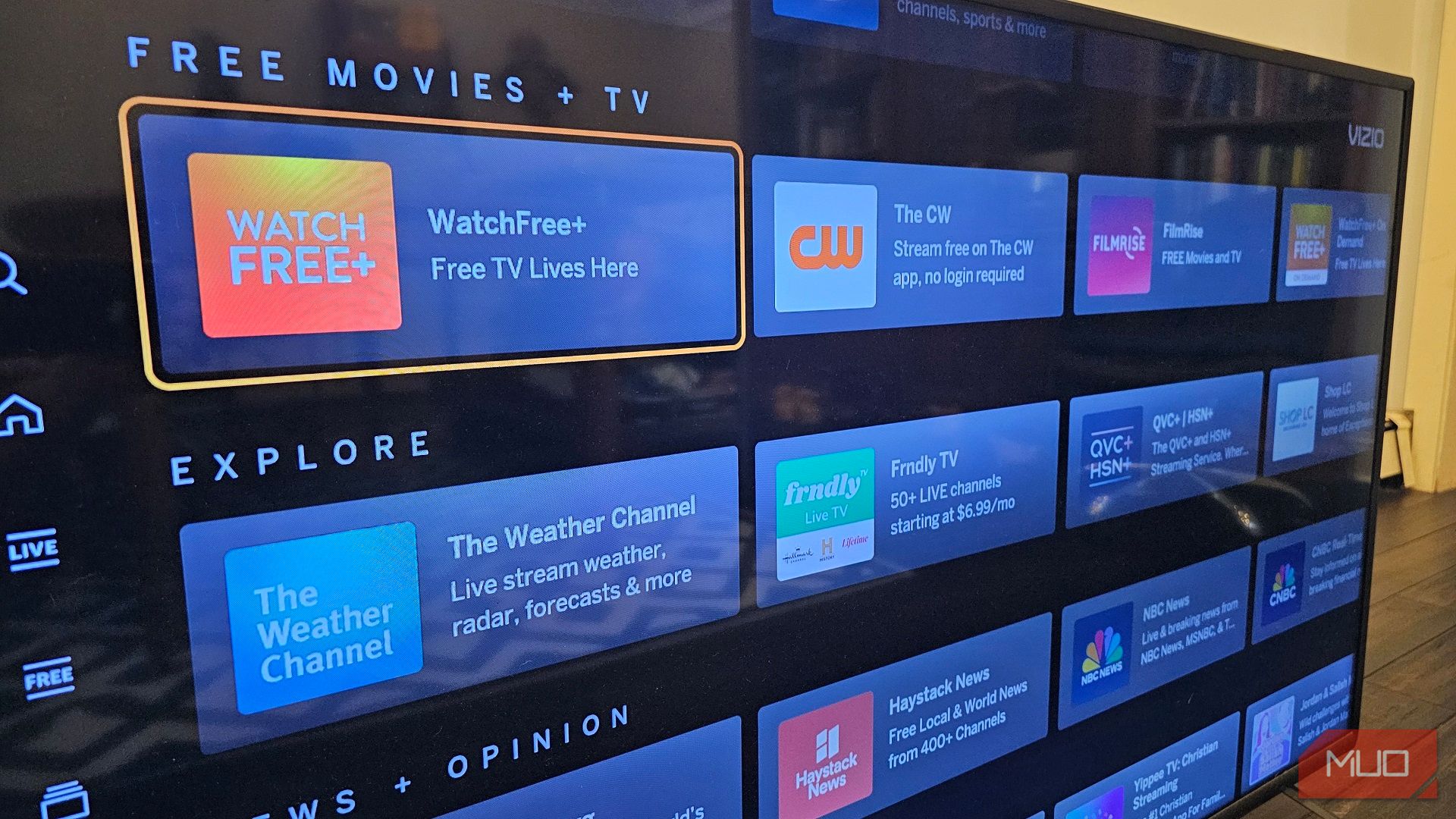
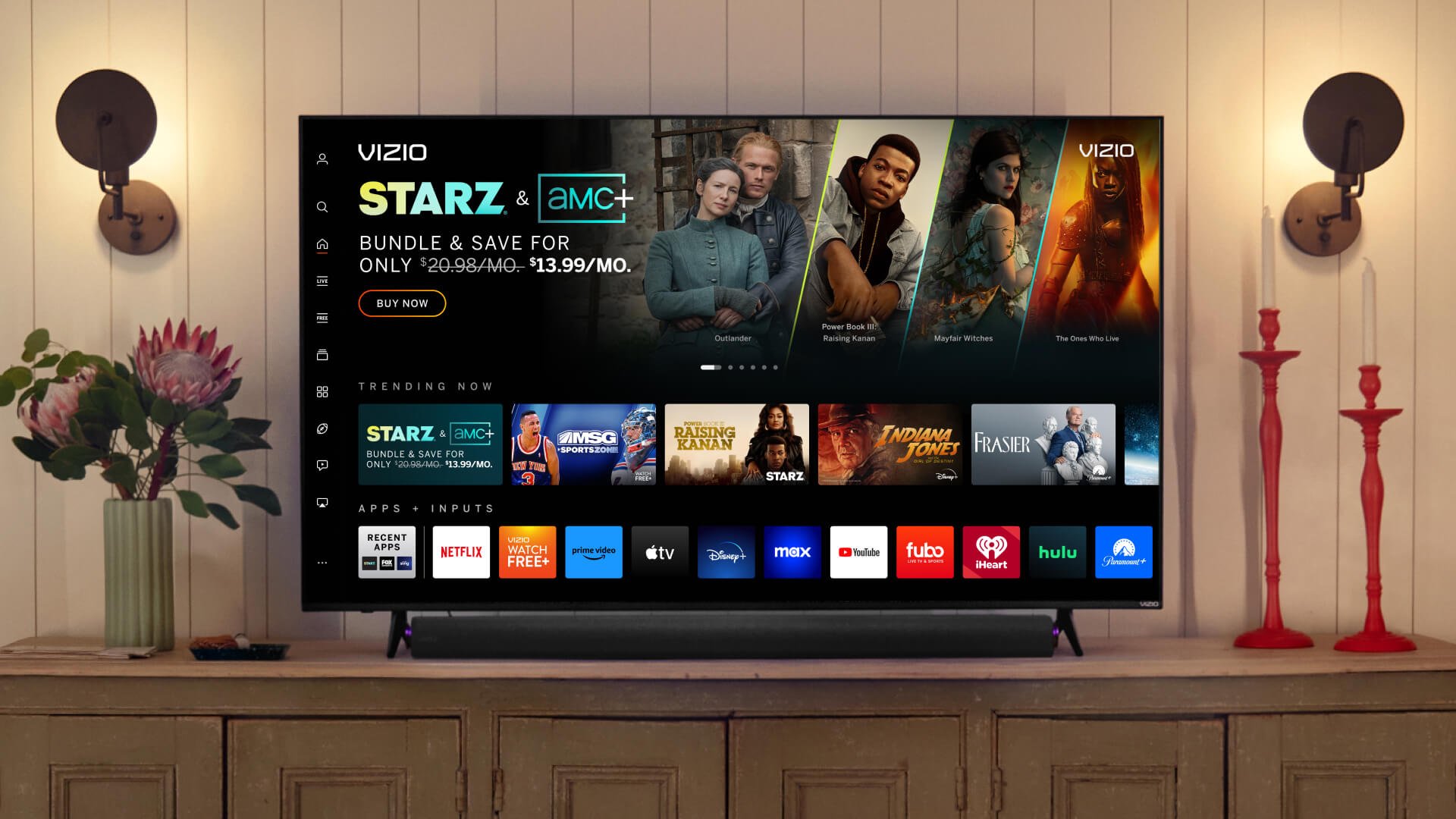
The SmartCast Home screen is your starting point for downloading apps. Press the Homebutton on your remote to open it. Here, you’ll see a row of app icons and shortcuts, giving you quick access to frequently used services.
Don’t get overwhelmed by the options. The interface is designed to be intuitive, letting you scroll left or right to explore available features. Have you noticed how some apps are pre-installed? This is your chance to decide which additional apps you want to add.
Finding The App Marketplace
Within SmartCast, the App Marketplace is where you find new apps to download. Look for the “App Store”or “Apps”icon—usually located at the bottom or in the menu section of SmartCast Home. Selecting this icon brings you to a curated list of apps tailored for your Vizio TV.
Once inside, you can browse categories like streaming, games, and utilities. You can also search for specific apps by typing their names using the on-screen keyboard. Have you tried searching for niche apps? Sometimes, the hidden gems can make your TV experience much more enjoyable.
Searching For Apps
Finding the right apps on your Vizio 4K Smart TV is simple and quick. You can search for apps in different ways to suit your needs. This helps you enjoy your favorite shows, games, and tools easily.
Using The Search Function
The search function lets you find apps by typing their names. Use your remote to open the search bar on the home screen. Enter the app name or keywords related to the app.
The TV shows a list of matching apps as you type. Select the app you want from the results. This method works best if you know the app name.
Browsing By Categories
Browsing by categories helps you explore apps without a specific name in mind. Categories like Entertainment, Sports, or News group apps by type.
Navigate through the categories using your remote. Look at the available apps and choose the one that interests you. This method is good for discovering new apps.
Downloading And Installing Apps
Downloading and installing apps on your Vizio 4K Smart TV can transform your viewing experience. These apps bring streaming services, games, and utilities right to your big screen. Knowing how to add them quickly ensures you get the most out of your TV without frustration.
Step-by-step Download Process
Start by pressing the V button on your remote to open the Vizio SmartCast Home. This is your gateway to all available apps.
Navigate to the “Apps” section using the arrow keys. Here, you’ll see featured apps and categories to explore.
To find a specific app, use the search function. Simply type the app’s name using the on-screen keyboard.
Once you find the app you want, highlight it and press “OK” or “Select.” You’ll see an option to download or add the app.
Click “Download” and wait a few moments as the app installs. It’s a good idea to keep an eye on your internet connection speed during this.
After installation, the app icon will appear in your Apps section. You can open it directly from there and start using it immediately.
Managing Storage Space
Your Vizio Smart TV has limited storage, so managing space is important. If you download too many apps, your TV may slow down or refuse new installs.
Check your available storage by going to Settings > System > Storage. This section shows how much space apps and other files are using.
If storage is low, consider removing apps you rarely use. Highlight the app, press “OK,” then select “Delete” or “Remove.”
Regularly clearing unused apps keeps your TV running smoothly. Have you ever struggled to add a new app because your TV ran out of space? This simple habit can save you that hassle.
Credit: www.vizio.com
Launching And Using Apps
Access the Vizio SmartCast app store on your 4K Smart TV to find popular apps. Select the app you want, then press download to install it quickly. Once installed, open the app and enjoy streaming or other features right away.
Launching and Using Apps on your Vizio 4K Smart TV can transform your viewing experience from ordinary to extraordinary. With a myriad of apps waiting to be explored, you can access streaming services, games, and even music directly from your TV screen. Imagine sitting on your couch, popcorn in hand, ready to dive into the latest blockbuster or binge-watch your favorite series, all with just a few clicks. But before you get started, let’s walk through the process of launching and customizing these apps to suit your preferences.Opening Installed Apps
Navigating your Vizio Smart TV is intuitive. Once you’ve installed your desired apps, accessing them is straightforward. Press the ‘V’ button on your remote to open the app menu. You’ll see a list of installed apps—simply highlight the app you want and press ‘OK’. It’s as easy as flipping channels. Consider bookmarking your favorite apps for quick access. This small step can save you time and keep your entertainment options at your fingertips.Customizing App Settings
Customizing app settings can personalize your viewing experience. Dive into the settings menu of each app by selecting the ‘gear’ icon. Adjust audio and video preferences to match your home setup. This can enhance sound quality and picture clarity, making your viewing more enjoyable. Did you know some apps allow parental controls? Explore these options if you have young viewers at home. It’s a simple way to ensure content is suitable for all ages. By tailoring app settings, you can turn your TV into a personalized entertainment hub. How will you optimize your settings to improve your viewing experience?Updating And Removing Apps
Keeping your apps updated and removing the ones you no longer use can significantly improve your Vizio 4K Smart TV experience. Updated apps run smoother and often come with new features or security fixes. At the same time, uninstalling unused apps frees up space and declutters your home screen.
Checking For App Updates
To ensure your apps are up to date, regularly check for updates through the Vizio app store. Open the app store on your TV and navigate to the “My Apps” section where you can see which apps have available updates.
Updating apps is usually a simple process—select the app with an update and choose the “Update” option. If you skip updates, you might miss important improvements that enhance performance or add new content. Have you ever noticed an app working slower until you updated it?
Uninstalling Unused Apps
Removing apps you don’t use helps keep your TV organized and can speed up its responsiveness. To uninstall an app, highlight it on your home screen or in the app store, then press the options button on your remote and select “Delete” or “Remove.”
Think about the apps you haven’t opened in months—do they really need to stay? Clearing out these apps not only frees up storage but also reduces distractions when browsing. What’s one app you never use but have kept on your TV for too long?

Credit: www.amazon.ca
Troubleshooting App Issues
Downloading apps on your Vizio 4K Smart TV can open up a world of entertainment at your fingertips. However, sometimes app issues can disrupt this seamless experience. Whether it’s a stubborn app that refuses to open or a sudden glitch in functionality, troubleshooting app issues is a crucial skill for any smart TV owner. Let’s explore some common problems and their fixes, and understand when it’s time to reset your TV.
Common Problems And Fixes
Encountering a frozen app or one that simply won’t launch can be frustrating. One common issue is outdated software. Ensure your TV’s software is up to date by checking for updates in the settings menu. An easy fix could be just a few clicks away.
Another frequent issue is connectivity problems. Check your internet connection; sometimes a simple router reset can restore app functionality. If an app continues to lag, try uninstalling and reinstalling it. This can refresh the app and clear any lurking bugs.
Additionally, clearing the cache can resolve many performance issues. Navigate to the app settings and look for the option to clear cache or data. This can often get your app back to running smoothly.
When To Reset Your Tv
If you’ve tried all the basic fixes and your apps are still misbehaving, it may be time to reset your TV. But when exactly should you take this step?
Consider a reset if multiple apps are malfunctioning or if the TV itself is slow. A factory reset will restore your TV to its original settings, effectively wiping out any persistent issues.
Before resetting, remember to back up important data, like app settings and logins. A reset is a powerful tool to resolve deep-seated problems, but it should be your last resort.
Have you ever faced a stubborn app that simply refused to cooperate? What was your go-to solution? Sharing your experiences and insights can help others navigate these common app hurdles on their Vizio 4K Smart TV.
Frequently Asked Questions
How Do I Download Apps On Vizio 4k Smart Tv?
To download apps, press the V button on your remote. Navigate to the Vizio App Store, select your desired app, and choose Install. The app will download and appear on your home screen for easy access.
Can I Install Third-party Apps On Vizio Smart Tv?
No, Vizio Smart TVs only support apps available in the official Vizio App Store. Third-party app installations are not supported due to security and compatibility reasons.
Why Can’t I Find Certain Apps On My Vizio Tv?
Some apps may not be available on Vizio’s App Store due to licensing or regional restrictions. Ensure your TV firmware is updated to access the latest app selections.
Do I Need An Account To Download Apps On Vizio Tv?
Yes, you need to sign in with your Vizio account to download and manage apps. Creating an account is free and helps sync your preferences across devices.
Conclusion
Downloading apps on your Vizio 4K Smart TV is simple and quick. Just follow the steps carefully. You can enjoy many apps for movies, music, and games. Keep your TV updated to access the latest apps. Explore different apps to find your favorites.
With these easy instructions, your smart TV becomes more fun. Start downloading apps and enjoy better entertainment today.