Are you struggling to get clear sound from your projector? Connecting a speaker to your projector can transform your viewing experience, making every movie, presentation, or game more immersive.
But if you’re unsure how to make the connection, you’re not alone. In this guide, you’ll discover simple, step-by-step instructions to link your speaker to your projector quickly and easily. By the end, you’ll have the confidence to boost your audio without any hassle.
Keep reading to find out exactly how to do it!

Credit: www.youtube.com
Check Projector Audio Outputs
Before connecting your speaker to a projector, it’s essential to check the projector’s audio outputs. Knowing what audio ports are available helps you choose the right cable or adapter, ensuring clear sound without frustration. Many projectors vary in their audio output options, so understanding these will save you time and hassle.
Identify Available Audio Ports
Look closely at the back or side of your projector to find the audio output ports. Common options include:
- 3.5mm headphone jack:Similar to headphone ports on phones or laptops, this is the easiest to use with many speakers.
- RCA ports (red and white):Often found on older projectors, these use separate cables for left and right audio channels.
- Optical (TOSLINK) output:Provides high-quality digital audio but requires compatible speakers or adapters.
- HDMI ARC (Audio Return Channel):Some projectors support audio through HDMI, allowing sound to pass back to connected devices.
Checking your projector’s manual can clarify what each port does. Have you ever tried plugging your speaker into the wrong port and ended up with no sound? Knowing the ports beforehand prevents that common mistake.
Understand Supported Audio Formats
Not all projectors send audio in the same format. Some output analog signals, while others use digital formats like Dolby Digital or DTS. Your speaker or sound system must support the projector’s audio format to play sound correctly.
If your projector only outputs stereo analog audio but your speaker expects a digital signal, you’ll need a converter. Also, some projectors limit audio output to basic stereo sound, even if your source supports surround sound. This can affect your listening experience.
Ask yourself: Does your speaker support the projector’s audio format? If you’re unsure, check the specifications or try a quick test. Understanding this helps you avoid sound quality issues or compatibility headaches.

Credit: www.youtube.com
Choose The Right Speaker Type
Choosing the right speaker type matters for clear, rich sound from your projector. The speaker must match your setup and needs. Different types offer varied features and ease of use. Picking the right one improves your audio experience and fits your budget.
Passive Vs Active Speakers
Passive speakers need an external amplifier to power them. They offer flexibility to upgrade amps or speakers later. These speakers often cost less but require extra equipment. Active speakers have built-in amplifiers. They connect directly to your projector or audio source. Active speakers are simpler to set up and use. They suit users who want a quick, neat solution.
Bluetooth And Wireless Options
Wireless speakers connect without cables using Bluetooth or Wi-Fi. They provide freedom to place speakers anywhere around the room. Bluetooth speakers pair easily with most projectors with Bluetooth support. Wi-Fi speakers offer better sound quality and range than Bluetooth. Wireless speakers reduce clutter and make your setup look cleaner. Battery-powered wireless speakers add portability but need charging.
Select Proper Cables And Adapters
Selecting the right cables and adapters is crucial when connecting a speaker to a projector. The type of connection you choose can affect both the sound quality and the ease of setup. Knowing which cable fits your devices helps avoid frustration and ensures a seamless audio experience.
Hdmi
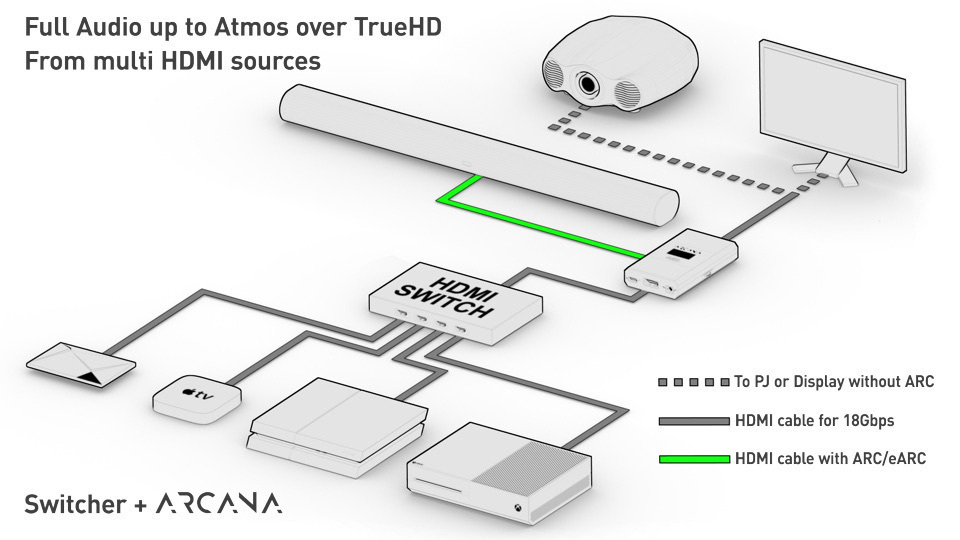
HDMI cables are a popular choice because they carry both audio and video signals through a single wire. If your projector and speaker support HDMI ARC (Audio Return Channel), you can simplify your setup significantly. This means you only need one cable to send sound from the projector to the speaker without extra adapters.
However, not all speakers have HDMI inputs. Check your speaker’s ports before buying. If your speaker doesn’t support HDMI, you’ll need another type of cable or adapter.
Aux
AUX cables use a 3.5mm jack, similar to headphone plugs. They are common and easy to find, making them a quick option for connecting a projector’s audio output to a speaker’s input. This is especially useful if your projector has a headphone or line-out jack.
Keep in mind, AUX cables only carry audio, so you’ll need a separate cable for video. Also, if your projector’s audio output uses a different connector, you might need an adapter to convert to AUX.
Rca Cables
RCA cables have two or three color-coded plugs—usually red, white, and sometimes yellow. They are common on older projectors and speakers. Red and white plugs handle stereo audio, while the yellow is for video, which you won’t need when connecting only audio.
If your projector has RCA audio output, match the colors with your speaker’s input. If your speaker lacks RCA ports, an adapter will help bridge the connection.
Using Audio Extractors And Converters
What if your projector only has HDMI but your speaker supports AUX or RCA? Audio extractors and converters come to the rescue. These devices pull the audio signal from HDMI and convert it into a format compatible with your speaker.
When choosing an extractor, check if it supports your desired audio output format and the cable types you have. This can save you from buying new speakers or projectors just to get sound working properly.
Think about your current setup: are your cables matching, or do you need a converter? Investing a bit of time here can prevent hours of troubleshooting later.
Credit: en.community.sonos.com
Step-by-step Connection Process
Connecting speakers to a projector enhances your audio experience. Follow these clear steps to link your speakers properly. This guide covers both wired and wireless speaker connections. Each method helps you get the best sound without confusion.
Connecting Wired Speakers
- Locate the audio output port on your projector. It is usually marked as “Audio Out” or with a headphone icon.
- Use the right cable, often a 3.5mm audio cable or RCA cables, depending on your speaker type.
- Plug one end of the cable into the projector’s audio output port.
- Connect the other end to the input port on your wired speakers.
- Turn on both the projector and the speakers.
- Adjust the volume on both devices for a balanced sound level.
- Test the connection by playing a video or audio file on the projector.
Pairing Wireless Speakers
- Turn on the wireless speakers and set them to pairing mode. Usually, a light will blink.
- On the projector, open the Bluetooth or wireless settings menu.
- Search for available devices and select your speaker’s name from the list.
- Confirm the connection if the projector asks for a pairing code.
- Wait for the devices to connect. The blinking light should become steady.
- Play audio on the projector to check the speaker output.
- Adjust speaker volume as needed through the projector or speaker controls.
Adjust Projector Audio Settings
Adjusting the projector’s audio settings is a crucial step in ensuring that your external speaker delivers crisp and clear sound. Without the right audio configuration, you might find yourself dealing with suboptimal audio quality, leaving your audience disconnected. Imagine you’re setting up for a movie night or an important presentation, and the audio just doesn’t hit the mark. Let’s ensure that doesn’t happen by diving into the specifics of enabling external audio output and configuring sound modes and volume.
Enable External Audio Output
First things first, check if your projector supports external audio output. Most modern projectors come equipped with an audio-out port, typically a 3.5mm jack or an HDMI port. Connecting your speaker to this port can significantly enhance your audio experience. Plug your speaker into the appropriate port, and ensure it is securely connected.
Once connected, navigate to the projector’s settings menu. Look for the audio section and select ‘external speaker’ or ‘audio-out’ as your preferred audio source. This simple switch can redirect the sound output from the internal speakers to your external device. Does your projector have Bluetooth capabilities? If so, you can wirelessly connect your speaker for a clutter-free setup.
Configure Volume And Sound Modes
Now that your external speaker is connected, it’s time to adjust the volume and sound modes. Access the volume settings via the projector’s menu. Start by setting the volume to a moderate level and adjust according to the room size and audience.
Explore various sound modes offered by your projector. Many devices provide options like ‘Cinema,’ ‘Music,’ or ‘Speech,’ each tailored for different audio experiences. Selecting the right mode can dramatically impact the clarity and richness of the sound. If you’re unsure, try different modes and listen carefully to how they alter the audio quality.
Have you ever noticed how some sound modes enhance specific frequencies? This can make dialogues clearer or music more immersive. Don’t hesitate to experiment—your ears will tell you what sounds best. Lastly, ensure that all sound settings are saved and double-check the connection between your projector and speaker. This ensures your setup is ready for action whenever you need it.
Troubleshoot Common Audio Issues
Troubleshooting common audio issues helps ensure clear sound from your speaker and projector. Problems like no sound, low volume, or audio delay can disrupt your viewing experience. Identifying the cause quickly allows easy fixes and smoother playback.
No Sound Or Low Volume
Check if the speaker is properly connected to the projector. Loose cables often cause no sound or low volume. Confirm the volume on both the projector and speaker is not muted or set too low.
Use these quick checks:
- Ensure the audio cable is fully plugged into both devices.
- Test the speaker with another device to rule out speaker issues.
- Verify the projector’s audio output settings match the connection type.
- Try different audio ports if available.
Sometimes, the projector’s internal speaker settings override external outputs. Disable the internal speakers in the menu if using external speakers.
Audio Delay And Sync Problems
Audio delay happens when sound does not match the video. This mismatch can distract and reduce enjoyment. Adjust audio sync settings on the projector or speaker to fix this.
Try these tips to fix delay:
- Look for audio delay or lip sync settings in the projector menu.
- Change the audio output format to a standard type like PCM.
- Restart both devices to reset any lag issues.
- Use direct wired connections instead of wireless for less delay.
Audio and video sync correctly ensures a better viewing experience. Regular checks prevent these problems from spoiling your presentations or movies.
Enhance Audio Quality
Enhancing the audio quality when connecting a speaker to a projector can transform your viewing experience. Clear, rich sound pulls you deeper into movies, presentations, or games. Simply plugging in a speaker isn’t always enough; thoughtful setup makes a big difference.
Positioning Speakers For Best Sound
Where you place your speakers affects how well you hear everything. Try to position them at ear level when seated. Avoid corners or placing speakers too close to walls, as this can cause echo or muffled sound.
Think about the room layout. Are there soft surfaces like curtains or carpets? These absorb sound, reducing echoes, while hard surfaces reflect sound and can create harshness. Experiment by moving your speakers a few inches and listen carefully.
Have you noticed a spot in the room where voices or music sound clearer? That’s your sweet spot. Aim your speakers toward that area. This simple adjustment can make voices crisper and music more vibrant.
Using External Amplifiers
Projectors often have weak built-in audio. Adding an external amplifier can boost power and clarity. Amplifiers take the audio signal and increase its strength without distortion, giving your speakers room to perform better.
Look for an amplifier that matches your speaker’s power rating. Too little power will result in low volume; too much can damage your equipment. Many small, affordable amplifiers work great for home setups.
Connecting an amplifier is usually straightforward. Use the audio output from your projector to feed into the amplifier’s input. Then connect your speakers to the amplifier’s output. This setup gives you control over volume and sound quality.
Frequently Asked Questions
How Do I Connect External Speakers To My Projector?
Use the audio-out port on your projector to connect external speakers. You can use a 3. 5mm audio cable or RCA cables, depending on your projector and speaker inputs. Ensure the speaker is powered on and volume is adjusted for optimal sound.
Can I Use Bluetooth Speakers With A Projector?
Yes, if your projector supports Bluetooth audio. Pair the Bluetooth speaker with the projector through its settings menu. This wireless connection eliminates cables, offering flexibility and convenience for better sound quality during presentations or movie viewing.
What Cables Are Needed To Connect Speakers To A Projector?
Typically, a 3. 5mm audio cable or RCA cables are used. Some projectors have an optical audio output for higher quality sound. Check your projector and speaker inputs to choose the correct cable type for a seamless connection.
Why Is There No Sound From My Speaker After Connection?
Ensure the speaker is powered and volume is turned up. Check the projector’s audio output settings to confirm it’s set to external speakers. Verify all cables are properly connected and not damaged. Restarting the devices can also resolve common sound issues.
Conclusion
Connecting your speaker to a projector is simple and improves sound quality. Use the correct cables and ports for a smooth setup. Test the connection before starting your presentation or movie. Good sound makes every experience better and more enjoyable.
Now you can enjoy clear audio with your visuals easily. Try different speaker options to find what suits you best. Keep your devices charged and cables organized for hassle-free use. Sound and picture together create a great viewing experience.