Are you struggling to share your laptop’s internet with other devices? Setting up a hotspot on your laptop is easier than you think.
Imagine having fast, reliable internet anywhere without extra gadgets or complicated setups. In this guide, you’ll learn simple steps to turn your laptop into a hotspot quickly. By the end, you’ll have the power to connect your phone, tablet, or another laptop to the internet anytime you need.
Ready to unlock your laptop’s hidden potential? Let’s dive in.
Credit: linuxhint.com
Enable Hotspot On Windows
Enabling a hotspot on your Windows laptop turns it into a Wi-Fi access point. This lets other devices connect to the internet through your laptop’s connection. Setting up a hotspot is quick and does not need extra software.
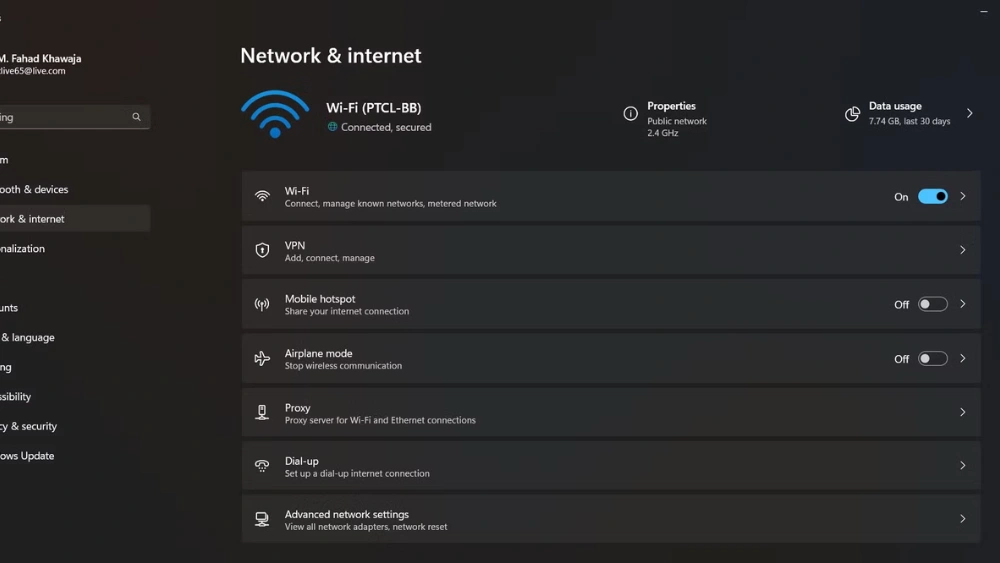
Access Network Settings
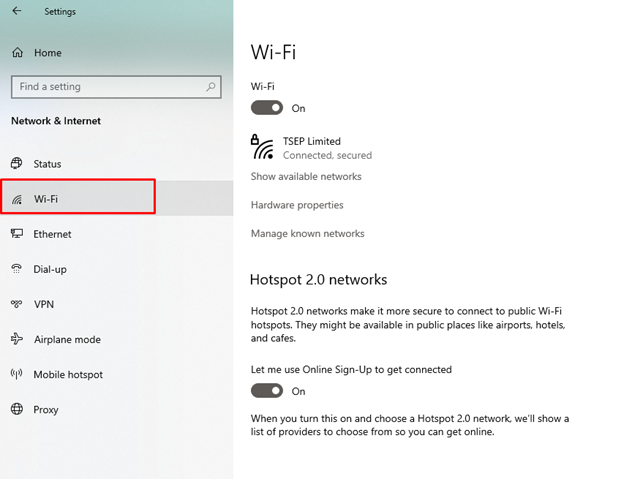
Open the Start menu and select Settings. Click on Network & Internetto find network options. Choose Mobile hotspotfrom the left menu. This section controls your hotspot features.
Turn On Mobile Hotspot
Look for the switch labeled Share my Internet connection with other devices. Toggle it to the Onposition. Your laptop now broadcasts a Wi-Fi signal other devices can find.
Configure Network Name And Password
Under the hotspot switch, find the Editbutton. Click it to set your network name (SSID) and password. Use a simple name and a strong password to keep your connection safe.
Enable Hotspot On Mac
Enabling a hotspot on your Mac turns your laptop into a mini Wi-Fi router. This feature can be a lifesaver when you need to share your internet connection with other devices. Setting up a hotspot is straightforward, and you can customize it to fit your needs quickly.
Open Sharing Preferences
Start by clicking the Apple menu and selecting System Preferences. Then, find and click on Sharing. This section controls what your Mac can share with other devices, including internet access.
Make sure you have an active internet connection. Without it, sharing won’t work, no matter what settings you adjust.
Set Up Internet Sharing
In the Sharing preferences, look for Internet Sharingin the sidebar but don’t check it yet. First, select the source of your internet connection from the dropdown menu labeled “Share your connection from”. This is usually your Ethernet or Wi-Fi connection.
Next, in the “To computers using”box, tick the checkbox for Wi-Fi. This tells your Mac to share the internet over Wi-Fi.
Customize Network Details
Click the Wi-Fi Options…button to customize your hotspot. Here, you can set your network name (SSID), choose the channel, and select a security type. Always pick WPA2 Personalfor stronger security.
Create a strong password that others will need to connect. Avoid simple sequences like “12345678” to keep your network safe.
Once everything looks good, check the box next to Internet Sharingto activate your hotspot. Your Mac will now broadcast a Wi-Fi network that other devices can join.
Connect Devices To Laptop Hotspot
Connecting your devices to a laptop hotspot allows easy internet access without extra hardware. This is helpful when no Wi-Fi network is available. Sharing your laptop’s internet with phones, tablets, or other laptops keeps you online everywhere.
Find Your Hotspot Network
On your device, open the Wi-Fi settings. Look for your laptop’s hotspot name in the list of available networks. The network name is the one you set when creating the hotspot on your laptop. If you don’t see it, refresh the list or move closer to the laptop.
Enter Password And Connect
Select the hotspot network. A prompt will appear asking for the password. Enter the password exactly as it is on your laptop’s hotspot settings. Use the same case for letters and include any numbers or symbols. Once entered, tap or click connect. Your device will join the laptop hotspot and use its internet connection.

Credit: www.youtube.com
Optimize Hotspot Performance
Optimizing your laptop’s hotspot performance can make a noticeable difference in speed and reliability. Small adjustments often lead to big improvements in your connection quality. Let’s look at ways to fine-tune your hotspot so you stay connected without frustration.
Choose Best Wi-fi Channel
Wi-Fi channels can get crowded, especially in apartment buildings or busy areas. Your laptop’s hotspot usually defaults to a common channel, but switching to a less congested one can boost speed and reduce interference.
You can use free tools like Wi-Fi analyzer apps to check which channels nearby networks use. Pick a channel with the least traffic for your hotspot. Have you noticed your connection speeding up after switching channels?
Limit Connected Devices
Each device connected to your hotspot shares the same bandwidth, which can slow down your internet. Limiting the number of devices helps maintain strong performance.
Try connecting only the devices you really need at the moment. Disconnect others to free up bandwidth. Think about which devices you use most—are all connections necessary for your current task?
Monitor Data Usage
Keeping an eye on how much data your hotspot uses helps avoid slowdowns caused by hitting limits. Some laptops and mobile plans throttle speeds after a certain amount of data is used.
Check your data usage regularly through your laptop’s settings or your carrier’s app. If you see heavy usage, identify which devices or apps consume the most data and adjust accordingly. What apps on your devices use the most data when connected to your hotspot?
Troubleshoot Common Issues
Setting up a hotspot on your laptop can be a lifesaver, especially when you need to share your internet connection on the go. However, like any tech feature, hotspots can sometimes face hiccups that disrupt your plans. Whether it’s your hotspot not showing up or dealing with sluggish internet speeds, these common issues can be frustrating. But don’t worry; troubleshooting them is often simpler than it seems. Let’s dive into some solutions for the most frequent hotspot problems.
Hotspot Not Showing Up
Imagine you’re trying to connect your phone to your laptop’s hotspot, but it just doesn’t appear in the list of available networks. This can often happen due to outdated drivers or incorrect settings. To fix this, start by checking your network adapter’s drivers. You can do this by going to Device Manager and ensuring your drivers are up-to-date. Sometimes, simply restarting your laptop can resolve minor glitches. Additionally, ensure that your laptop’s Wi-Fi is turned on and the hotspot feature is enabled in your settings.
Connection Drops Frequently
Nothing is more frustrating than a hotspot connection that keeps dropping. This issue might be related to interference from other devices or a weak signal. Try moving your laptop to a different location to see if the connection stabilizes. Reducing the number of devices connected to the hotspot can also help improve stability. Check if your laptop’s firewall settings are interfering with the connection. Adjusting these settings can often prevent unnecessary disconnections.
Slow Internet Speeds
Slow internet speeds can make the hotspot experience less than ideal. First, confirm that your internet speed from the primary source is adequate. If your laptop’s connection is slow, the hotspot will be too. You might be surprised by how much background apps can consume bandwidth. Close unnecessary applications running on your laptop to free up more bandwidth for your hotspot. If you’re still facing issues, consider changing your hotspot’s frequency band from 2.4GHz to 5GHz for faster speeds, assuming your device supports it.

Credit: www.youtube.com
Secure Your Hotspot
Keeping your laptop hotspot secure protects your data and devices. Open hotspots can invite hackers and unwanted users. Simple steps make your hotspot safer and more private. Use strong passwords, enable encryption, and update settings regularly. These actions reduce risks and keep your connection safe.
Use Strong Passwords
Create a password with at least 12 characters. Mix letters, numbers, and symbols for better strength. Avoid common words or easy patterns like “1234” or “password.” Change your password often to stop unauthorized access. A strong password blocks most hacking attempts.
Enable Network Encryption
Turn on WPA3 or WPA2 encryption in your hotspot settings. Encryption scrambles your data, so others cannot read it. Without encryption, hackers can easily steal your information. Check your laptop’s hotspot options to find the encryption feature. Always choose the highest security level available.
Regularly Update Settings
Keep your hotspot software and drivers up to date. Updates fix security holes and improve performance. Check for updates at least once a month. Review your hotspot settings often to remove unknown devices. Staying current reduces chances of a security breach.
Frequently Asked Questions
How Do I Enable Hotspot On My Laptop?
Go to your laptop’s settings, find “Network & Internet,” then select “Mobile hotspot. ” Toggle it on and choose the network you want to share.
Can I Use My Laptop As A Wi-fi Hotspot?
Yes, you can turn your laptop into a Wi-Fi hotspot to share its internet connection with other devices.
What Are The Requirements For Hotspot On A Laptop?
Your laptop must have a working internet connection and a Wi-Fi adapter that supports hotspot functionality.
Is Using A Laptop Hotspot Safe And Secure?
Yes, using a hotspot is secure if you set a strong password and enable encryption like WPA2.
Conclusion
Setting up a hotspot on your laptop is simple and quick. Just follow the steps carefully, and you can share your internet easily. This helps when no Wi-Fi is available nearby. Remember to keep your connection secure with a strong password.
Sharing internet can save time and keep devices connected. Try these tips to stay online wherever you go. Hotspot use is a handy skill for work, study, or fun. Stay connected and enjoy easy internet access anytime.