Imagine needing to work, stream, or browse on your laptop, but there’s no Wi-Fi in sight. Frustrating, right?
What if you could get wireless internet anywhere, anytime, without hunting for hotspots or relying on slow connections? You’ll discover simple, smart ways to connect your laptop to the internet no matter where you are. Ready to unlock true freedom and stay online effortlessly?
Let’s dive in.
Credit: ubifi.net
Choosing The Right Internet Option
Choosing the right internet option for your laptop depends on your location, budget, and usage needs. Each option offers different speeds, coverage, and costs. Understanding these choices helps you stay connected without hassle.
Mobile Hotspots
Mobile hotspots create a Wi-Fi network using cellular data. These devices connect to 4G or 5G networks and share internet with your laptop. They offer good speed and mobility. Ideal for travelers or remote workers.
Tethering From Smartphones
Smartphones can share their internet with laptops through tethering. You connect via USB, Bluetooth, or Wi-Fi. This option is convenient since most people carry smartphones. Watch data limits to avoid extra charges.
Public Wi-fi Networks
Public Wi-Fi networks are available in cafes, libraries, and airports. They offer free or low-cost internet access. Security risks exist, so avoid sensitive tasks like banking. Use a VPN for safer browsing.
Satellite Internet Services
Satellite internet works anywhere with a clear sky view. It uses satellites to send and receive data. Speeds vary and latency can be high. Suitable for rural or remote areas without cellular coverage.
USB cellular modems plug directly into your laptop. They connect to cellular networks like a mobile phone. Portable and easy to use. A good option for steady internet without carrying extra devices.
Setting Up Mobile Hotspots
Setting up a mobile hotspot is one of the most reliable ways to get wireless internet on your laptop anywhere. It transforms your cellular data into a Wi-Fi signal, letting multiple devices connect on the go. This setup is especially handy when you’re traveling, working remotely, or in places without traditional Wi-Fi access.
Selecting A Hotspot Device
Choosing the right hotspot device is crucial. You can use your smartphone’s built-in hotspot feature or buy a dedicated mobile hotspot device. Dedicated devices often provide better battery life and stronger signals, which can be a game changer if you rely on your connection for work.
Look for these features:
- Compatibility with your carrier’s network
- Support for multiple device connections
- Good battery life or external power options
Think about how many devices you’ll connect and the data speed you need. Would a simple smartphone hotspot handle your needs, or does your work demand a more powerful device?
Activating And Configuring The Hotspot
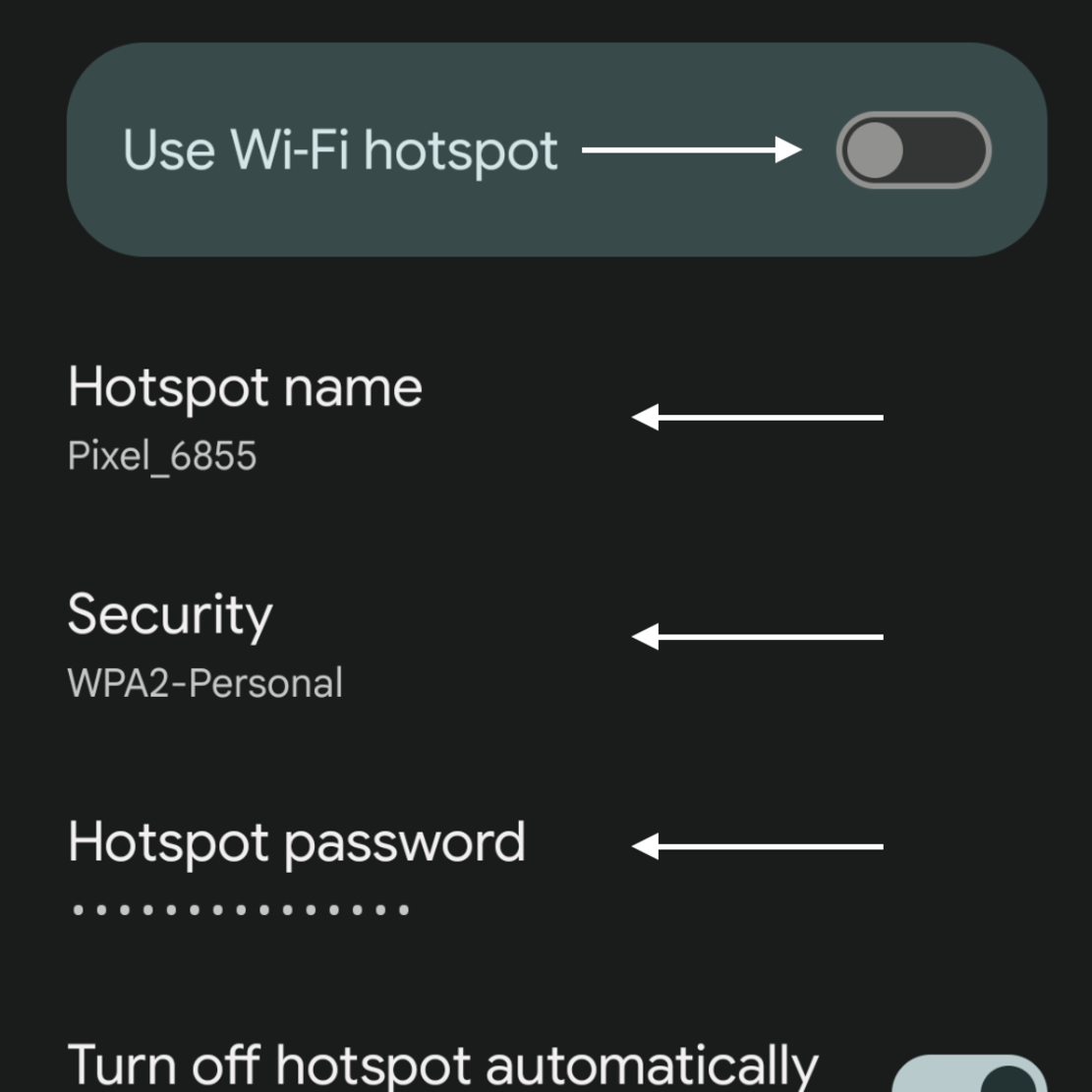
Turning on a hotspot is usually straightforward. On smartphones, you can find the option in the settings under “Network & Internet” or “Connections.” For dedicated devices, follow the manual to power it on and connect via Wi-Fi.
Once active, set a strong password to keep your connection secure. You can also rename the hotspot SSID to something easy to recognize, especially if you’re in a crowded area with many networks.
Don’t forget to check your data plan limits. Hotspots can use data quickly, so make sure you have enough or consider plans designed for hotspot use.
Optimizing Signal Strength
Signal strength can make or break your mobile hotspot experience. Keep the device near a window or in an open area to get the best reception. Avoid placing it inside bags or behind thick walls.
Sometimes, changing the hotspot’s channel or band (2.4 GHz vs 5 GHz) can improve speed and reduce interference. Many devices let you switch these settings in their admin page or app.
If you’re in a weak signal zone, consider using a signal booster or an external antenna. Have you noticed your connection drops in certain spots? Testing different locations can reveal the best place for a steady connection.
Tethering Through Smartphones
Imagine you’re on a road trip or sitting in a park, and suddenly you need to access the internet on your laptop. One simple solution is tethering through your smartphone. This allows you to share your phone’s internet connection with your laptop, ensuring you stay connected no matter where you are. It’s like having a portable Wi-Fi hotspot in your pocket!
Enabling Tethering On Ios Devices
Apple makes it easy for you to turn your iPhone into a personal hotspot. First, navigate to Settingsand tap on Personal Hotspot. Toggle the switch to enable it. You’ll see a Wi-Fi password, which you’ll use to connect your laptop.
Have you ever tried this at an airport waiting for a flight? It can be a lifesaver when you need to send that important email or download a document.
Enabling Tethering On Android Devices
Android users have a similar setup. Go to Settingsand select Network & Internet. Tap Hotspot & Tethering, and then enable Wi-Fi hotspot. Your device will display a network name and password.
Whether you’re waiting for a friend or on a long commute, tethering can transform your idle time into productive moments. Have you ever turned a mundane waiting period into a productive session with tethering?
Managing Data Usage And Battery Life
Tethering can drain your battery and eat up your data. Keep an eye on your data usage by checking your mobile plan limits. You don’t want to be surprised by extra charges.
Battery life is crucial, especially on a long day out. Consider carrying a portable charger to ensure you don’t run out of power when you need it the most.
Have you ever had to cut your tethering session short because of a dying battery? Planning ahead can save you from these situations.
Connecting To Public Wi-fi Safely
Connecting to public Wi-Fi can be a lifesaver when you need internet on your laptop outside your home or office. However, these networks often come with hidden dangers that can compromise your data and privacy. Protecting yourself while staying connected is crucial, and it starts with knowing where to find trustworthy networks and how to secure your connection.
Finding Reliable Wi-fi Spots
Not all public Wi-Fi is created equal. Look for networks provided by reputable places like cafes, libraries, or hotels that require a password to access. These spots tend to have better security measures in place than completely open networks.
Before connecting, ask staff for the exact network name to avoid fake hotspots set up by hackers. You can also use apps or websites that list verified public Wi-Fi locations, which can save you from risky networks.
Using Vpns For Security
A Virtual Private Network (VPN) is your best friend on public Wi-Fi. It encrypts your internet traffic, making it unreadable to anyone trying to snoop on the network. I once connected to a café Wi-Fi without a VPN and later found suspicious activity on my accounts—something I could have prevented.
Many VPN services offer easy-to-use apps for laptops. Choose one with strong encryption and no-log policies to keep your browsing private. Remember, a VPN doesn’t just protect passwords; it safeguards everything you send and receive online.
Avoiding Common Wi-fi Risks
- Turn off sharing:Disable file sharing and AirDrop on your laptop to prevent strangers from accessing your files.
- Use HTTPS websites:Always check for “https://” in the URL before entering sensitive info, as it means the site encrypts your data.
- Forget the network after use:Don’t let your laptop automatically reconnect to public Wi-Fi later without your knowledge.
- Keep your software updated:Updates often include security patches that protect you from vulnerabilities.
Have you ever wondered how many people share your data on public Wi-Fi? Taking these simple steps can make a big difference in keeping your information safe.
Satellite Internet For Remote Areas
Satellite internet offers a reliable way to access the web in remote areas. It does not depend on cables or phone lines. This makes it ideal for places where traditional internet is unavailable. Users can connect their laptops anywhere under the satellite’s coverage. The service works through signals sent from space. This technology brings connectivity to rural homes, cabins, farms, and other isolated spots.
How Satellite Internet Works
Satellite internet uses signals sent between a satellite in orbit and a dish on the ground. The dish sends requests to the satellite, which relays them to a ground station connected to the internet. Data returns the same way, reaching your laptop through a modem.
Signals travel long distances, so latency can be higher than with cable internet. Speeds vary based on provider, weather, and location. Despite this, satellite internet provides consistent access where no other options exist.
Choosing A Satellite Provider
Select a provider based on coverage, speed, data limits, and price. Check whether the service works well in your exact area. Look for plans that match your internet needs. Some offer unlimited data, while others have monthly caps.
Popular providers often include:
- Viasat
- HughesNet
- Starlink
Compare user reviews and customer support options. Reliable service and quick help matter in remote locations.
Installation And Equipment
Installation requires a satellite dish, a modem, and sometimes a Wi-Fi router. The dish must have a clear view of the sky. Trees or buildings can block signals.
Some providers offer professional installation. Others provide self-install kits with instructions. Setup usually involves mounting the dish, connecting cables, and activating the modem.
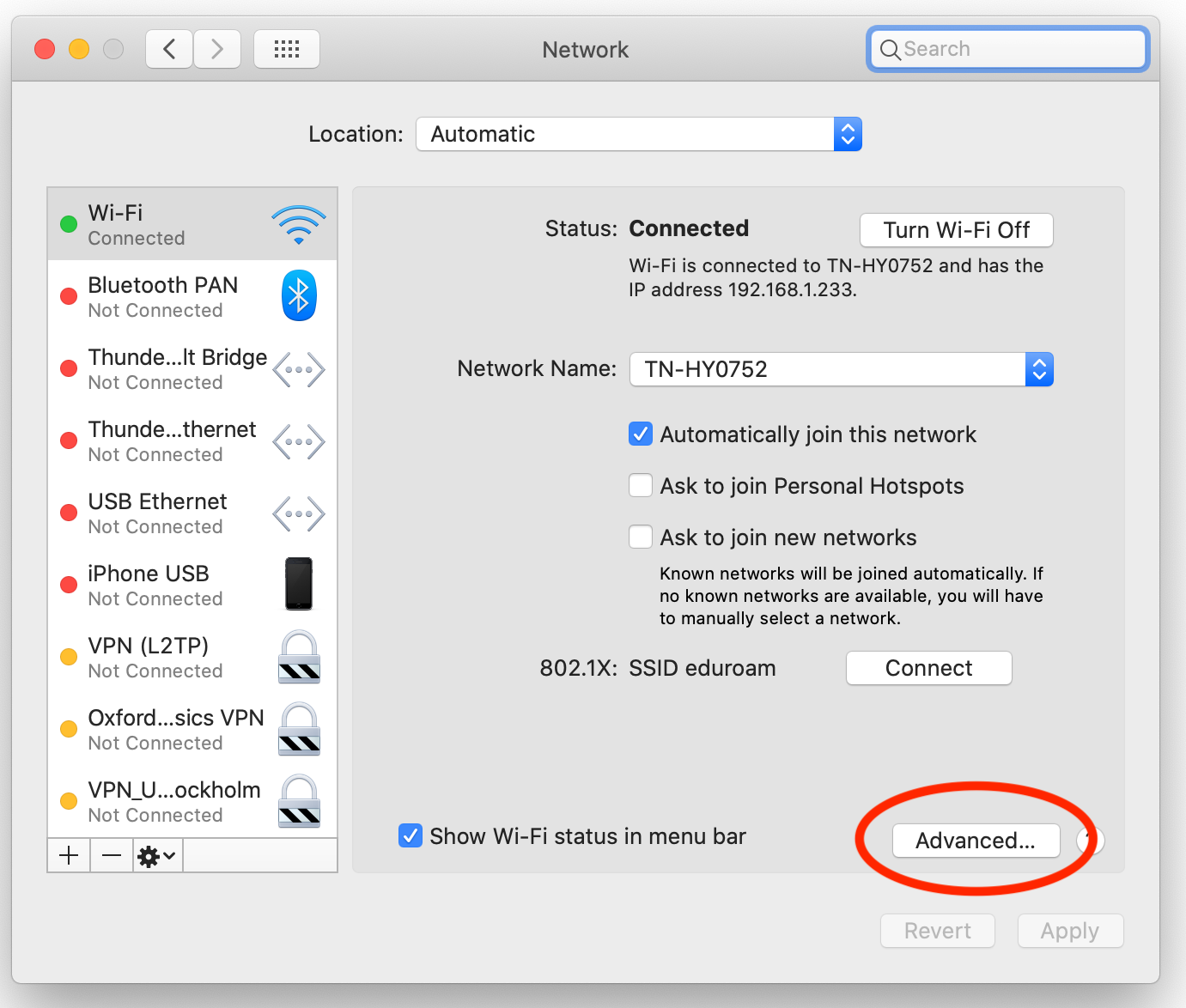
Once installed, connect your laptop to the modem or router via Wi-Fi or Ethernet. The process is straightforward, allowing fast internet access anywhere the satellite covers.
Credit: medium.com
Using Usb Cellular Modems
Using USB cellular modems is a simple way to get wireless internet on your laptop anywhere. These devices plug directly into your laptop’s USB port. They connect to mobile networks and provide internet access without relying on Wi-Fi. USB cellular modems are compact and easy to carry, making them perfect for travel or remote work.
They work with many laptops and do not need extra batteries. Just plug in, install, and you are ready to browse, stream, or work online. This section explains the types of USB modems, how to set them up, and what to know about data plans.
Types Of Usb Modems
- 3G Modems:Older technology, slower speeds, still useful in areas with limited coverage.
- 4G LTE Modems:Most common now, fast internet suitable for most tasks.
- 5G Modems:Newest and fastest, offers very high speeds but limited coverage.
- Unlocked Modems:Can be used with any carrier’s SIM card.
- Carrier-Locked Modems:Work only with a specific mobile provider.
Setting Up And Installing Drivers
Plug the USB modem into your laptop’s USB port. Most modern laptops detect the device automatically. The system will prompt you to install drivers or software. These drivers are essential for the modem to communicate with your laptop.
Follow the on-screen instructions to complete installation. Sometimes, you may need to download drivers from the modem maker’s website. Restart your laptop if required. After setup, insert your SIM card and launch the modem software to connect to the internet.
Plans And Data Considerations
Choose a data plan based on your internet needs. Plans vary by data limits, speed, and cost. Some providers offer unlimited data but may reduce speed after a certain limit. Prepaid plans give flexibility without contracts.
Check coverage maps to ensure good signal in your area. Monitor your data use to avoid extra charges. Many modem apps show real-time data usage. Pick a plan that fits your budget and usage patterns.
Maximizing Wireless Internet Performance
Maximizing wireless internet performance ensures a smooth and stable connection on your laptop anywhere. Improving speed and reducing interruptions help you work or stream without frustration. Small changes can boost your signal and fix common problems quickly.
Boosting Signal Reception
Place your laptop near windows or open spaces for better signal. Avoid walls and metal objects that block wireless signals. Use a wireless signal booster or an external antenna for stronger reception. Keep your laptop’s Wi-Fi adapter driver updated for best performance.
Managing Network Settings
Choose the right wireless network frequency, either 2.4 GHz or 5 GHz, depending on range and speed needs. Set your laptop’s power settings to allow maximum Wi-Fi performance. Disable unused network connections to reduce interference. Use a reliable VPN only if needed, as it can slow down your speed.
Troubleshooting Common Issues
Restart your laptop and router to fix many connection problems. Check for software updates that may improve Wi-Fi function. Forget and reconnect to the wireless network to reset the connection. Scan for malware that can affect internet speed. Use built-in network troubleshooter tools for quick fixes.
Cost And Data Management Tips
Managing costs and data is key for using wireless internet on your laptop anywhere. Knowing how to pick the right plan and track your data helps avoid extra charges. Smart data habits save money and keep your connection steady.
Choosing Affordable Plans
Look for plans that match your internet use. Some offer unlimited data but cost more. Others have data limits but are cheaper. Consider how much you browse, stream, or download each month.
Compare prices from different providers. Check for special deals or discounts. Pay attention to contract terms and fees.
Monitoring Data Usage
Track your data regularly to stay within limits. Use built-in tools on your laptop or apps from your provider. Set alerts to warn you when usage is high.
Watch out for background apps that use data without notice. Close or limit them to save data. Regular checks prevent surprises at the end of the month.
Avoiding Overages
Overages can cause big extra charges. Avoid them by knowing your data cap and staying below it. Reduce video quality when streaming to use less data.
Connect to free Wi-Fi safely when possible. This helps save your mobile data for when you really need it.
Future Trends In Mobile Internet
Mobile internet is changing fast. New technologies will make it easier to get wireless internet on your laptop anywhere. These future trends promise faster speeds, better coverage, and lower delays. Understanding them helps you stay ready for what is next.
5g And Beyond
5G networks offer much faster internet than 4G. They can support more devices at the same time. This means fewer slowdowns in crowded places. After 5G, experts are working on 6G. 6G aims to bring even higher speeds and smarter connections. It could support new uses like virtual reality and smart cities.
Emerging Technologies
New tech is helping mobile internet grow. Satellite internet is expanding coverage to remote areas. Low Earth Orbit (LEO) satellites provide better speed and lower delay. Wi-Fi 6 and Wi-Fi 7 will improve local wireless connections. These advances help laptops connect faster and more reliably.
What To Expect Next
- More places will have strong mobile internet signals.
- Internet speeds will get closer to home broadband.
- Devices will switch between networks automatically for best service.
- Battery life for wireless devices will improve with better tech.
- Security measures will protect data on public networks.
Credit: beambox.com
Frequently Asked Questions
How Can I Get Wireless Internet On My Laptop Anywhere?
You can use a mobile hotspot, public Wi-Fi, or a USB cellular modem. A mobile hotspot shares your phone’s data. Public Wi-Fi is available in cafes or airports but may be less secure. USB modems connect to cellular networks directly.
What Devices Enable Wireless Internet For Laptops On The Go?
Mobile hotspots, smartphones with hotspot features, and USB cellular modems provide wireless internet. These devices connect to cellular networks and share the connection via Wi-Fi or USB. Choose based on your data plan, coverage, and security needs for seamless internet access.
Is Using Public Wi-fi Safe For Wireless Internet Access?
Public Wi-Fi can be risky due to potential hackers. Use a VPN to encrypt your connection and protect your data. Avoid accessing sensitive accounts or personal information on public networks to minimize security risks when using wireless internet.
How To Improve Wireless Internet Speed On A Laptop Anywhere?
Position yourself closer to the Wi-Fi source or hotspot for better signal strength. Limit the number of connected devices. Use a high-quality mobile hotspot or cellular modem with a strong network provider for faster and more reliable wireless internet speeds.
Conclusion
Getting wireless internet on your laptop anywhere is easier than you think. Use public Wi-Fi with caution and secure your data. Portable hotspots and mobile data offer good options for on-the-go access. Remember to check signal strength and data limits before connecting.
Stay safe by using a VPN and strong passwords. With these tips, you can stay connected wherever you are. No need to worry about losing internet again. Just follow simple steps and enjoy reliable wireless access anytime.