
Have you ever wondered where the speaker on your Chromebook is located? Maybe you’re struggling to find where the sound is coming from or want to make sure your device is working properly.
Knowing exactly where your Chromebook’s speaker is can help you improve your audio experience and fix any sound issues quickly. Keep reading, and you’ll discover the simple answer that can make a big difference every time you use your Chromebook.
Locate The Speaker On Your Chromebook
Finding the speaker on your Chromebook helps you improve sound quality and fix audio issues. Speakers are small and blend into the device’s design. Knowing their location makes it easier to keep them clean and avoid blocking sound.
Physical Placement Of Chromebook Speakers
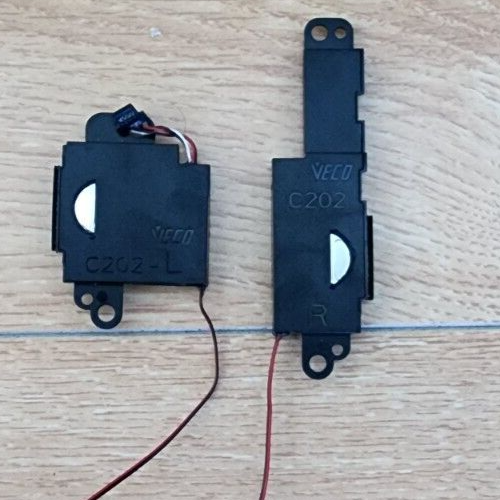
Chromebook speakers are usually built into the body of the laptop. Many models place them along the sides near the keyboard. Others have speakers on the bottom panel to direct sound toward your surface. The exact spot depends on the Chromebook brand and model.
Some common locations include:
- Next to the keyboard on each side
- Underneath the laptop, near the edges
- Along the front edge of the base
Check Speaker Grilles And Vents
Speaker grilles look like small holes or mesh areas on the Chromebook. These allow sound to pass through while protecting the speakers inside. Vents can sometimes be mistaken for speakers but usually help with cooling. Look closely for tiny holes grouped together or a fine mesh surface.
Keep speaker grilles clear of dust and debris. Blocked grilles reduce sound volume and clarity. Use a soft brush or cloth to clean them gently. Avoid pressing hard to prevent damage.
Credit: www.tiktok.com
Access Sound Settings Quickly
Accessing your Chromebook’s sound settings quickly can save you time and frustration, especially when you need to adjust audio on the fly. Whether you’re joining a video call, watching a movie, or just want to tweak your volume, knowing where to find these controls makes a big difference. Let’s look at how to open audio controls and adjust volume and output devices effortlessly.
Open Chromebook Audio Controls
To open the audio controls, look at the bottom-right corner of your screen where the system tray lives. Click on the clock or the battery icon, and a menu will pop up. This menu includes quick settings like Wi-Fi, Bluetooth, and sound.
Here, you’ll see a speaker icon with a volume slider. Click or tap this speaker icon to reveal more detailed audio controls. This quick access lets you change your volume without diving into complex menus.
Adjust Volume And Output Device
Once the audio controls are open, you can easily adjust your volume by sliding the control left or right. Lower the volume during a quiet meeting or crank it up for a movie night with a few simple taps.
Chromebooks also let you switch your audio output device right here. If you plug in headphones or connect to Bluetooth speakers, just click the dropdown menu next to the volume slider to select where the sound should play from.
Have you ever been frustrated when your Chromebook kept playing sound through the wrong device? This quick access feature saves you from digging through settings, so you stay in control of your audio experience at all times.
Test Your Chromebook Speakers
Chromebook speakers are usually located near the keyboard or on the bottom edges. Testing sound helps ensure they work properly and are not blocked. Finding the speaker location is easy and improves your audio experience.
Testing your Chromebook speakers is essential for a good audio experience. Whether you are watching a video or listening to music, clear sound matters. Let’s explore simple ways to test your Chromebook speakers.
Play Audio Files Or Videos
Open any audio file on your Chromebook. You can use your music library or download a sample file. Videos are also great for testing. Launch YouTube or any video streaming site. Play a clip and listen closely. Adjust the volume using the keys on your keyboard. Make sure you hear sound from both speakers. If one side is silent, there might be a hardware issue.
Use Built-in Sound Tests
Chromebooks often have built-in sound tests. Open the settings menu and navigate to the sound section. Here, you will find options to test the speakers. Click on the test button and listen for the audio. This feature helps in diagnosing sound issues easily. If the sound is clear, your speakers are functioning well. If not, consider checking the speaker settings or consulting technical support.
Troubleshoot Speaker Issues
Dealing with speaker problems on your Chromebook can be frustrating, especially when you need sound for meetings, videos, or music. Before assuming hardware failure, there are simple checks and fixes you can try yourself. Let’s go through some straightforward ways to troubleshoot speaker issues and get your Chromebook sounding clear again.
Check Mute And Volume Levels
Start by looking at the volume icon in the lower right corner of your screen. Make sure your Chromebook isn’t muted or set to a very low volume. Sometimes, you might accidentally hit the mute button or lower the volume without noticing.
Also, check the volume settings within individual apps or websites. Some video players or conferencing tools have their own volume controls that might be turned down. Have you ever been surprised that a video plays silently because the player was muted?
Restart And Update Your Chromebook
A quick restart can fix many sound problems. Turning your Chromebook off and on again refreshes the system and clears temporary glitches that might affect the speakers.
Keeping your Chromebook updated is equally important. Updates often include fixes for bugs that could impact audio performance. If you haven’t updated recently, head to Settings > About Chrome OS and check for updates. Could your sound issue be a sign that your system needs a fresh update?
Use External Speakers Or Headphones
If your built-in speakers still don’t work, try plugging in external speakers or headphones. This helps determine if the problem lies with the internal speakers or the software.
Sometimes, the audio output setting switches automatically when you connect an external device. Check the sound settings to confirm your Chromebook is sending audio to the right output. Have you noticed your Chromebook keeps playing sound through headphones even after unplugging them? Adjusting the output can solve that.
Optimize Speaker Performance
Optimizing speaker performance on a Chromebook enhances your listening experience. Good sound makes videos, calls, and music clearer and more enjoyable. Simple adjustments can improve volume and sound quality without extra hardware.
Adjust Audio Settings
Open the settings menu on your Chromebook. Navigate to the “Sound” section to control volume levels. Make sure the output device is set to your Chromebook’s internal speakers.
Use the volume slider to find the best sound level. Avoid setting it too high to prevent distortion. Check for any mute options and ensure they are off.
Use Sound Enhancement Apps
Sound enhancement apps can improve audio clarity and bass. These apps often offer equalizers to adjust different sound frequencies.
Search the Chrome Web Store for trusted audio apps. Install one that matches your needs and preferences.
After installation, open the app and explore settings. Adjust bass, treble, and balance to suit your listening style.
Credit: www.ebay.ca

Credit: www.indiamart.com
Frequently Asked Questions
Where Is The Speaker Located On A Chromebook?
The speaker on a Chromebook is usually found near the keyboard or the bottom edges. Placement varies by model but is designed for clear audio output. Some models have speakers on both sides for stereo sound, improving the listening experience.
How Can I Find The Speaker On My Chromebook?
Look for small grille openings near the keyboard or bottom of your Chromebook. These areas typically house the speakers. If unsure, check your device’s manual or manufacturer’s website for exact speaker placement details.
Why Is Speaker Placement Important On Chromebooks?
Speaker placement affects sound quality and volume. Proper placement ensures clear, balanced audio for videos, calls, and music. Chromebook designers place speakers where they won’t be covered or muffled during use.
Can I Use External Speakers With A Chromebook?
Yes, Chromebooks support external speakers via the headphone jack, USB, or Bluetooth. Using external speakers can enhance audio quality and volume beyond the built-in speakers’ capabilities.
Conclusion
Finding the speaker on a Chromebook is simple once you know where to look. Most models place speakers near the keyboard or bottom edges. Sound quality depends on speaker placement and device design. Knowing this helps you use your Chromebook better.
Now, you can enjoy clear audio for videos, calls, and music. Small details make a big difference. Keep your Chromebook clean to avoid muffled sound. Understanding your device improves your overall experience.