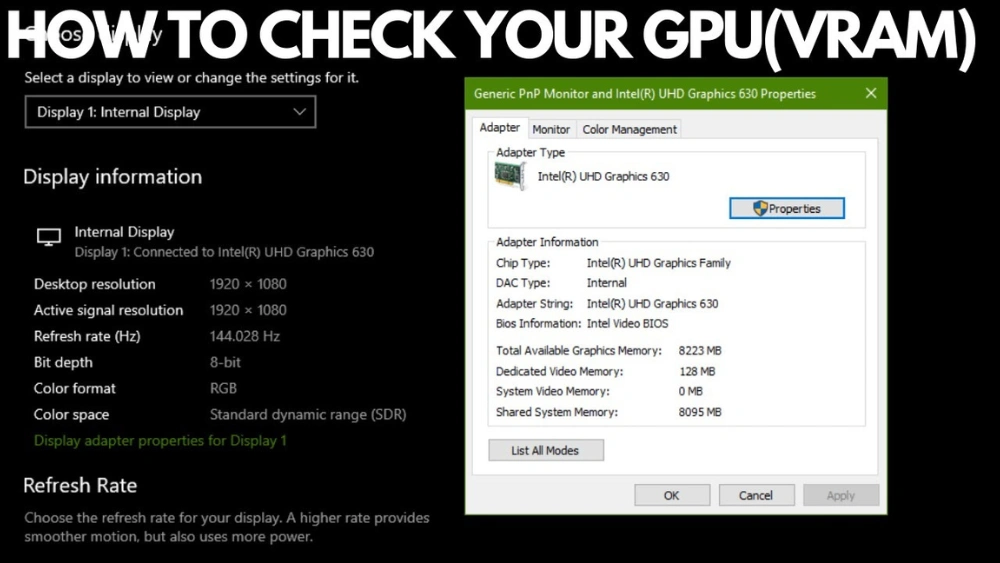
Are you curious about the video card inside your PC but don’t know where to start? Knowing your video card is key to improving gaming, boosting graphics performance, or troubleshooting issues.
In this guide, you’ll learn simple and quick ways to check your video card without any technical hassle. By the end, you’ll have clear answers and be ready to make smarter decisions for your computer. Keep reading—your PC’s hidden power is about to be revealed!
Identify Your Video Card Model
Identifying your video card model helps you understand your PC’s graphics capabilities. It is crucial for installing drivers or upgrading hardware. Several simple ways exist to find this information without special tools.
Use Device Manager
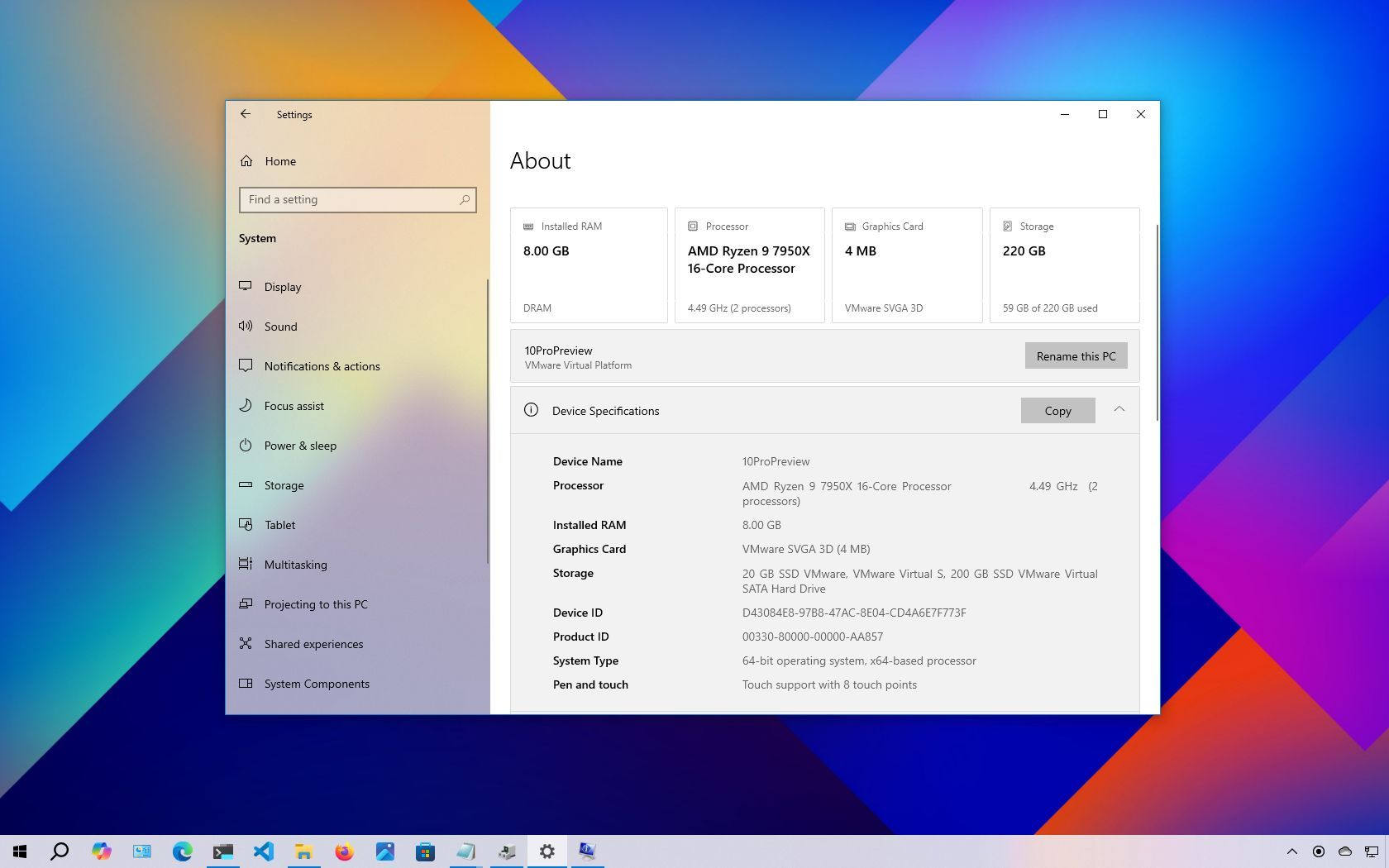
Device Manager lists all hardware components on your computer. Open it by pressing Windows + Xand selecting Device Manager. Expand the Display adapterssection. Your video card model appears here. This method works for most Windows versions.
Check System Information
System Information offers detailed data about your system. Press Windows + R, type msinfo32, and hit Enter. Navigate to Components > Display. You will see your video card name and manufacturer. This tool provides accurate info quickly.
Third-party Tools
Third-party software can give more details about your video card. Programs like GPU-Z or Speccy are popular choices. Download and install one of these tools. Open it to view your video card model along with other specs. These apps are free and user-friendly.
Check Video Card Performance
Checking your video card’s performance helps ensure smooth graphics and system stability. It reveals how well your GPU handles tasks like gaming or video editing. Monitoring performance can prevent crashes and overheating. It also guides upgrades and troubleshooting.
Run Benchmark Tests
Benchmark tests measure your video card’s speed and power. Use software like 3DMark or Unigine Heaven for reliable results. These tools run graphics-heavy tasks and score your GPU’s performance. Compare scores with similar cards to see how yours ranks. Regular testing tracks performance changes over time.
Monitor Gpu Usage
GPU usage shows how hard your video card works. Use Task Manager or GPU-Z to check usage during activities. High usage under heavy loads means your card is working well. Constant low usage might indicate bottlenecks or driver issues. Monitoring helps balance workload and avoid slowdowns.
Analyze Temperature Levels
Temperature affects your video card’s health and speed. Use HWMonitor or MSI Afterburner to watch temperature in real-time. Ideal GPU temperatures stay below 85°C during use. Higher temps can cause crashes or reduce hardware life. Keep fans clean and ensure good airflow to manage heat.
Update Video Card Drivers
Keeping your video card drivers updated is essential for smooth performance and compatibility with the latest games and applications. Outdated drivers can cause glitches, crashes, or reduced graphics quality. Updating your drivers ensures your PC harnesses the full power of your video card.
Download From Manufacturer
Visit the official website of your video card manufacturer, such as NVIDIA, AMD, or Intel. These sites provide the latest drivers tailored specifically for your graphics card model.
Look for the support or drivers section, enter your card’s model number, and download the most recent driver version. Avoid third-party websites to reduce the risk of downloading unsafe or outdated files.
Use Automatic Driver Updates
Many manufacturers offer software that automatically detects and updates your video card drivers. For instance, NVIDIA has GeForce Experience, while AMD provides Radeon Software.
Installing these tools can save you time by handling updates in the background. They also optimize your system settings for better gaming and application performance.
Verify Driver Installation
After updating, check if the new driver installed correctly. Open the Device Manager on your PC, expand the Display Adapters section, and right-click your video card.
Select Properties, then go to the Driver tab to view the driver version and date. Comparing this with the version you downloaded confirms a successful update.

Credit: www.youtube.com
Troubleshoot Common Issues
Video card issues can disrupt your computing experience. It’s crucial to know how to troubleshoot these common problems to keep your PC running smoothly. Identifying and fixing video card issues can help improve performance and prevent further damage.
Display Problems
Display issues are often linked to video card malfunctions. You might see flickering screens or distorted images. Check your connections first. Ensure your monitor cables are secure. If problems persist, update your video card drivers. This can resolve many display issues.
Driver Conflicts
Driver conflicts can cause your video card to malfunction. Conflicting drivers can lead to crashes or lag. Use Device Manager to check for outdated or conflicting drivers. Update or reinstall them for smooth operation. Regular driver updates can prevent conflicts.
Hardware Failures
Hardware failures can be more serious. Overheating or physical damage can ruin a video card. Check for dust buildup in your PC case. Ensure your video card is seated correctly in its slot. If problems persist, consider replacing the card for better reliability.
Optimize Video Card Settings
Optimizing your video card settings can improve your PC’s display and performance. Small changes make a big difference in how smooth and clear your visuals appear. This process helps balance quality and speed for better overall experience.
Adjust Resolution And Refresh Rate
Set your screen resolution to match your monitor’s native size. This ensures the best image clarity. Choose a refresh rate that fits your monitor’s capability. Higher refresh rates create smoother motion on screen, reducing eye strain.
To adjust these settings:
- Right-click on the desktop and select Display Settings.
- Scroll to Resolution and pick the recommended option.
- Click Advanced display settings to change the refresh rate.
- Select the highest refresh rate your monitor supports.
Configure Graphics Control Panel
Your video card comes with a control panel for detailed settings. Use this panel to manage color, 3D settings, and power options. Adjusting these can improve video quality and performance in games or apps.
Access the control panel by right-clicking the desktop and choosing your graphics card’s control panel. Explore options like:
- Color calibration for better brightness and contrast.
- 3D settings to prioritize performance or quality.
- Display scaling to fit the screen correctly.
Enable Performance Modes
Many video cards offer performance modes to boost speed. These modes reduce visual effects to increase frame rates. Turning on performance mode is useful for gaming and heavy video tasks.
Find this option in your graphics control panel under power or performance settings. Select modes like:
- High Performance – for maximum speed.
- Balanced – for a mix of speed and quality.
- Power Saving – reduces energy use but lowers performance.

Credit: www.wikihow.com
Credit: www.windowscentral.com
Frequently Asked Questions
How Do I Find My Video Card On Windows 10?
Open Device Manager by right-clicking Start. Expand “Display adapters” to see your video card’s name and model.
Can I Check My Video Card Using Directx?
Yes, run “dxdiag” in Run dialog. Check the Display tab for video card details.
Why Should I Know My Pc’s Video Card?
Knowing your video card helps with driver updates and game compatibility. It improves performance and troubleshooting.
How To Check Video Card Specifications On A Pc?
Use software like GPU-Z or check through System Information for detailed specs of your video card.
Conclusion
Checking your video card on a PC is simple and quick. You only need a few steps to find the right information. Knowing your video card helps you choose the right games or software. It also helps when updating drivers or fixing issues.
Use built-in tools like Device Manager or third-party apps. Keep your system running smoothly by checking your video card often. Now, you can easily check your video card without confusion. Stay informed and enjoy your PC experience.