Are you ready to take your PS5 gaming experience to the next level? Setting up Dolby Atmos on your PlayStation 5 can transform how you hear every explosion, footstep, and whisper in your games.
Imagine feeling like you’re inside the action, with sound coming from all around you. In this guide, you’ll learn exactly how to set up Dolby Atmos on your PS5 quickly and easily. By the end, your audio will be clearer, richer, and more immersive than ever before.
Keep reading to unlock the full potential of your PS5’s sound system!
Dolby Atmos Basics
Setting up your PS5 for Dolby Atmos can elevate your gaming experience to a new level. Before diving into the technical steps, it’s important to understand what Dolby Atmos is and why it matters for gaming. Knowing the basics helps you appreciate how this technology enhances sound and immersion in your favorite games.
What Is Dolby Atmos
Dolby Atmos is an advanced sound technology that adds a three-dimensional layer to audio. Unlike traditional surround sound, which limits audio to specific channels, Atmos creates a sphere of sound around you. This means you can hear sounds from above, behind, or all around, making the audio feel more natural and lifelike.
Think of it as sound moving in a 3D space rather than just left to right or front to back. This technology is commonly used in cinemas but has now become available for home gaming setups, including the PS5.
Benefits For Gaming
Dolby Atmos makes gaming more immersive by placing sounds exactly where they would be in real life. You can hear an enemy sneaking up behind you or the distant rumble of a helicopter overhead with greater clarity.
This precision can give you a competitive edge in fast-paced games where audio cues matter. Beyond gameplay, Atmos enhances storytelling by making game environments feel alive and dynamic.
- Improved spatial awareness helps you react faster.
- Clearer dialogue and environmental sounds increase immersion.
- Enhanced music and effects deepen emotional impact.
Have you noticed how some games make you feel like you’re truly inside the world? Dolby Atmos plays a big role in creating that feeling.

Credit: en.community.sonos.com
Ps5 Audio Settings
Adjusting your PS5 audio settings is essential to fully enjoy Dolby Atmos. The console offers straightforward options to customize sound output that can enhance your gaming and movie experiences. Knowing where to find these settings and how to configure them correctly makes a noticeable difference in audio quality.
Accessing Sound Settings
Start by turning on your PS5 and navigating to the main menu. Go to Settings—it’s the gear icon at the top right corner of the screen. From there, select Soundto open the audio configuration panel.
Within this menu, you’ll find options for volume control, audio output, and more. Taking a moment to explore here can help you get familiar with what your PS5 offers before you dive into Dolby Atmos setup. Have you checked if your current settings are optimized for immersive sound?
Choosing Audio Output
Once inside the Sound menu, click on Audio Output. This is where you tell your PS5 where to send its sound—whether it’s through your TV speakers, a headset, or an external audio system.
- Select HDMI Device (TV)if you use a soundbar or home theater that supports Dolby Atmos.
- Choose Optical Outonly if you have a compatible adapter since the PS5 lacks a built-in optical port.
- Pick USB Headsetfor headphones or gaming headsets that connect via USB.
After choosing your output device, scroll down to Audio Format (Priority). Set it to Bitstream (Dolby)to enable Dolby Atmos passthrough. This setting ensures your PS5 sends the audio signal in a format your Dolby Atmos-compatible receiver or soundbar can decode.
Have you noticed how switching to Bitstream changes your audio experience? It can turn simple game sounds into an immersive atmosphere that feels like you’re inside the action.
Enabling Dolby Atmos
Setting up PS5 for Dolby Atmos enhances your audio experience with clear, immersive sound. Connect your console to a Dolby Atmos-compatible receiver or soundbar and enable audio settings for surround sound. This setup delivers rich, three-dimensional audio for games and movies.
Enabling Dolby Atmos on your PS5 opens up a whole new world of immersive gaming and entertainment. Imagine feeling like you’re right in the middle of the action, surrounded by dynamic soundscapes that make every game and movie come alive. But how do you make sure you’re getting the most out of your Dolby Atmos setup? Let’s dive into the essential steps to ensure your PS5 delivers the best audio experience possible.Using Hdmi Or Optical Connections
The choice between HDMI and optical connections can significantly impact your sound quality. HDMI is often the preferred method because it supports higher bandwidth for transmitting multi-channel audio, making it ideal for Dolby Atmos. Ensure your HDMI cable is connected to the right port on your TV or AV receiver. Check if your TV supports Dolby Atmos through HDMI ARC or eARC for seamless audio transmission. If you’re using an optical connection, remember that it may not support all Dolby Atmos formats due to bandwidth limitations.Configuring Audio Format
Configuring the audio format on your PS5 is crucial for enabling Dolby Atmos. Navigate to the settings menu and select ‘Sound’ followed by ‘Audio Output.’ Here, you can select the audio format that suits your setup. Choose ‘Dolby Atmos’ if your setup supports it, or ‘Bitstream’ if you’re using an optical connection. Experiment with different settings to find the perfect balance of sound quality and performance. Have you ever wondered how much of a difference these tweaks can make? You might be surprised to find that even small adjustments can elevate your gaming experience to new heights. With these steps, you’re well on your way to enjoying the breathtaking soundscapes that Dolby Atmos can offer on your PS5.
Credit: www.reddit.com
Compatible Devices
To experience Dolby Atmos on your PS5, you need the right devices that support this advanced audio technology. Not all speakers or headphones can deliver the immersive 3D sound Atmos offers. Choosing compatible equipment ensures you hear every whisper, explosion, and footstep exactly as intended.
Soundbars And Receivers
Soundbars and AV receivers are the most popular choices for Dolby Atmos setups. Many modern models come with built-in Atmos support, which means they can process the height channels that create that overhead sound effect.
Look for soundbars that explicitly mention Dolby Atmos compatibility. Brands like Sony, Samsung, and LG offer models designed to work seamlessly with the PS5. AV receivers from Denon, Yamaha, and Onkyo also provide excellent Atmos decoding, perfect if you want a full home theater experience.
Make sure your soundbar or receiver has an HDMI eARC port. This allows high-quality audio signals to pass through without loss. Without it, you might miss out on true Atmos sound or face syncing issues.
Headphones With Atmos Support
If you prefer gaming with headphones, you can still enjoy Dolby Atmos on your PS5. Microsoft’s Dolby Access app supports Atmos for headphones, delivering spatial sound through compatible headsets.
Headphones like the SteelSeries Arctis Pro or Razer Nari Ultimate support Atmos and offer clear directional audio. These models make it easier to pinpoint enemy locations in games or immerse yourself in cinematic soundscapes.
Using headphones with Atmos support also helps reduce distractions from your surroundings. It’s a great option if you game late at night or in shared spaces where loud speakers aren’t ideal.
Troubleshooting Tips
Setting up your PS5 for Dolby Atmos can enhance your gaming and movie experience, but sometimes things don’t go as smoothly as planned. Troubleshooting is key to getting the sound just right. Let’s look at common issues and how updating your system can clear up many problems.
Common Setup Issues
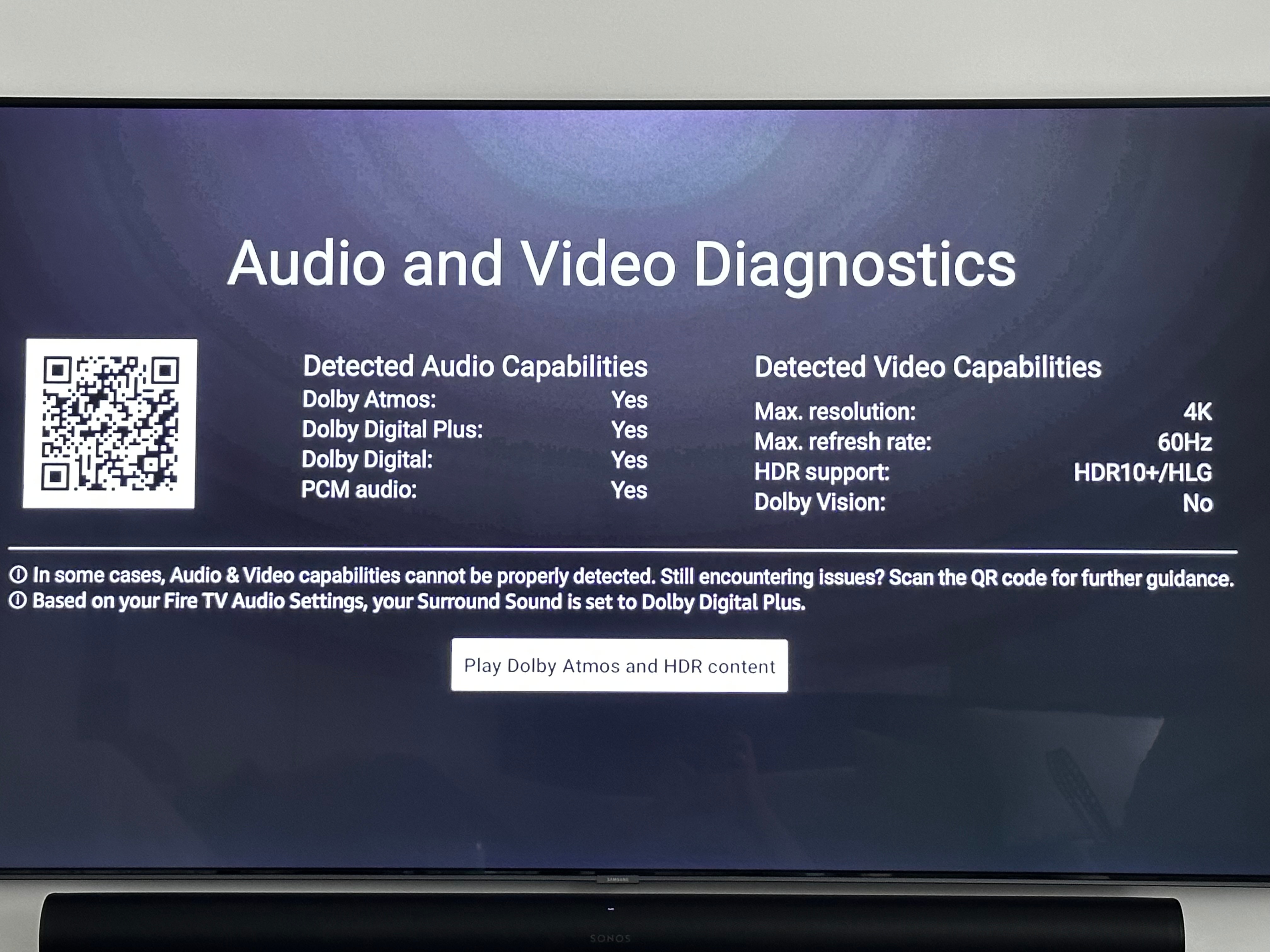
One frequent problem is the PS5 not detecting your Dolby Atmos-capable sound system. Check your HDMI connections first—loose cables can cause audio issues.
Also, ensure your audio output settings on the PS5 are correctly configured to bitstream and that the device supports Dolby Atmos.
Sometimes, your receiver or soundbar might default to a different audio format. Double-check its settings to confirm Dolby Atmos is enabled.
Have you ever had audio dropouts or lag? This could be due to interference or bandwidth limits on your HDMI cables—try swapping them for high-speed certified ones.
Firmware And Software Updates
Outdated firmware on your PS5 or audio device can block Dolby Atmos functionality. Keep your PS5’s system software updated by going to Settings > System > System Software > System Software Update & Settings.
Similarly, check your receiver or soundbar manufacturer’s website for firmware updates. These updates often fix bugs and improve compatibility.
After updates, restart all devices to ensure the changes take effect properly. This simple step often resolves lingering audio glitches.
Have you checked for updates recently? Skipping this step can lead to frustrating sound issues that are easily avoidable.
Optimizing Audio Experience
Optimizing your PS5’s audio setup enhances every game and movie moment. Dolby Atmos brings immersive sound, but adjusting settings tailors it to your space. Small tweaks can boost clarity and depth.
Focus on customizing sound profiles and calibrating your room. Both help create a balanced, rich audio experience. Clear dialogue, precise effects, and deep bass become more noticeable. Enjoy true surround sound that fits your environment perfectly.
Customizing Sound Profiles
The PS5 lets you choose sound profiles for different uses. These profiles adjust how audio is processed for headphones or speakers. Pick a profile that matches your setup and preference.
- Access audio settings from the PS5 control center.
- Choose between Standard, Bass Boost, or Treble Boost profiles.
- Try each profile with your favorite game or movie.
- Adjust volume levels to avoid distortion or too much bass.
- Save the profile that sounds best in your room.
Room Calibration Tips
Room shape and furniture affect how sound travels. Calibration balances audio based on your room’s layout and speaker placement.
- Use a microphone to measure sound levels at your listening spot.
- Place speakers and subwoofers evenly around your room.
- Reduce echo by adding soft materials like rugs or curtains.
- Avoid blocking speakers with objects or furniture.
- Run the PS5’s built-in audio test to fine-tune settings.
Credit: en.community.sonos.com
Frequently Asked Questions
How Do I Enable Dolby Atmos On Ps5?
To enable Dolby Atmos on PS5, connect your console to a compatible AV receiver. Go to Settings > Sound > Audio Output and select Bitstream (Dolby). Then, choose Dolby Atmos in your receiver settings for immersive audio.
Which Devices Support Ps5 Dolby Atmos Setup?
PS5 Dolby Atmos setup works with AV receivers, soundbars, and TVs supporting Dolby Atmos pass-through. Ensure your device firmware is updated. Use an HDMI cable for best audio quality and proper Dolby Atmos decoding.
Can I Use Headphones For Dolby Atmos On Ps5?
Yes, you can use headphones with Dolby Atmos on PS5. Download the Dolby Access app on Windows or Xbox for compatible headphones. For PS5, use virtual surround sound settings in audio options for immersive headphone experience.
What Hdmi Cable Is Needed For Dolby Atmos On Ps5?
Use an HDMI 2. 1 cable for the best Dolby Atmos experience on PS5. It supports high bandwidth and audio formats. Ensure the cable connects your PS5 directly to a Dolby Atmos-compatible AV receiver or soundbar.
Conclusion
Setting up your PS5 for Dolby Atmos enhances your sound experience greatly. Clear and rich audio makes games more fun and real. Follow the steps carefully to connect your devices right. Test your setup with a game or movie to hear the difference.
Enjoy immersive sound that brings every moment to life. Take your time, and soon you will enjoy better audio on your PS5. This simple upgrade can change how you play and watch. Try it today and hear the magic yourself.