
Setting up your Sonos soundbar can transform your home entertainment experience, but it might feel tricky at first. Don’t worry—you’re just a few simple steps away from crystal-clear sound and deep bass that fills your room.
Whether you want to watch movies, listen to music, or enjoy your favorite shows with richer audio, this guide will walk you through the setup process quickly and easily. By the end, you’ll know exactly how to connect your Sonos soundbar and get the best sound possible.
Ready to make your TV sound amazing? Let’s dive in!
Credit: en.community.sonos.com
Choosing The Right Sonos Soundbar
Choosing the right Sonos soundbar can make a huge difference in your home audio experience. Each model offers unique features tailored to different needs and spaces. Understanding these differences will help you pick the perfect soundbar that suits your lifestyle and room setup.
Comparing Sonos Models
Sonos offers several soundbar options, including the Sonos Beam, Arc, and Ray. The Beam is compact, great for smaller rooms, and supports voice assistants like Alexa and Google Assistant. The Arc is larger, designed for immersive Dolby Atmos sound, ideal if you want cinema-like audio.
The Ray is an affordable choice with a slim design, perfect if you want a simple upgrade without extra smart features. Think about what matters most to you—do you want surround sound, voice control, or something budget-friendly? This clarity helps narrow down your options quickly.
Considering Room Size And Layout
Your room’s size and shape affect how sound carries, so matching the soundbar to your space is key. A large, open living room might benefit from the powerful Sonos Arc, which fills big areas with rich, detailed audio. Smaller rooms, like bedrooms or offices, usually pair better with the Beam or Ray to avoid overpowering the space.
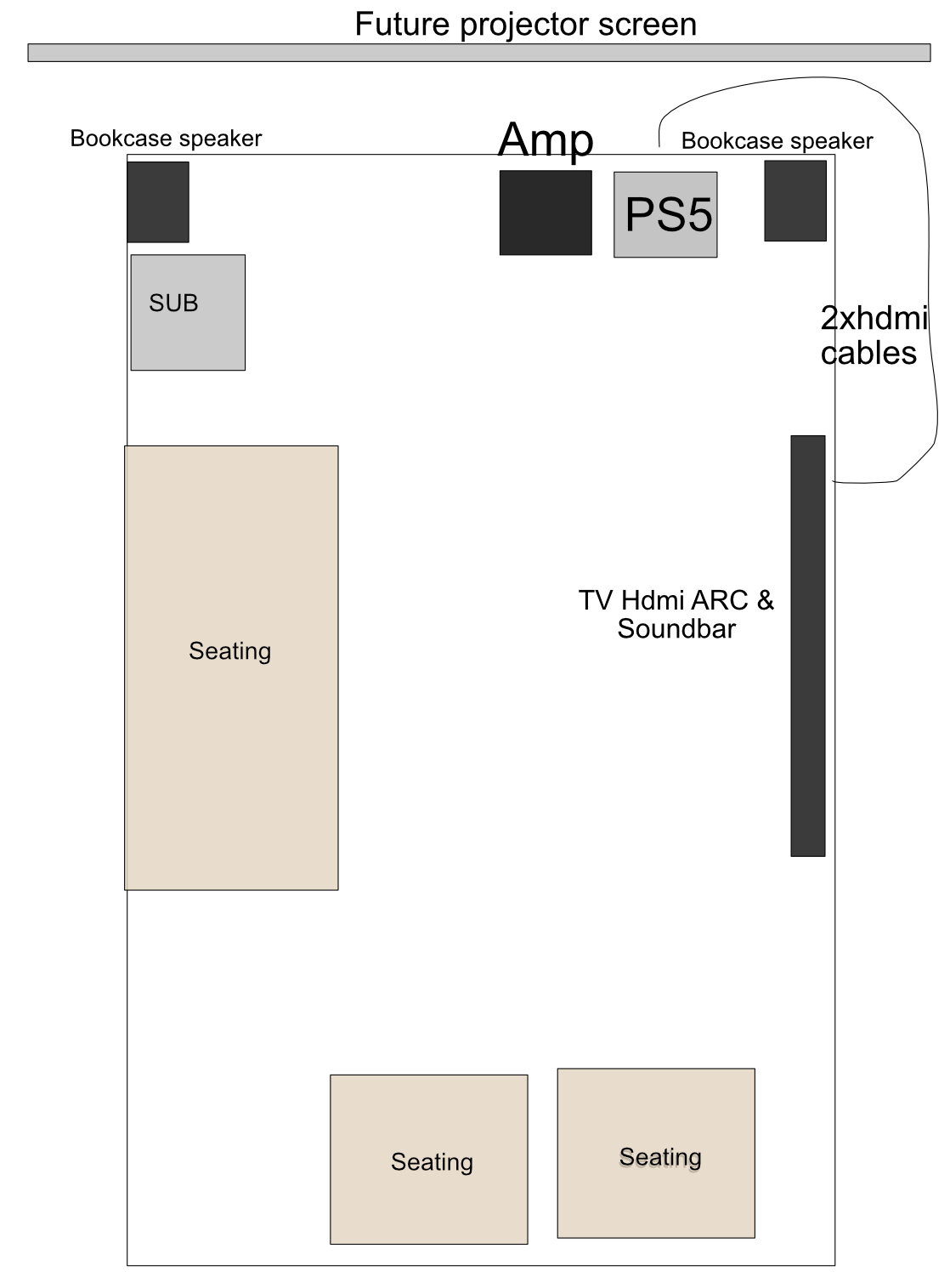
Also, think about your furniture placement and where you’ll place the soundbar. Will it sit under a TV, or do you need a mount? These details influence how well the sound spreads and how immersive your experience will be. Have you noticed sound echoing or feeling muffled in your room before? That’s a sign to adjust your setup or pick a different model.
Credit: en.community.sonos.com
Preparing For Installation
Preparing for the installation of your Sonos soundbar is a crucial step that sets the tone for a smooth setup experience. Taking time to organize your space and tools helps avoid unnecessary frustration and delays. Let’s look at what you need to get ready before you start connecting wires and syncing devices.
Gathering Necessary Tools
Before you unpack your Sonos soundbar, make sure you have everything required for installation within reach. Most Sonos soundbars come with essential cables like power cords and HDMI cables, but having a few extras can save you a trip.
- HDMI cable:Check if your soundbar includes one; if not, have a high-speed HDMI cable ready.
- Power strip or surge protector:Protect your device and allow easy access to power outlets.
- Screwdriver:Some mounts or stands require minor assembly or securing screws.
- Smartphone or tablet:You’ll need this to download the Sonos app for setup and control.
Double-checking these tools beforehand saves time and frustration. Have you ever started installing a device only to realize you’re missing a key cable?
Checking Internet And Power Sources
Your Sonos soundbar relies on a stable internet connection to stream music and update software. Verify that your Wi-Fi signal is strong in the room where you plan to install the soundbar. If your connection is spotty, consider moving your router or adding a Wi-Fi extender for better coverage.
Also, ensure that the power outlet near your TV is working properly and is conveniently located. Avoid using outlets controlled by wall switches that could accidentally turn off your soundbar.
| Check Point | Why It Matters | Tip |
|---|---|---|
| Wi-Fi Strength | Stable streaming and app control | Run a speed test or move closer to the router |
| Power Outlet | Consistent power supply | Use surge protectors to prevent damage |
Have you tested your internet speed today? A slow connection can turn your listening experience into a frustrating wait for buffering.
Physical Setup
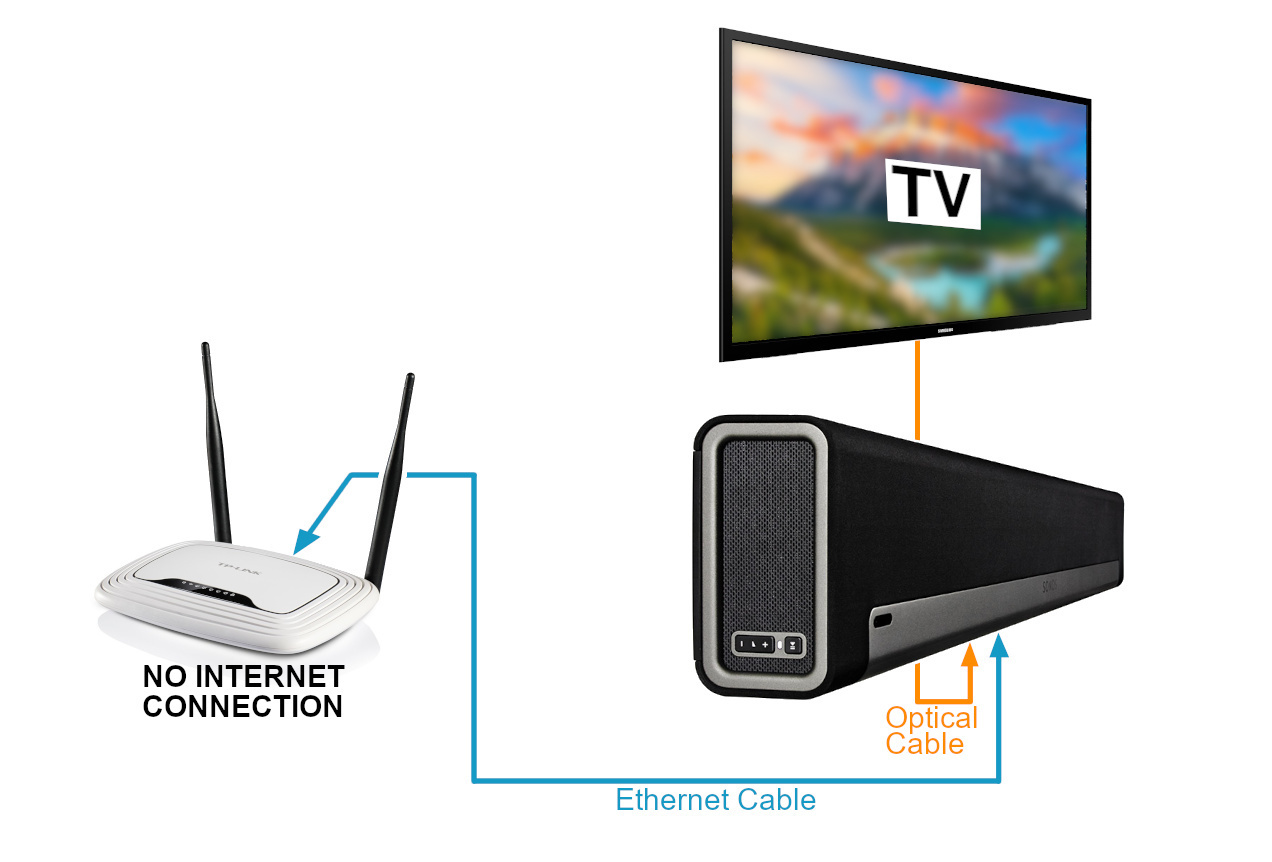
Place the Sonos soundbar near your TV and connect it using the HDMI ARC or optical cable. Ensure the power cable is plugged in and the soundbar is turned on. Connect the soundbar to your Wi-Fi network through the Sonos app for easy control.
Setting up your Sonos Soundbar physically is a crucial step. Proper setup ensures optimal sound quality and a neat, organized space. Below, we’ll guide you through the essential aspects of positioning your soundbar and connecting it to your TV and power source.Positioning The Soundbar
Choose a spot where the soundbar can function best. Ideally, place it centrally below your TV. Ensure the area is free from obstructions. This helps the sound flow evenly throughout the room. Avoid placing it inside a cabinet as it can restrict sound. Make sure it sits flat and secure on the surface to prevent vibrations.Connecting To Tv And Power
Begin by connecting the soundbar to your TV using an HDMI ARC cable. This ensures better sound quality and easy control. Locate the HDMI ARC port on your TV and plug in the cable. Next, connect the soundbar to the power outlet using the power cable provided. Ensure the power source is reliable to avoid interruptions. Once connected, your soundbar should be ready to deliver crisp, clear audio.Configuring The Sonos App
Configuring the Sonos app is a key step to ensure your soundbar works seamlessly with your home audio setup. The app acts as the control center, letting you manage your soundbar’s settings, stream music, and connect with other Sonos devices. Getting comfortable with the app will make your listening experience smoother and more enjoyable.
Downloading And Installing The App
First, you need to get the Sonos app on your smartphone or tablet. The app is available on both the Apple App Storeand Google Play Store. Just search for “Sonos,” download, and install it like any other app.
Make sure your device is connected to the same Wi-Fi network you plan to use for your soundbar. This connection is essential for the app to find and communicate with your Sonos system. If you have trouble finding the app, double-check your device’s compatibility or try updating your operating system.
Creating Or Logging Into A Sonos Account
Once the app is installed, you’ll be prompted to either create a new Sonos account or log in if you already have one. Creating an account is straightforward and only takes a minute. The app will ask for your email and a password.
Your Sonos account is important because it saves your settings, playlists, and preferences. It also makes it easier to sync your soundbar with other Sonos devices in the future. Wondering why you need an account? It’s mainly for personalized control and seamless updates.
Adding The Soundbar To The System
After logging in, it’s time to add your Sonos soundbar to the system. The app will guide you through this process step-by-step. Usually, it involves pressing a button on the soundbar to put it into pairing mode.
Follow the on-screen instructions carefully, and ensure your soundbar is powered on and close to your router. The app will detect the soundbar and ask you to confirm the connection. Once connected, you can name your soundbar and customize basic settings like room placement.
Have you noticed how easy it is to set up devices when the app walks you through each step? This design reduces frustration and helps you get to the good part—enjoying crisp, immersive sound.
Optimizing Sound Settings
Optimizing the sound settings on your Sonos soundbar can dramatically improve your listening experience. It’s not just about turning it on and enjoying the sound; fine-tuning can reveal hidden details in your music and movies. Taking a few moments to adjust the settings will ensure your soundbar performs at its best in your unique space.
Running Room Calibration
Sonos soundbars come with a feature called Trueplay, which adjusts the sound based on your room’s acoustics. Running this calibration is essential because every room reflects sound differently due to furniture, walls, and even windows.
To run the calibration, use the Sonos app and follow the prompts while moving your phone around the room. This process helps the soundbar tailor its audio output, making voices clearer and bass richer. Have you ever noticed how the same song sounds different in another room? That’s exactly what this calibration fixes.
Adjusting Bass And Treble
Once calibration is done, you can manually tweak the bass and treble to suit your preferences. If your movies feel flat or your music lacks punch, adjusting these settings can make a big difference.
Use the Sonos app’s equalizer to increase or decrease bass for deeper lows, or raise the treble for crisper highs. I found that a slight boost in bass improved action scenes without overpowering dialogue. Are your sound preferences more about booming bass or clear vocals? Experiment until your ears are satisfied.
Setting Up Surround Sound
If your soundbar supports surround sound, setting this up correctly can create an immersive audio environment. Adding rear speakers or a subwoofer can make you feel like you’re inside the action.
Position your surround speakers behind or beside your seating area for the best effect. The Sonos app guides you through syncing and balancing these speakers so that sound flows naturally around you. Have you ever felt a movie’s audio was one-dimensional? Surround sound fixes that by adding depth and direction to every sound.
Connecting Additional Devices
Connecting additional devices to your Sonos soundbar can dramatically improve your home audio experience. It allows you to customize your setup to fit your space and preferences perfectly. Whether you want deeper bass or more surround sound, adding compatible devices is the way to go.
Pairing With Subwoofers And Speakers
Adding a Sonos subwoofer or additional speakers is straightforward and instantly upgrades your sound quality. Start by opening the Sonos app and selecting your soundbar. Then, choose the option to add a subwoofer or surround speakers from the settings menu.
The app will guide you through the pairing process, syncing your devices wirelessly. Make sure your additional speakers or subwoofer are powered on and within range. You’ll notice the difference immediately—more powerful bass and richer, room-filling sound.
Think about your room size and layout before adding devices. A subwoofer works best in larger rooms where bass might otherwise feel weak. Surround speakers enhance immersion in medium to large spaces, creating that theater-like atmosphere.
Integrating Streaming Services
Sonos supports many popular streaming services, letting you control music directly from the app. To add a service, open the Sonos app and go to the “Settings” tab. Select “Services & Voice” and then tap “Add a Service.”
Choose from options like Spotify, Apple Music, Amazon Music, and more. Once linked, you can stream music, podcasts, or radio stations seamlessly through your soundbar. This integration keeps all your favorite audio content in one place, easy to access anytime.
Have you ever wished your soundbar could pull up playlists without switching apps? This setup makes it happen. Plus, voice commands become more powerful as your streaming libraries connect directly to Sonos.
Troubleshooting Common Issues
Setting up your Sonos soundbar should be a smooth experience, but sometimes issues can pop up. Troubleshooting these common problems quickly can save you time and frustration. Let’s walk through practical solutions that put you back in control of your sound.
Dealing With Connectivity Problems
Connectivity issues often cause the biggest headaches. Start by checking if your soundbar is within range of your Wi-Fi router. A weak signal can disrupt streaming and syncing.
Make sure your network credentials are correct in the Sonos app. If your soundbar suddenly drops offline, try rebooting your router and the soundbar itself.
Have you tried switching your Wi-Fi channel? Sometimes interference from other devices can block a clear connection. Changing the channel can improve stability.
Fixing Sound Quality Issues
Sound distortion or low volume can ruin your listening experience. First, check if the soundbar’s firmware is up to date—outdated software can cause glitches.
Adjust the equalizer settings in the Sonos app to match your room’s acoustics. Rooms with hard surfaces may cause echoes; adding rugs or curtains can help soften sound reflections.
If the sound cuts in and out, consider the source device. Faulty cables or poor Bluetooth connections often cause these problems. Swap cables or reconnect your device to see if the issue resolves.
Resetting The Soundbar
Sometimes a reset is the fastest way to fix persistent problems. To reset your Sonos soundbar, unplug it from power and wait at least 10 seconds before plugging it back in.
Hold down the mute button (or the join button, depending on the model) while reconnecting the power. Keep holding until the LED flashes, indicating the reset process has started.
Remember, resetting removes all settings and you’ll need to set up the soundbar again. Think of it as a fresh start that often clears hidden bugs.
Credit: www.mercattoria.com.br
Frequently Asked Questions
How Do I Connect My Sonos Soundbar To Wi-fi?
To connect your Sonos soundbar to Wi-Fi, use the Sonos app. Open the app, follow the setup wizard, and select your Wi-Fi network. Enter your Wi-Fi password when prompted. This ensures your soundbar streams music wirelessly and integrates with other Sonos devices.
Can I Use A Sonos Soundbar Without The App?
While the Sonos soundbar can play audio via HDMI or optical input, the app is essential for full setup and smart features. The app enables Wi-Fi connection, firmware updates, and multi-room control, enhancing your soundbar experience significantly.
How Do I Update Firmware On A Sonos Soundbar?
Open the Sonos app and go to Settings > System > System Updates. If an update is available, tap “Update. ” Keeping firmware updated improves performance, fixes bugs, and adds new features to your Sonos soundbar.
What Tv Connections Work With Sonos Soundbars?
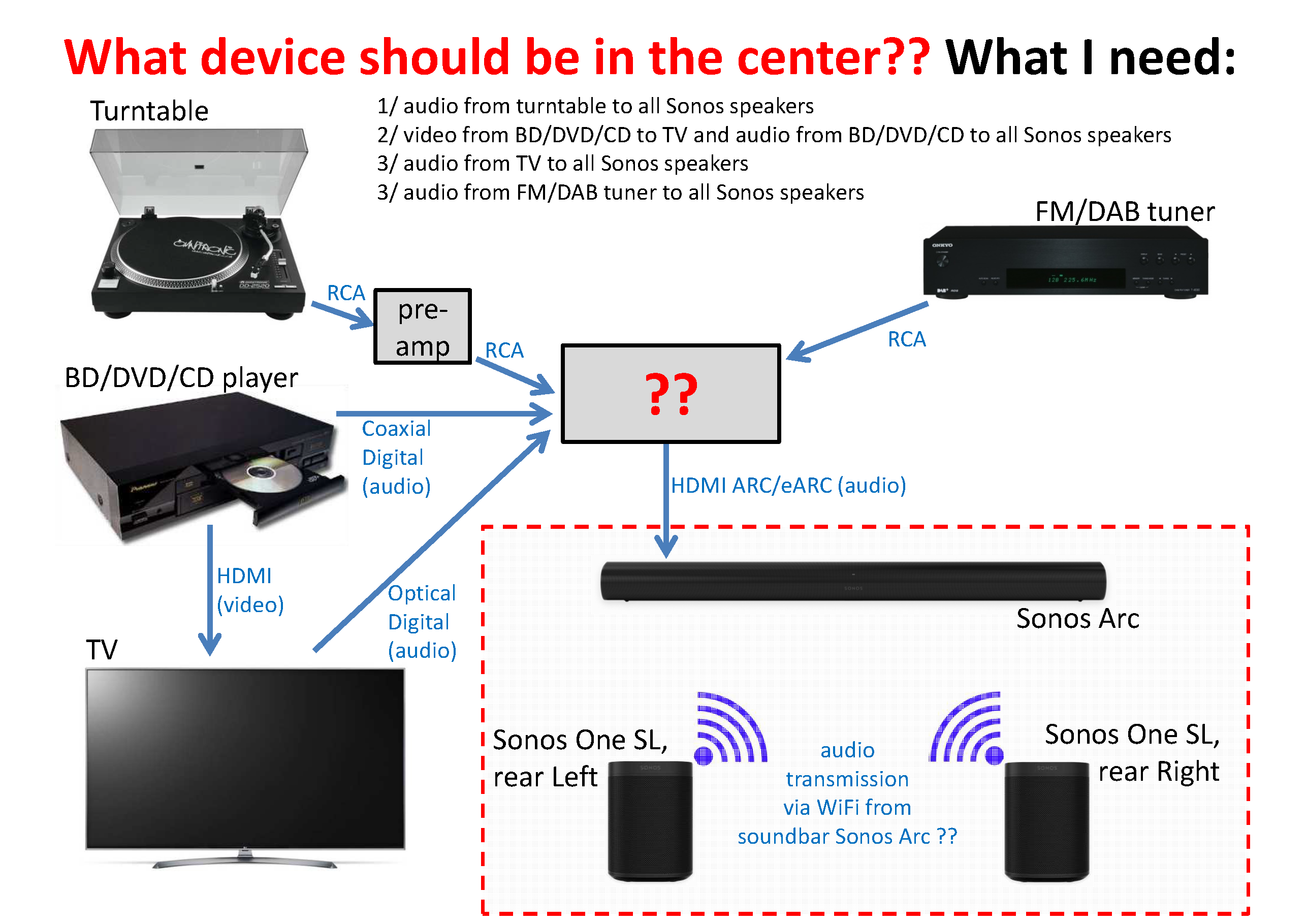
Sonos soundbars typically support HDMI ARC/eARC and optical audio inputs. Connect your TV via HDMI ARC for the best audio sync and control. Optical works if HDMI ARC isn’t available but lacks volume control via TV remote.
Conclusion
Setting up your Sonos soundbar is simple and quick. Follow each step carefully for the best results. Enjoy clear, rich sound in your room. Connect devices easily and control with your phone. Troubleshoot small issues by checking connections and settings.
Your soundbar will bring better audio to movies and music. Take time to explore features and adjust sound to your liking. Now, your home entertainment feels more alive and fun.