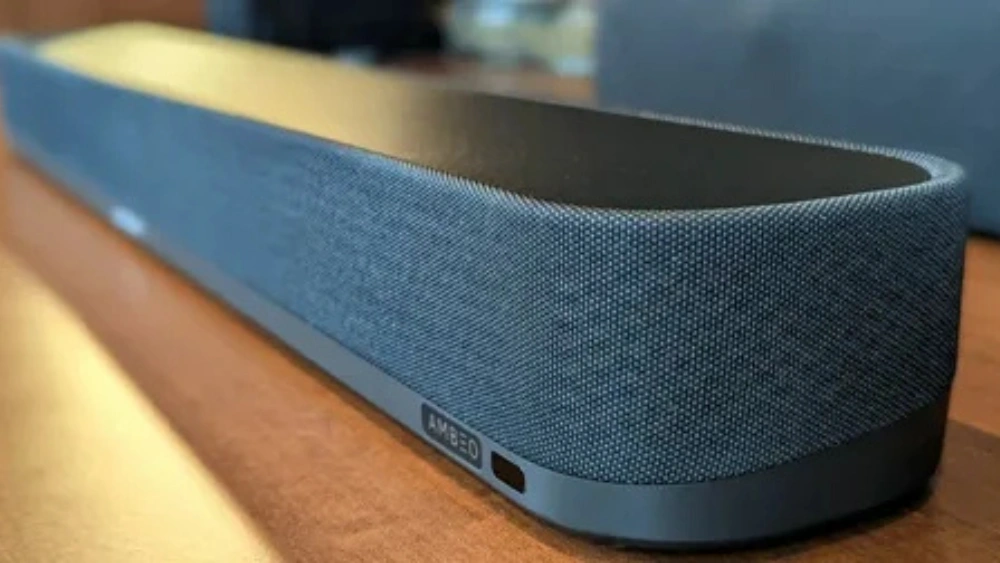
You want your TV sound to match the stunning picture on your screen. A soundbar can take your viewing experience to the next level, making every movie, show, and game come alive.
But pairing your soundbar with your TV can sometimes feel confusing or tricky. Don’t worry – this guide will show you exactly how to connect your soundbar quickly and easily. By the end, you’ll have clear, powerful sound that fills your room and makes every moment more immersive.
Ready to transform your home entertainment? Let’s get started!

Credit: www.youtube.com
Choosing The Right Soundbar
Choosing the right soundbar is key to enjoy clear and rich audio with your TV. It impacts your overall viewing experience. Picking a soundbar that matches your TV’s features helps avoid connection issues. Also, the sound quality should meet your listening preferences. Consider these important points before buying a soundbar.
Consider Compatibility With Your Tv
Check if the soundbar works well with your TV brand and model. Some soundbars pair better with specific TV systems. Look for soundbars that support your TV’s operating system. Also, note the size of the soundbar compared to your TV stand or wall space. Compatibility ensures smooth setup and use.
Check Audio Output Options
Identify the audio output ports on your TV. Common types include HDMI ARC, optical, and Bluetooth. Match these ports with the soundbar’s input options. HDMI ARC offers easy control and good sound quality. Optical cables deliver clear digital sound. Bluetooth allows wireless connection but may have slight delay. Choose the output option that suits your needs.
Evaluate Sound Quality Features
Look for soundbars with clear dialogue enhancement. This helps in understanding speech during movies and shows. Surround sound support creates an immersive experience. Check if the soundbar has bass control or a subwoofer. These features improve deep sounds and overall audio richness. Good sound quality makes watching more enjoyable.

Credit: www.youtube.com
Preparing Your Devices
Before you connect your soundbar to your TV, it’s important to prepare both devices properly. Taking a moment to get everything ready can save you from frustration later. This preparation ensures a smooth connection and better sound quality right from the start.
Locate Audio Ports On Tv
Find the audio output ports on your TV first. These are usually located on the back or side of the TV and may include options like HDMI ARC, optical audio, or a 3.5mm headphone jack. Knowing which ports your TV has helps you choose the right cable for the best sound experience.
Power On Soundbar And Tv
Turn on both your TV and soundbar before making any connections. This allows your devices to recognize each other once connected. You might notice your soundbar’s display or indicator light turn on, signaling it’s ready to pair.
Gather Necessary Cables Or Accessories
Check what cables or adapters you need to connect your soundbar to the TV. Common cables include HDMI, optical audio, or AUX cables. Having these ready avoids interruptions and lets you finish the setup quickly.
Connecting Via Hdmi Arc
Connecting your soundbar to your TV using HDMI ARC offers several benefits. It simplifies cable management by using a single cable for audio and video signals. HDMI ARC ensures seamless communication between your devices, enhancing your viewing experience. Follow these steps to connect your soundbar to your TV via HDMI ARC.
Identify Hdmi Arc Port
First, locate the HDMI ARC port on your TV. It’s usually labeled ‘HDMI ARC’ or ‘HDMI (ARC)’. Check your TV’s manual if you’re unsure about its location. This port is designed specifically for audio return, allowing sound to travel back to your soundbar.
Use High-speed Hdmi Cable
Ensure you have a high-speed HDMI cable. These cables support higher data transfer rates, providing better audio quality. Connect one end of the cable to the HDMI ARC port on your TV. Connect the other end to the HDMI port on your soundbar marked ‘ARC’.
Enable Hdmi-cec Settings
Access your TV’s settings menu. Look for the HDMI-CEC option, also known as Consumer Electronics Control. Enable this setting to allow your TV and soundbar to communicate with each other. This feature lets you control both devices with one remote, enhancing convenience.
Using Optical Cable Connection
Using an optical cable connection is a popular way to link your soundbar and TV. It delivers clear, high-quality sound. Optical cables use light signals, which means less interference and better audio performance.
Setting up this connection is simple and fast. Just follow a few easy steps to enjoy great sound from your soundbar.
Find Optical Audio Port
Look at the back or side of your TV. Find a small, square port labeled “Optical,” “Digital Audio Out,” or “TOSLINK.”
Your soundbar also needs an optical input port. It usually looks the same as the TV port.
Connect Optical Cable Securely
Take the optical cable and gently insert one end into the TV port. Push it until it clicks or fits snugly.
Connect the other end to the soundbar’s optical input. Make sure both ends fit tight to avoid loose connections.
Adjust Tv Audio Output Settings
Turn on your TV and open its audio or sound settings menu. Find the audio output option and select “Optical” or “Digital Audio Out.”
Set the audio format to “PCM” or “Stereo” for best compatibility. This ensures your soundbar receives the correct sound signal.
Test the connection by playing audio. Adjust volume on the soundbar, not the TV, for better sound control.
Pairing Wirelessly With Bluetooth
Pairing your soundbar with your TV wirelessly using Bluetooth is simple and convenient. This connection removes the need for extra cables and helps keep your space tidy. Most modern TVs and soundbars support Bluetooth, allowing easy audio streaming.
Follow these steps to connect your devices smoothly and enjoy clear sound from your soundbar.
Activate Bluetooth On Tv And Soundbar
Start by turning on Bluetooth on both your TV and soundbar. On your TV, find the settings menu and select the Bluetooth option. Set it to “On” or “Discoverable.”
Next, power on your soundbar and activate its Bluetooth mode. Usually, this involves pressing a dedicated Bluetooth button or selecting Bluetooth from the soundbar’s menu.
Search And Select Soundbar On Tv
On your TV, open the Bluetooth device list or search for new devices. Your soundbar should appear in the list, often named by its brand or model.
Select your soundbar from the list to start pairing. The TV and soundbar will connect, and you may hear a confirmation sound from the soundbar.
Troubleshoot Connection Issues
- Ensure both devices are close to each other.
- Restart your TV and soundbar to refresh Bluetooth settings.
- Remove previous Bluetooth pairings that might conflict.
- Check if other devices are connected to your soundbar and disconnect them.
- Update the firmware of your TV and soundbar if updates are available.
Following these tips will help resolve most connection problems quickly.

Credit: www.youtube.com
Configuring Audio Settings
Configuring audio settings is key to enjoying clear, rich sound from your soundbar and TV. This step ensures the soundbar handles all audio output properly. It lets you control volume and sound effects easily. Also, you can fix any lag between the picture and sound.
Select Soundbar As Default Audio Device
Go to your TV’s audio or sound settings menu. Look for an option called “Audio Output” or “Sound Output.” Choose your soundbar from the list. This tells your TV to send sound through the soundbar, not its built-in speakers. Save your settings before exiting the menu.
Adjust Volume And Sound Modes
Use the soundbar remote or app to set the volume. Avoid setting volume too high to prevent distortion. Explore sound modes like Movie, Music, or News for better audio quality. Pick the mode that matches what you watch. Adjust bass and treble if available for a balanced sound.
Test Audio Synchronization
Watch a video with clear dialogue or fast action. Check if the sound matches the lip movements and actions. If there is a delay, find the “Audio Delay” or “Lip Sync” option in TV or soundbar settings. Adjust the delay until the sound and picture sync perfectly. Repeat testing to confirm the fix.
Tips For Optimal Sound Experience
Getting the best sound from your soundbar requires more than just connecting it to your TV. Small changes can make a big difference. Proper setup ensures clear audio and richer sound. Follow these tips for a better listening experience.
Position Soundbar Correctly
Place the soundbar directly below or above your TV screen. Keep it centered for balanced sound. Avoid blocking the speakers with objects. Ensure it faces the main seating area. This placement helps sound reach you clearly.
Avoid Wireless Interference
Keep the soundbar away from other wireless devices. Devices like routers, cordless phones, and microwaves can cause interference. Use a clear line of sight between the soundbar and TV. Limit obstacles to maintain a strong wireless connection.
Update Firmware Regularly
Check the manufacturer’s website or app for updates. Firmware updates fix bugs and improve sound quality. Connect the soundbar to Wi-Fi for easy updates. Regular updates keep your system running smoothly.
Frequently Asked Questions
How Do I Connect A Soundbar To My Tv?
You can connect a soundbar to your TV using HDMI ARC, optical cable, or Bluetooth. HDMI ARC offers the best audio quality and control. Optical cables provide clear sound but no volume control. Bluetooth is wireless but may have slight audio delay.
Can I Use Bluetooth To Pair My Soundbar With Tv?
Yes, if both your TV and soundbar support Bluetooth, you can pair them wirelessly. Enable Bluetooth on both devices, search for the soundbar on your TV, and connect. Note, Bluetooth may cause slight audio lag or lower sound quality.
What If My Tv Has No Hdmi Arc Port?
If your TV lacks HDMI ARC, use an optical audio cable to connect the soundbar. Optical cables transmit digital audio and support surround sound. Alternatively, check if your soundbar and TV support Bluetooth pairing for a wireless option.
Why Is My Soundbar Not Syncing With Tv Audio?
Audio syncing issues often occur due to connection type or settings. Check cables for secure connections. Adjust audio delay settings on your TV or soundbar. Using HDMI ARC usually reduces syncing problems compared to Bluetooth or optical connections.
Conclusion
Pairing a soundbar with your TV improves your viewing experience. Choose the right connection method for your devices. Follow the simple steps to set up easily and quickly. Test the sound to make sure it works well. Adjust settings to enjoy clear and balanced audio.
Enjoy movies, shows, and music with better sound quality. This small upgrade makes a big difference in home entertainment.