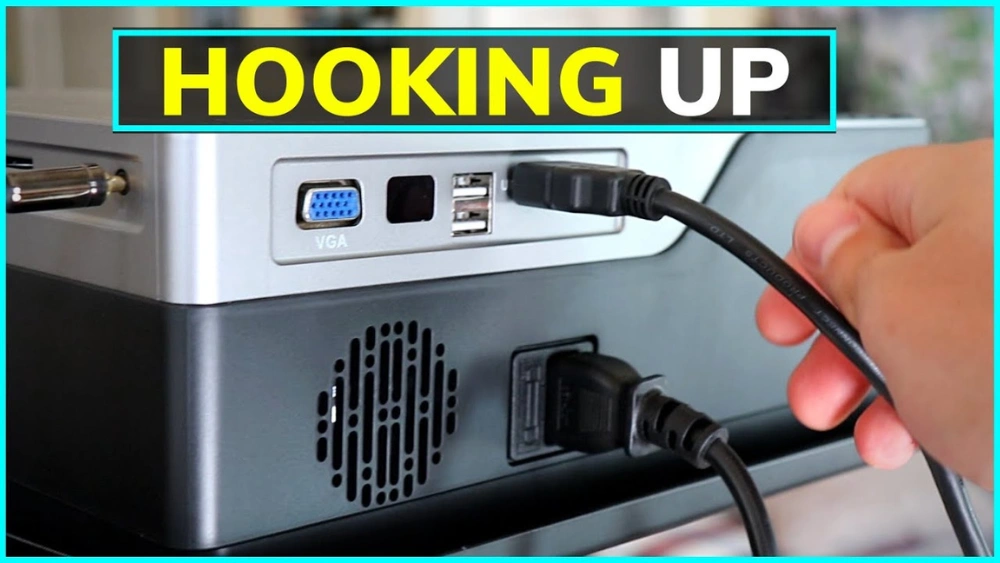
Want to share your phone’s screen on a big projector but don’t know where to start? You’re in the right place.
Connecting your phone to a projector can seem tricky, but it’s easier than you think. Whether it’s for a work presentation, movie night, or gaming session, this simple guide will help you get your phone hooked up quickly. Keep reading, and you’ll discover the exact steps to make your phone shine on the big screen—no tech skills needed.

Credit: www.youtube.com
Choose The Right Cable
Choosing the right cable is key to connecting your phone to a projector. The cable type depends on your phone’s model and the projector’s input options. Using the correct cable ensures clear video and sound without lag or interruptions. It also protects your devices from damage caused by incompatible connections.
Many modern phones use USB-C ports, but older models might need different cables or adapters. Some cables carry both video and power, while others only transfer video. Knowing the differences helps you pick the best cable for a smooth setup.
Hdmi To Usb-c
USB-C to HDMI cables are common for new phones. They connect your phone’s USB-C port to the projector’s HDMI input. These cables support high-definition video and audio. They are simple to use—just plug and play. Check if your phone supports video output through USB-C before buying.
Mhl And Slimport Options
Older phones may use MHL or SlimPort technology to connect to projectors. MHL cables connect via the phone’s micro USB port to HDMI on the projector. SlimPort works similarly but supports more display types. Both carry audio and video signals. Confirm your phone’s compatibility with MHL or SlimPort before purchasing.
Adapters For Different Phones
Adapters help connect phones with different ports to projectors. For example, Lightning to HDMI adapters work with iPhones. USB-C hubs can offer multiple outputs like HDMI, VGA, or USB. Choose an adapter that fits your phone and the projector’s inputs. This makes your connection flexible and reliable.
Connect Via Wireless Methods
Connecting your phone to a projector without wires makes presentations and movie nights much easier. Wireless methods free you from tangled cables and let you move around freely while sharing your screen. Let’s look at some simple ways to link your phone to a projector using wireless technology.
Using Screen Mirroring
Screen mirroring lets you show exactly what’s on your phone’s screen on the projector in real time. Most modern smartphones have a built-in screen mirroring feature, often called Smart View, Screen Cast, or Mirroring. You just need to enable it and select your projector if it supports Wi-Fi connectivity.
Make sure your phone and projector are connected to the same Wi-Fi network. Once connected, open the screen mirroring option on your phone and pick the projector from the list of available devices. Within seconds, your phone’s display will appear on the big screen.
Casting With Chromecast
Chromecast is a popular and affordable device that plugs into your projector’s HDMI port. It allows you to cast videos, photos, and apps directly from your phone without any cables.
To use Chromecast, connect it to your projector and set it up on your Wi-Fi network. Open a supported app like YouTube or Netflix on your phone, tap the cast icon, and choose your Chromecast device. Your content will instantly show on the projector.
Have you ever been frustrated by poor video quality during casting? Chromecast usually handles high-quality streaming smoothly, but the strength of your Wi-Fi signal makes all the difference.
Miracast And Airplay
Miracast and AirPlay are wireless display standards built into many devices. Miracast works mainly on Android phones and Windows devices, while AirPlay is designed for Apple products like iPhones and Macs.
To use Miracast, check if your projector supports it or if you have a Miracast adapter. On your phone, activate the wireless display option and select your projector to start mirroring. With AirPlay, simply tap the AirPlay icon on your iPhone and choose the compatible projector or Apple TV connected to the projector.
Wondering which one to choose? It depends on your device ecosystem. Using AirPlay in an Apple-only environment offers a smoother experience, whereas Miracast is great for mixed-brand setups.
Prepare Your Phone And Projector
Preparing both your phone and projector is essential for a smooth connection. This ensures clear display and sound quality. Taking a few simple steps can avoid common issues and delays. Ready your devices before connecting to save time and frustration.
Enable Developer Options
Developer options give access to advanced phone settings. To enable:
- Go to your phone’s Settings.
- Find “About Phone” and tap on it.
- Locate “Build Number” and tap it seven times.
- Enter your phone’s password if asked.
- Developer options will now appear in Settings.
Enabling this helps with screen mirroring and USB debugging. It improves phone-projector compatibility.
Adjust Display Settings
Adjust your phone’s display for the best projection quality:
- Open Settings and select “Display.”
- Set screen resolution to match the projector.
- Reduce screen timeout to prevent dimming.
- Turn off auto-rotate if you want a fixed display.
These adjustments keep the image stable and clear on the projector.
Set Input Source On Projector
Projectors use different input sources. Set the correct one before connecting:
- Turn on the projector.
- Use the remote or buttons to open the input menu.
- Select the input source that matches your connection type (HDMI, USB-C, VGA).
- Confirm the selection and wait for the projector to adjust.
Choosing the right input source helps the projector detect your phone quickly.

Credit: www.youtube.com
Troubleshooting Common Issues
Troubleshooting common issues while hooking up your phone to a projector can save you time and frustration. Problems like no signal, audio sync, and resolution mismatches often pop up but are usually fixable with a few adjustments. Understanding these hiccups helps you enjoy your content without technical distractions.
No Signal Problems
If your projector shows “No Signal,” start by checking all cable connections. Loose HDMI or USB-C cables can easily cause this problem.
Try unplugging and reconnecting the cables on both your phone and projector. Sometimes, switching to a different input source on the projector can solve the issue.
Also, make sure your phone supports video output through the cable you’re using. Not all phones support HDMI output without adapters or special settings.
Audio Sync Issues
Noticing a lag between video and audio can ruin the experience. This often happens when the projector or phone struggles to process the signal fast enough.
Check if your projector has an audio delay setting and adjust it to match your video. Alternatively, using an external speaker connected directly to your phone can bypass this problem.
If you use wireless connections like Chromecast, interference or slow Wi-Fi might cause delays. Try moving closer to the router or switching to a wired connection if possible.
Resolution And Aspect Ratio Fixes
Sometimes the image looks stretched or pixelated. This usually means your phone’s output resolution doesn’t match the projector’s native resolution.
Go into your phone’s display settings and adjust the resolution or choose a compatible aspect ratio like 16:9 or 4:3. Matching these settings with your projector’s specs improves image clarity.
If your projector has zoom or scaling options, experiment with them to fit the image properly. Remember, the sharper the resolution match, the better your viewing experience will be.
Optimize Display Quality
Adjust brightness and resolution on both phone and projector for clear images. Use the projector’s settings menu to enhance color and sharpness. Ensure the connection cable supports high-quality video for the best display results.
To ensure your phone’s display quality is optimized on a projector, consider several crucial aspects. Display quality can significantly impact your viewing experience. Get the best visuals and sound with these helpful tips.Adjust Brightness And Contrast
Setting the right brightness and contrast is key for a clear image. Too much brightness can wash out colors. Not enough can make the screen hard to see. Adjust these settings on both your phone and projector. Check the environment’s lighting conditions. Dim the room lights or close the curtains if needed. This helps the image appear clearer and sharper.Choose The Best Projection Surface
The surface you project onto affects display quality. A smooth, white wall or projector screen works best. Avoid textured or colored surfaces. They can distort the image. A portable screen can be a good investment. It offers a consistent, high-quality projection surface. Ensure the surface is clean. Dust and marks can affect the clarity of the image.Use External Speakers For Audio
Phone speakers may not be enough for larger spaces. External speakers can enhance audio quality. Connect them to your projector or phone. Ensure they are positioned correctly. This helps distribute sound evenly across the room. Test the audio before your presentation or movie night. Adjust the volume and settings for the best experience.
Credit: www.youtube.com
Frequently Asked Questions
How Do I Connect My Phone To A Projector Wirelessly?
To connect wirelessly, use a compatible device like Chromecast or Miracast. Ensure both devices are on the same Wi-Fi network. Open your phone’s screen mirroring feature and select the projector to start streaming content instantly.
Which Cables Work Best For Phone-to-projector Connection?
The most common cables are HDMI, USB-C to HDMI, and MHL adapters. Check your phone’s port type and projector input. Using the correct cable ensures high-quality video and audio transmission without lag or distortion.
Can I Use A Phone App To Control The Projector?
Yes, many projectors support official mobile apps. These apps allow you to control slides, adjust settings, and switch inputs remotely. Download the app from your phone’s app store and connect it via Wi-Fi or Bluetooth for seamless control.
What Settings Should I Adjust For Optimal Display?
Adjust resolution and aspect ratio on both phone and projector for clear images. Set brightness and contrast according to room lighting. Enabling screen mirroring or casting mode enhances compatibility and ensures smooth playback.
Conclusion
Connecting your phone to a projector is simple and quick. Choose the right cable or wireless method. Make sure both devices are compatible and charged. Adjust the projector settings for the best picture. Enjoy sharing photos, videos, or presentations on a big screen.
Practice a few times to feel confident. This skill helps in meetings, school, or fun movie nights. Keep your setup handy for easy use anytime. Stay patient and try different options if needed. Now, your phone and projector work together perfectly.