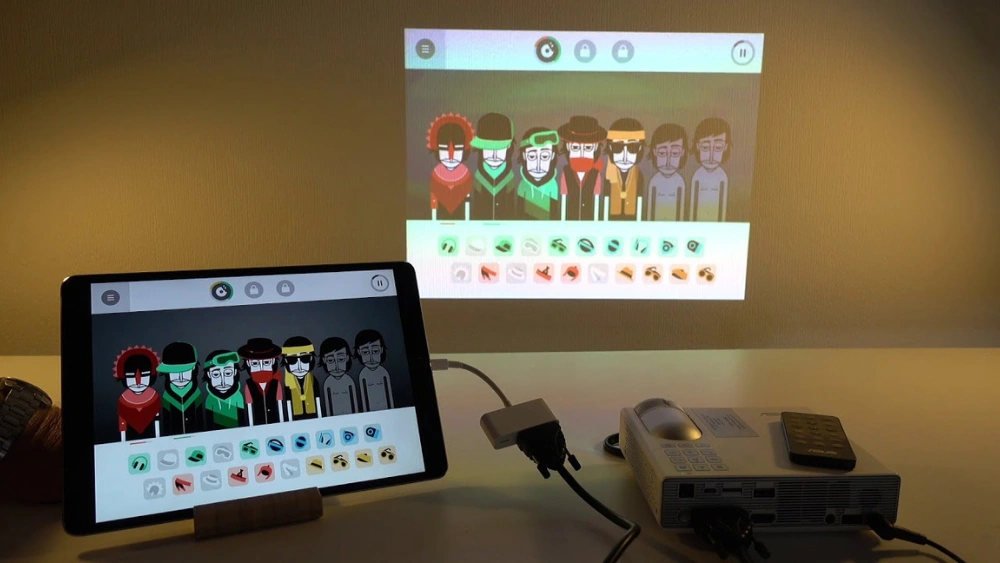
Want to show your iPad’s screen on a bigger display? Whether you’re preparing for a presentation, sharing photos with friends, or watching a movie, hooking up your iPad to a projector can make everything clearer and more impressive.
But if you’re not sure how to connect them or which cables and settings to use, don’t worry—you’re in the right place. In this guide, you’ll learn simple steps to get your iPad and projector working together smoothly. Ready to make your next presentation or movie night unforgettable?
Let’s dive in!

Credit: www.youtube.com
Choosing The Right Adapter
Choosing the right adapter is crucial when connecting your iPad to a projector. The adapter acts as the bridge between your device and the projector, ensuring the video and audio signals transmit smoothly. Picking the wrong adapter can lead to poor image quality or no connection at all.
Before buying, consider the projector’s available ports and your iPad model. This will save you time, money, and frustration. Let’s break down the most common adapter types and options to help you make a smart choice.
Hdmi Vs Vga: Which One To Use
HDMI is the most popular option today, offering both high-definition video and audio through a single cable. It supports crisp images and sound, making it ideal for presentations, movies, or gaming. If your projector has an HDMI port, this is usually the best choice.
VGA is an older technology that only transmits video, not audio. It works well with older projectors but delivers lower image quality compared to HDMI. If you must use VGA, you’ll need an extra audio cable to get sound from your iPad.
Ask yourself: Does your projector support HDMI? If yes, go for HDMI. If it only has VGA, prepare for additional setup steps to handle sound separately.
Apple’s Official Adapters
Apple offers a range of official adapters designed specifically for iPads. The most common is the Lightning to Digital AV Adapter or USB-C Digital AV Multiport Adapter, depending on your iPad model. These adapters guarantee compatibility and reliable performance.
Using Apple’s official adapters means you’ll likely avoid connection issues and get support if something goes wrong. However, they tend to be pricier than other options. Think about whether you want to invest in official gear for peace of mind or try alternatives.
Third-party Adapter Options
Third-party adapters are available at various price points and can be great budget-friendly alternatives. Many offer HDMI or VGA connections and sometimes extra features like charging ports. But quality varies widely—some adapters may cause flickering screens or fail after a few uses.
Read reviews carefully before choosing a third-party adapter. Look for brands with good reputations and return policies. Have you considered how often you’ll use the adapter? If it’s for frequent presentations, spending a bit more on a reliable adapter pays off.
Connecting Ipad To Projector
Connecting your iPad to a projector lets you show videos, presentations, and photos on a big screen. This setup is great for classrooms, meetings, or home movie nights. You can connect using cables or wirelessly, depending on your projector and iPad model.
Using Wired Connections
Wired connections offer a stable and simple way to link your iPad to a projector. Most projectors use HDMI or VGA ports. You will need the right adapter to connect your iPad to these ports.
- Use a Lightning to HDMI or VGA adapter for older iPads.
- For iPad Pro models with USB-C, use a USB-C to HDMI adapter.
- Connect the adapter to your iPad, then plug the HDMI or VGA cable into the projector.
- Turn on the projector and select the correct input source.
- Your iPad screen should appear on the projector immediately.
Setting Up Wireless Display
Wireless display lets you connect without cables. It uses Wi-Fi to mirror your iPad screen on the projector. This method requires a projector with wireless support or a device like Apple TV.
- Ensure the iPad and projector are on the same Wi-Fi network.
- On your iPad, open Control Center and tap Screen Mirroring.
- Select the projector or Apple TV from the list.
- The iPad screen will appear wirelessly on the projector.
- Use this for easy, cable-free sharing.
Troubleshooting Connection Issues
Sometimes the connection may not work as expected. These tips help fix common problems quickly.
- Check all cables and adapters for damage or loose connections.
- Make sure the projector is set to the right input source.
- Restart both the iPad and projector to reset settings.
- For wireless, confirm both devices are on the same network.
- Update the iPad software and projector firmware if possible.
- Try a different adapter or cable if the connection fails.
Adjusting Display Settings
Adjusting the display settings after connecting your iPad to a projector is crucial for a clear and professional presentation. It affects how your content appears and ensures your audience gets the best visual experience. Getting these settings right can save you from awkward moments like stretched images or missing audio.
Mirroring Vs Extended Display
You need to decide whether to mirror your iPad’s screen or use an extended display. Mirroring shows exactly what’s on your iPad, which is great for simple presentations or sharing videos. Extended display, on the other hand, lets you use the projector as a second screen, allowing you to show different content on each device.
Think about your presentation style: Do you want your audience to see exactly what you see, or do you want to keep notes visible only to yourself? Most iPads default to mirroring, but apps like Keynote can support extended modes when connected properly.
Optimizing Resolution And Aspect Ratio
Resolution and aspect ratio impact how sharp and well-proportioned your images and videos appear. If your projector supports 1080p, try setting your iPad to match that resolution for the best clarity. Mismatched settings can cause blurry or stretched visuals, which distract your audience.
Check your projector’s native aspect ratio, usually 16:9 or 4:3, and adjust your iPad’s display settings accordingly. You can find these options in the Display settings or within the app you’re using. Adjusting these settings might seem minor, but it can transform your presentation’s professionalism.
Managing Audio Output
Don’t forget about sound! Your iPad may default to its internal speakers, but your projector or connected sound system might offer better audio quality. Look for the audio output settings on your iPad when it’s connected to the projector and select the correct device.
If you notice no sound from the projector, try unplugging and reconnecting the cable or checking the projector’s volume level. Good audio can make or break your presentation, so test it beforehand to avoid surprises.

Credit: www.amazon.com
Tips For A Smooth Presentation
Getting your iPad connected to a projector is just the start. To truly impress your audience, you need to focus on delivering a smooth presentation. Small details can make a big difference in keeping your flow uninterrupted and your audience engaged.
Ensuring Stable Power Supply
Nothing kills momentum faster than a device running out of battery mid-presentation. Make sure your iPad and projector are fully charged before you begin. It’s smart to have chargers and power banks handy in case the presentation runs longer than expected.
Check the projector’s power cable and connection points for any wear or loose plugs. A sudden power cut can be embarrassing and disrupt your message. Have a backup plan like an extra power strip or extension cord available.
Preparing Content In Advance
Waiting to open files or apps during your presentation wastes time and looks unprofessional. Load all your slides, videos, and documents onto your iPad ahead of time. This way, you can easily switch between materials without fumbling.
Consider downloading offline versions of your files to avoid internet dependency. Also, test the compatibility of your content with the projector’s display resolution to avoid distorted images or unreadable text.
Using Presentation Apps Effectively
Choosing the right app can streamline your presentation experience. Apps like Keynote, PowerPoint, or Google Slides offer features like presenter notes and seamless transitions that keep you on track.
Practice navigating through your slides using the app’s tools so you don’t get lost during the actual presentation. Have a clear understanding of how to connect your iPad to the projector through the app settings or cable connections to prevent last-minute technical issues.

Credit: www.youtube.com
Frequently Asked Questions
How Do I Connect My Ipad To A Projector Wirelessly?
To connect wirelessly, use AirPlay with an Apple TV connected to the projector. Ensure both devices are on the same Wi-Fi network. Open Control Center on your iPad, select Screen Mirroring, and choose the Apple TV device. Your iPad screen will then display on the projector.
What Adapter Do I Need For Ipad To Projector Connection?
You typically need a Lightning to HDMI or USB-C to HDMI adapter. Check your iPad model to confirm the port type. Connect the adapter to your iPad, then plug an HDMI cable from the adapter to the projector. This setup supports both video and audio output.
Can I Use A Vga Projector With My Ipad?
Yes, but you need a Lightning or USB-C to VGA adapter. Connect the adapter to your iPad, then connect a VGA cable to the projector. VGA supports video only, so use separate audio output if needed. This method works for older projectors without HDMI ports.
Why Is My Ipad Not Displaying On The Projector?
Check all cable connections and ensure the projector is on the correct input source. Verify your adapter is compatible with your iPad model. Restart both devices if necessary. Also, confirm your iPad screen mirroring or video output settings are properly enabled.
Conclusion
Connecting your iPad to a projector can be simple and quick. Choose the right cable or adapter for your devices. Make sure both devices are powered on and properly connected. Adjust settings on your iPad for the best display. Test the connection before your presentation or movie.
This helps avoid last-minute problems. With these easy steps, sharing your screen becomes smooth. Enjoy bigger and clearer visuals from your iPad anytime.