
Is your Xbox Series S running slower than you expected? You’re not alone.
Many gamers find themselves frustrated when their console doesn’t perform as smoothly as it should. You might be wondering why your games take forever to load or why navigating menus feels sluggish. The good news is, there are simple reasons behind this slowdown—and even easier fixes you can try right now.
Keep reading to discover what’s causing your Xbox Series S to lag and how you can get it running faster again.

Credit: www.reddit.com
Common Causes Of Slow Performance
Noticing your Xbox Series S running slower than usual can be frustrating, especially when you want to jump straight into gaming. Several common issues might be causing this lag, and understanding them can help you fix the problem quickly. Let’s break down what often leads to slow performance on your console.
Storage Space Issues
Running out of storage can seriously slow down your Xbox Series S. When your hard drive is nearly full, the system struggles to manage files efficiently, causing delays and longer load times.
Try deleting old games or unused apps to free up space. You might be surprised how much unused data is taking up valuable room.
Background Downloads And Updates
Have you noticed your console acting sluggish when you’re trying to play? Background downloads and automatic updates often run without you realizing it, using up system resources.
Check your download queue and pause or cancel anything you don’t want running at the moment. This simple step can speed up your gaming experience.
Overheating Problems
Overheating can cause your Xbox to throttle performance to protect its hardware. If your console feels hot or the fan sounds unusually loud, it may be struggling to cool down.
Make sure your Xbox has plenty of airflow and isn’t placed in a closed space. Cleaning dust from vents can also prevent heat buildup.
Network Connectivity
Slow or unstable internet connections can make your Xbox feel sluggish, especially in online games or streaming services. Lag and buffering are signs your network might be the culprit.
Try using a wired Ethernet connection or moving your console closer to your router. Testing your connection speed within Xbox settings can also reveal if your network is holding you back.
Software Glitches
Sometimes, the issue isn’t hardware but software. Glitches or bugs in the system software or game updates can cause slowdowns.
Restarting your Xbox or performing a system update often clears these glitches. If problems persist, a factory reset might be necessary, but back up your data first.
Speed Up Storage
Storage issues often slow down your Xbox Series S more than you might expect. If your console’s performance feels sluggish, the root cause could be related to how your storage is managed. Speeding up storage isn’t just about deleting files—it’s about smart management that keeps your system running smoothly.
Free Up Disk Space
Having nearly full storage can cause your Xbox Series S to lag. When your disk space is tight, the system struggles to write new data quickly. Try deleting games or apps you no longer use to create breathing room.
Look through your installed games and apps and identify those you haven’t played in a while. Removing them can free up valuable space and improve loading times. Have you noticed a difference in speed after clearing out old titles?
Use External Storage
If your internal storage is constantly full, adding an external drive is a smart move. Xbox Series S supports USB 3.1 external hard drives and SSDs for storing and playing backward-compatible games.
Keep in mind, next-gen games still need to run from the internal SSD or the official expansion card to utilize the full speed benefits. But external storage is perfect for offloading older games or media files, freeing up your console’s primary drive.
Manage Game Installations
Pay attention to how your games are installed. Some games allow you to install only specific parts, like multiplayer or campaign modes.
By installing only what you play most, you reduce the load on your storage and improve performance. Have you customized your game installs to save space? It might be time to try it and see if your Xbox feels faster.
Optimize Network Settings
Adjusting network settings can improve your Xbox Series S speed by reducing lag and connection drops. Checking your router’s quality of service and switching to a wired connection often helps. Simple tweaks ensure smoother downloads and gameplay.
Optimizing network settings can significantly enhance your Xbox Series S performance. Slow speeds can ruin your gaming experience. Simple tweaks can make a big difference. Let’s explore some effective strategies to get your console running smoothly.Check Internet Speed
Knowing your internet speed is crucial. Use online tools to test your connection. Aim for a minimum of 3 Mbps for downloads. Upload speeds should be at least 0.5 Mbps. Lower speeds can cause lag and delays. If your speeds are below these, contact your internet provider.Use Wired Connection
A wired connection is more stable than Wi-Fi. Ethernet cables offer consistent speeds. Connect your Xbox directly to the router. This reduces interference and improves performance. Wired connections lead to less lag.Adjust Dns Settings
DNS settings can impact speed. Changing them can enhance your connection. Go to your Xbox settings. Navigate to Network and select Advanced. Enter new DNS server addresses. Google’s DNS is a popular choice. It can speed up your connection.Credit: www.tiktok.com
Manage System Updates And Downloads
Managing system updates and downloads effectively can significantly improve your Xbox Series S performance. When your console is busy updating or downloading in the background, it can slow down your gaming experience. Taking control of these processes helps free up system resources and network bandwidth, giving you smoother gameplay and faster load times.
Pause Background Downloads
Background downloads often run unnoticed, quietly eating up your bandwidth and slowing your console. You can pause these downloads to prioritize your current game or app. Just head to the downloads queue and hit pause on any active downloads to stop them temporarily.
Have you noticed your game lagging right after a big update starts? Pausing those background downloads can prevent interruptions and speed up your session. This simple step ensures your console dedicates its full power to what you’re doing right now.
Schedule Updates Strategically
Updates don’t have to happen at inconvenient times. Scheduling them for when you’re not gaming, like overnight, helps keep your Xbox Series S ready when you are. You can set your console to install updates automatically during these low-usage hours.
Think about when you usually play—are updates running during those times? Adjusting your schedule means your device won’t slow down just as you start playing. This approach keeps your gaming experience seamless and uninterrupted.
Improve Cooling And Ventilation
Improving the cooling and ventilation of your Xbox Series S can help fix slow performance. When the console gets too hot, it may slow down to avoid damage. Keeping the system cool lets it run smoothly and quickly.
Clean Console Vents
Dust and dirt block airflow through the vents. This causes the console to heat up faster. Use a soft brush or compressed air to clear dust from vents.
Do this regularly to maintain good airflow. Avoid using vacuum cleaners as they can damage small parts.
Ensure Proper Placement
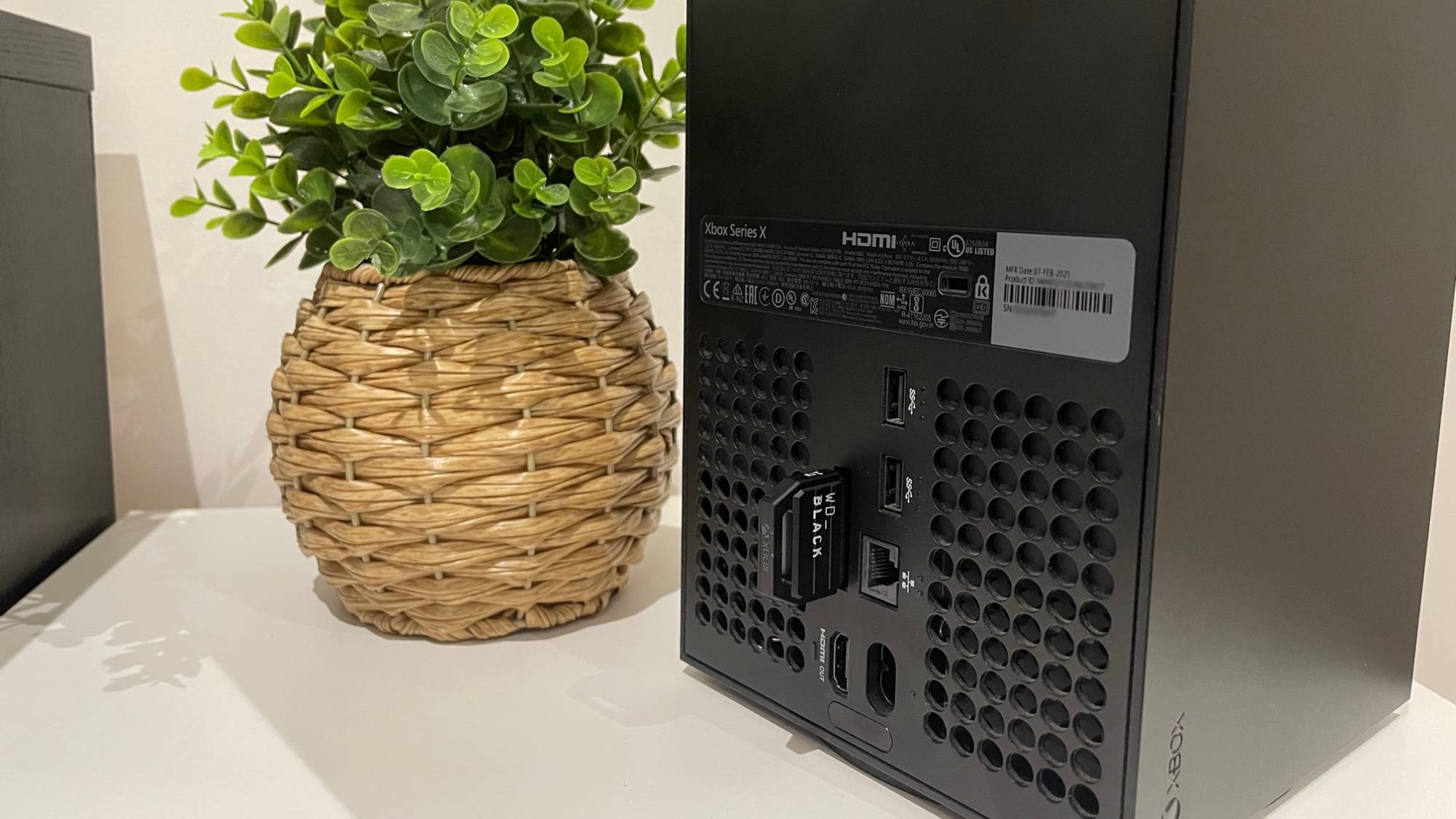
Place the Xbox Series S in a well-ventilated area. Avoid tight spaces like cabinets or crowded shelves. These spots trap heat and limit airflow.
Keep at least 4 inches of space around the console. Do not cover the vents with objects or cloth. Position the console on a flat, hard surface for better heat dissipation.
Credit: www.tomsguide.com
Reset And Refresh Console
Resetting and refreshing your Xbox Series S can solve many speed issues. This process clears temporary data and fixes minor glitches. It helps the console run smoother and faster. There are two main reset types: soft reset and factory reset. Each serves a different purpose for troubleshooting.
Soft Reset
A soft reset restarts the console without deleting your data. It clears cache and closes all running apps. This reset can fix slow loading times and freezing problems.
- Press and hold the Xbox button on the console for 10 seconds.
- Wait for the console to shut down completely.
- Press the Xbox button again to turn it back on.
This simple step often improves speed without losing any saved games or settings.
Factory Reset Options
A factory reset restores your Xbox to its original settings. It removes all games, apps, and personal data. This reset fixes deeper system issues but requires backup of important files first.
There are two factory reset options:
- Reset and remove everything:Clears all data and settings. The console will be like new.
- Reset and keep my games & apps:Resets system files but keeps installed games and apps.
To perform a factory reset:
- Open Settings > System > Console info.
- Select Reset console.
- Choose the reset option that fits your needs.
Use factory reset only if soft reset does not improve performance.
Frequently Asked Questions
Why Is My Xbox Series S Running Slow?
Your Xbox Series S may run slow due to full storage, outdated software, or background apps. Clearing cache and updating firmware often improves speed significantly.
How Can I Speed Up My Xbox Series S?
To speed up your Xbox Series S, close unused apps, clear cache, update system software, and free up storage space. Regular maintenance keeps performance smooth.
Does Slow Internet Affect Xbox Series S Speed?
Yes, slow internet can cause lag and slow downloads on your Xbox Series S. A stable, fast connection is essential for optimal performance.
Can Overheating Cause Xbox Series S To Slow Down?
Overheating can cause your Xbox Series S to throttle performance to cool down. Ensure proper ventilation and clean dust to prevent overheating issues.
Conclusion
A slow Xbox Series S can cause real frustration. Often, simple fixes improve speed quickly. Check your internet and clear storage space. Keep your console updated for best performance. Avoid running many apps at once. Sometimes, slowdowns happen due to overheating.
Let your console rest and cool down. Patience helps as games and apps load. A smooth gaming experience is possible with care. Try these tips to enjoy faster play today.