
Is your microphone not working on your Xbox right when you need it most? It can be super frustrating when you’re ready to chat with friends or join a game, and suddenly your voice won’t come through.
You might feel stuck, unsure if it’s your headset, the console, or something else causing the problem. Don’t worry—this guide will help you find out why your microphone isn’t working and show you simple steps to fix it fast. Keep reading, and you’ll be back to talking and gaming in no time.
Credit: www.tiktok.com
Common Microphone Issues On Xbox
Microphone issues on Xbox are common and can disrupt gaming communication. Understanding these problems helps fix them quickly. Most microphone troubles fit into a few main categories. Each affects how your microphone works with the console.
Connection Problems
Loose or faulty connections stop your microphone from working. Check if the headset plugs are fully inserted. Dirt or damage in ports can block signals. Wireless headsets may have pairing issues or low battery. Try reconnecting or charging to fix connection errors.
Audio Settings Misconfiguration
Incorrect audio settings can mute your microphone. Xbox allows volume and input controls for each device. The microphone might be muted or set to low volume. Privacy settings may block voice chat. Review and adjust these settings to restore sound.
Hardware Malfunctions
Physical damage to the microphone or headset affects sound quality. Broken wires or faulty components cause no audio or static noise. Test the microphone on another device to confirm hardware issues. Replace faulty parts for proper function.
Software Glitches
System bugs or outdated firmware can disrupt microphone use. Xbox updates sometimes cause temporary problems. Restart the console to clear glitches. Keep your system and apps updated for smooth operation.
Credit: www.tiktok.com
Checking Hardware Connections
Before diving into software fixes, it’s essential to check your hardware connections. A faulty or loose connection can stop your microphone from working on Xbox. Simple hardware issues often cause big frustrations, and fixing them is usually quick.
Inspecting The Headset And Cables
Start by closely examining your headset and cables. Look for any visible damage like frayed wires or bent connectors. Even a small nick in the cable can disrupt the microphone’s signal.
Check if the microphone mute button on your headset is accidentally turned on. I once spent hours troubleshooting, only to realize the mute switch was flipped. It’s easy to overlook but makes a huge difference.
Testing With Another Device
Try plugging your headset into a different device, such as a phone or PC. This quick test helps determine if the microphone itself is faulty or if the issue lies with your Xbox.
If the mic works on another device, you can focus on your Xbox settings or ports. If it doesn’t, your headset might need repair or replacement.
Using Different Usb Ports
If you’re using a USB microphone or headset, switch to another USB port on your Xbox. Sometimes, ports can become faulty or have connectivity issues.
Try all available ports to see if the mic starts working. It’s surprising how often a simple port change solves the problem.
Adjusting Xbox Audio Settings
Adjusting your Xbox audio settings can often be the key to solving microphone issues that leave you yelling into the void during intense gaming sessions. If you’ve ever found yourself frantically adjusting your microphone, only to be met with silence, you’re not alone. Let’s dive into the specifics of setting things straight, ensuring your voice is heard loud and clear.
Setting Microphone As Default Device
Is your microphone set as the default device on your Xbox? This simple setting can be overlooked, yet it’s crucial. Navigate to your Xbox settings and ensure your microphone is selected as the default device. It’s like choosing your primary weapon in a game—you want the one that gets the job done.
Verify this by checking your audio devices list. If your microphone isn’t front and center, that could be the culprit behind your frustration. Set it as default and test it out. The difference might surprise you.
Controlling Microphone Volume Levels
Ever been told you’re too loud or too quiet over chat? The volume levels of your microphone can dramatically affect communication. Adjust these levels by accessing the audio settings. It’s akin to finding the perfect sensitivity for your controller—precision matters.
Experiment with the volume sliders. Keep it balanced to avoid overwhelming your teammates or being drowned out by the game. A well-adjusted microphone is your best ally in any multiplayer showdown.
Enabling Chat Audio
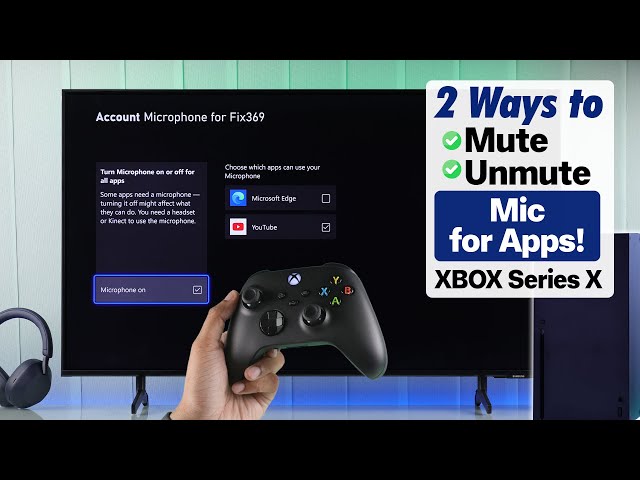
Sometimes, the issue lies with chat audio settings. Is chat audio enabled? Without it, your microphone is essentially muted in the virtual world. Check these settings to ensure chat audio is activated.
Imagine sharing strategic plans in your favorite game, only to find out no one heard a word. By enabling chat audio, you make sure your voice reaches your team. Don’t let settings be the reason your epic game plan falls apart.
Have you ever faced microphone challenges on Xbox? Share your experiences and solutions in the comments below. Your insights could be the game-changer someone else needs!
Credit: www.youtube.com
Updating Xbox System And Firmware
Keeping your Xbox system and headset firmware up to date is a key step in fixing microphone issues. Updates often include bug fixes and improvements that can resolve connectivity problems. If your mic suddenly stops working, checking for these updates could be the quick fix you need.
Checking For System Updates
To check for Xbox system updates, press the Xbox button on your controller to open the guide.
Navigate to Profile & system > Settings > System > Updates.
If an update is available, you’ll see an option to Update console. Select it and wait for the process to complete. This ensures your Xbox has the latest software fixes that might affect microphone functionality.
Have you ever ignored these updates and later found out they were the reason your device misbehaved? Staying current can save you time troubleshooting later.
Updating Headset Firmware
Your headset’s firmware controls how it communicates with your Xbox. Outdated firmware can cause your mic to stop working properly.
To update your headset firmware, connect your headset to the Xbox and open Settings > Devices & connections > Accessories.
Select your headset and look for a firmware update option. Follow the prompts to install any available updates.
Sometimes the headset update is the missing puzzle piece. Have you checked this before assuming your microphone is broken?
Troubleshooting Software Conflicts
Software conflicts often cause your Xbox microphone to stop working, even if the hardware seems fine. These conflicts can arise from apps running in the background, corrupted settings, or temporary system glitches. Tackling these issues requires a few simple but effective troubleshooting steps you can try right now.
Restarting The Xbox Console
Turning your Xbox off and on again might sound basic, but it clears many temporary software glitches. A full restart refreshes the system and closes any apps that could be interfering with your microphone.
Hold the Xbox button on the console for about 10 seconds until it powers down completely. Wait a few seconds, then press the button again to turn it back on. After rebooting, test your microphone to see if the issue is resolved.
Resetting Audio Settings
Sometimes, your audio settings might get misconfigured, blocking your microphone from working properly. Resetting them to default can fix hidden conflicts that you might not notice.
Go to Settings > General > Volume & audio output. Look for options related to headset and microphone settings, and select “Reset to default” or manually adjust settings like microphone volume and chat mixer balance. This quick fix often restores normal functionality.
Clearing Cache
A cluttered cache can cause unusual behavior with your Xbox’s audio functions. Clearing it removes corrupted temporary files and forces the system to load fresh data.
To clear the cache, turn off your console completely. Unplug the power cable from the back and wait at least 30 seconds. Plug it back in and turn your Xbox on. This process clears the cache and can resolve many software-related microphone issues.
Using Xbox Accessories And Apps
Using Xbox accessories and apps can help solve microphone problems. These tools work with your Xbox to improve voice communication. Accessories like the Kinect microphone or the Xbox app offer different ways to connect and test your mic. Understanding how to set up and test these options makes it easier to find the issue and fix it quickly.
Configuring Kinect Microphone
The Kinect microphone needs proper setup to work well. Start by checking the Kinect sensor is plugged in and positioned correctly. Make sure the microphone is not muted in the Xbox settings. Adjust the microphone volume to a comfortable level for clear sound. Use the Xbox settings menu to calibrate the Kinect microphone for better accuracy. Clean the sensor to remove dust that might block the mic. Proper setup ensures the Kinect mic can pick up your voice clearly during games or chats.
Testing With Xbox App Voice Features
The Xbox app lets you test your microphone on a phone or PC. Open the app and go to the party chat or voice settings. Speak into the mic and watch for voice activity indicators. If the app detects your voice, the microphone works fine with Xbox services. Use the app to check if the problem is with the Xbox console or the mic itself. Testing with the Xbox app helps find mic issues outside the console environment. This step can save time and guide you to the right fix.
When To Replace Your Microphone
Knowing the right time to replace your Xbox microphone saves frustration and improves your gaming experience. A faulty microphone can disrupt communication with friends and teammates. Sometimes, small fixes work. Other times, replacement is necessary.
Look for clear signs that your microphone is failing. Check if your voice sounds distorted or if the mic stops working entirely. These issues often point to hardware problems.
Signs Of Hardware Failure
- Audio cuts out during gameplay or chat
- Microphone is not detected by the Xbox console
- Static or crackling noises when speaking
- Physical damage to the microphone or cable
- Volume levels stay very low despite adjustments
These symptoms suggest the microphone is beyond simple fixes. Replacing it ensures clear communication and better game sessions.
Choosing Compatible Accessories
Selecting the right microphone matters. Xbox supports specific types of headsets and mics. Using incompatible devices may cause problems.
- Check the product description for Xbox compatibility
- Prefer official Xbox accessories or well-known brands
- Ensure connectors match your Xbox model (USB or 3.5mm jack)
- Look for microphones designed for gaming use
Compatible microphones deliver reliable performance. This reduces the chances of new issues after replacement.
Frequently Asked Questions
Why Is My Xbox Microphone Not Picking Up Sound?
Your Xbox microphone may not pick up sound due to connection issues. Check if the mic is properly plugged in and unmuted. Also, verify the audio settings and update your Xbox software for better compatibility.
How Do I Fix Microphone Problems On Xbox?
To fix mic issues, restart your Xbox and check the headset connection. Adjust the privacy settings to allow mic access. Test the microphone on another device to ensure it’s not faulty.
Can Xbox Audio Settings Cause Microphone Issues?
Yes, incorrect audio settings can cause mic problems. Ensure the microphone volume is turned up and the correct input device is selected in Xbox settings.
What If My Xbox Mic Is Muted But Not Working?
If muted, press the mute button on your headset or controller. Check the Xbox party chat settings, as muting there can also disable your mic.
Conclusion
A working microphone makes Xbox gaming more fun and social. Check your connections and settings carefully. Restart your console to fix small glitches fast. Try different headsets to spot hardware issues. Keep your Xbox software updated for smooth performance. Simple steps often solve common microphone problems.
Enjoy clear chats and better teamwork in games. Don’t let technical troubles stop your fun. Stay patient, and your mic will work soon.