
Is your Mac mouse suddenly refusing to connect? It’s frustrating when your trusted device stops working just as you need it most.
You rely on your mouse every day, and not having it respond can slow down your work or disrupt your flow. But don’t worry—this problem is more common than you think, and there are simple ways to fix it. You’ll discover why your Mac mouse isn’t connecting and the easy steps you can take to get it back online fast.
Keep reading to regain smooth control and get back to what matters.
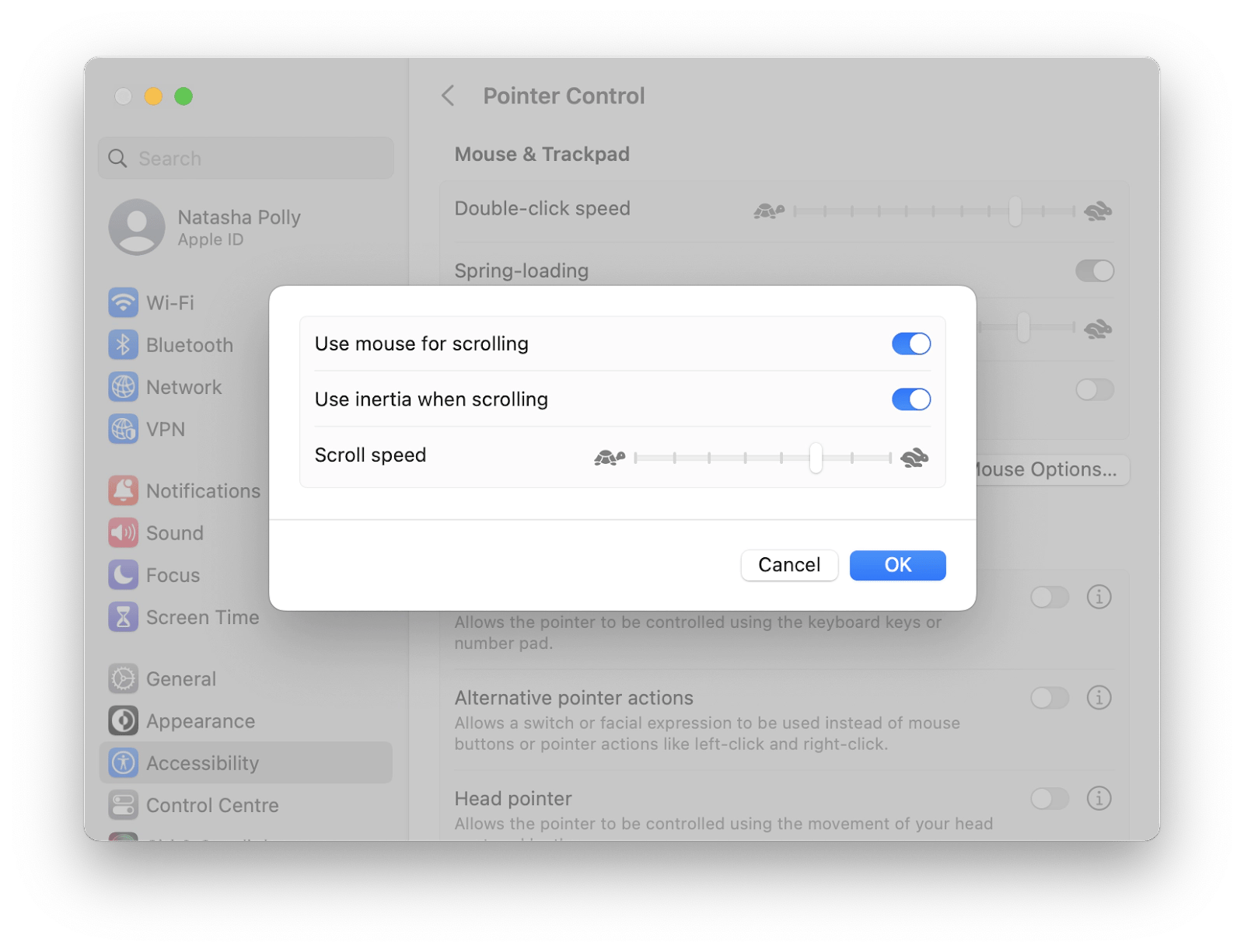
Credit: setapp.com
Common Connection Issues
When your Mac mouse refuses to connect, the problem often lies in common connection issues. Identifying these issues can save you time and frustration. Let’s break down the most frequent culprits behind connection failures and what you can do about them.
Bluetooth Problems
Bluetooth is the main way your Mac mouse communicates with your computer. If Bluetooth is turned off or acting up, your mouse won’t connect. Sometimes, your Mac’s Bluetooth may be on but not discoverable, making it impossible to pair new devices.
Try toggling Bluetooth off and on again. If that doesn’t work, restarting your Mac can clear temporary glitches. Have you checked if your mouse is already paired with another device? That can cause conflicts and prevent connection.
Battery And Power Issues
A drained battery is an easy-to-overlook reason for connection problems. Even if your mouse looks like it’s on, weak power can stop it from pairing properly. Rechargeable mice need to be fully charged, and battery-powered ones require fresh batteries.
Keep an eye on the battery indicator if your mouse has one. If the mouse suddenly stops working after a period of use, power might be the issue. Have you tried replacing the batteries or plugging your mouse in to charge before troubleshooting further?
Interference And Range Limits
Wireless devices compete for space in the same frequency bands, causing interference. Wi-Fi routers, microwaves, and even other Bluetooth devices can disrupt your mouse’s signal. Physical obstacles like walls or metal objects also reduce the effective range.
Try moving closer to your Mac or relocating other wireless devices away from your mouse. Have you noticed if your mouse connection drops when you move around? Staying within a clear line of sight often improves stability.
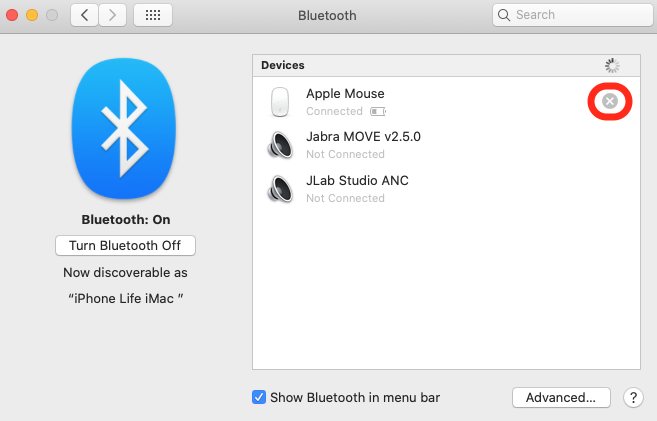
Credit: www.iphonelife.com
Basic Troubleshooting Steps
When your Mac mouse refuses to connect, the problem often lies in simple issues that you can fix yourself. Basic troubleshooting steps help you identify whether the problem is with your Mac, the mouse, or the connection between them. These quick checks can save you time and frustration before diving into more complex solutions.
Restart Your Mac And Mouse
Turning your devices off and on again is surprisingly effective. Restart your Mac to clear temporary glitches that might block the mouse connection. Likewise, power off your mouse, wait a few seconds, and switch it back on to reset its connection process.
This simple step often restores communication between your Mac and mouse without any hassle. Have you tried this quick fix yet?
Check Bluetooth Settings
Your Mac mouse usually connects via Bluetooth. Open your Mac’s Bluetooth settings to see if Bluetooth is enabled and your mouse appears on the device list. If the mouse shows as “Not Connected” or “Disconnected,” try removing it and pairing it again.
Sometimes, other devices interfere with the Bluetooth signal. Check if other nearby Bluetooth devices might be causing interference and turn them off temporarily to test the connection.
Replace Or Recharge Batteries
Low or dead batteries are a common reason your Mac mouse won’t connect. If your mouse uses disposable batteries, swap them for fresh ones. For rechargeable mice, plug it in and let it charge fully before attempting to connect again.
Even if the battery level looks okay, a quick replacement can rule out power issues. Have you checked the battery status recently?
Advanced Fixes
Troubleshooting a Mac mouse connection issue often involves checking Bluetooth settings and battery levels. Resetting the mouse or updating macOS can also solve the problem. Sometimes, interference from other devices disrupts the connection, so clearing nearby signals helps.
If your Mac mouse isn’t connecting, basic solutions might not work. Advanced fixes can solve deeper issues. These steps require a bit more effort but can be effective.Reset Bluetooth Module
Resetting the Bluetooth module can refresh connections. Follow these steps:- Open ‘Terminal’ on your Mac.
- Type:
sudo pkill bluetoothdand hit ‘Enter’. - Restart your Mac to apply changes.
Remove And Re-pair Mouse
Re-pairing the mouse can fix connection errors. Try this:- Go to ‘System Preferences’.
- Select ‘Bluetooth’.
- Find your mouse and click ‘X’ to remove it.
- Turn off the mouse and then turn it back on.
- Re-pair the mouse by selecting it from the list.
Update Macos And Drivers
Updating macOS and drivers ensures compatibility. Use these steps:- Click on the Apple icon and select ‘About This Mac’.
- Choose ‘Software Update’.
- Follow prompts to install updates.
- Check for any specific mouse driver updates.
Hardware Checks
Before diving into software troubleshooting, it’s essential to perform hardware checks on your Mac mouse. Sometimes, the issue isn’t with your computer but with the mouse itself. By inspecting the physical condition and testing it on another device, you can quickly identify if the mouse is the root cause of the connection problem.
Inspect Mouse For Damage
Take a close look at your mouse for any visible damage. Check for cracks, loose parts, or worn-out buttons that might affect its performance.
Don’t forget to examine the sensor on the bottom. Dirt or debris there can prevent your Mac from detecting movements properly.
Have you noticed any unusual sounds or stiffness while clicking? These subtle signs often point to internal hardware issues.
Test Mouse On Another Device
Try connecting your mouse to a different computer or laptop. This quick test can tell you if the problem lies with your Mac or the mouse itself.
If the mouse works fine on another device, the issue might be with your Mac’s Bluetooth or USB ports. If it still doesn’t connect, the mouse likely needs repair or replacement.
Do you have a friend or colleague with a spare computer? Borrowing one for a few minutes could save you hours of unnecessary troubleshooting.
Preventive Tips
Preventing connection issues with your Mac mouse saves time and frustration. Simple habits keep your mouse working smoothly. Follow these tips to avoid common problems.
Keep Software Updated
Update macOS and mouse drivers regularly. Updates fix bugs and improve device compatibility. Check for updates in System Preferences or the App Store. Updated software ensures stable connections and better performance.
Maintain Proper Distance
Keep your mouse within the recommended range. Most wireless mice work best within 10 feet of the Mac. Too far causes weak signals and connection drops. Place your mouse on a flat surface for better tracking.
Avoid Wireless Interference
Other wireless devices can disrupt your mouse signal. Move away from routers, cordless phones, and microwaves. Turn off unused Bluetooth devices nearby. Interference causes lag and connection failures.
Credit: setapp.com
Frequently Asked Questions
Why Won’t My Mac Mouse Connect Via Bluetooth?
Ensure your Mac’s Bluetooth is turned on and the mouse is in pairing mode. Restart Bluetooth if needed. Remove old pairings and try reconnecting. Low battery or interference may also cause connection issues.
How Do I Fix Mac Mouse Not Connecting After Update?
Updates can reset settings. Restart your Mac and mouse. Check for new driver updates. Re-pair the mouse through Bluetooth preferences. Reset the Mac’s Bluetooth module if problems persist.
Can A Low Battery Cause Mac Mouse Connection Issues?
Yes, low battery power often disrupts Bluetooth signals. Replace or recharge your mouse batteries. Always keep spare batteries handy to avoid sudden disconnections during use.
What To Do If Mac Mouse Shows Connected But Not Working?
Try disconnecting and reconnecting the mouse in Bluetooth settings. Restart your Mac. Check for software conflicts or frozen apps. Reset the Bluetooth module and test again.
Conclusion
Troubles with your Mac mouse connection can be frustrating. Check batteries and Bluetooth settings first. Restart your Mac to refresh the system. Remove and re-pair the mouse if needed. Keep your software updated for smoother performance. Sometimes, a simple fix solves the issue fast.
Stay patient and try each step carefully. Your mouse will connect again soon. Don’t let this problem stop your work or fun. Small actions often make a big difference. Keep these tips handy for future issues.