
Are you frustrated because your Apple Fitness isn’t tracking your steps? You’re not alone.
Many people rely on their Apple devices to keep an eye on their daily activity, but sometimes the step count just doesn’t add up. If you’ve been wondering why your steps aren’t showing or why the data seems off, this article is for you.
Keep reading to discover simple reasons behind this issue and easy fixes you can try right now to get your step tracking back on track. Don’t miss out on making the most of your fitness goals!
Common Reasons Steps Aren’t Recorded
Wondering why Apple Fitness isn’t counting your steps? There are several common reasons why your device might not be recording them accurately. Understanding these issues can help you fix the problem quickly and get back on track with your fitness goals.
Device Compatibility Issues
Not all Apple devices support step tracking equally. If you’re using an older iPhone or an Apple Watch model, it might lack the necessary hardware or software updates to track your steps properly.
Have you checked if your device is compatible with the latest version of Apple Fitness? Sometimes, outdated devices can’t communicate with the app correctly, causing missing step data.
Sensor Malfunction
The step count relies heavily on motion sensors like the accelerometer and gyroscope. If these sensors are damaged or malfunctioning, your steps won’t be recorded accurately.
Try restarting your device or running a diagnostic test to see if the sensors respond correctly. If the problem persists, it might be time to visit an Apple service center for a hardware check.
Software Glitches
Software bugs can interfere with step tracking. Sometimes, a simple app crash or system update bug causes the step count to freeze or reset unexpectedly.
Have you updated your iOS or Apple Fitness app recently? Installing the latest updates or reinstalling the app can often fix these glitches and restore accurate tracking.
Privacy Settings Restrictions
Your device’s privacy settings control which apps can access motion and fitness data. If Apple Fitness doesn’t have permission to read this data, it won’t be able to record your steps.
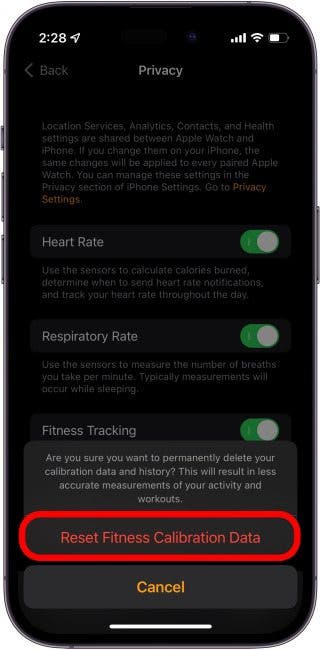
Go to your iPhone’s Settings > Privacy > Motion & Fitnessand make sure Apple Fitness has permission enabled. It’s a quick check that can save you hours of troubleshooting.
Credit: www.iphonelife.com
Checking Your Device Settings
Step tracking relies on your device’s settings. If Apple Fitness is not counting your steps, check these settings first. Many times, the issue lies in simple permission or access problems. Fixing these can restore accurate step counts quickly.
Enabling Motion & Fitness Access
Apple Fitness needs permission to access motion and fitness data. Without this, it cannot track your steps. Open your device’s Settings app. Scroll to Privacy > Motion & Fitness. Make sure the toggle for Fitness Tracking is on. Also, check that Apple Fitness has access enabled here.
Allowing Background App Refresh
Background App Refresh lets Apple Fitness update data even when not open. Without it, step data may delay or stop. Go to Settings > General > Background App Refresh. Turn it on for Wi-Fi or Wi-Fi & Cellular. Find Apple Fitness in the list and ensure it is enabled.
Verifying Location Services
Location Services help improve step tracking accuracy. Open Settings > Privacy > Location Services. Confirm it is turned on. Scroll down and tap Apple Fitness. Choose “While Using the App” or “Always.” This setting allows better activity tracking and data syncing.
Troubleshooting Apple Fitness App
Troubleshooting the Apple Fitness app is key when step tracking stops working. Small glitches can cause the app to miss your activity data. Simple fixes often restore full function quickly. Follow these steps to solve common issues and get accurate step counts again.
Restarting The App
Close the Apple Fitness app completely. Open the app switcher by swiping up or pressing the home button twice. Swipe the Fitness app off the screen to close it. Relaunch the app to refresh its processes. This can clear minor bugs that block step tracking.
Updating To Latest Ios Version
Open the Settings app and tap General. Select Software Update to check for new iOS versions. Download and install any available updates. New updates fix bugs and improve app compatibility. Keeping iOS current helps the Fitness app work smoothly.
Reinstalling The App
Press and hold the Apple Fitness app icon until it jiggles. Tap the “X” or choose Remove App to delete it. Visit the App Store and download the app again. Reinstalling clears corrupted files that may disrupt step tracking. Log back in and check if steps count properly.

Credit: www.reddit.com
Calibrating Your Device For Accurate Tracking
Calibrating your device for accurate tracking can be a game-changer in ensuring Apple Fitness accurately logs your steps. You may have noticed discrepancies in your step count, leaving you puzzled and wondering if you’re missing out on essential data. These inaccuracies can often be traced back to calibration issues, which can be easily corrected with a few straightforward actions. By taking the time to calibrate your device, you ensure that every step counts towards your fitness goals, leaving no room for doubt or missed opportunities.
Resetting Calibration Data
One of the simplest ways to improve accuracy is by resetting the calibration data on your device. It’s like giving your device a fresh start. You might be surprised by how often this simple reset can resolve tracking issues. Just head to the settings and find the option to reset calibration data.
This action can clear any previous inaccuracies and allow your device to recalibrate for precise tracking. Once done, take a short walk to allow your device to recalibrate to your stride.
Performing Outdoor Walks Or Runs
Performing outdoor walks or runs is essential for accurate calibration. Your device uses GPS data to understand your movement patterns. Indoor activities often lack the varied terrain that helps in refining this data.
Consider taking your device on a few outdoor walks or runs. This experience can offer a more dynamic range of data for your device to use in tracking steps accurately.
Have you ever noticed how your step count fluctuates when walking indoors versus outdoors? That’s a hint that your device needs a little outdoor exposure to track accurately.
Using Apple Watch With Fitness App
The Apple Watch is a powerful tool for tracking your fitness, but sometimes the step count doesn’t show up in the Fitness app as expected. Understanding how your watch works with the Fitness app can help you spot where the problem lies. Your watch needs to communicate properly with your iPhone and have the right settings active to ensure every step you take is recorded.
Syncing Watch And Iphone
Your Apple Watch must sync seamlessly with your iPhone to share health data. If the devices aren’t syncing, your steps won’t appear in the Fitness app. Check if Bluetooth is enabled on both devices, and make sure they are within close range.
Sometimes, simply restarting your Apple Watch and iPhone can jumpstart the syncing process. You can also open the Watch app on your iPhone and look for any sync status messages. Have you ever noticed your watch disconnecting during a workout? That’s often a syncing hiccup.
Ensuring Watch Sensors Are Active
The Apple Watch uses several sensors, like the accelerometer and gyroscope, to count your steps. If these sensors are off or malfunctioning, step tracking will fail. Go to your watch’s settings and confirm that motion and fitness tracking are enabled.
Wearing your watch too loosely can also affect sensor accuracy. Try tightening the band slightly to maintain good contact with your wrist. Do you tend to switch wrists often? The watch needs consistent placement to track steps correctly.
Updating Apple Watch Software
Outdated software can cause bugs that interfere with step tracking. Make sure your Apple Watch is running the latest watchOS version by checking in the Watch app under General > Software Update. Installing updates can fix known issues and improve overall performance.
If your watch hasn’t updated for a while, the Fitness app might not receive data correctly. Regular updates keep your devices compatible and your health data flowing smoothly. When was the last time you updated your watch? It might be overdue.
When To Contact Apple Support
Knowing when to reach out to Apple Support can save you time and frustration if your Apple Fitness app isn’t tracking steps correctly. Sometimes, the problem is straightforward and easily fixed at home. Other times, it signals a deeper issue that only Apple’s experts can resolve.
Persistent Hardware Issues
If your Apple Watch or iPhone consistently fails to count steps despite all troubleshooting, it might be a hardware problem. Issues like a faulty accelerometer or damaged sensors can prevent accurate step tracking.
Have you noticed that your device doesn’t respond to movement at all, or the step count stays stuck? This could mean the internal components need professional inspection or repair. In this case, contacting Apple Support is your best option to avoid further damage or wasted effort.
Unresolved Software Problems
Sometimes, software glitches cause your steps not to register, even after updating or restarting your device. If you’ve tried resetting settings, reinstalling the app, and ensuring permissions are granted, but the problem persists, it’s time to get expert help.
Apple Support can guide you through advanced troubleshooting or identify if there’s a bug requiring an update or patch. Don’t let software issues linger—proactive contact with support can restore your step tracking faster than endless trial and error.
Credit: www.iphonelife.com
Frequently Asked Questions
Why Is Apple Fitness Not Counting My Steps?
Apple Fitness may not track steps if motion calibration is off or permissions are denied. Check your device settings and enable motion & fitness access for accurate step tracking.
How To Fix Apple Fitness Step Tracking Issues?
Restart your device, update iOS, and ensure Apple Fitness has necessary permissions. Also, calibrate your motion sensors by walking outdoors for a few minutes.
Can Low Battery Affect Apple Fitness Step Counting?
Yes, low battery mode can limit sensor activity, causing inaccurate step counts. Disable low power mode for better performance during workouts.
Does Apple Watch Need To Be Worn Correctly For Step Tracking?
Yes, wearing your Apple Watch snugly on your wrist ensures the sensors accurately detect movement and count steps throughout the day.
Conclusion
Apple Fitness may miss step tracking due to simple settings or sensor issues. Check that motion and fitness tracking is on. Make sure your device is worn correctly and updated. Restart your device to fix minor glitches. Keep the app permissions allowed for motion data.
Sometimes, steps don’t count during certain activities. Patience helps as the app syncs your data. Following these tips can improve step tracking accuracy. Stay active and monitor your progress regularly. Consistent checks ensure your steps get counted right.