
Are you frustrated because your PS5 is lagging even though your internet connection seems solid? You’re not alone, and it’s a puzzle that can ruin your gaming experience.
Lag can sneak in for reasons you might not expect, making every move feel slow and unresponsive. But don’t worry—understanding why this happens is the first step to fixing it. Keep reading, and you’ll discover the simple causes behind your lag and how to get your PS5 running smoothly again.
Common Causes Of Lag On Ps5
Lag on your PS5 can be frustrating, especially when your internet speed is solid. The problem often lies beyond just raw connection speed. Understanding the common causes of lag helps you pinpoint the issue and find the right fix faster.
Network Issues Beyond Speed
Good internet speed alone doesn’t guarantee smooth gameplay. Issues like high latency, packet loss, or unstable Wi-Fi signals can cause lag. Even if you have a fast connection, interruptions or interference can slow down your data transfer.
Try switching to a wired Ethernet connection to reduce interference. Also, check if other devices on your network are using heavy bandwidth. Have you noticed lag spikes when someone else starts streaming or downloading large files?
Hardware Limitations
Your PS5 is powerful, but it can still struggle if it’s overheating or running too many background tasks. Dust buildup inside the console can cause heat issues, leading to throttled performance. This often results in lag during intense gaming sessions.
Close unused applications and restart your console regularly. Make sure your PS5 is well-ventilated and clean. Have you checked if your console feels hotter than usual during play?
Software And Game Updates
Outdated system software or game versions can cause lag and bugs. Developers release updates to fix performance issues and improve stability. Missing these updates means you might be running a less optimized version of your games or system software.
Keep your PS5 and games updated to the latest versions. Sometimes, an update may temporarily cause lag, but it usually resolves with subsequent patches. When was the last time you checked for updates?
Server-side Problems
Lag can originate from the game servers themselves. If the servers are overloaded or experiencing technical problems, your connection will suffer no matter how good your setup is. This is especially common during peak hours or new game launches.
Check official game forums or social media for server status alerts. Switching to a different game or playing offline can help determine if the issue is server-related. Have you tried testing your connection with another online game to compare?

Credit: calllouder.com
Checking Your Internet Connection
Experiencing lag on your PS5 despite having a good internet plan can be frustrating. The issue often lies not in the speed advertised by your provider but in how your connection performs in real-time. Checking your internet connection thoroughly can reveal hidden problems that affect your gaming experience.
Testing Speed And Stability
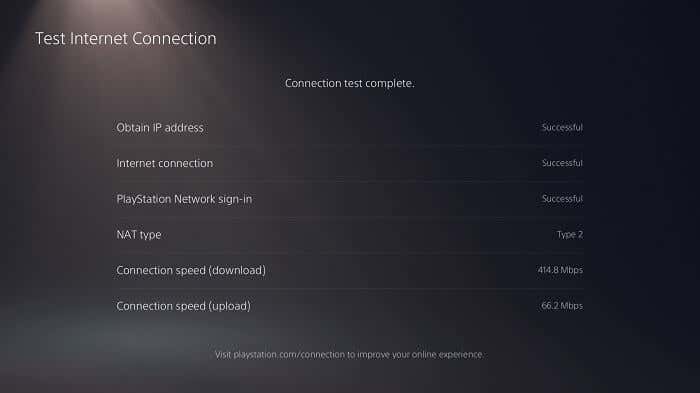
Speed tests show your download and upload rates, but they don’t tell the whole story. Stability is just as important—fluctuations and sudden drops can cause lag spikes during gameplay.
Try running a speed test multiple times at different hours. If your speed varies widely, your connection might be unstable. You can use free tools like Ookla Speedtest or Fast.com to get quick insights.
Have you noticed your game lagging more at certain times? That might be a clue pointing to peak hours or network congestion affecting your stability.
Comparing Wired Vs Wireless
Wireless connections are convenient but prone to interference and signal loss. A wired Ethernet connection often provides a more consistent and reliable connection for gaming.
Switching your PS5 from Wi-Fi to a wired connection can drastically reduce lag and improve response times. Even if your Wi-Fi shows strong signal bars, the actual quality can be compromised by walls, devices, or distance.
Have you ever tried plugging directly into your router and felt an immediate improvement? That hands-on test helps you decide if wireless is the real culprit behind your lag.
Router Placement And Settings
Where you place your router matters more than you might think. Placing it in a central, elevated spot reduces obstacles that weaken your signal.
Also, check your router settings. Enabling Quality of Service (QoS) can prioritize gaming traffic, reducing lag during heavy network use.
Sometimes, simply updating your router’s firmware can fix bugs that cause connection issues. Have you explored your router’s admin panel lately to tweak these settings? Small adjustments here can lead to big improvements in your PS5 gaming experience.
Optimizing Ps5 Network Settings
Optimizing your PS5 network settings can reduce lag and improve game performance. Good internet alone does not guarantee smooth gameplay. The console’s network configuration plays a crucial role in how data flows. Small changes can make a big difference in connection stability and speed.
Fine-tuning these settings helps your PS5 handle online traffic better. It minimizes delays and packet loss that cause lag. Adjusting DNS servers, enabling Quality of Service, and setting the right MTU value are key steps. These tweaks improve how your console communicates with game servers.
Configuring Dns Servers
DNS servers translate web addresses into IP addresses. Using faster, more reliable DNS servers improves connection speed. You can switch from default DNS to public options like Google DNS or Cloudflare. Enter the new DNS addresses manually in your PS5 settings.
- Go to Settings > Network > Set Up Internet Connection
- Select your connection and choose Advanced Settings
- Enter DNS addresses such as 8.8.8.8 and 8.8.4.4 for Google DNS
This change helps your PS5 find game servers quicker. It can reduce lag spikes caused by slow DNS lookups.
Enabling Quality Of Service (qos)
QoS prioritizes gaming traffic on your home network. It ensures your PS5 gets enough bandwidth for smooth gameplay. Most modern routers support QoS settings. Enable QoS and assign high priority to your PS5’s IP address.
- Access your router’s admin panel
- Locate QoS or Traffic Management settings
- Add your PS5’s IP address and set it to highest priority
This limits interruptions from other devices using the internet. Your games remain stable even if others stream or download large files.
Adjusting Mtu Settings
MTU controls the size of data packets sent over the network. Incorrect MTU values cause packet fragmentation or loss. This leads to lag and connection drops. The ideal MTU setting for PS5 is often 1473 or 1500.
- Open PS5 network settings
- Select your connection, then Advanced Settings
- Change MTU value to 1473 or 1500 and save
Test different MTU values to find the most stable one. Proper MTU reduces delays and improves data flow during online play.
Improving Hardware Performance
Improving hardware performance on your PS5 can reduce lag even with good internet. The console’s hardware might slow down due to temporary files or overheating. Simple actions can help your PS5 run smoother and faster.
Clearing Cache And Rebuilding Database
Cache stores temporary data to speed up tasks. Over time, cache can become full or corrupted. Clearing it frees up space and solves slowdowns.
Rebuilding the database organizes files on the hard drive. This process fixes errors and improves loading times.
- Turn off your PS5 completely.
- Hold the power button until you hear two beeps.
- Connect your controller with a USB cable and press the PS button.
- Select “Clear Cache and Rebuild Database” from the menu.
Managing Background Downloads
Background downloads use system resources and internet bandwidth. This can cause lag during gameplay.
Pause or stop downloads while playing games. This frees up power for your game to run smoothly.
- Go to the Control Center by pressing the PS button.
- Check the Downloads/Uploads section.
- Pause or cancel downloads that are not urgent.
Ensuring Proper Ventilation
Overheating slows down hardware and causes lag. Good airflow keeps your PS5 cool and stable.
Keep the console in a well-ventilated area. Avoid placing it inside closed shelves or near heat sources.
- Place your PS5 on a flat surface.
- Leave space around the vents for air to flow.
- Clean dust from vents regularly with a soft brush.
Game-specific Fixes
Game-specific fixes focus on issues within the game or its settings. These fixes help reduce lag even if your internet is good. Sometimes, lag comes from outdated files or server-side problems. Other times, settings in the game can affect your gameplay quality.
Applying these fixes often resolves lag without complex troubleshooting. They are easy to check and update on your PS5 console. Start by ensuring your game and console firmware are current. Then, look into the network settings inside the game. Finally, verify if the game servers are undergoing maintenance.
Updating Games And Firmware
Game updates fix bugs and improve performance. PS5 firmware updates also enhance system stability. Keep your game and console software up to date. Updates often contain important network and connection improvements. Check for updates regularly before starting your game. Installing updates can reduce lag and improve gameplay smoothness.
Adjusting In-game Network Settings
Some games have network settings you can change. Lowering the graphics or connection quality might help. Disabling features like voice chat can reduce data load. Check for options like “Network Type” or “Latency Mode.” Choose settings that fit your internet speed and connection quality. These tweaks often improve game responsiveness.
Checking For Server Maintenance
Game servers sometimes go offline for maintenance. This causes lag or connection drops during play. Visit the game’s official website or social media for updates. Server downtime schedules are usually announced in advance. Playing during maintenance periods results in poor performance. Waiting until servers are stable can fix lag issues quickly.
Credit: www.online-tech-tips.com
Advanced Troubleshooting Steps
Lag on PS5 can happen despite good internet due to network settings or hardware issues. Checking router placement and closing background apps helps improve performance. Restarting the console and updating software often resolves hidden problems.
Lagging on your PS5 can be frustrating, especially with good internet. Basic troubleshooting often doesn’t solve the problem. Advanced steps can help restore smooth gameplay. Dive into these techniques for better connection stability.Using A Vpn For Connection Stability
A VPN can stabilize your connection. It reroutes your data through secure servers. This reduces congestion and improves speed. Choose a VPN with servers near your location. Ensure it supports gaming traffic. Some VPNs offer specialized gaming modes. These optimize data flow for consoles. Test different servers for the best performance. Using a VPN can sometimes bypass ISP throttling. This enhances your gaming experience. Always check if your VPN affects latency.Resetting Network Equipment
Resetting your router and modem can refresh your connection. This clears temporary glitches. Unplug both devices for a minute. Then, plug them back in. Wait for them to fully restart. Check if all lights are stable. This process can improve connection speed. Sometimes network equipment slows down over time. Regular resets help maintain optimal performance. Ensure your router has the latest firmware. Updated software often fixes bugs and enhances speed.Contacting Isp Or Playstation Support
Reach out to your Internet Service Provider. They can check for outages or throttling. Sometimes, network issues are beyond your control. Explain the problem clearly. They might offer solutions or upgrades. PlayStation Support can also assist. They provide guidance on console settings. Sometimes, hardware or software issues cause lag. Support teams can identify and fix these problems. Keep records of your troubleshooting steps. This helps when explaining the issue.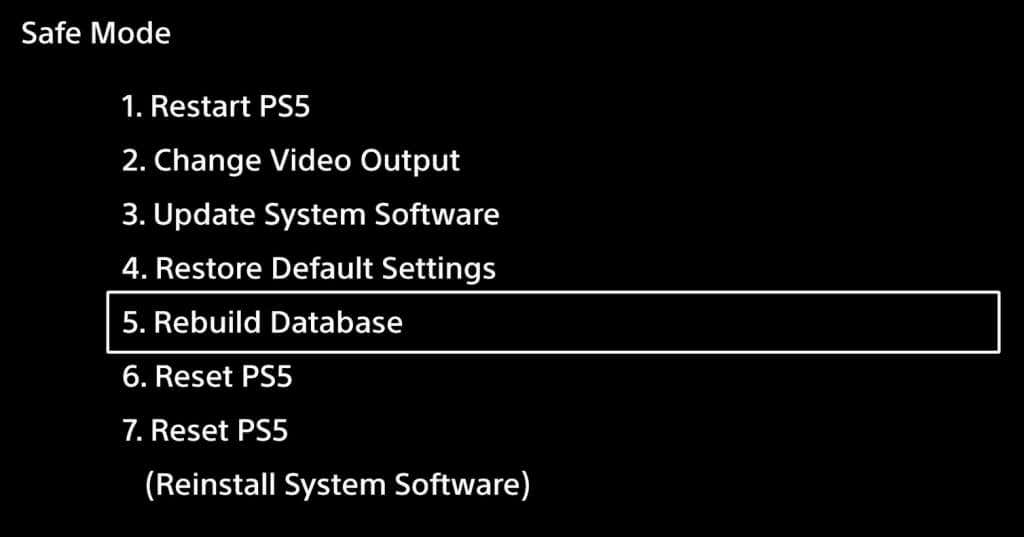
Credit: www.online-tech-tips.com
Frequently Asked Questions
Why Is My Ps5 Lagging Despite Good Internet?
Lagging can occur due to network congestion, Wi-Fi interference, or server issues. Check your connection speed, router placement, and PS5 updates. Use a wired connection for better stability.
Can Ps5 Hardware Cause Lag With Good Internet?
Yes, hardware issues like overheating or outdated firmware can cause lag. Ensure your PS5 is ventilated well and running the latest system software.
Does Game Server Location Affect Ps5 Lag?
Absolutely. Connecting to distant game servers increases latency, causing lag. Choose servers closer to your location for smoother gameplay.
How Does Wi-fi Interference Impact Ps5 Performance?
Wi-Fi interference from other devices can weaken your signal. Use a 5 GHz band or a wired Ethernet connection to reduce lag.
Conclusion
Lagging on PS5 with good internet can still happen sometimes. Other factors like Wi-Fi strength, device distance, or network traffic may cause delays. Restart your router and close unused apps to help improve speed. Check for PS5 system updates and keep your console cool.
Small changes often make a big difference in gameplay. Stay patient and try these simple fixes to enjoy smoother gaming sessions. Don’t let lag ruin your fun—keep testing and adjusting your setup. Gaming should feel smooth and fun, no matter the connection.