
Are you ready to capture your best moments in stunning 4K quality? The Yi 4K Action Camera is packed with powerful features, but getting the most out of it can feel tricky at first.
Don’t worry—you’re about to learn simple, clear steps that will help you use your Yi 4K like a pro. Whether you want epic adventure shots or smooth everyday videos, this guide will make sure you never miss a perfect shot.
Keep reading, and unlock the full potential of your Yi 4K Action Camera today!
Getting Started With Yi 4k
Getting started with your Yi 4K Action Camera is simpler than you might expect. Before you jump into capturing stunning videos and photos, it’s essential to familiarize yourself with the basics. This helps avoid common pitfalls like missing accessories or battery issues that can interrupt your shooting experience.
Unboxing And Contents
As you open the box, you’ll find the Yi 4K camera neatly packed alongside several accessories. Typically, the package includes the camera itself, a waterproof case, mounting clips, a USB charging cable, and a user manual. It’s a good idea to check each item to ensure nothing is missing before you start.
Have you ever been excited to use a new gadget only to realize a crucial part was missing? Taking a moment here saves you from that frustration. Also, keep the packaging in case you need to return or exchange anything.
Charging And Battery Tips
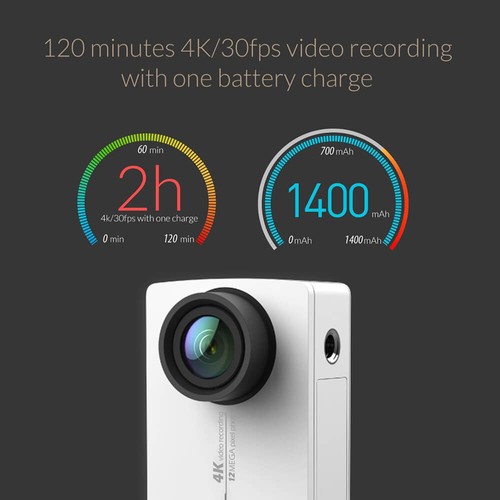
Before powering on your Yi 4K, fully charge the battery using the supplied USB cable. The charging indicator will turn off when the battery is ready. Charging for at least two hours ensures you get a full session without interruption.
Remember, battery life varies with usage, especially if you use Wi-Fi or 4K recording modes. To extend battery life, turn off the Wi-Fi when not needed and avoid extreme temperatures. Have a spare battery on hand if you plan to shoot for long periods.
Inserting Memory Card
Your Yi 4K requires a microSD card to store videos and photos. Before inserting, format the card using the camera’s settings to prevent file errors. Look for the memory card slot on the side of the camera, open it gently, and slide the card in until it clicks.
What happens if you skip formatting? You risk corrupted files or the camera not recognizing the card. Using a high-speed card (Class 10 or above) improves performance, especially when recording 4K videos.
Setting Up Your Camera
Setting up your Yi 4K Action Camera is a simple process. This step ensures the camera works smoothly for your adventures. Follow these steps to get your camera ready quickly and easily.
Powering On And Off
Press and hold the power button to turn on the camera. The screen will light up, showing the startup logo. To switch off, press and hold the same button until the screen goes dark. Always power off the camera before removing the battery or memory card.
Connecting To The Yi App
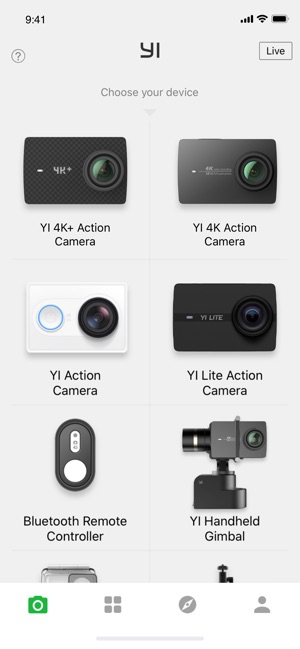
Download the Yi app from your phone’s app store. Turn on the camera’s Wi-Fi from the settings menu. Open the app and select your Yi 4K camera from the list of devices. Enter the Wi-Fi password found in the camera’s settings. Now, your phone and camera are linked for remote control and easy file transfer.
Adjusting Basic Settings
Access the settings menu by swiping on the camera screen. Set your preferred language and time zone first. Choose the video resolution and frame rate based on your needs. Adjust photo quality and enable or disable sound as desired. Make sure to save changes before exiting the menu.
Mastering Camera Modes
Understanding the Yi 4K Action Camera modes is key to capturing stunning visuals. Each mode offers unique settings tailored for different shooting scenarios. This section guides you through the core camera modes to enhance your photography and videography skills.
Video Mode Features
The Yi 4K Action Camera excels in video recording. Select from various resolutions, including 4K, 1080p, and 720p. Choose higher resolutions for detailed imagery, or lower for longer recording times. Adjust frame rates to capture fast action or create cinematic slow-motion effects. Use settings like image stabilization to ensure smooth footage, even during movement.
Photo Mode Options
Capture stunning stills with the photo mode. Choose between single shot and burst options. The single shot mode is ideal for quick moments. For action shots, burst mode captures multiple images in rapid succession. Adjust exposure and white balance to match lighting conditions. Experiment with different angles to find the perfect composition.
Burst And Timelapse Settings
Explore creative possibilities with burst and timelapse modes. Burst mode is perfect for fast-moving subjects. Select the number of shots per burst to match the scene. Timelapse mode lets you capture changes over time. Set intervals to record frames at regular periods. This mode is great for documenting sunsets, cityscapes, or nature’s beauty.
Credit: apps.apple.com
Capturing Stunning Videos
Capturing stunning videos with the Yi 4K Action Camera is simple and fun. The camera offers many settings to help create clear and smooth footage. Adjusting resolution, frame rates, and using advanced features can improve video quality. Learning how to stabilize your shots adds a professional touch to every clip.
Choosing Resolution And Frame Rates
Select the right resolution for your video’s purpose. Higher resolution like 4K shows more detail but uses more storage. Lower resolutions like 1080p save space and still look good on most screens.
Frame rates affect how smooth your video looks. Use 30fps for regular motion and 60fps for fast action. For slow motion, choose 120fps or higher. Balance resolution and frame rate to match your scene.
Using Protune For Advanced Control
Protune mode gives more control over camera settings. Adjust brightness, contrast, and color to suit your style. It also reduces compression for better video quality.
Use Protune to manually set ISO and white balance. This helps keep your video clear in different lighting. Experiment with settings to find what works best for your shots.
Stabilization Techniques
Yi 4K has built-in electronic image stabilization. Turn it on to reduce shaky footage. It works best during walking or moving shots.
Hold the camera steady with both hands or use a tripod. Smooth movements create cleaner videos. Try slow pans and steady zooms for professional results.
Creative Shooting Tips
Creative shooting with the Yi 4K Action Camera helps capture stunning and unique videos. Exploring different techniques can make your footage stand out. Experimenting with angles, lighting, and settings enhances the visual appeal. This section offers tips to get the most from your camera in various situations.
Using Different Angles And Mounts
Change the camera angle to add interest and variety. Attach the Yi 4K to helmets, bikes, or chest mounts for dynamic shots. Low angles create dramatic views, while high angles show a wider scene. Try handheld shots for a natural feel. Swivel the camera smoothly to follow action effortlessly.
Lighting And Composition Tricks
Shoot during early morning or late afternoon for soft, warm light. Avoid harsh midday sun that causes strong shadows. Use natural light to brighten your subject clearly. Frame your shots with the rule of thirds for balance. Include foreground objects to add depth and context. Keep the horizon straight to avoid distractions.
Recording In Challenging Environments
Use waterproof housing to protect the camera underwater or in rain. Adjust exposure settings to handle bright reflections or low light. Stabilize the camera on rough terrain with tripods or mounts. Clean the lens regularly to avoid blurry footage. Use slow motion mode to capture fast action smoothly.
Credit: www.tiktok.com
Editing And Sharing Footage
Editing and sharing footage from your Yi 4K Action Camera can turn raw clips into memorable stories. Once you capture those exciting moments, the next step is to polish and share them with others. Understanding how to transfer your files, edit them easily, and upload them online will make your videos stand out.
Transferring Files To Devices
Start by connecting your Yi 4K camera to your computer or smartphone using a USB cable or by removing the microSD card and using a card reader. Your device should recognize the camera as a removable drive, allowing you to drag and drop files.
If you prefer wireless options, the Yi Action app lets you transfer files directly to your phone over Wi-Fi. Keep in mind that large 4K files may take some time to transfer, so a wired connection is usually faster.
Basic Editing Apps And Tools
You don’t need complicated software to create great videos. Apps like iMovie (iOS), Windows Video Editor, and Adobe Premiere Rush offer user-friendly interfaces for trimming clips, adding music, and inserting text.
Try cutting out dull parts and rearranging clips to keep your story engaging. Adding background music or voiceovers can make your footage more dynamic. Have you experimented with slow-motion or time-lapse effects? These features are often built into editing apps and can add flair.
Uploading And Sharing Online
Once your video looks good, sharing it on platforms like YouTube, Instagram, or Facebook is simple. Each platform has options to upload videos directly from your device or through their web interfaces.
Consider the best format and resolution for your audience. While 4K looks amazing, some platforms compress videos, so downsizing to 1080p can speed up uploads without sacrificing much quality.
Engage your viewers by adding clear titles and descriptions. Ask questions or invite comments to start conversations. What’s your favorite story to tell with your action camera footage?
Troubleshooting Common Issues
Troubleshooting common issues with the Yi 4K Action Camera helps keep your recording smooth. Problems with connectivity, video quality, or software can interrupt your filming experience. Simple fixes often solve these problems quickly.
Fixing Connectivity Problems
Check the Wi-Fi signal strength between your camera and phone. Move closer to improve connection. Restart the camera and the app to refresh the link. Ensure the app is updated to the latest version. Turn off other devices that might cause interference. Forget the Wi-Fi network on your phone and reconnect. Reset the camera’s network settings if problems persist.
Resolving Video Quality Issues
Clean the camera lens to remove smudges and dirt. Check the camera settings for resolution and frame rate. Use the recommended memory card with sufficient speed. Format the memory card inside the camera regularly. Avoid filming in very bright or very dark environments without adjusting settings. Keep the camera firmware updated for improved performance.
Resetting And Firmware Updates
Reset the camera to factory settings to fix persistent bugs. This clears all settings but does not delete files on the card. Download the latest firmware from the official Yi website. Follow the update instructions carefully to avoid errors. Use a fully charged battery during updates. After updating, test the camera to ensure new features work correctly.
Essential Accessories
Essential accessories like mounts, extra batteries, and memory cards enhance the Yi 4K Action Camera’s performance. Using these tools helps capture smooth, long-lasting videos in various settings. Simple add-ons make your filming easier and more flexible.
Essential Accessories To get the most out of your Yi 4K Action Camera, you need a few essential accessories. These accessories enhance your recording experience. They also protect your camera from damage. Let’s explore what you need.
Protective Cases And Mounts
A protective case is crucial for your Yi 4K Action Camera. It shields the camera from scratches and impacts. Cases vary in material and design. Choose one that suits your needs. Mounts are equally important. They provide stability during recording. You can attach mounts to helmets, bikes, or tripods. This ensures steady shots in any situation.
Extra Batteries And Chargers
Extra batteries keep your camera running longer. The Yi 4K Action Camera’s battery life is good, but it can run out quickly during intense use. Having spare batteries is helpful for long shoots. Chargers are also vital. They recharge your batteries quickly. Consider buying a portable charger. It allows for on-the-go charging.
Microphones And Lighting Gear
Quality audio is essential for good videos. External microphones improve sound clarity. They capture crisp audio, reducing background noise. Lighting gear is important for clear visuals. It enhances video quality in low-light conditions. LED lights are compact and powerful. They can be mounted on your camera or used separately.
Credit: www.geekbuying.com
Frequently Asked Questions
How Do I Start Recording With Yi 4k Action Camera?
To start recording, power on your Yi 4K camera by pressing the mode button. Press the shutter button once to begin video recording. Press it again to stop. Ensure your SD card is inserted and has enough space before recording.
How To Connect Yi 4k Camera To Smartphone?
Download the Yi Action app on your smartphone. Turn on the camera’s Wi-Fi in settings. Connect your phone to the camera’s Wi-Fi network. Open the app to control the camera remotely and transfer files easily.
What Are The Best Settings For Yi 4k Camera Video?
Set the resolution to 4K at 30fps for clear, high-quality videos. Use Protune mode for advanced controls like ISO and shutter speed. Adjust white balance and color profiles for better video customization and results.
How To Charge Yi 4k Action Camera Properly?
Use the original USB cable to charge your Yi 4K camera. Connect it to a power source or computer USB port. Charging takes about 2 hours for a full battery. Avoid overcharging to maintain battery health.
Conclusion
Using the Yi 4K Action Camera is simple and fun. You can capture clear videos and sharp photos easily. Adjust the settings to fit your needs and start recording your adventures. Carry the camera with you wherever you go for great moments.
Practice a bit, and your skills will improve fast. Enjoy creating memories with this handy device every day.