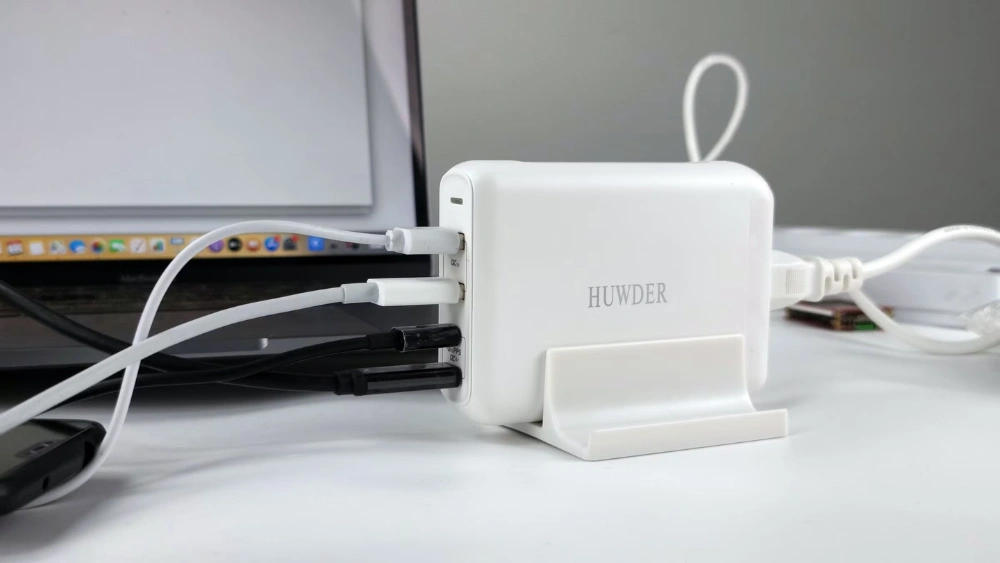
Are you tired of juggling multiple devices with just one or two USB ports on your laptop? You’re not alone.
Using a USB hub can instantly solve this problem, letting you connect all your gadgets at once without the hassle. Imagine plugging in your keyboard, mouse, external hard drive, and phone charger—all at the same time—with zero frustration. In this guide, you’ll learn exactly how to use a USB hub on your laptop, step by step.
By the end, you’ll unlock the full potential of your laptop’s connectivity and enjoy a clutter-free workspace. Ready to make your tech life easier? Let’s dive in.
Choosing The Right Usb Hub
Choosing the right USB hub is important for a smooth laptop experience. A good hub expands your laptop’s ports without causing slowdowns or power issues. Picking the correct type depends on your needs and the devices you want to connect.
Types Of Usb Hubs
USB hubs come in various forms. Some are simple, with just a few ports. Others have many ports and extra features. There are two main types:
- Passive hubs:These draw power only from the laptop. They work well for low-power devices like flash drives and mice.
- Powered hubs:These have an external power supply. They can support devices needing more power, like external hard drives or multiple devices at once.
Choose a hub type based on the devices you plan to connect and their power needs.
Port Compatibility
USB ports come in different versions and shapes. Common types are USB-A, USB-C, and Micro USB. USB versions include 2.0, 3.0, and 3.1. Each version offers different speeds.
- Check your laptop’s USB port type before buying a hub.
- Match the hub’s ports with your devices’ plugs.
- Choose hubs that support USB 3.0 or higher for faster data transfer.
Using the right port type prevents connection problems and slow speeds.
Power Requirements
Power needs vary based on device type and number. Passive hubs share laptop power among devices. This can cause issues if many devices connect.
Powered hubs have their own power supply. They provide stable power to all connected devices. This is best for charging phones or running hard drives.
Consider how many devices you will connect and their power needs. This helps pick a hub that keeps all devices working well.
Credit: intpw.com
Connecting A Usb Hub To Your Laptop
Connecting a USB hub to your laptop expands your device’s connectivity. This allows multiple USB devices to work through one port. The process is simple and quick. Follow these steps to connect your USB hub properly and start using it right away.
Locating Usb Ports On Your Laptop
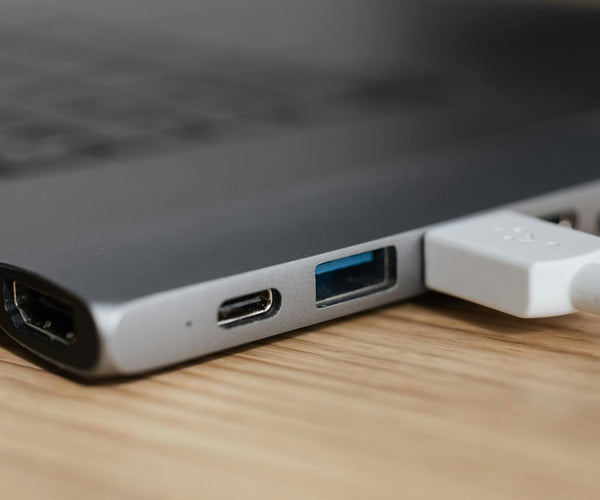
Look along the sides or back of your laptop. USB ports are rectangular and usually marked with a USB symbol. They come in different types:
- USB Type-A: The common, flat rectangular port.
- USB Type-C: Smaller, oval-shaped, reversible port.
Choose the port that matches your USB hub connector. Some laptops have multiple USB ports. Pick the most convenient one for your setup.
Plugging In The Usb Hub
Take the USB hub connector and gently insert it into the laptop’s USB port. Make sure it fits snugly without forcing it. If your hub uses USB Type-C, it can be plugged in either way. For USB Type-A, check the shape before plugging. After connection, the hub’s indicator light may turn on, showing it’s powered.
Installing Drivers If Needed
Most USB hubs work automatically with modern laptops. Sometimes, the laptop may ask to install drivers. Follow these steps:
- Wait for a pop-up message on your screen.
- Click “Install” or “Allow” to proceed.
- Restart your laptop if prompted.
If no message appears, the hub is ready to use. Check the hub’s manual for special driver installation instructions, if required.
Managing Multiple Devices
Managing multiple devices with a USB hub can transform your laptop into a versatile workstation. A USB hub allows you to connect various peripherals, enhancing your laptop’s functionality without compromising performance. But how do you make the most of these connections? Let’s dive into practical insights for optimizing your USB hub usage.
Prioritizing Device Connections
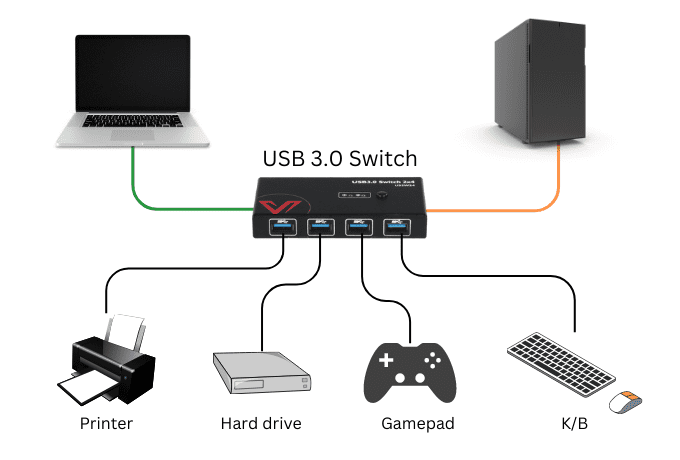
Think of your USB hub as a highway where data flows smoothly if traffic is managed well. Start by connecting essential devices that demand consistent data transfer, like keyboards and mice. Follow with devices needing less frequent updates, such as printers or external storage.
Are you a gamer? Connect your controller and headset to ensure low latency. By prioritizing connections based on your daily needs, you create a setup tailored to your activities.
Avoiding Power Overload
Ever experienced a sudden device disconnect? It might be due to power overload. When too many devices draw power simultaneously, your laptop might struggle to keep up. To prevent this, monitor your hub’s capacity.
Many laptops have limited USB power output. If you notice devices disconnecting or not functioning properly, consider reducing the number of high-power devices connected at once. A little foresight can save you from frustrating interruptions.
Using Powered Vs. Non-powered Hubs
Your choice between powered and non-powered hubs significantly impacts device performance. Powered hubs come with an external power source, offering stable power to multiple devices without straining your laptop’s battery. They’re ideal for high-power peripherals like external hard drives.
Non-powered hubs rely solely on the laptop’s battery, perfect for low-power devices like USB flash drives. Evaluate your device needs: if your setup demands more power, a powered hub is worth considering.
Are you maximizing your USB hub’s potential? The right hub choice ensures seamless connectivity, keeping your workflow efficient and uninterrupted.

Credit: plugable.com
Troubleshooting Common Issues
Using a USB hub with your laptop can make connecting multiple devices easy and efficient. However, sometimes issues pop up that can slow you down or stop your devices from working altogether. Troubleshooting these common problems quickly helps you get back to work without frustration.
Usb Hub Not Recognized
If your laptop doesn’t recognize the USB hub, start by checking the connection. Try unplugging and plugging the hub into a different USB port on your laptop. Sometimes, a simple reconnection can solve the problem.
Check if the hub requires external power. Some hubs need a power adapter to work properly, especially if you connect several devices. Without enough power, the hub may not show up on your laptop.
Device drivers can also cause recognition problems. Visit your laptop’s device manager and look for any yellow warning signs next to USB controllers. Updating or reinstalling these drivers often resolves detection issues.
Devices Not Working Properly
When devices connected to the hub malfunction, start by testing each device directly on your laptop. This helps you find out if the problem lies with the device or the hub itself. If a device works fine alone but not through the hub, the hub might be the issue.
Another common cause is insufficient power supply. Devices like external hard drives or webcams may need more power than the hub provides. Using a powered USB hub can fix this problem by supplying extra energy to your devices.
Check for compatibility issues as well. Some older devices might not work well with USB 3.0 hubs, so try connecting them to a USB 2.0 port or a compatible hub. Also, make sure your laptop’s operating system supports the devices you are using.
Slow Data Transfer Speeds
Slow transfer speeds can waste your time and test your patience. First, confirm the USB port and hub support the speed your devices require. For example, USB 2.0 hubs will limit transfer speeds even if your device supports USB 3.0.
Cable quality also matters. Low-quality or damaged cables can reduce data transfer rates. Try swapping cables to see if speed improves.
Background processes on your laptop might also slow down data transfer. Close unnecessary applications to free up system resources. This often speeds up your file transfers noticeably.
Enhancing Usb Hub Functionality
USB hubs allow you to connect multiple devices to your laptop. Enhancing their functionality makes your work easier and more efficient. Knowing how to use a USB hub properly improves your device experience.
Using Usb Hubs For Charging
Many USB hubs support device charging. Some hubs have dedicated charging ports. These ports provide more power than regular data ports. Charge smartphones, tablets, or other gadgets without plugging into the laptop.
Check your hub’s power output to match your device needs. Some hubs come with external power adapters. These adapters help charge multiple devices faster. Avoid overloading the hub with too many high-power devices.
Expanding To Other Ports
Some USB hubs include extra port types. These can be HDMI, Ethernet, or SD card slots. Use these to connect monitors, network cables, or memory cards. This expands your laptop’s connectivity beyond just USB devices.
Choose a hub that fits your work style. A hub with multiple port types reduces the need for extra adapters. It keeps your workspace tidy and efficient.
Maintaining Hub Performance
Keep your USB hub clean and dust-free. Dust can block ports and cause connection issues. Unplug the hub when not in use to save power. Avoid connecting too many power-hungry devices at once.
Use quality cables to prevent data loss or slow speeds. Update your laptop’s USB drivers regularly. This ensures smooth communication between the hub and your laptop.
Credit: medium.com
Frequently Asked Questions
What Is A Usb Hub And Why Use It On A Laptop?
A USB hub expands one USB port into multiple ports. It helps connect more devices to your laptop simultaneously. This is useful for laptops with limited USB ports, enhancing productivity and convenience.
How Do I Connect A Usb Hub To My Laptop?
Simply plug the USB hub’s cable into your laptop’s USB port. Most hubs are plug-and-play, requiring no extra software. After connection, you can start using multiple USB devices immediately.
Can A Usb Hub Support High-speed Data Transfer?
Yes, a USB hub can support high-speed transfers if it matches your USB version. USB 3. 0 hubs offer faster speeds than USB 2. 0. Ensure your laptop and hub are compatible for optimal performance.
Do Usb Hubs Need External Power For Multiple Devices?
Some USB hubs require external power when connecting many devices. Powered hubs supply extra energy for devices like hard drives. Unpowered hubs rely solely on the laptop’s USB port power, which may limit connected devices.
Conclusion
Using a USB hub helps connect many devices to your laptop. It saves space and keeps your desk tidy. Choose a hub that fits your needs well. Make sure to connect it properly for best results. Keep your devices safe by using good quality hubs.
Enjoy easier access to USB ports anytime. This simple tool makes working with your laptop smoother. Try it out and see the difference yourself.