
Want to turn your laptop into a screen for your Xbox without buying a new monitor? You’re in the right place.
Using your laptop as a monitor with an HDMI connection can save you money and space. It might sound tricky, but it’s easier than you think. You’ll discover simple steps to connect your Xbox to your laptop and enjoy your games on a bigger screen.
Keep reading, and you’ll be playing in no time.
Credit: www.microsoft.com
Check Laptop Hdmi Port
Before connecting your Xbox to a laptop, the HDMI port on your laptop needs checking. Not all HDMI ports serve the same function. Some are output-only, designed to send video signals out, not receive them. Knowing this helps avoid connection issues and frustration.
Checking your laptop’s HDMI port ensures it can display your Xbox screen. This step is crucial because most laptops have HDMI output ports, not input. Using the wrong port means your Xbox won’t show on the laptop screen.
Identify Hdmi Input Or Output
Most laptops come with HDMI output ports. These ports send video from your laptop to an external monitor or TV. They do not accept video input from other devices like an Xbox.
Look for labels near the HDMI port. Some laptops clearly mark “HDMI In” or “HDMI Out.” If no label exists, check the laptop’s manual or official website. This information confirms if your HDMI port supports video input.
Using an HDMI input port allows your laptop to act as a monitor. Without it, the laptop can’t display Xbox gameplay through HDMI.
Laptop Compatibility
Only some laptops support HDMI input. Gaming laptops or models designed for video capture might have this feature. Most standard laptops do not.
Check the laptop specifications online. Search for terms like “HDMI input,” “video capture,” or “HDMI pass-through.” These keywords help identify compatible laptops.
Consider alternative solutions if your laptop lacks HDMI input. Software apps and capture cards can help connect your Xbox to the laptop.
Credit: www.eyoyousa.com
Prepare Xbox Console
Preparing your Xbox console is essential before connecting it to a laptop as a monitor. Ensuring the Xbox is ready helps avoid any issues during setup. Follow these simple steps to get your console set up correctly.
Connect Hdmi Cable
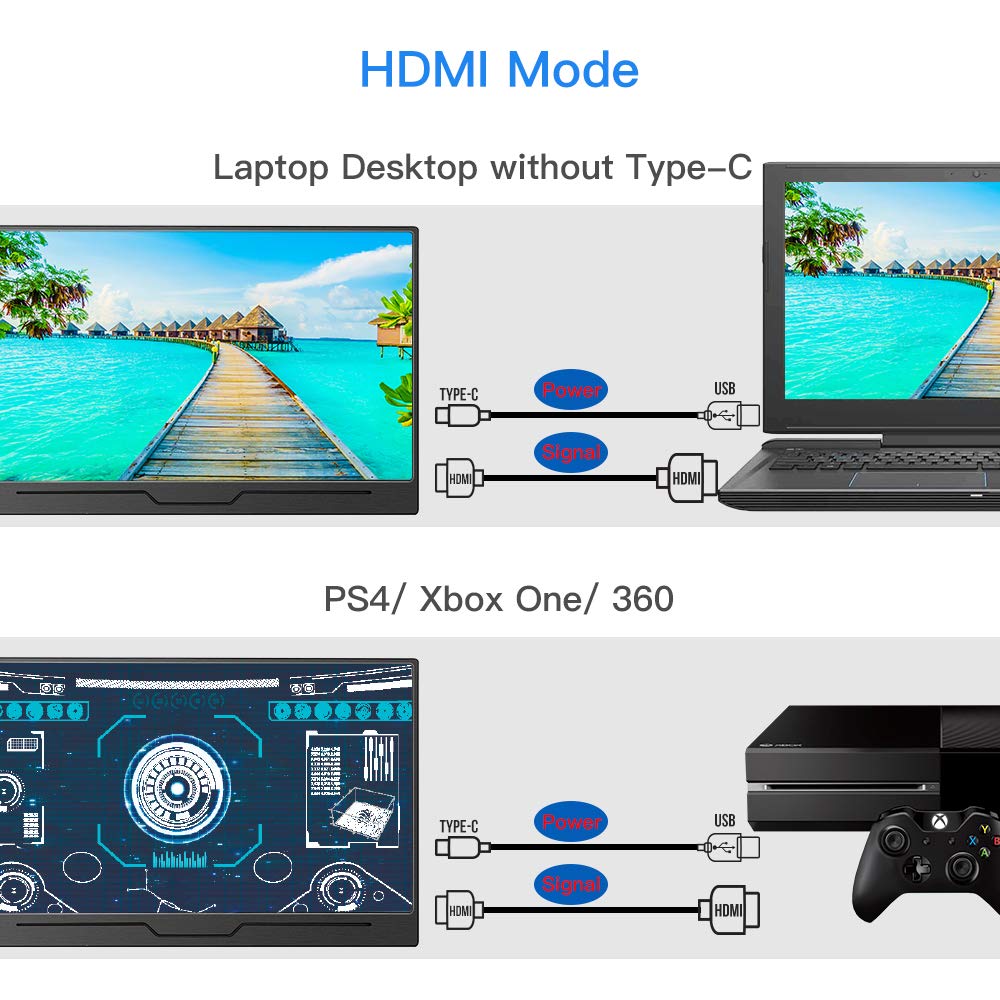
Locate the HDMI port on the back of your Xbox console. Use a high-quality HDMI cable for a stable connection. Plug one end of the HDMI cable into the Xbox HDMI output port.
Find the HDMI input port on your laptop or capture device. Connect the other end of the HDMI cable there. Make sure the cable fits securely to avoid signal loss.
Power On Xbox
Press the power button on your Xbox console. Wait for the startup screen to appear. This confirms the console is active and ready to send video signals.
Ensure your Xbox controller is synced and working. This will help you navigate settings if adjustments are needed. Keep the console powered on while connecting to your laptop.
Use Windows Built-in Features
Did you know you can use your laptop as a monitor for your Xbox without extra software? Windows has built-in features that make this possible, giving you a seamless gaming experience. Whether you’re short on space or just want to try something new, this method is surprisingly straightforward.
Enable Projecting To This Pc
Start by enabling the option to project to your PC. Go to your laptop’s settings menu and select the “System” tab. Click on “Projecting to this PC” and ensure it’s turned on.
You’ll see options for when your PC can be discovered and projected to. Adjust these settings to your preference—whether it’s always available or only when you’re on a secure network. This step is crucial as it allows your Xbox to recognize your laptop as a viable screen option.
Consider how often you’ll use this feature. If it’s a frequent setup, a permanent enablement might be ideal. Otherwise, adjust it to prompt you each time for security reasons.
Connect Xbox Wirelessly
Once you’ve enabled projecting, it’s time to connect your Xbox. On your Xbox, go to the display settings and select “Connect to wireless display.” Your laptop should appear in the list of available devices.
Select your laptop from the list. A confirmation message will appear on your laptop, asking to allow the connection. Click “Yes” to proceed. Your Xbox screen should now be mirrored on your laptop.
Notice how responsive the connection is. If there’s lag, ensure both devices are on the same, strong Wi-Fi network. Is the experience as immersive as you hoped? With these adjustments, you can optimize your gaming sessions without investing in a secondary monitor.
Using these built-in features not only declutters your setup but also enhances your tech-savvy skills. Are you ready to make the most of your laptop and Xbox combination?
Use Capture Card Method
Using a capture card is a reliable way to turn your laptop into a monitor for your Xbox. This method captures the video output from the console and streams it to your laptop via USB. While it requires a bit of setup and investment, it offers smooth gameplay with minimal lag and excellent video quality.
Choose The Right Capture Card
Not all capture cards are created equal. Look for one that supports at least 1080p resolution at 60fps to get clear, smooth visuals. Brands like Elgato and AVerMedia are popular choices among gamers because they provide easy-to-use software and reliable performance.
Also, consider whether you need an external USB capture card or an internal PCIe card. External cards are more versatile and portable, perfect if you want to use your laptop on the go.
Connect Xbox To Capture Card
First, connect your Xbox’s HDMI output port to the HDMI input on the capture card using a standard HDMI cable. This step sends your console’s video and audio signal directly to the capture device.
Make sure your Xbox is powered on and set to the right output settings. You might need to adjust display resolution on the Xbox if the image doesn’t show up correctly on your laptop.
Connect Capture Card To Laptop
Next, connect the capture card to your laptop, usually via USB 3.0 or higher for the best performance. Once connected, install any necessary drivers or software that came with the capture card.
Open the capture card software and select the Xbox input source. You should now see your Xbox screen mirrored on your laptop. This setup also lets you record or stream your gameplay directly from your laptop.
Configure Display Settings
Configuring your display settings is key to getting the best experience when using your laptop as a monitor for your Xbox. The right setup ensures your game looks sharp and runs smoothly without lag or distortion. Let’s focus on tweaking the resolution, scaling, and audio output to match your laptop’s capabilities and your gaming preferences.
Adjust Resolution And Scaling
Matching your laptop’s screen resolution with your Xbox output is crucial. If the resolution is off, you might see blurry images or black bars around the screen. To fix this, open your laptop’s display settings and select a resolution that fits your screen—usually 1920×1080 for most laptops.
Scaling can affect how the image fits your display. If everything looks too small or too large, adjust the scaling settings until the game fills the screen properly without cutting off edges. Don’t hesitate to try different scaling percentages and see which one feels right for your eyes.
Have you noticed some games run better at lower resolutions? Lowering the resolution slightly can improve performance, especially if your laptop struggles with high resolution inputs. Testing different settings during gameplay helps you find the sweet spot between quality and smoothness.
Optimize Audio Output
Audio often gets overlooked, but it’s just as important for immersive gaming. When you connect your Xbox to your laptop via HDMI, the audio can either play through the laptop speakers or your external audio devices.
Check your sound settings to make sure the audio output is set to your preferred device. Sometimes the laptop defaults to its internal speakers, which might not deliver the best sound for gaming. If you have headphones or external speakers, select them to enhance your audio experience.
Have you experienced audio lag or echo while gaming? This usually means your audio settings need fine-tuning. Adjust the audio format or disable audio enhancements in your sound settings to reduce delay and improve clarity.

Credit: www.youtube.com
Troubleshooting Tips
Using a laptop as a monitor for your Xbox can sometimes cause issues. Troubleshooting helps fix common problems quickly. This section covers key tips for a smooth setup.
No Signal Issues
- Check that the HDMI cable is properly connected to both devices.
- Make sure the laptop supports HDMI input, not just output.
- Try using a different HDMI cable or port to rule out hardware faults.
- Restart both the Xbox and laptop to refresh the connection.
- Verify that the laptop display is set to the correct input source.
Latency And Lag Fixes
- Use a high-speed HDMI cable for faster data transfer.
- Close background apps on your laptop to free up resources.
- Lower the Xbox’s display resolution to reduce lag.
- Connect both devices to the same network if using streaming apps.
- Update your laptop’s graphics drivers to improve performance.
Audio Problems
- Ensure the HDMI audio output is enabled on the Xbox settings.
- Check the laptop’s sound settings to select HDMI as the audio source.
- Test with external speakers or headphones to isolate the issue.
- Restart the devices to reset the audio connection.
- Update audio drivers on your laptop for better compatibility.
Alternative Wireless Options
Using your laptop as a monitor for Xbox can be done without wires. Wireless options offer flexibility and less clutter. These methods stream your game from Xbox to your laptop over Wi-Fi. The quality depends on your network speed and stability. Here are some popular wireless ways to enjoy Xbox gaming on a laptop screen.
Xbox App Streaming
The Xbox app on Windows allows game streaming from your console. Connect both devices to the same Wi-Fi network. Open the Xbox app and sign in with your Xbox account. Select “Connection” and then “Stream.” Your Xbox screen appears on your laptop. Controls work through the Xbox controller connected to your console.
This method reduces lag and keeps good video quality. It’s easy to set up and doesn’t need extra software. You can play games anywhere in your home using this feature.
Third-party Streaming Apps
Several third-party apps let you stream Xbox games to your laptop. Apps like Rainway and Steam Link support wireless gameplay. Install the app on both your Xbox and laptop. Follow the app’s instructions to connect devices over Wi-Fi.
These apps offer extra features like custom controls and streaming settings. Streaming quality depends on your internet speed and app used. They provide an alternative if Xbox app streaming does not work well.
Frequently Asked Questions
Can I Use Hdmi To Connect Xbox To My Laptop As Monitor?
Most laptops have HDMI out, not input. So, direct HDMI connection usually won’t work. You need a capture card or specialized software to display Xbox on your laptop.
What Software Helps Use Laptop As Xbox Monitor Via Hdmi?
Apps like Xbox app on Windows 10/11 allow streaming Xbox gameplay. This requires a network connection, not direct HDMI. For HDMI input, capture card software is needed.
Do I Need A Capture Card For Xbox To Laptop Hdmi?
Yes, a capture card enables HDMI input on your laptop. It captures Xbox video and displays it on your laptop screen in real-time.
Is There Lag When Using Laptop As Xbox Monitor?
Using capture cards or streaming apps may introduce slight lag. Wired connections reduce delay. Lag depends on hardware quality and network speed.
Conclusion
Using your laptop as a monitor for Xbox with HDMI is simple. Just connect the right cable and adjust your settings. This method saves money and space. It also lets you play games without a TV. Remember to check if your laptop supports HDMI input.
Try it step by step for the best results. Enjoy your gaming with a clear screen and no fuss. This setup works well for many users. Give it a shot and see how easy it can be.