
Have you ever wished your iPad could do more than just browse and watch videos? Imagine turning it into a powerful drawing tablet for your Mac, opening up new creative possibilities without spending extra on expensive gear.
Using your iPad as a drawing tablet is easier than you think, and it can transform how you create digital art. In this guide, you’ll discover simple steps to connect your devices and unleash your creativity like never before. Ready to make your iPad work harder for your art?
Let’s dive in.
Benefits Of Using Ipad As Drawing Tablet
Using an iPad as a drawing tablet for your Mac opens up a range of benefits that enhance your creative workflow. It combines the power of your Mac with the flexibility of a touchscreen device, making your drawing experience smoother and more enjoyable. Let’s break down some of the key advantages you’ll notice when you start using your iPad this way.
Enhanced Portability
Your iPad is lightweight and easy to carry around, much more so than traditional drawing tablets. This means you can sketch ideas wherever inspiration strikes—whether you’re in a café, on a plane, or just moving between rooms at home.
Imagine working on your Mac at your desk, then picking up your iPad and continuing your artwork on the go without interruption. That kind of portability lets you stay productive without being tied down.
Pressure Sensitivity And Precision
The iPad supports Apple Pencil, which offers excellent pressure sensitivity and tilt recognition. This allows you to create detailed strokes, control line thickness, and add shading with natural precision.
When I switched to using my iPad with Apple Pencil, I noticed a big difference in how much control I had over my drawings. It felt closer to using a real brush or pencil, letting me focus more on creativity than technical limitations.
Seamless Integration With Mac
Connecting your iPad to your Mac is straightforward with apps like Sidecar or third-party options like Astropad. This integration lets your iPad act as a second display or a dedicated drawing surface, syncing instantly with Mac apps like Photoshop or Illustrator.
Because the devices communicate so smoothly, you don’t have to worry about lag or complicated setups. Your Mac’s processing power handles the heavy lifting, while your iPad provides a responsive, intuitive interface for drawing.
Requirements For Setup
Setting up your iPad as a drawing tablet for your Mac requires some key components. Meeting these requirements ensures smooth performance and a seamless drawing experience. Below are the essential details to prepare your devices and software for the setup.
Compatible Ipad Models
Not all iPads support drawing tablet features. Choose one of these models for best results:
- iPad Pro (all generations)
- iPad Air (3rd generation and later)
- iPad (6th generation and later)
- iPad mini (5th generation and later)
These iPads support Apple Pencil and have the hardware to handle drawing apps smoothly.
Mac System Specifications
Your Mac must run macOS Catalina 10.15 or newer to use Sidecar. Ensure your Mac model is one of the following:
- MacBook Pro 2016 or later
- MacBook Air 2018 or later
- iMac 2015 or later
- Mac mini 2018 or later
- Mac Pro 2019 or later
Having at least 8GB of RAM improves performance. A stable Wi-Fi connection helps with wireless setups.
Necessary Apps And Software
Apple’s Sidecar feature connects your iPad as a drawing tablet. Update both devices to the latest OS versions:
- iPadOS 13 or later
- macOS Catalina 10.15 or later
Use creative apps like Adobe Photoshop, Affinity Designer, or Procreate to draw. For more control, apps like Astropad turn your iPad into a professional drawing tablet.
Connecting Ipad To Mac
Connecting your iPad to a Mac allows you to use it as a drawing tablet with ease. Simply link both devices and start sketching directly on your Mac screen using the iPad’s touch and Apple Pencil. This setup enhances creative work without extra hardware.
Connecting your iPad to your Mac to use it as a drawing tablet can transform your creative workflow. Imagine sketching directly onto your iPad screen while it seamlessly communicates with your Mac, offering you a dual-screen setup that enhances productivity and creativity. Whether you are a professional artist or a hobbyist, this connection can be a game-changer, allowing you to leverage the power of both devices in a fluid, integrated way.Using Sidecar Feature
Apple has made connecting your iPad to your Mac incredibly easy with the Sidecar feature. This native tool allows your iPad to become an extension of your Mac screen, enabling real-time interaction and drawing. Sidecar supports Apple Pencil, providing precision and responsiveness that feels like drawing on paper. To activate Sidecar, ensure both devices are updated to the latest software. Then, go to your Mac’s system preferences and select “Sidecar” to connect your iPad. You’ll experience minimal latency, making the drawing process smooth and intuitive. Imagine the thrill of watching your ideas come to life on two screens simultaneously!Third-party Apps For Connection
If Sidecar isn’t compatible with your devices, third-party apps are a fantastic alternative. Apps like Astropad and Duet Display offer robust solutions for turning your iPad into a drawing tablet for Mac. Astropad provides a professional-grade drawing experience, mimicking the natural feel of pencil strokes. Duet Display offers versatility, allowing your iPad to act as a secondary display with stylus support. These apps often come with additional features such as customizable shortcuts and pressure sensitivity settings, which can enhance your drawing experience.Troubleshooting Connection Issues
Encountering connection issues can be frustrating, but don’t let them derail your creative flow. Start by ensuring both your devices are connected to the same Wi-Fi network, as this is crucial for seamless communication. Check for software updates; outdated versions can lead to compatibility problems. Resetting your network settings on both devices can sometimes resolve stubborn connection issues. If the problem persists, consider reaching out to community forums or Apple’s support team. They can offer solutions that might not be immediately obvious. Have you ever solved a tech problem by trying something unconventional? Sometimes, a fresh perspective can make all the difference.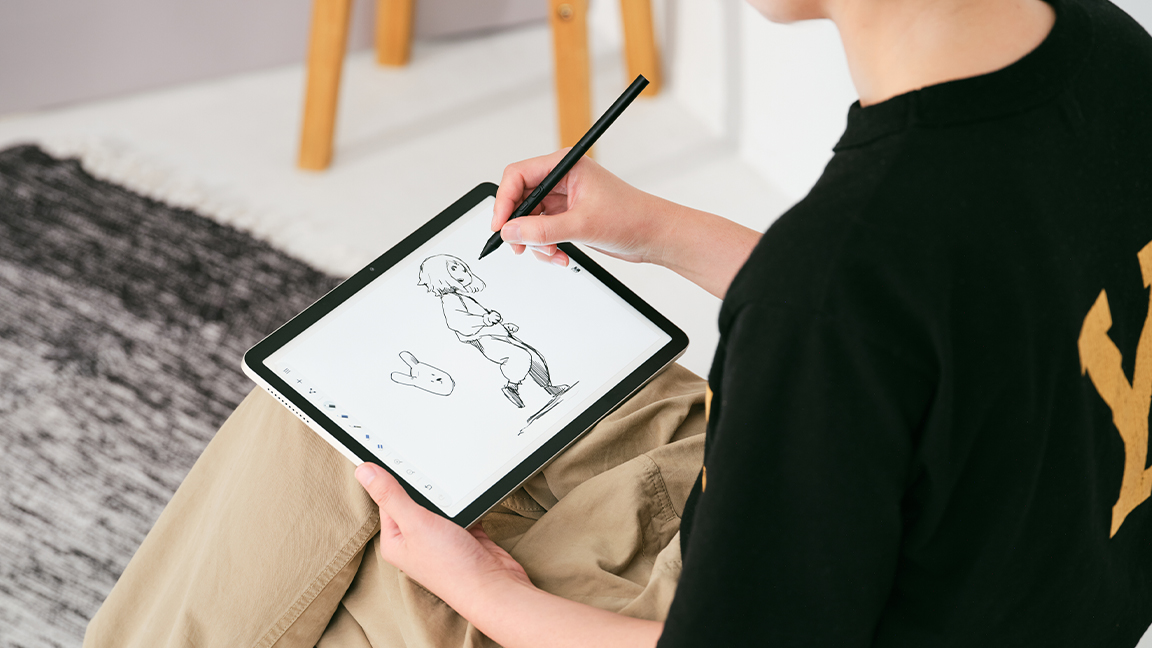
Credit: www.creativebloq.com
Optimizing Drawing Experience
Optimizing your drawing experience on an iPad used as a drawing tablet for Mac can transform your creative process. Small tweaks and adjustments make a big difference in comfort and precision. Let’s focus on practical ways to enhance your setup, so your ideas flow smoothly onto the screen.
Calibrating Apple Pencil
Calibrating the Apple Pencil ensures that the lines you draw match exactly where your tip touches the screen. Without proper calibration, your strokes can feel off, disrupting your workflow.
To calibrate, start by opening your preferred drawing app and test simple strokes. Adjust the Pencil settings in your iPad’s system preferences until the cursor aligns perfectly with the tip.
Have you noticed how even a slight misalignment can slow you down? Taking a few minutes to fine-tune calibration pays off in accuracy and speed.
Adjusting Display Settings
Display settings directly impact how colors and details appear while you draw. Adjust brightness, contrast, and color profiles to match your usual workspace or the final output requirements.
Lowering brightness can reduce eye strain during long sessions. Meanwhile, enabling True Tone or Night Shift affects color accuracy but might be helpful depending on your environment.
Try experimenting with these settings in different lighting conditions. What combination feels most natural to your eyes and helps you see subtle details clearly?
Customizing Shortcut Controls
Custom shortcut controls save time and keep your focus on drawing. Both macOS and many drawing apps allow you to assign shortcuts for tools, undo actions, and layer controls.
Use your iPad’s physical buttons or gestures to trigger these shortcuts. For example, setting a double-tap on your Apple Pencil to switch tools can speed up your workflow.
Think about which commands you use most often and assign shortcuts accordingly. How much smoother would your drawing sessions be with fewer interruptions?
Best Drawing Apps For Ipad And Mac
Choosing the right drawing app enhances your iPad and Mac experience. The best apps offer smooth performance and useful features. They help you create art with ease and precision. Here are some top apps to consider for digital drawing on iPad and Mac.
Procreate And Mac Compatibility
Procreate is a popular app for iPad artists. It offers a wide range of brushes and tools. The app supports high-resolution canvases and layers. Procreate’s interface is simple and intuitive for beginners. However, Procreate does not have a full Mac version yet. You can use it on iPad and mirror your screen to Mac. This setup lets you draw on iPad while viewing on Mac.
Adobe Photoshop And Illustrator
Adobe Photoshop and Illustrator are industry standards. Both apps work well on Mac and iPad. Photoshop is ideal for photo editing and digital painting. Illustrator focuses on vector graphics and logos. Adobe Creative Cloud syncs your work across devices. This makes switching between iPad and Mac seamless. These apps offer many tools for detailed and professional artwork.
Other Recommended Apps
- Affinity Designer:Great for vector and raster graphics. Available on both iPad and Mac.
- Clip Studio Paint:Popular for comics and manga creation. Supports pressure sensitivity on iPad.
- Autodesk SketchBook:Free app with a clean interface. Offers many brushes and drawing aids.
- MediBang Paint:Lightweight app for beginners. Includes cloud syncing between devices.

Credit: www.youtube.com
Tips For Smooth Workflow
Using your iPad as a drawing tablet for Mac can boost creativity and productivity. A smooth workflow makes the process enjoyable and efficient. Small habits help keep your work organized and your devices ready.
Managing Files Between Devices
Keep your files easy to find by using clear names and folders. Move your drawings from iPad to Mac regularly. Avoid clutter by deleting old or unused files. Use apps that support both devices for seamless file transfer. Back up your work often to prevent data loss.
Using Cloud Storage
Cloud storage offers access to files anytime and anywhere. Choose services like iCloud, Google Drive, or Dropbox. Upload your drawings automatically for quick syncing. Organize files in folders for faster access. Check your internet connection to avoid delays during upload or download.
Maintaining Battery Life
Keep both iPad and Mac charged for long drawing sessions. Lower screen brightness to save power. Close unused apps on your iPad to reduce battery drain. Use airplane mode if you don’t need internet while drawing. Charge devices during breaks to stay powered throughout the day.
Common Challenges And Fixes
Using your iPad as a drawing tablet for your Mac can transform your creative process, but it’s not without its hiccups. You might face some common challenges that slow you down or interrupt your flow. Understanding these issues and knowing how to fix them can save you time and frustration, helping you focus on what really matters—your art.
Lag And Latency Issues
Lag can kill your momentum, especially when every stroke feels delayed. This usually happens due to network speed or the processing power of your devices. Try connecting both devices to the same fast Wi-Fi network or use a wired connection if possible.
Lowering the resolution or frame rate settings in your drawing app often reduces lag. Closing other apps running in the background frees up resources and can make your drawing smoother. Have you noticed if certain apps or settings cause more lag? Experimenting with these tweaks can reveal the best balance for your setup.
Connectivity Drops
Nothing is more frustrating than your connection dropping mid-project. This problem is often linked to unstable Wi-Fi or Bluetooth connections. Make sure your iPad and Mac are close enough to maintain a strong signal and avoid interference from other devices.
Restarting your router or switching to a different Wi-Fi band (2.4 GHz vs. 5 GHz) can improve stability. Also, check for software updates on both devices, as developers often fix bugs related to connectivity. Have you tried using a USB cable to connect your iPad directly? It can be a reliable alternative to wireless setups.
App Crashes And Bugs
Crashes disrupt your workflow and can lead to lost work if you’re not careful. This often happens when the app isn’t fully compatible with your device’s operating system or when there’s a bug. Keeping your apps and OS updated is essential to minimize these issues.
If a specific app keeps crashing, try reinstalling it or switching to a different drawing app that supports iPad as a tablet. Also, check the app’s support forums or contact customer service for known issues and fixes. What’s your go-to app, and how stable has it been for your projects?

Credit: www.youtube.com
Frequently Asked Questions
How Can I Use Ipad As A Drawing Tablet For Mac?
You can use apps like Sidecar, Astropad, or Duet Display to connect your iPad to Mac. These apps turn your iPad into a graphic tablet, allowing you to draw directly on the iPad screen while Mac processes the input seamlessly.
Is Apple Pencil Compatible With Mac Drawing Apps?
Yes, Apple Pencil works perfectly with compatible iPad apps like Astropad and Sidecar. It offers precise pressure sensitivity and tilt recognition, making your drawing experience on Mac highly accurate and natural.
Do I Need Special Software To Use Ipad As Mac Tablet?
Yes, special software like Sidecar (built-in for macOS Catalina and later) or third-party apps such as Astropad or Duet Display is required. These apps enable your Mac to recognize the iPad as a drawing input device.
Can I Use Ipad Wirelessly As A Mac Drawing Tablet?
Yes, apps like Sidecar and Astropad support wireless connection via Wi-Fi. This lets you draw on your iPad without cables, offering flexibility, but ensure both devices have strong, stable Wi-Fi for best performance.
Conclusion
Using your iPad as a drawing tablet for Mac is simple and effective. It saves money and adds flexibility to your workspace. Just follow the steps to connect and start drawing. You can create art anywhere with ease. This setup helps both beginners and pros.
Try it out to enjoy a smooth and fun drawing experience. Your creativity can grow without extra tools or costs. Give it a chance and see how it fits your needs.