
If you want to boost your productivity or enjoy a bigger screen on the go, the Arzopa Portable Monitor could be your perfect companion. But how do you get the most out of this handy device?
Whether you’re working from a café, traveling, or setting up a dual-screen workspace at home, knowing how to use your Arzopa Portable Monitor can make all the difference. In this guide, you’ll discover simple steps and smart tips to set up, connect, and optimize your monitor easily.
Keep reading to unlock the full potential of your Arzopa Portable Monitor and transform the way you work and play.
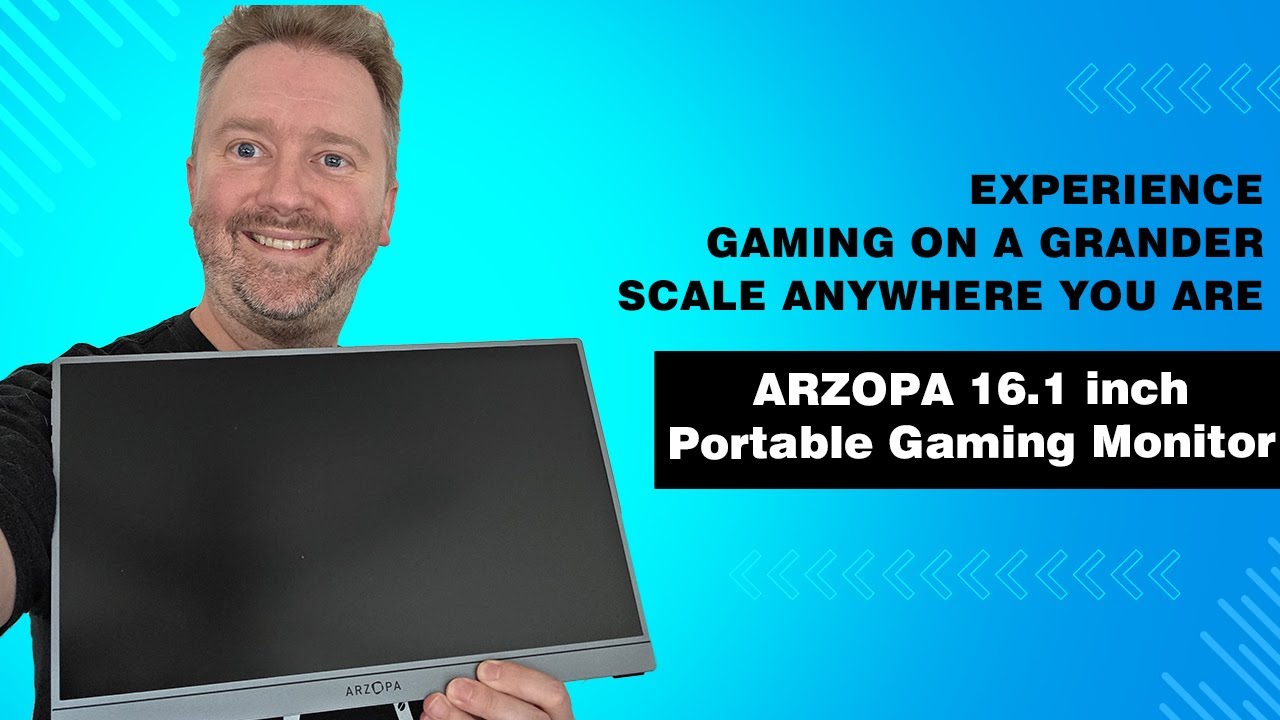
Credit: www.youtube.com
Choosing The Right Arzopa Model
Choosing the right Arzopa portable monitor can make a big difference in how smoothly your work or entertainment flows. Each model offers distinct features that suit different needs and environments. Understanding these options helps you pick the one that fits your lifestyle perfectly.
Understanding Screen Size And Resolution
Arzopa monitors come in various sizes, typically ranging from 13 to 17 inches. Think about where you’ll use the monitor most—do you need a compact screen for travel, or a larger display for detailed work? Higher resolution models provide sharper images, which is important if you handle graphic design or video editing.
Choosing the right size and resolution can improve your productivity and reduce eye strain. Ask yourself: how much screen space do you really need on the go?
Connectivity Options And Compatibility
Check the types of ports each Arzopa model offers. Some include USB-C, HDMI, or mini HDMI connections. Your device compatibility depends heavily on these ports, so match the monitor to your laptop, phone, or gaming console’s connection type.
If you often switch between devices, consider a model with multiple input options. This way, you avoid carrying extra adapters and keep your setup simple.
Portability And Build Quality
How often will you carry your monitor around? Arzopa designs some models to be ultra-lightweight and slim, perfect for frequent travelers. Others focus on durability with metal frames and reinforced corners for rougher environments.
Think about your daily routine. A sturdy, portable monitor can save you from unexpected damage and hassle when you’re on the move.
Additional Features That Matter
Look for extra features like built-in speakers, adjustable stands, or touch screen capabilities. These can enhance your experience but may add to the cost and weight of the monitor. Decide which extras are must-haves versus nice-to-haves for your setup.
Could a built-in speaker replace your need for headphones? Or would a touch screen speed up your workflow? These questions help you focus on features that truly add value.

Credit: www.amazon.com
Unboxing And Initial Setup
Unboxing the Arzopa Portable Monitor is exciting. The initial setup is simple and quick. This guide helps you start using the monitor without hassle.
Checking Included Accessories
Open the box carefully to avoid damage. Inside, you find the monitor and several accessories. Check each item against the list below:
- Arzopa Portable Monitor
- USB-C to USB-C cable
- HDMI to Mini HDMI cable
- Protective sleeve or case
- Quick start guide
- Power adapter (if included)
Make sure none of these are missing. Inspect cables for any visible damage. Keep the packaging in case you need to return or transport the monitor.
Connecting The Monitor To Devices
Locate the ports on the side of the monitor. It supports USB-C and mini HDMI connections. Choose the cable that fits your device.
For USB-C connection:
- Plug one end into the monitor’s USB-C port.
- Connect the other end to your laptop, tablet, or smartphone.
- The monitor powers on automatically in most cases.
For HDMI connection:
- Use the HDMI to mini HDMI cable.
- Connect the mini HDMI end to the monitor.
- Plug the HDMI end into your device’s HDMI port.
- Turn on the monitor using the power button if needed.
Adjust the device settings to detect the new display. The monitor should show your screen instantly. Adjust brightness and volume using the monitor’s side buttons.
Power Options And Charging
When using the Arzopa Portable Monitor, understanding the power options and charging methods is crucial for seamless usage. Whether you’re binge-watching your favorite series or presenting at a business meeting, knowing how to efficiently power your monitor ensures uninterrupted performance. Let’s explore the built-in battery features and charging best practices to keep your monitor up and running.
Using Built-in Battery
The Arzopa Portable Monitor comes equipped with a built-in battery that provides flexibility and convenience. You can enjoy watching videos or working on projects without being tethered to a power outlet. This feature is particularly useful during travel or in locations where power sources are scarce.
To maximize battery life, adjust the screen brightness to a comfortable level. Lower brightness settings can significantly extend usage time. Keeping an eye on battery indicators will also help you plan your usage and avoid unexpected shutdowns.
Charging Best Practices
Charging your Arzopa Portable Monitor efficiently can prolong its lifespan. Always use the charger provided by the manufacturer to ensure compatibility and safety. Using third-party chargers might lead to suboptimal charging or even damage the battery.
Avoid charging the monitor in extremely hot or cold environments, as this can affect battery performance. It’s best to charge the device at room temperature. Also, unplug the charger once the battery is full to prevent overcharging, which can wear down the battery over time.
Have you ever wondered how often you should charge your portable devices? Consider maintaining a charge level between 20% and 80% to optimize battery health. This practice can extend battery life and keep your monitor functioning smoothly for longer periods.
Adjusting Display Settings
Adjusting the display settings on your Arzopa Portable Monitor is key to getting the best visual experience. It lets you tailor the screen to your environment and personal preferences. Small tweaks can make a big difference, whether you’re working late at night or presenting in a bright room.
Brightness And Contrast
Brightness controls how light or dark your screen appears, while contrast adjusts the difference between the darkest and brightest parts of the display. If your screen feels too dim, increasing brightness can reduce eye strain. Conversely, if colors look washed out, boosting contrast makes images sharper and more vivid.
Try adjusting these settings based on your surroundings. For example, a sunny outdoor spot might need higher brightness, but in a dark room, lowering it prevents glare. Have you noticed how your eyes feel after long use? Tuning brightness and contrast can help keep your vision comfortable for hours.
Resolution And Orientation
Resolution affects how sharp and detailed the image on your monitor looks. The Arzopa Portable Monitor supports multiple resolutions, so pick one that matches your device for clear text and crisp visuals. Higher resolution means more workspace but can make icons smaller, so balance clarity with comfort.
Orientation changes the screen from landscape (horizontal) to portrait (vertical). This is great if you’re reading long documents or coding. You can easily rotate the display through your device’s settings or use the monitor’s built-in controls.
- Check if your connected device auto-detects the monitor’s resolution.
- Adjust orientation in your computer’s display settings if needed.
- Experiment with different setups to find what suits your tasks best.
Have you tried switching to portrait mode for reading or design work? It often surprises people how much easier it is on the eyes and neck. Taking the time to adjust resolution and orientation can improve your productivity and comfort significantly.
Optimizing For Different Uses
Optimizing the Arzopa Portable Monitor for different uses ensures you get the most out of this versatile device. Whether you’re boosting your work efficiency or enhancing your gaming experience, small adjustments can make a big difference. Let’s explore how to tailor your setup to fit your specific needs.
Work And Productivity
Using the Arzopa Portable Monitor for work means creating a setup that reduces eye strain and increases multitasking efficiency. Adjust the monitor’s brightness and color settings to match your primary screen for a seamless dual-display experience. Position the monitor at eye level to maintain good posture and avoid neck pain during long work sessions.
Consider connecting your laptop with a USB-C cable for a stable and fast connection. This setup supports smooth video calls, document editing, and coding without lag. Have you tried splitting your screen between emails on one display and research or spreadsheets on the other? It can significantly speed up your workflow.
Gaming And Entertainment
The Arzopa Portable Monitor can transform your gaming sessions with its sharp display and quick response time. To optimize for gaming, tweak the monitor’s refresh rate and enable any gaming modes available in the settings to reduce input lag and improve color accuracy. This helps you spot details in dark scenes and react faster during gameplay.
When watching movies or streaming content, adjust the monitor’s contrast and saturation for richer colors and deeper blacks. Using a portable monitor means you can easily share your screen with friends during multiplayer games or movie nights. How much more immersive would your game feel with a larger, dedicated screen right by your side?

Credit: www.youtube.com
Troubleshooting Common Issues
Troubleshooting common problems with the Arzopa Portable Monitor helps keep your device working well. Many users face simple issues that can be fixed quickly. Knowing how to handle these problems saves time and frustration. Here are solutions for two frequent issues.
No Signal Problems
No signal messages appear when the monitor does not detect input. Check the following to fix this:
- Ensure the USB or HDMI cable is fully connected to both devices.
- Try using a different cable to rule out damage.
- Confirm the source device is powered on and set to output video.
- Restart both the monitor and the connected device.
- Adjust the input source on the monitor using its menu buttons.
These steps usually restore the connection quickly.
Screen Flickering And Color Issues
Flickering or strange colors may occur due to loose connections or settings. To fix this:
- Check the cable for damage or looseness and reconnect firmly.
- Lower the screen brightness and contrast from the monitor’s menu.
- Update the graphics drivers on your computer.
- Test the monitor with another device to see if the problem persists.
- Reset the monitor settings to factory default.
These actions often improve display quality and stop flickering.
Maintenance And Care Tips
Taking good care of your Arzopa Portable Monitor keeps it working smoothly and extends its life. Small habits in maintenance make a big difference. You don’t have to be a tech expert to keep your screen clear and your device safe.
Cleaning The Screen
Use a soft, lint-free cloth to wipe the screen gently. Avoid paper towels or rough materials that can scratch the surface. If dirt or smudges are stubborn, slightly dampen the cloth with water or a screen-safe cleaner—never spray liquid directly on the monitor.
Have you noticed how fingerprints build up quickly on touchscreens? Regular wiping prevents this and keeps your viewing clear. Avoid using household cleaners with ammonia or alcohol; they can damage the screen’s coating.
Safe Storage Practices
Always store your Arzopa monitor in a padded case when not in use. This protects it from bumps, dust, and accidental spills. If you travel often with your monitor, choose a case that fits snugly to avoid movement inside.
Think about where you place your monitor at home or work. Avoid direct sunlight or areas with high humidity, as these conditions can harm the screen and internal components. Keeping your monitor in a dry, cool spot helps maintain its performance over time.
Enhancing Portability
Enhancing the portability of your Arzopa Portable Monitor is key to making the most out of its mobile capabilities. Keeping the device safe and setting it up efficiently on the go can transform your work or entertainment experience. Let’s look at practical ways to carry and use your monitor without hassle.
Using Protective Cases
A sturdy protective case is essential for safeguarding your monitor during travel. Look for cases with padded interiors that absorb shocks and prevent scratches. Some cases even come with compartments for cables and chargers, keeping everything organized in one place.
I once carried my Arzopa monitor in a slim, shockproof case on a crowded train. It stayed perfectly safe, and I didn’t have to worry about accidental bumps or pressure from other bags. Choosing the right case means you can carry your monitor confidently, wherever you go.
Travel-friendly Setup Ideas
Setting up your Arzopa monitor quickly can save you time and frustration, especially when working in different locations. Consider lightweight stands or foldable mounts that are easy to pack and adjust. You can also use your laptop or smartphone as a power source to reduce the number of accessories you carry.
Think about your workspace before you arrive—do you have a flat surface or will you need a lap desk? Packing multi-purpose accessories like a wireless keyboard or a compact mouse can create a more comfortable setup without extra bulk. How could a simple change in your setup routine improve your productivity when you’re away from your usual desk?
Frequently Asked Questions
What Devices Are Compatible With Arzopa Portable Monitor?
The Arzopa Portable Monitor supports laptops, smartphones, gaming consoles, and tablets. It connects via USB-C or HDMI, offering broad compatibility for work and entertainment.
How Do I Set Up The Arzopa Portable Monitor?
Connect the monitor to your device using the included USB-C or HDMI cable. Power it on and adjust display settings for optimal viewing.
Can I Use Arzopa Portable Monitor For Gaming?
Yes, the monitor supports smooth gameplay with high resolution and low latency. It enhances your gaming experience on compatible consoles and PCs.
How To Adjust Brightness And Volume On The Monitor?
Use the physical buttons on the monitor’s side to increase or decrease brightness and volume. This ensures comfortable viewing and sound levels.
Conclusion
Using the Arzopa portable monitor makes work easier and more flexible. It connects quickly to many devices. You can carry it anywhere for extra screen space. The setup is simple, even for beginners. This monitor helps you see more and do more.
Keep it charged and ready to go. Enjoy clearer visuals and better multitasking every day. This small tool fits well in your busy life. Try it out and feel the difference yourself.