
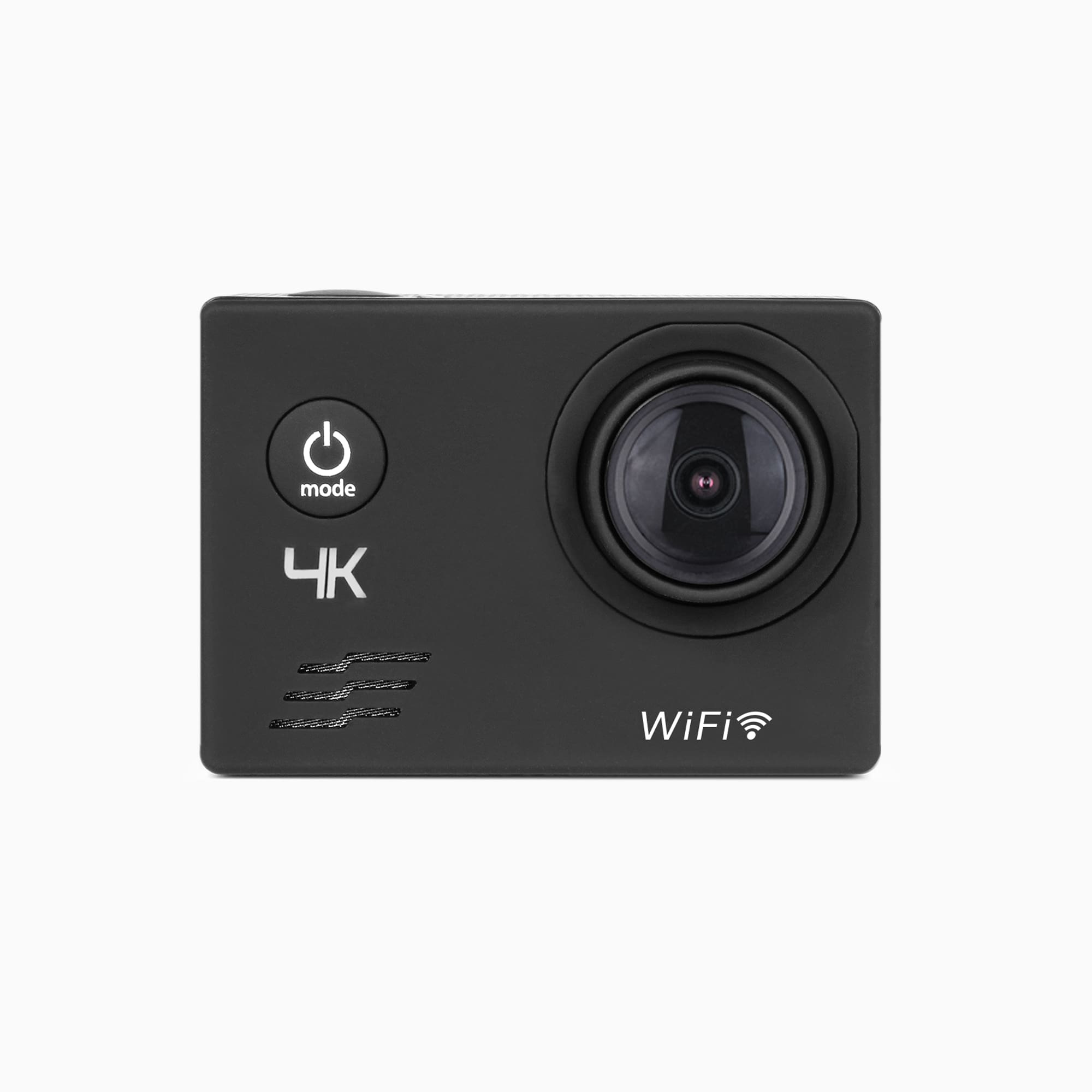
Are you ready to capture every moment in stunning detail? Your 4K WiFi action camera is a powerful tool that can take your videos and photos to the next level.
But are you using it to its full potential? This guide will show you exactly how to get the most out of your camera, from setting it up to sharing your adventures instantly. Whether you’re a beginner or just want to sharpen your skills, keep reading to unlock tips and tricks that make your footage look amazing every time.
Don’t miss out on turning your everyday experiences into unforgettable memories!
Credit: aluratek.com
Choosing The Right 4k Wifi Action Camera
Choosing the right 4K Wifi action camera can make a big difference in your video quality and ease of use. Many options exist, so focus on what matters most. Think about features, brand reputation, and your budget. This helps you pick a camera that fits your needs perfectly.
Key Features To Look For
- Video resolution: Ensure true 4K quality for sharp videos.
- Wifi connectivity: Allows easy transfer and remote control.
- Battery life: Longer battery means more recording time.
- Waterproof design: Important for outdoor and underwater filming.
- Image stabilization: Keeps videos smooth during movement.
- Mounting options: Versatile mounts help capture different angles.
- Screen size: A clear display helps with framing shots.
Popular Models Comparison
| Model | Resolution | Battery Life | Waterproof Depth | Price |
|---|---|---|---|---|
| GoPro HERO11 | 5K | Up to 2 hours | 33 ft (10 m) | High |
| DJI Osmo Action 3 | 4K | Up to 160 minutes | 36 ft (11 m) | Mid |
| Akaso Brave 7 LE | 4K | Up to 90 minutes | 33 ft (10 m) | Budget |
Budget Considerations
Set a clear budget before buying. High-end models offer better features but cost more. Mid-range cameras balance quality and price well. Budget models work for beginners or casual use. Think about how often you will use the camera. Choose a model that fits both your needs and budget.
Setting Up Your Camera
Setting up your 4K WiFi action camera is simple. Follow a few key steps to get it ready for shooting. Proper setup ensures smooth operation and better video quality. Start with charging, then insert the memory card. Finally, connect the camera to WiFi for remote control and easy file transfer.
Charging And Battery Tips
Charge your camera fully before first use. Use the original charger or a compatible USB cable. Avoid overcharging to protect battery life. Turn off the camera while charging for faster power-up. Keep spare batteries handy for long shooting sessions.
Installing Memory Cards
Use a high-speed microSD card for best performance. Check the camera manual for the maximum supported card size. Insert the card gently into the slot until it clicks. Format the card using the camera menu before recording. Remove the card carefully to avoid damage.
Connecting To Wifi
Turn on the camera’s WiFi feature from the settings menu. Search for the camera network on your phone or tablet. Enter the password provided in the camera manual or on the screen. Open the camera app to control settings and preview footage. Disconnect WiFi when not in use to save battery.
Mastering Camera Settings
Mastering your 4K WiFi action camera settings transforms ordinary footage into stunning visual stories. It’s not just about pushing record; it’s about understanding what each setting does and how it shapes your video or photos. Let’s break down key settings that will help you get the most out of your camera.
Resolution And Frame Rates
The resolution and frame rate define the clarity and smoothness of your footage. Choosing 4K resolution captures incredible detail, but it uses more storage and battery. If you want slow-motion effects, higher frame rates like 60fps or 120fps are your friends.
Think about what you want to capture: fast action scenes need higher frame rates to stay smooth, while landscapes can shine at 4K 30fps. Have you noticed how your favorite sports videos feel ultra-smooth? That’s the frame rate at work.
Adjusting Exposure And White Balance
Exposure controls how bright or dark your image is, and white balance ensures colors look natural under different lighting. Auto settings are convenient, but manual tweaks give you control to avoid washed-out or overly dark shots.
If you’re filming under bright sunlight or indoors with artificial lights, adjusting white balance helps keep colors true. Try changing exposure on the fly if you move from shade to sun—your footage stays vibrant and clear.
Using Different Shooting Modes
Your camera likely offers modes like time-lapse, burst, and slow motion. Each mode serves a different creative purpose. Time-lapse condenses hours into seconds, perfect for sunsets or city scenes.
Burst mode captures rapid-fire shots, great for action-packed moments where every frame counts. Slow motion reveals details your eyes might miss. Have you experimented with these modes to tell your story differently?
Capturing Stunning Shots
Capturing stunning shots with your 4K WiFi action camera is about more than just pointing and shooting. It’s about understanding angles, ensuring stability, and adapting to the lighting around you. These elements work together to make your footage stand out and truly reflect the moment.
Best Angles And Perspectives
Try shooting from different heights and distances to find what works best. Low angles can make your subject look larger and more dramatic, while high angles offer a broader view of the scene. Don’t hesitate to experiment with close-ups to capture details you might otherwise miss.
Think about the story you want to tell. Would a wide-angle shot show the environment better? Or would a tight shot highlight the action? Changing your perspective can completely change the mood of your video.
Using Accessories For Stability
Even the best camera can produce shaky footage without stability. Using a tripod, gimbal, or even a simple handheld grip can drastically improve your shots. These accessories help keep your camera steady, especially when moving or shooting action scenes.
If you’re filming on the go, consider mounting your camera on a helmet or chest strap. This gives you hands-free stability and captures your point of view naturally. Have you tested how much smoother your footage gets with a stabilizer?
Shooting In Various Lighting Conditions
Lighting can make or break your video quality. Bright daylight offers sharp, clear images, but harsh sunlight can cause shadows and glare. Try shooting during the “golden hour” (early morning or late afternoon) for softer, more flattering light.
In low light, your camera may struggle to capture details. Use additional light sources or adjust your camera settings, like ISO and exposure, to brighten your shots. How do you handle tricky lighting when you’re out filming?
Transferring And Editing Footage
Connect your 4K WiFi action camera to your phone or computer to transfer footage quickly. Use simple editing apps to trim and enhance videos for better quality. This process saves time and keeps your action shots ready to share.
Transferring and editing footage from your 4K WiFi action camera enhances your storytelling. Capturing high-quality videos is just the beginning. To share your adventures, you need to transfer and edit your footage seamlessly. This section provides insights into connecting your camera to devices and recommended apps for editing.Connecting To Mobile Devices
To transfer footage, connect your camera to a mobile device. Use the camera’s WiFi feature for a wireless connection. First, enable WiFi on your camera. Then, connect it to your smartphone or tablet. Download the camera’s companion app. This app allows easy access to your footage. Ensure your device has enough storage. Larger video files may require more space. A stable connection is crucial for smooth transfers.Recommended Editing Apps
Editing footage requires reliable apps. Several apps make video editing simple. Consider these popular choices for beginners:- Adobe Premiere Rush:Offers basic and advanced editing tools.
- iMovie:Ideal for iOS users. Provides intuitive interface.
- FilmoraGo:User-friendly with drag-and-drop features.
- PowerDirector:Has a wide range of effects and transitions.
Basic Editing Techniques
Start with basic editing techniques to enhance your videos. Trim clips to remove unnecessary parts. Adjust brightness and contrast for clarity. Use transitions for smooth scene changes. Add background music to set the mood. Include text captions for context. All these elements make your footage engaging. Practice makes perfect. Experiment with different tools to find your style. These techniques ensure your story is compelling.
Credit: www.amazon.com
Maintaining And Troubleshooting
Maintaining and troubleshooting your 4K WiFi action camera ensures it works well and lasts longer. Regular care keeps the camera ready for every adventure. Troubleshooting helps fix common problems quickly, saving time and frustration.
Cleaning And Storage Tips
Clean the camera lens gently with a soft cloth. Avoid harsh chemicals or abrasive materials. Remove dirt and dust from buttons and ports using a small brush or compressed air.
Store the camera in a dry, cool place away from direct sunlight. Use a protective case to prevent damage during transport. Remove the battery if you do not plan to use the camera for a long time.
Common Issues And Fixes
- Camera not turning on:Check the battery charge and try a different battery if possible.
- WiFi connection problems:Restart the camera and your phone or device. Ensure the camera’s WiFi is enabled.
- Video playback is choppy:Use a high-speed memory card recommended by the manufacturer.
- Camera freezing or crashing:Perform a factory reset to restore default settings.
Firmware Updates
Check the manufacturer’s website or app for the latest firmware updates. Updates improve camera performance and fix bugs. Download and install updates using a reliable WiFi connection.
Follow update instructions carefully to avoid interruptions. Restart the camera after the update completes to apply new features and fixes.

Credit: www.amazon.com
Frequently Asked Questions
How Do I Connect My 4k Wifi Action Camera To Wifi?
To connect, turn on your camera and enable WiFi mode. Open the camera’s app on your phone, search for the camera’s WiFi network, and connect. Enter the password provided in the manual. This allows live view and remote control via your smartphone.
What Settings Optimize 4k Video Recording Quality?
Set your camera resolution to 4K at 30fps for best quality. Use the highest bitrate available to capture more details. Adjust white balance and exposure manually for different lighting conditions to enhance video clarity and color accuracy.
How Can I Transfer 4k Videos To My Phone?
Use the camera’s WiFi connection or the app to transfer videos directly. Alternatively, remove the memory card and use a card reader to copy files. Ensure your phone supports large video files and a fast transfer rate for smooth playback.
What Accessories Improve 4k Wifi Camera Performance?
Use a high-capacity microSD card for longer recordings. A waterproof case enables underwater shots. Mounts and stabilizers reduce shakiness. Extra batteries extend usage time. These accessories enhance your shooting experience and video quality.
Conclusion
Using a 4K WiFi action camera is easier than it seems. Connect your device to the camera’s WiFi for quick control. Capture sharp videos and photos from any angle you want. Share your adventures instantly with friends and family. Remember to charge your camera fully before use.
Practice handling it to get better shots each time. This camera fits well for sports, travel, and daily fun. Enjoy your moments clearly and share them easily. Keep exploring new ways to use your camera. Stay creative and have fun filming!