
Are you tired of constantly unplugging devices to connect something new to your computer? A 4 port USB hub can be your perfect solution.
It lets you expand your USB ports easily, so you can connect multiple devices at once without any hassle. In this guide, you’ll learn exactly how to use a 4 port USB hub to get the most out of your gadgets.
By the end, you’ll be able to organize your workspace better and boost your productivity effortlessly. Keep reading to discover simple steps and smart tips that make your tech life easier.

Credit: www.amazon.com
Benefits Of A 4 Port Usb Hub
A 4 port USB hub brings many advantages to your workspace or home setup. It increases the number of devices you can connect at once. It helps keep your cables neat and organized. It also improves the speed and ease of transferring data between devices.
Expand Device Connectivity
A 4 port USB hub lets you connect multiple devices to one USB port. You can plug in a keyboard, mouse, printer, and external drive simultaneously. This is useful when your computer has limited USB ports. It saves time by avoiding constant unplugging and re-plugging of devices.
Simplify Cable Management
Using a USB hub reduces cable clutter on your desk. Instead of many cables running to your computer, only one cable connects the hub. This keeps your workspace tidy and easier to clean. It also reduces the risk of cables getting tangled or damaged.
Enhance Data Transfer Efficiency
A quality 4 port USB hub supports fast data transfer speeds. It allows you to move files between devices quickly and smoothly. This is important for large files like videos or backups. Efficient data transfer saves time and reduces frustration during work.
Choosing The Right Usb Hub
Choosing the right 4 port USB hub can make a big difference in how smoothly your devices connect and perform. You want a hub that matches your specific needs, whether it’s speed, power, or convenience in design. Picking the wrong one can lead to frustration like slow transfers, underpowered devices, or tangled cables.
Usb Versions And Speeds
Not all USB hubs are created equal when it comes to speed. You should check whether the hub supports USB 2.0, USB 3.0, or the latest USB 3.2 or USB4 standards. These versions affect how fast data moves between your devices and computer.
If you transfer large files often, a USB 3.0 or higher hub will save you time. But if you only plug in a keyboard or mouse, USB 2.0 might be enough. Asking yourself what devices you’ll connect helps you decide the speed you really need.
Power Requirements
Consider whether your hub is powered or unpowered. Powered hubs come with an external power adapter, which means they can supply more electricity to connected devices.
This is important if you plan to connect power-hungry gadgets like external hard drives or multiple smartphones charging at once. Without enough power, your devices might not work properly or charge slowly.
Think about how many devices you use and whether they need extra power to perform well.
Port Placement And Design
Port placement can affect how easy it is to plug and unplug your devices. Some hubs have ports all on one side, while others spread them around to avoid crowding.
Also, the hub’s size and shape matter. A compact hub is great for travel, but a larger one might stay better on your desk without tipping over.
Try to visualize your workspace and how the hub will fit in. Do you want it close to your laptop, or somewhere accessible on your desk? These small details can improve your day-to-day experience.
Setting Up Your Usb Hub
Connect the 4 port USB hub to your computer’s USB slot. Plug your devices into the hub’s ports for easy access. The hub lets you use multiple devices at once without unplugging.
Setting up your USB hub is a straightforward process that can significantly enhance your productivity. Whether you’re connecting multiple devices for work or entertainment, a 4-port USB hub can be a game-changer. Let’s dive into the essentials to ensure your hub is ready to go without a hitch.Connecting To Your Computer
First, you need to connect the USB hub to your computer. Locate an available USB port on your computer; it’s usually found on the sides or back of laptops and desktops. Insert the hub’s USB connector firmly into this port. Once connected, your computer should recognize the hub automatically.Powering The Hub
If your USB hub requires external power, make sure to connect it to a power source using the provided adapter. Check the LED indicator on the hub; a glowing light typically means it’s powered and ready. Some hubs operate solely through the computer’s USB port, but external power often ensures better performance and reliability.Installing Necessary Drivers
In most cases, USB hubs are plug-and-play, meaning no additional drivers are required. However, if your hub includes special features, check the manufacturer’s website for any driver updates. Installing drivers enhances compatibility and optimizes functionality, ensuring all connected devices work seamlessly. Have you ever wondered how many devices you can simultaneously connect without slowing down your system? With proper setup, your USB hub can effectively manage multiple peripherals, making your digital life more efficient. By understanding these simple steps, you’re well on your way to maximizing the potential of your 4-port USB hub. Is there anything more satisfying than seeing all your devices powered up and ready for action?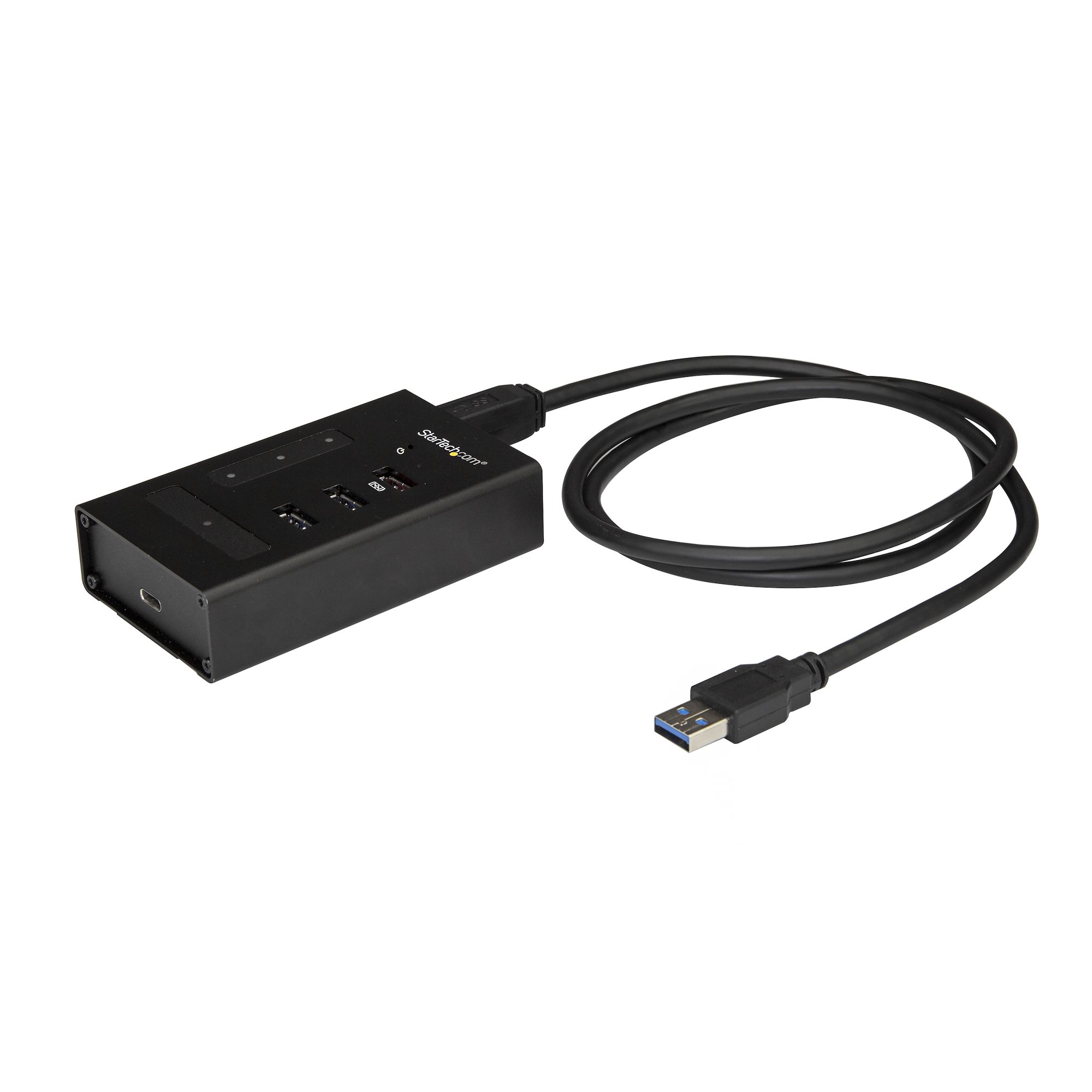
Credit: www.startech.com
Connecting Multiple Devices
Connecting multiple devices to a 4 port USB hub expands your computer’s capabilities. It lets you use several gadgets without unplugging one to use another. This is handy for work, study, or entertainment setups. The hub acts as a central station for all your USB devices.
Usb Storage Devices
Plug in USB flash drives or external hard drives to transfer files quickly. The hub supports multiple storage devices at once. This helps you copy, backup, or access data without switching cables. Keep your important files close and easy to reach.
Peripheral Devices
Connect keyboards, mice, printers, and scanners to the hub. It turns your computer into a versatile workstation. Use a wired keyboard and mouse together without extra ports. Printers and scanners stay connected for instant use.
Charging Mobile Devices
Charge smartphones, tablets, and other gadgets using the hub. It delivers power to multiple devices at once. No need for many chargers or wall sockets. Keep your devices powered and ready throughout the day.
Troubleshooting Common Issues
Troubleshooting a 4 port USB hub can save you hours of frustration. Understanding common issues helps you fix problems quickly and keep your devices connected smoothly. Let’s look at some typical challenges and how you can tackle them effectively.
Device Not Recognized
If your computer doesn’t recognize a device connected through the USB hub, start by checking the physical connections. Unplug the device and the hub, then reconnect them firmly. Sometimes, a loose connection is all it takes to cause detection issues.
Try connecting the device directly to your computer’s USB port. If it works there, the hub may be at fault. Also, check if your hub needs external power—some hubs won’t properly detect devices without it.
Updating your computer’s USB drivers can also fix recognition problems. Have you checked the Device Manager on Windows or System Report on Mac for any warnings? If so, reinstalling the driver may help.
Slow Data Transfer
Noticed your files moving at a snail’s pace through the hub? Your hub might be USB 2.0 instead of USB 3.0 or higher. USB 2.0 maxes out at 480 Mbps, which is much slower than the 5 Gbps or more USB 3.0 offers.
Check your hub’s specifications and the cables you’re using. Using older cables or connecting multiple high-demand devices can slow down transfer speeds. Disconnect unnecessary devices to improve performance.
Are you transferring large files? Patience helps, but optimizing your setup also does. Avoid using the hub with power-hungry devices together, as this can throttle speeds.
Power Supply Problems
Some USB hubs need their own power supply to function correctly. If your devices keep disconnecting or won’t charge, lack of power might be the culprit. Check if your hub has a power adapter and ensure it’s plugged in properly.
Low power can cause devices to behave erratically or fail to work altogether. Consider how many devices you have connected and their power needs. High-power devices like external hard drives may require a powered hub.
Have you tried switching to a powered hub? It can make a big difference in reliability, especially if you use multiple devices simultaneously. Don’t underestimate the importance of stable power for smooth operation.

Credit: www.amazon.com
Tips To Maximize Hub Performance
Getting the most out of your 4 port USB hub means paying attention to how you use it daily. Small changes in your setup can lead to noticeable improvements in speed and reliability. Here are some practical tips to help your hub perform at its best.
Avoid Overloading Ports
Plugging too many high-power devices into your hub can slow down data transfer and cause instability. Devices like external hard drives and cameras need more power, so spreading them across different USB ports on your computer or using a powered hub can help.
Think about what you’re connecting at once. Could you unplug something that’s not in use? This simple habit can prevent bottlenecks and keep everything running smoothly.
Use Quality Cables
Not all USB cables are created equal. Low-quality or damaged cables can cause connection drops or slow transfer speeds. Invest in cables with good shielding and sturdy connectors to maintain a strong signal.
Have you noticed slower speeds or devices disconnecting? Swapping out the cable often solves these issues without needing a new hub.
Keep Hub Firmware Updated
Manufacturers sometimes release firmware updates that improve compatibility and fix bugs. Check your hub’s support page regularly to see if updates are available.
Updating firmware isn’t complicated, but it can make a big difference in how well your hub handles multiple devices. Are you taking advantage of these updates to boost performance?
Advanced Uses For Usb Hubs
USB hubs are often seen as simple tools to add extra ports, but their potential goes far beyond basic connectivity. With a 4 port USB hub, you can enhance your workspace, gaming setup, and even your productivity in ways you might not have considered. Let’s look at some advanced uses that can make your tech life smoother and more efficient.
Connecting Multiple Monitors
Did you know you can use a USB hub to connect more than one monitor to your laptop or desktop? Some USB hubs support video output through USB-C or DisplayLink technology, allowing you to plug in multiple displays without needing extra graphic cards.
This setup is ideal if you work with large spreadsheets, design software, or multiple applications at once. Imagine having your email, browser, and editing software all visible on separate screens—doesn’t that boost your efficiency?
Using With Gaming Accessories
Gamers often juggle between keyboards, mice, headsets, and controllers. A 4 port USB hub lets you plug all these devices into one spot, reducing cable clutter and improving quick device swapping.
Some hubs even offer faster data transfer rates, which can reduce input lag. If you’ve ever felt your controller lag during a crucial game moment, using a hub with high-speed USB ports might give you the edge you need.
Integrating With Workstations
In a busy workstation, connecting multiple peripherals like printers, scanners, external drives, and webcams can become a mess. A 4 port USB hub keeps everything centralized and easy to access.
Think about your daily tasks—how much time do you spend unplugging and plugging devices? A hub helps you manage all your tools efficiently, so you focus more on work and less on managing cables.
Frequently Asked Questions
What Is A 4 Port Usb Hub Used For?
A 4 port USB hub expands one USB port into four. It allows you to connect multiple devices to a single port. This is useful for laptops or PCs with limited USB ports. It supports data transfer and charging simultaneously.
How Do I Connect A 4 Port Usb Hub?
Plug the USB hub into your computer’s USB port. Then, connect your USB devices to the hub’s ports. The hub will automatically recognize the devices. No extra software is usually needed for basic functionality.
Can A 4 Port Usb Hub Charge Devices?
Yes, many 4 port USB hubs can charge devices. However, charging speed depends on the hub’s power output. Powered hubs with an external adapter provide faster charging. Unpowered hubs may charge slowly or not at all.
Are 4 Port Usb Hubs Compatible With All Devices?
Most 4 port USB hubs are compatible with standard USB devices. They work with keyboards, mice, flash drives, and smartphones. Check the hub’s specifications for specific device support. Compatibility also depends on your computer’s operating system.
Conclusion
Using a 4 port USB hub makes connecting devices simple and fast. It helps you plug in multiple gadgets without hassle. Just connect the hub to your computer and add your devices. This tool saves space and keeps your desk tidy.
Remember to check the hub’s power needs for best use. Enjoy easier charging and data transfer with this handy device. It fits well in homes, offices, and schools. Keep your tech organized and ready to use anytime. A 4 port USB hub is a small tool with big help.