
Have you ever sat down at your laptop only to find your keyboard suddenly won’t work? It’s frustrating, right?
You might feel stuck, unsure how to fix it quickly. The good news is that unlocking your laptop keyboard is often easier than you think. You’ll discover simple, step-by-step solutions that anyone can follow. By the end, you’ll be back to typing smoothly without any hassle.
Let’s get your keyboard working again—fast and frustration-free.

Credit: www.wps.com
Common Reasons Keyboard Locks
Keyboards on laptops can stop working suddenly. This happens for several common reasons. Knowing these causes helps in fixing the issue quickly. Some problems come from simple mistakes. Others are due to hardware or software faults.
Accidental Key Presses
Sometimes keys get pressed by accident. This can lock the keyboard without you noticing. A single wrong key or key combination can cause the problem. Kids or pets might press keys too.
Sticky keys or dirt can also make keys act strange. Cleaning the keyboard gently often helps. Being careful while typing avoids this issue.
Function Lock Activation
Laptops have a function lock key. It changes how some keys work. Pressing it can disable the keyboard or change its behavior. This key is usually marked as “Fn” or “Fn Lock”.
Users may press it unknowingly. Checking the function lock status is important. Turning it off restores normal keyboard use.
Software Glitches
Software problems can stop the keyboard from working. Drivers may get outdated or corrupted. Operating system updates might cause conflicts. Malware can also affect keyboard functions.
Restarting the laptop often fixes these glitches. Updating or reinstalling drivers helps too. Running a virus scan keeps the system clean.
Hardware Issues
Physical damage can cause keyboard failure. Loose connections inside the laptop are common. Spills or drops harm internal parts. Worn out or broken keys stop working.
Professional repair may be needed for hardware faults. Avoid opening the laptop yourself unless you are trained. Using a USB keyboard can be a temporary fix.
Quick Keyboard Unlock Methods
Sometimes, your laptop keyboard may stop working suddenly. Quick actions can help restore its function fast. These easy methods work well for most keyboard issues. Follow simple steps to get your keyboard typing again without delay.
Using Function Key Combinations
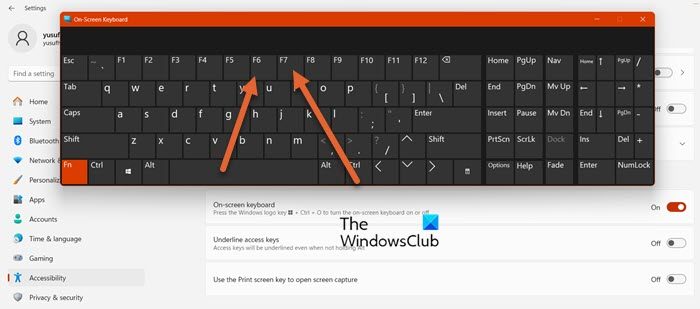
Many laptops have special keys to disable or enable the keyboard. Look for keys with a keyboard icon or “Fn” key combined with others. Press these keys together to toggle the keyboard on or off.
- Hold the “Fn” key and press the key with a keyboard icon.
- Try “Fn” + “F6”, “F7”, or “F8” keys depending on your laptop model.
- Check your laptop manual for exact key combinations.
This method often fixes simple keyboard lock problems quickly.
Restarting Your Laptop
Restarting the laptop refreshes the system and clears minor glitches. Save your work before restarting. A quick reboot can solve many keyboard issues without extra tools or settings changes.
- Click the Start menu or power button.
- Select “Restart” instead of “Shut Down.”
- Wait for the laptop to power off and on again.
After restart, test the keyboard to see if it works properly.
Checking Keyboard Settings
Keyboard settings in your operating system can cause it to lock or act strangely. Open your settings and look for keyboard or input options. Ensure the keyboard is enabled and set to the right layout.
- Go to Settings > Devices > Keyboard (Windows) or System Preferences > Keyboard (Mac).
- Check if any accessibility features like “Filter Keys” are on; turn them off.
- Change the input language to match your keyboard.
Adjusting these settings often solves keyboard responsiveness issues.
Disconnecting External Devices
External devices connected to your laptop can interfere with the keyboard. Unplug USB keyboards, mice, or other peripherals. Sometimes, these devices cause conflicts that disable the built-in keyboard.
- Remove all connected USB devices.
- Restart your laptop after unplugging.
- Test the built-in keyboard again for normal function.
This simple action can restore keyboard control quickly.
Troubleshooting Software Problems
A laptop keyboard may stop working due to accidental key locks or system settings. Checking the function lock key or restarting the device often restores keyboard use. Adjusting keyboard settings in the control panel can also help resolve the issue.
Unlocking your laptop keyboard can be frustrating. Software problems often cause the issue. Addressing these can restore functionality quickly. Let’s delve into the troubleshooting steps.Updating Keyboard Drivers
Outdated drivers can cause keyboard malfunctions. Updating them might solve the problem. Follow these steps:- Open Device Manager from the Start menu.
- Locate ‘Keyboards’ and expand the list.
- Right-click your keyboard device, then select ‘Update driver.’
- Choose ‘Search automatically for updated driver software.’
Running Keyboard Troubleshooter
Windows includes a built-in troubleshooter. It identifies and fixes common issues. Here’s how to use it:- Open ‘Settings’ from the Start menu.
- Navigate to ‘Update & Security.’
- Select ‘Troubleshoot’ from the left pane.
- Find ‘Keyboard’ and click ‘Run the troubleshooter.’
Checking For Malware
Malware can disrupt keyboard functions. Regular scans help prevent this. Consider these steps:- Install reputable antivirus software.
- Run full system scans regularly.
- Keep your antivirus updated to combat new threats.
Fixing Hardware-related Issues
Hardware issues often cause a laptop keyboard to stop working. Dirt, loose connections, or physical damage can block key presses. Fixing these problems involves simple checks and cleaning. Basic care might bring your keyboard back to life without extra help.
Cleaning The Keyboard
Dust and debris can block keys from pressing properly. Turn off the laptop and unplug it first. Use a soft brush or compressed air to remove dirt between keys. Wipe the keyboard surface gently with a damp cloth. Avoid using too much liquid to prevent damage.
Reseating Keyboard Connections
Loose internal connections may cause keyboard issues. Power off the laptop and remove the battery if possible. Carefully open the laptop case following the manual instructions. Locate the keyboard cable and disconnect it gently. Reconnect the cable firmly to ensure good contact. Close the case and test the keyboard again.
When To Seek Professional Help
Physical damage or complex faults need expert repair. If cleaning and reseating do not work, contact a technician. Do not force open your laptop if unsure. Professionals have tools and skills to fix or replace keyboards safely.
Preventing Future Keyboard Locks
Dealing with a locked keyboard can be frustrating, especially when you rely on your laptop for work or study. Preventing future keyboard locks saves you time and keeps your workflow smooth. It’s not just about fixing the issue once but making small changes to avoid it altogether.
Customizing Keyboard Shortcuts
Your laptop might lock the keyboard due to accidental shortcut presses. Customizing or disabling certain keyboard shortcuts can reduce this risk.
Check your laptop settings or use third-party apps to change shortcuts that frequently cause issues. For example, disabling the shortcut that locks the keyboard can save you from accidental locks during intense typing sessions.
Have you noticed a particular key combo causing trouble? Try remapping it to something less likely to be pressed by mistake.
Regular Software Updates
Outdated software can cause hardware glitches, including keyboard malfunctions. Keeping your operating system and drivers updated ensures smoother keyboard operation.
Updates often fix bugs that might cause your keyboard to freeze or lock unexpectedly. Set your laptop to update automatically or check for updates weekly.
Do you know when you last updated your keyboard drivers? A quick update could be the simple fix that prevents future locks.
Using External Keyboards Safely
Many users connect external keyboards for convenience. However, improper use can lead to conflicts that lock your built-in keyboard.
Always plug and unplug external keyboards with the laptop powered off or in sleep mode. This practice helps avoid driver conflicts.
If you use external keyboards frequently, consider disabling the built-in keyboard temporarily via device manager when the external one is connected. This prevents accidental locking caused by mixed inputs.
Credit: www.thewindowsclub.com

Credit: www.youtube.com
Frequently Asked Questions
How Do I Unlock My Laptop Keyboard Quickly?
Press the “Fn” key plus the keyboard lock key, often “F6” or “F8”. This disables the keyboard lock and restores normal function.
Why Is My Laptop Keyboard Suddenly Locked?
Your keyboard may lock due to accidental key combinations or software glitches. Restarting or unlocking via shortcut often fixes this.
Can I Unlock A Laptop Keyboard Without Restarting?
Yes, use the specific keyboard shortcut or check keyboard settings in Control Panel to unlock without rebooting your laptop.
What Causes Laptop Keyboard To Lock Randomly?
Random locking can be caused by stuck keys, driver issues, or accidental shortcut presses. Updating drivers or restarting helps resolve this.
Conclusion
You now know simple ways to fix a locked laptop keyboard. Try checking for key combinations that disable it. Restarting your laptop can also help. Keeping your drivers updated avoids many issues. If problems continue, a professional can assist. Your keyboard will work again with patience and care.
Stay calm and follow the steps carefully. Your laptop will be ready for typing soon. Easy fixes save time and reduce stress. Keep this guide handy for future reference.