
Is your PC constantly slipping into sleep mode right when you need it the most? It can be frustrating to lose your work or interrupt your flow every time your computer dozes off.
But don’t worry—there are simple steps you can take to stop your PC from going to sleep. You’ll discover easy and effective ways to keep your computer awake and running exactly when you want it to. Keep reading, and you’ll never have to deal with unexpected sleep mode again.
Credit: www.youtube.com
Adjust Power Settings
Adjusting your PC’s power settings helps control when it goes to sleep. This lets you keep your computer awake during important tasks. You can change how long your PC waits before sleeping. Also, you can set how long the display stays on. Custom power plans give more control over these settings.
Change Sleep Timer
Open the Power Options in your Control Panel. Find the setting called “Sleep” or “Sleep Timer.” Set the time to a longer period or choose “Never.” This stops your PC from sleeping automatically. Save the changes to apply the new timer.
Modify Display Turn Off Time
Look for “Display” settings inside Power Options. Adjust the time before your screen turns off. Set a longer delay or select “Never” to keep the display on. This keeps your screen active while you work or watch videos. Remember to save the new settings.
Set Custom Power Plan
Create a new power plan to control sleep and display times. Click “Create a power plan” in Power Options. Choose your preferred settings for sleep and display turn off. Name your plan and save it. Switch to this plan to use your custom settings every time.
Use Command Prompt Tricks
Using Command Prompt tricks offers a powerful way to control your PC’s sleep settings without digging through multiple menus. These commands let you tweak your power options quickly and precisely. If you want to stop your PC from going to sleep, the Command Prompt gives you direct access to settings that often remain hidden in regular control panels.
Disable Sleep With Powercfg
The powercfgcommand is a built-in Windows tool that manages power settings directly from the Command Prompt. You can disable sleep mode by running a simple command that changes the system’s power plan.
Open Command Prompt as an administrator and type:
powercfg -change -standby-timeout-ac 0This command sets the sleep timeout to zero when your PC is plugged in, effectively disabling sleep mode.
If you want to stop sleep on battery power as well, use:
powercfg -change -standby-timeout-dc 0This way, your PC won’t enter sleep whether it’s plugged in or running on battery.
Have you ever been frustrated by your PC going to sleep mid-task? Using powercfg eliminates that annoyance fast.
Create A Sleep Prevention Script
For those who want a flexible solution, creating a small script that prevents sleep during certain tasks works wonders. You can write a batch file that runs commands to keep your PC awake without changing permanent settings.
Here’s a simple script example you can create using Notepad and save with a .batextension:
@echo off powercfg -change -standby-timeout-ac 0 powercfg -change -standby-timeout-dc 0 echo Sleep mode disabled temporarily. pause Running this script disables sleep mode until you close it or restart your PC. It’s perfect if you only want to prevent sleep during specific work sessions.
Wouldn’t it be convenient to toggle sleep settings on demand without navigating through multiple settings menus? A script like this puts control right at your fingertips.
Utilize Third-party Tools
Third-party tools offer a simple way to keep your PC awake. These apps bypass system settings and ensure your computer stays active. They are user-friendly and require minimal effort to set up. Explore some popular options that help manage sleep settings effortlessly.
Overview Of Popular Apps
Several apps can prevent your PC from sleeping. They work by simulating activity or adjusting system settings. These tools are lightweight and typically free. Popular choices include Caffeine, Mouse Jiggler, and NoSleep. Each app has unique features tailored to keep your computer awake. Choose an app based on your needs and preferences.
How To Use Caffeine
Caffeine is a simple tool that keeps your computer awake. It mimics key presses at regular intervals. This activity tricks your PC into thinking it’s in use. Download and install Caffeine from its official website. Open the app and adjust settings if needed. The app runs quietly in the background. Your PC will stay awake without further intervention.
Using Mouse Jiggler
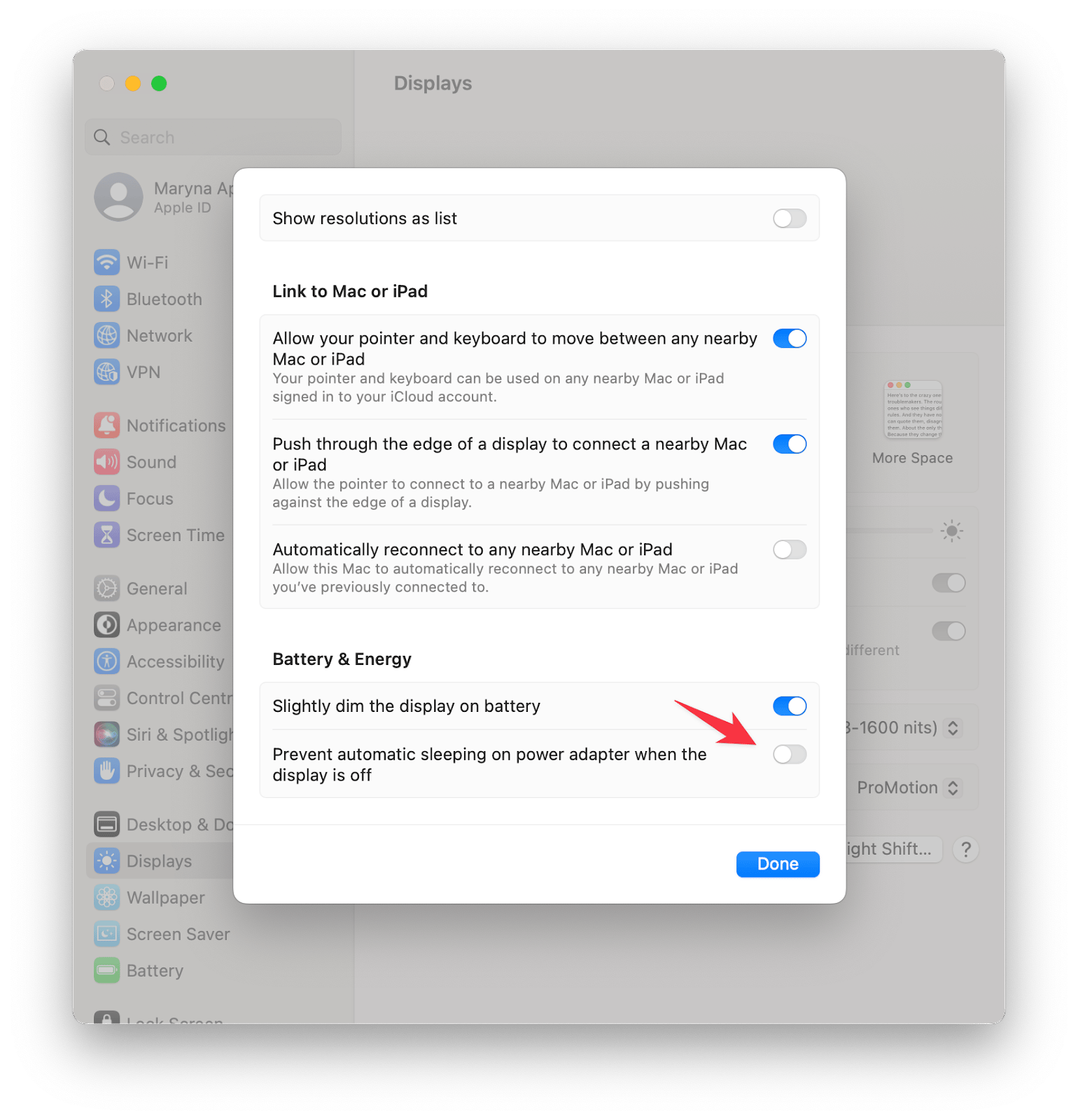
Mouse Jiggler simulates mouse movements to prevent sleep mode. It creates small, constant cursor movements. This action keeps your system active. Install Mouse Jiggler from a trusted source. Launch the application and select the jiggle option. Adjust the settings to suit your needs. The app operates silently, ensuring your computer remains awake.
Credit: setapp.com
Manage System Updates And Apps
Managing system updates and apps plays a key role in preventing your PC from slipping into sleep mode unexpectedly. Updates and background apps often trigger power-saving settings without you realizing it. Taking control here gives you a smoother, uninterrupted experience.
Pause Automatic Updates
Automatic updates can cause your PC to restart or enter sleep mode during critical tasks. You can pause these updates temporarily to maintain control over when your system decides to restart or sleep.
To pause updates:
- Go to Settings > Update & Security > Windows Update.
- Select Pause updates for 7 daysor choose a custom date.
This small step stopped my PC from sleeping right in the middle of a long video rendering session. What tasks are you working on that can’t afford interruptions?
Close Background Applications
Background apps consume resources and can trigger your PC’s power-saving features. Closing unnecessary apps reduces system load and helps prevent your computer from going to sleep unexpectedly.
Check the Task Manager for apps running in the background. Look for apps you don’t need, such as chat programs or automatic cloud backups, and close them.
Here’s how you can do it efficiently:
- Press Ctrl + Shift + Escto open Task Manager.
- Under the Processestab, identify and select apps consuming CPU or memory.
- Click End Taskto close them.
Have you noticed your PC sleeping more often when multiple apps run in the background? Managing these can keep your system awake longer and more responsive.
Change Advanced Settings
Changing advanced settings in your PC’s power options gives you more control over sleep behavior. These settings affect how your system manages energy and hardware components. Tweaking them helps stop your PC from going to sleep unexpectedly. It also improves performance and usability based on your needs.
Adjust Hibernate Options
Hibernate saves your work and turns off your PC to save power. Sometimes, it triggers too soon. To adjust it, open Power Options and find the advanced settings tab. Look for “Hibernate after” and set it to “Never” or a longer time. This stops your PC from hibernating too quickly.
Disabling or extending hibernate time keeps your PC ready when you need it. It also prevents interruptions during important tasks.
Modify Usb Selective Suspend
USB Selective Suspend lets your PC turn off USB devices to save power. It can cause issues if your mouse or keyboard stops working. To fix this, go to Power Options and open advanced settings.
- Find “USB settings” then “USB selective suspend setting.”
- Set it to “Disabled” to keep USB devices active.
This change stops your PC from suspending USB devices. Your peripherals stay responsive and avoid sleep problems related to USB power management.
Prevent Sleep During Presentations
Presentations demand your full attention, and the last thing you want is your PC slipping into sleep mode right in the middle of a crucial slide. Preventing your computer from going to sleep during presentations ensures a smooth flow and keeps your audience engaged. Let’s look at practical ways to keep your screen awake without constant manual adjustments.
Use Presentation Mode
Windows has a built-in Presentation Mode designed specifically to keep your PC awake while you present. Activating it pauses notifications and stops the screen from dimming or going to sleep.
To turn on Presentation Mode, press Windows + Pand select “Extend” or “Duplicate” your display. Then, open the Windows Mobility Center and click “Turn On” under Presentation Settings.
This mode is a lifesaver when you want to focus on your presentation without interruptions. Have you ever had your screen go dark mid-sentence? Presentation Mode prevents that from happening.
Set Up A Custom Display Profile
If you frequently give presentations, creating a custom display profile with tailored power settings can save you time. Adjust your PC’s sleep and display timeout settings to “Never” while plugged in, and save this as a custom profile.
You can do this easily through the Control Panel under Power Options. Choose “Create a power plan,” then set “Turn off the display” and “Put the computer to sleep” to your preferred timings.
This approach lets you switch quickly between your everyday power plan and your presentation profile. Imagine switching profiles with one click and never worrying about your PC falling asleep again.

Credit: www.youtube.com
Frequently Asked Questions
How Do I Stop My Pc From Going To Sleep Automatically?
To stop your PC from sleeping automatically, open Settings > System > Power & Sleep. Set the “Sleep” option to “Never” for both battery and plugged-in modes.
Can I Prevent Sleep Mode Without Changing Power Settings?
Yes, you can use third-party apps like Caffeine or Mouse Jiggler to keep your PC awake without altering power settings.
Why Does My Pc Still Sleep After Changing Settings?
Your PC may have conflicting settings or software overriding sleep preferences. Check advanced power options and any active energy-saving apps.
How Does Sleep Mode Affect My Pc Performance?
Sleep mode saves energy by pausing your PC’s activity. It doesn’t affect performance but may delay waking up your programs.
Conclusion
Stopping your PC from going to sleep helps keep work and downloads active. Adjusting power settings is simple and quick. You can choose the time before sleep or turn it off. This keeps your computer ready whenever you need it.
Try these steps today and stay in control of your device. No more waiting for your PC to wake up. Keep your tasks smooth and uninterrupted. Easy changes make a big difference. Your PC works the way you want.