
Have you ever struggled to scroll left or right on your screen and wished there was an easier way? Whether you’re browsing wide web pages, working on spreadsheets, or navigating large images, knowing how to scroll sideways with your mouse can save you time and frustration.
You’ll discover simple tricks and handy tips that make horizontal scrolling smooth and effortless. Keep reading, and you’ll soon master a skill that transforms how you interact with your computer every day.
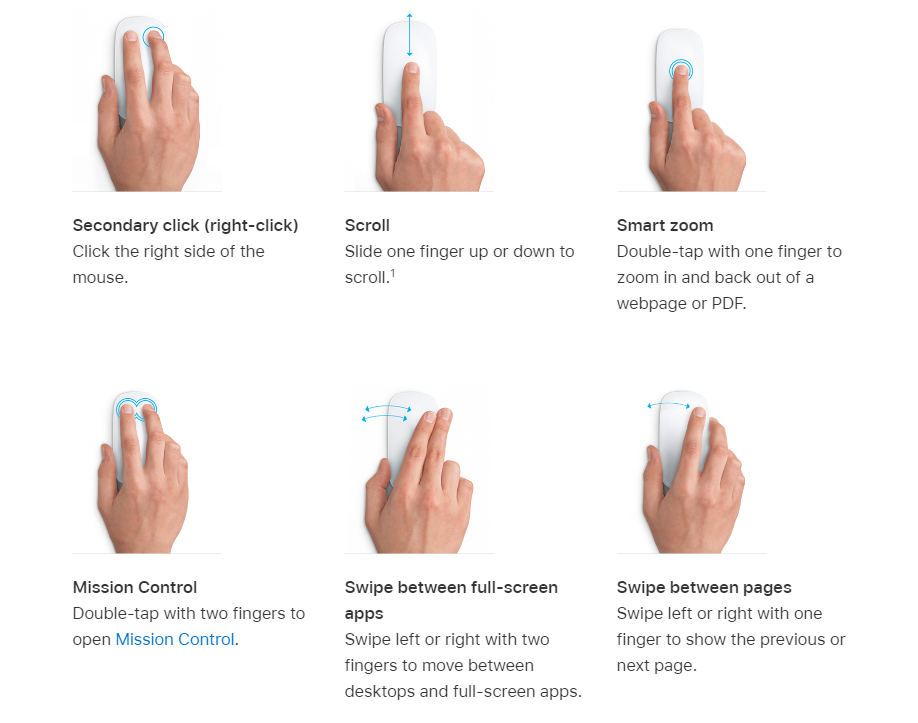
Credit: medium.com
Mouse Scrolling Basics
Understanding the basics of mouse scrolling is key to navigating your digital world smoothly. Scrolling lets you move through content without dragging the scrollbar manually, saving time and effort. But have you ever wondered why some pages scroll up and down, while others move left and right?
Vertical Vs Horizontal Scrolling
Most mice are designed primarily for vertical scrolling—that is, moving content up and down. This matches how most websites and documents are laid out, so it feels natural. However, horizontal scrolling lets you move side to side, which is useful for wide spreadsheets, timelines, or graphic designs.
Horizontal scrolling is less common but can be a real time-saver if you work with wide content. Have you noticed your mouse wheel sometimes tilts or clicks sideways? That’s often meant for horizontal scrolling. Some apps even let you hold a key like Shift while using the wheel to switch from vertical to horizontal movement.
Common Mouse Designs
Not every mouse scrolls the same way. The most common design features a scroll wheel located between the left and right buttons. This wheel usually moves vertically and might also be clickable as a middle button.
- Standard Scroll Wheel:Rolls up and down for vertical scrolling.
- Tilting Scroll Wheel:Can be pushed left or right to scroll horizontally.
- Touch-sensitive Strip:Found on some modern mice, allowing smooth, gesture-based scrolling.
Some mice offer extra buttons or software customization to enhance scrolling options. If you frequently need horizontal scrolling, investing in a mouse with a tilting wheel or special horizontal scroll feature can boost your productivity. Have you checked your mouse’s settings to see if it supports horizontal scrolling already?
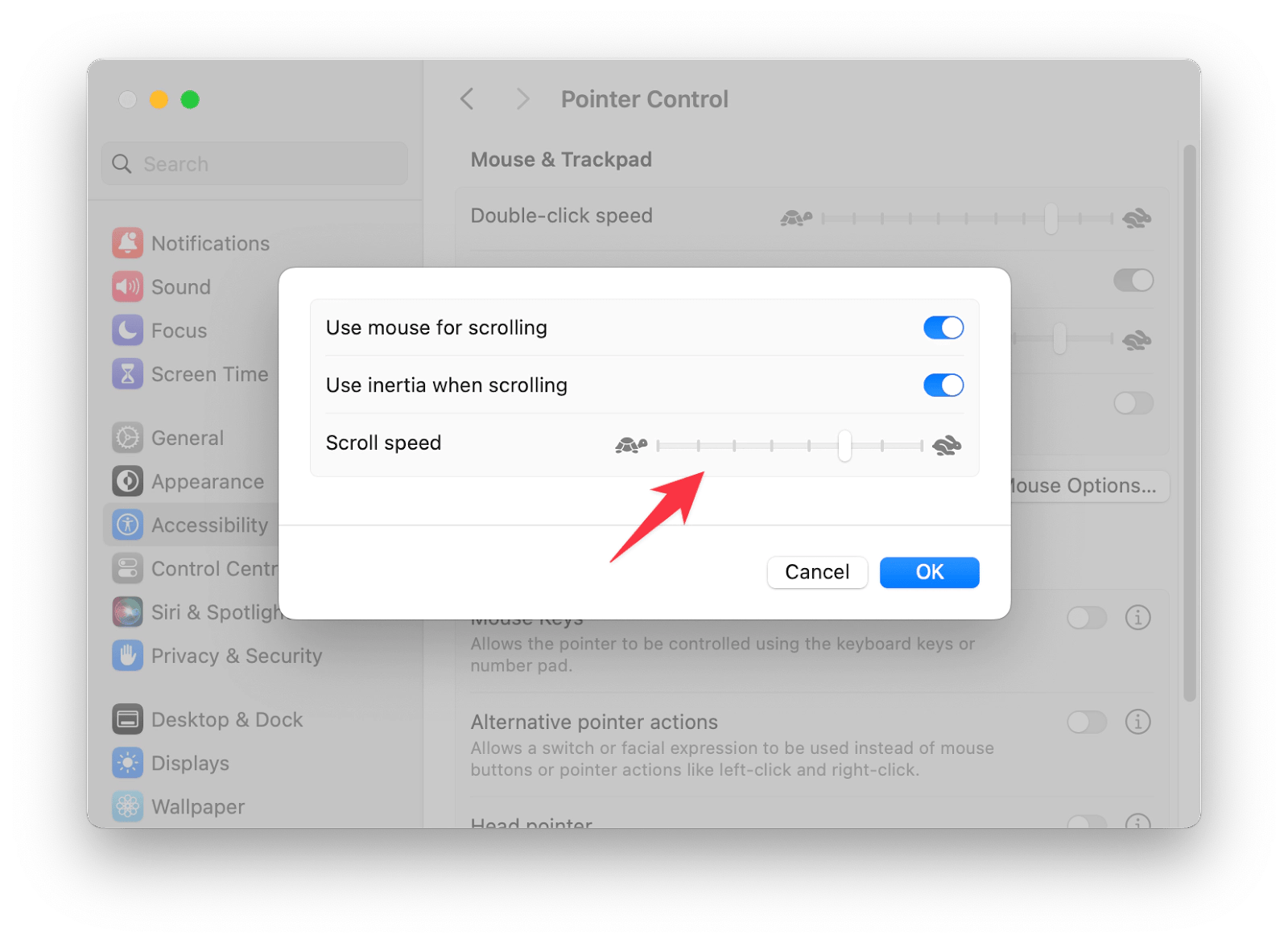
Credit: setapp.com
Using The Scroll Wheel
The scroll wheel on your mouse isn’t just for moving up and down. You can use it to scroll left and right too, making navigation smoother, especially on wide web pages or large spreadsheets. Understanding how to harness this feature saves you time and effort during your daily computer tasks.
Shift Key For Horizontal Scrolling
Holding down the Shiftkey while using your mouse’s scroll wheel changes the direction of the scroll. Instead of moving vertically, the page will scroll horizontally. This trick works in most browsers and document editors, letting you glide across wide content without touching the scrollbar.
Try it out next time you’re viewing a large spreadsheet or a wide image. You’ll notice how much easier it is to keep your focus without shifting your hand to the horizontal scrollbar. Have you ever found yourself endlessly dragging the scrollbar just to see the next column? This simple tip can fix that instantly.
Side Scrolling With Tilt Wheel
Some mice come with a tilt wheel that allows side-to-side scrolling without using the keyboard. By gently tilting the scroll wheel left or right, you can move horizontally through your content. This feature feels natural once you get used to it and can speed up your workflow.
If your mouse supports this, it’s worth testing the tilt function with your favorite apps. It may not be obvious at first, but using the tilt wheel can reduce the strain of repetitive mouse movements. Have you checked whether your mouse has this feature? It might be hiding a neat shortcut you haven’t tried yet.
Touchpad And Gesture Controls
Touchpad and gesture controls offer a smooth way to scroll left and right on your device. These controls rely on finger movements on the touchpad surface. They make navigation faster without needing a mouse or keyboard. Many laptops and some external touchpads support these gestures. Learning how to use them can improve your browsing and work efficiency.
Two-finger Swipe
The two-finger swipe is the most common gesture for horizontal scrolling. Place two fingers on the touchpad and slide them left or right. This action moves the screen content in the same direction. It works well in web browsers, spreadsheets, and photo viewers. The movement feels natural and easy to control.
Customizing Gestures
Most operating systems allow you to customize touchpad gestures. You can change how sensitive the two-finger swipe is or assign different actions. This customization helps match your personal preferences. To adjust settings, go to the touchpad or mouse settings menu. Experiment with options until scrolling feels comfortable and responsive.
Third-party Software Solutions
If you’re tired of being limited to vertical scrolling with your mouse, third-party software solutions can open up new possibilities. These tools enable horizontal scrolling, making navigation smoother, especially in wide documents or spreadsheets. They cater to different needs and preferences, ensuring you find a tool that suits your workflow.
Popular Tools For Horizontal Scrolling
Several third-party applications are designed to enhance mouse functionality. Tools like X-Mouse Button Control, WizMouse, and Autohotkey are popular choices among users seeking more control over their scrolling options.
- X-Mouse Button Control:Offers extensive customization of mouse buttons, including setting horizontal scrolling actions.
- WizMouse:Automatically sends scroll commands to the window under the mouse, regardless of focus, with horizontal options.
- Autohotkey:Allows you to script mouse movements, providing flexibility for horizontal scrolling setups.
These tools not only enhance functionality but also integrate smoothly with most systems. The choice often depends on personal preference and required features.
Setting Up And Configuring
Configuring these tools is usually straightforward. You start by downloading the software from their respective websites, ensuring compatibility with your operating system.
- Install the software following the guided prompts.
- Open the configuration panel where you can assign horizontal scrolling actions to specific mouse buttons.
- Test your settings to ensure they work as expected. This may involve tweaking sensitivity and speed for optimal performance.
Remember, the goal is to make scrolling intuitive. Adjust settings based on your comfort and the nature of your work. Are you finding the setup process easy or challenging? Share your experience and tips with others who might be struggling.
Browser And Application Tips
Scrolling left and right with your mouse can sometimes feel tricky, especially when a webpage or application doesn’t make it obvious. Many browsers and apps have hidden features that help you navigate horizontally without hassle. Understanding these can save you time and make your browsing smoother.
Using Keyboard Shortcuts
Did you know you can scroll sideways without even touching your mouse wheel? Most browsers let you hold down the Shift keywhile scrolling up or down with your mouse wheel to move left or right instead.
This trick works in Chrome, Firefox, and Edge, making it easy to switch directions quickly. Try it out next time you’re on a wide webpage or a spreadsheet. It feels natural once you get the hang of it.
Enabling Horizontal Scrollbars
Sometimes, horizontal scrollbars are hidden by default, which can confuse you when content extends beyond the screen width. You can enable them in your browser or application settings to see a clear bar for side-to-side navigation.
For example, in Windows File Explorer, you can resize the window or tweak view settings to display the horizontal scrollbar. Similarly, certain web apps have options under settings or preferences to toggle scrollbars on or off.
Seeing that scrollbar can give you a visual cue on how much content is off-screen and where you are horizontally. It’s a simple step but makes a big difference when you’re handling wide pages or large tables.

Credit: www.reddit.com
Troubleshooting Scrolling Issues
Scrolling left and right with a mouse should be simple. Sometimes, the mouse does not respond as expected. This section helps solve common scrolling problems quickly. Follow easy checks to restore smooth scrolling.
Driver Updates
Outdated mouse drivers can cause scrolling problems. Check the device manager on your computer. Look for any warning signs near the mouse device. Visit the manufacturer’s website for the latest driver version. Download and install updates carefully.
Updated drivers improve mouse performance and fix bugs. Restart your computer after installing new drivers. Test the scroll function again. This step often resolves many scrolling issues.
Hardware Checks
Physical problems with the mouse may block scrolling. Inspect the mouse wheel for dirt or debris. Clean gently with a soft cloth or compressed air. Check the mouse cable for damage or loose connections.
Try the mouse on another computer to confirm if it works. Use a different mouse on your computer to isolate the issue. Replace the mouse if hardware faults persist. Proper hardware maintenance ensures smooth scrolling every time.
Frequently Asked Questions
How Do I Scroll Left And Right Using A Mouse?
To scroll horizontally, press the Shift key while using the mouse wheel. Some mice also have a horizontal scroll wheel or tilt feature for side scrolling.
Can I Scroll Sideways Without A Horizontal Mouse Wheel?
Yes, hold the Shift key and scroll the mouse wheel up or down to move left or right on most devices and browsers.
Which Mouse Supports Horizontal Scrolling Natively?
Many modern mice from Logitech, Microsoft, and Apple have a tilt wheel or dedicated horizontal scroll feature for smooth side scrolling.
How To Enable Horizontal Scrolling On Windows Or Mac?
On Windows, check mouse settings in Control Panel. On Mac, enable “Scroll direction” in System Preferences > Mouse for side scrolling.
Conclusion
Scrolling left and right with a mouse is simple and useful. You can try different methods like using the scroll wheel, holding keys, or dragging the scrollbar. Each way helps you move through wide pages faster. Practice a bit to find what feels best for you.
This skill saves time and makes browsing easier. Keep these tips in mind next time you need to scroll sideways. It’s a small trick that improves your computer use every day.