
Is your Polk soundbar acting up or not delivering the sound quality you expect? Sometimes, a simple reset can fix common issues and bring your audio back to life.
If you want to learn how to reset your Polk soundbar quickly and easily, you’re in the right place. Keep reading, and you’ll discover step-by-step instructions that anyone can follow—no tech skills needed. By the end, your soundbar will feel like new again, ready to fill your room with crystal-clear sound.
Reasons To Reset Your Polk Soundbar
Resetting your Polk soundbar can solve many problems and improve its performance. Sometimes, the device may not work as expected. Resetting brings the soundbar back to its original settings. This clears out any glitches or errors that affect sound quality and connectivity.
Knowing why to reset helps keep your soundbar in good shape. It saves time and avoids extra costs. Below are common issues and benefits of resetting your Polk soundbar.
Common Issues That Require Reset
- Soundbar won’t turn on or respond.
- No sound or low volume output.
- Bluetooth won’t connect or keeps disconnecting.
- Remote control stops working or delays commands.
- Settings changes don’t save properly.
- Strange noises or distortion in the audio.
- Firmware updates fail or cause errors.
Benefits Of Resetting
- Resolves software glitches quickly and easily.
- Restores all settings to default for fresh use.
- Improves sound quality by clearing errors.
- Enhances connectivity with Bluetooth and other devices.
- Fixes unresponsive remote control issues.
- Prepares the soundbar for firmware updates.
- Extends device life by maintaining smooth operation.
Types Of Resets For Polk Soundbars
Polk soundbars offer different reset options to fix issues or restore settings. Understanding these reset types helps in choosing the right one for your needs. Resets can clear minor glitches or completely restore factory settings.
Two common types of resets exist for Polk soundbars: soft reset and factory reset. Each serves a unique purpose. Knowing the difference can save time and effort.
Soft Reset
A soft reset restarts the soundbar without deleting settings. It clears minor bugs and refreshes the system. This reset is quick and safe. It usually fixes problems like no sound or connectivity issues.
To perform a soft reset:
- Turn off the soundbar.
- Unplug it from the power source.
- Wait about 30 seconds.
- Plug it back in and turn on the device.
Soft reset does not erase your saved preferences or customizations.
Factory Reset
A factory reset restores the soundbar to its original settings. It deletes all custom settings and paired devices. Use this reset for serious problems or before selling the device.
To perform a factory reset, follow these steps:
- Turn on the soundbar.
- Press and hold the “Source” and “Volume Down” buttons simultaneously for 10 seconds.
- The soundbar will power off and on again, indicating the reset.
Factory reset wipes all data. Reconfigure the soundbar after this process.
Preparing For The Reset
Preparing for a reset is an important step before you restore your Polk soundbar to its original settings. It helps avoid issues and keeps your system safe. Taking time to prepare ensures the reset goes smoothly and your soundbar works properly after.
Start by checking the power and connections. This confirms everything is ready for the reset process. Also, back up your settings. This saves your preferred configurations and prevents data loss.
Check Power And Connections
Make sure your soundbar is plugged into a working power outlet. A stable power source prevents interruptions during the reset. Confirm all cables are securely connected between the soundbar and your TV or other devices. Loose or damaged cables may cause problems. Turn on the soundbar and check if it responds to commands. If it does not turn on, fix the power issue before continuing.
Backup Settings
Your soundbar may have custom settings for sound modes, equalizers, and inputs. Write down these settings or take photos for reference. Some models allow saving preferences via an app or USB device. Use these options if available. Backing up helps restore your favorite settings after the reset. Without a backup, you might lose your adjustments and need to set them again manually.

Credit: manuals.plus
Step-by-step Soft Reset Guide
Resetting your Polk Soundbar is simple and quick. Press and hold the reset button until the device powers off and restarts. This soft reset can fix common issues without deleting your settings.
Resetting your Polk soundbar can improve performance and resolve minor issues. The soft reset method is a quick and easy way to refresh your device without losing settings. Follow these simple steps to perform a soft reset on your Polk soundbar. This guide will walk you through each step clearly.Locate The Power Button
Find the power button on the soundbar. It’s usually on the top or side. This button is essential for the reset process.Press And Hold The Power Button
Press the power button for 10 seconds. This action initiates the reset. Keep holding until the LED lights change.Release The Power Button
After the lights change, release the button. The soundbar will turn off briefly.Wait For The Soundbar To Restart
Give the soundbar a few seconds to restart. It will power back on automatically.Check The Functionality
Test the soundbar by playing audio. Ensure everything works smoothly. Adjust settings if needed.Step-by-step Factory Reset Guide
Resetting your Polk soundbar can fix many common issues. A factory reset clears all settings and returns it to default. This guide walks you through the reset process with simple steps. Follow these instructions carefully to avoid any problems.
Prepare Your Polk Soundbar
- Turn off the soundbar and unplug it from the power source.
- Wait for about 30 seconds to ensure it powers down fully.
- Keep your remote control handy for the reset process.
Initiate The Factory Reset
- Plug the soundbar back into the power outlet.
- Press and hold the “Volume Down” and “Input” buttons on the soundbar simultaneously.
- Keep holding the buttons for about 10 seconds until the LED display flashes.
- Release the buttons once the flashing starts.
Confirm The Reset Process
- Wait for the soundbar to restart automatically.
- The LED display will show “rSt” or a similar reset message.
- Check that all previous settings are cleared and defaults are restored.
Test Your Soundbar After Reset
- Play audio from your preferred device to test sound output.
- Adjust volume and input settings to ensure normal operation.
- Reconnect Bluetooth or other wireless connections as needed.
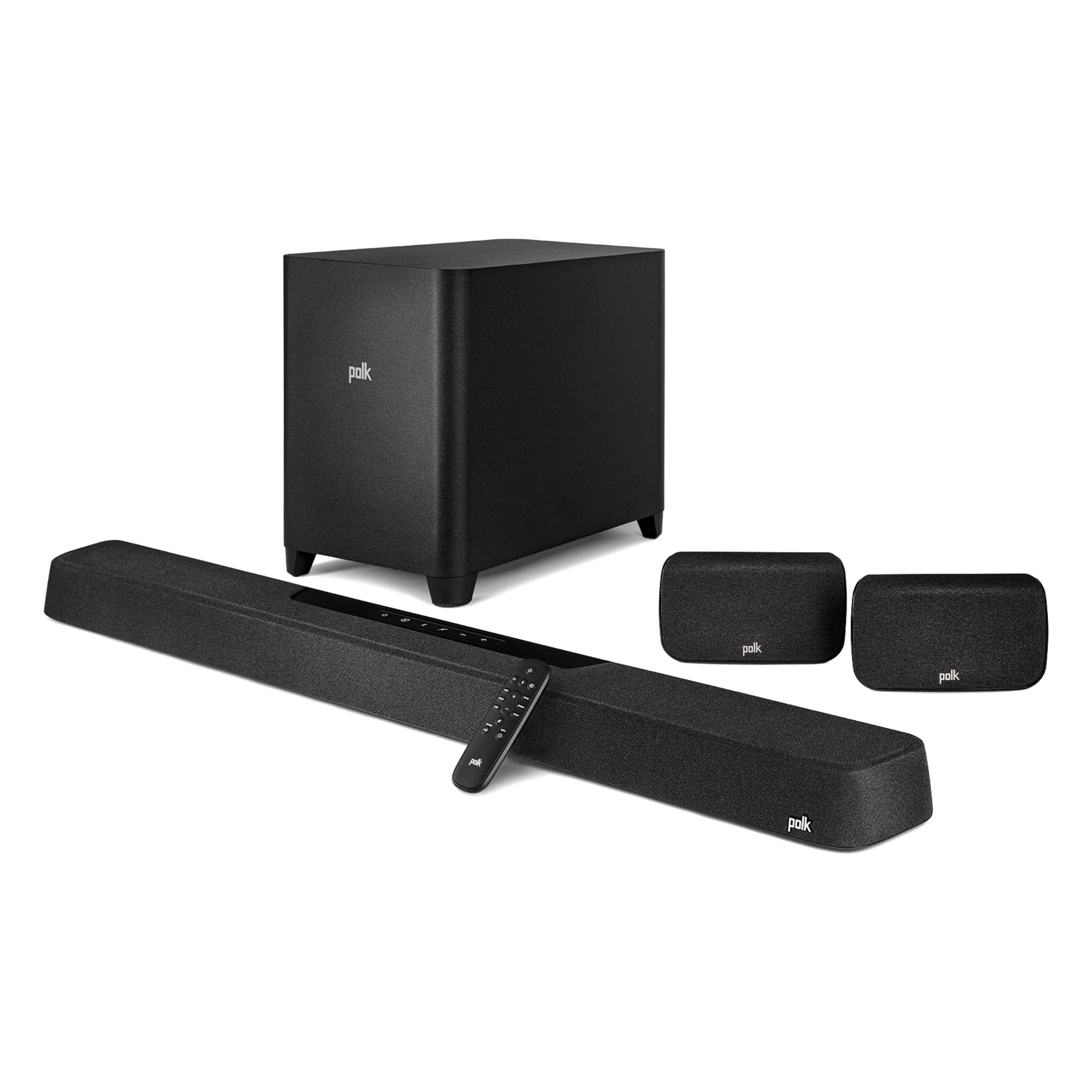
Credit: drhead.ae
Troubleshooting After Reset
Resetting your Polk soundbar can fix many issues. Sometimes, problems persist after a reset. Troubleshooting helps find and solve these problems quickly. Follow these tips to get your soundbar working properly again.
Sound Issues
Check the volume level on the soundbar and the connected device. Make sure the mute function is off. Test different audio sources to rule out source problems. Inspect the cables for damage or loose connections. Try reconnecting the cables firmly. Update the soundbar’s firmware if an update is available. Adjust the sound settings to match your listening preference.
Connectivity Problems
Confirm the soundbar is in pairing mode for Bluetooth connection. Restart both the soundbar and the connected device. Remove old Bluetooth pairings and try pairing again. Ensure the soundbar is within range of the device. Check Wi-Fi settings if using a smart soundbar. Reset network settings if necessary. Avoid interference from other wireless devices nearby.
Remote Control Not Working
Replace the batteries with fresh ones. Clean the remote sensor on the soundbar and the remote. Point the remote directly at the soundbar sensor. Remove any objects blocking the remote signal path. Reset the remote by removing batteries and pressing all buttons. Try using a smartphone remote app if available. Check if the remote works with other devices to isolate the issue.
Tips To Maintain Your Polk Soundbar
Keeping your Polk soundbar in top shape means more than just occasional resets. Small actions taken regularly can extend its life and improve your listening experience. Let’s look at some simple yet effective ways you can maintain your soundbar.
Regular Updates
Check for software or firmware updates on your Polk soundbar frequently. These updates often fix bugs and add new features that enhance performance.
You can usually find update options in the soundbar’s menu or on the Polk website. Missing updates might cause glitches or connectivity issues, so don’t let your device fall behind.
Proper Placement
Where you place your soundbar matters a lot. Avoid placing it inside closed cabinets or too close to walls as this can muffle sound and cause overheating.
Think about placing it at ear level and ensuring there’s enough space around for ventilation. Have you ever noticed how sound changes when you move your soundbar just a few inches? That’s the power of proper placement.
Routine Cleaning
Dust and grime can build up on your soundbar and affect both its look and performance. Use a soft, dry cloth to gently wipe the surface every week.
Be careful not to use liquid cleaners directly on the device. Keeping the speaker grills clean ensures clear sound quality and prevents overheating issues caused by blocked vents.

Credit: www.youtube.com
Frequently Asked Questions
How Do I Reset My Polk Soundbar To Factory Settings?
To reset your Polk Soundbar, press and hold the power and volume down buttons simultaneously for 10 seconds. The soundbar will restart, restoring factory settings and clearing custom configurations.
Why Should I Reset My Polk Soundbar?
Resetting fixes connectivity, sound, and software issues. It restores default settings, resolving glitches and improving performance without deleting your device.
Can Resetting Fix Polk Soundbar Bluetooth Problems?
Yes, resetting often resolves Bluetooth pairing and connection issues by clearing previous device data and refreshing the soundbar’s Bluetooth settings.
Will Resetting Erase My Polk Soundbar Custom Settings?
Yes, a reset removes all personalized settings, including EQ adjustments and saved connections, returning the soundbar to its original factory state.
Conclusion
Resetting your Polk soundbar is quick and easy. Follow the steps carefully to avoid issues. A reset can fix many common problems fast. Keep your soundbar working well with regular resets if needed. Enjoy clear and balanced sound every time you use it.
Trust these simple tips to maintain your Polk soundbar. Now, you can fix sound or connection troubles without help. Give it a try and hear the difference today.