
Is your phone having trouble connecting to your router’s Wi-Fi? You’re not alone.
Sometimes, a simple reset can fix those frustrating connection issues and get your device back online quickly. You’ll learn easy steps to reset your cell phone’s Wi-Fi settings and reconnect to your router without hassle. Keep reading, and you’ll be back to browsing, streaming, and chatting in no time.
Prepare Your Devices
Before you reset your cell phone to connect with your router’s Wi-Fi, getting your devices ready is crucial. This preparation helps avoid common connection issues and saves you time. Let’s look at how you can check your Wi-Fi connection and restart both your phone and router effectively.
Check Wi Fi Connection
Start by verifying if your router is broadcasting a Wi-Fi signal. You can do this by looking for the Wi-Fi icon on other devices like a laptop or tablet. If these devices can’t find the network, the problem is likely with the router, not your phone.
Also, check the password you’re entering. It’s easy to mistype or use an outdated password, especially if you’ve recently changed it. Double-checking this simple detail can save you from unnecessary troubleshooting.
Restart Phone And Router
Restarting your devices can fix many connectivity problems without deeper intervention. Turn off your phone and router completely, then wait about 30 seconds before turning them back on. This pause allows the devices to clear temporary glitches and refresh their network connections.
Have you noticed that many tech issues disappear after a quick restart? It’s a quick fix that many overlook. Taking this step before resetting your phone’s network settings can make the whole process smoother and faster.

Credit: dnabroadband.com
Forget Existing Network
Forgetting an existing Wi-Fi network helps fix connection issues. It clears old settings that may cause problems. This step prepares your phone to connect fresh to the router’s Wi-Fi.
Follow simple actions to remove old networks and start anew. This ensures a smooth and clean connection to your router.
Access Wi Fi Settings
Open your phone’s Settings app. Find the Wi-Fi or Network section. Tap to see all saved networks. This area controls your wireless connections.
Look for the current network or any saved ones you want to forget. Accessing this list is the first step to reset your Wi-Fi connection.
Remove Saved Networks
Tap the network name you want to remove. Choose the option to forget or remove it. This deletes the saved password and settings.
Repeat for all networks linked to your router if needed. Removing these networks stops automatic connection with old settings.
After forgetting networks, reconnect by selecting the router’s Wi-Fi and entering the password. This resets your phone’s connection to the router.
Connect To Router Wi Fi
Connecting your cell phone to the router Wi Fi is a simple process. This connection lets your phone access the internet through the router. A strong Wi Fi connection improves browsing speed and app performance. Follow easy steps to find and join your router’s network quickly.
Scan For Available Networks
Open your phone’s Wi Fi settings to see all nearby networks. Your phone will show a list of available Wi Fi signals. Look for your router’s name, also called the SSID. This name is usually on a sticker on the router. Tap the network name to select it.
Enter Router Password
After selecting the network, a password box will appear. Enter the correct Wi Fi password here. This password is also on the router sticker or given by your internet provider. Type carefully to avoid errors. Tap “Connect” to join the network.
Troubleshoot Connection Issues
Connection issues between your cell phone and router Wi-Fi can be frustrating, especially when you need reliable internet access fast. Troubleshooting these problems often involves simple fixes that can save you time and prevent unnecessary stress. Let’s look at some practical steps you can take to get your devices communicating smoothly again.
Reset Network Settings
Resetting your phone’s network settings clears out old or corrupted Wi-Fi, Bluetooth, and cellular data configurations. This can fix many hidden glitches that stop your phone from connecting to the router.
Remember, this action will erase saved Wi-Fi passwords, so have them handy before you proceed. After the reset, reconnect to your Wi-Fi by entering the password again and see if the connection stabilizes.
Update Phone Software
Outdated software can cause compatibility problems with your router’s network. Check your phone for any available system updates and install them promptly.
Updates often include bug fixes and performance improvements that enhance your phone’s ability to connect and maintain a strong Wi-Fi signal. Have you noticed better connection after updating your device before?
Restart Router
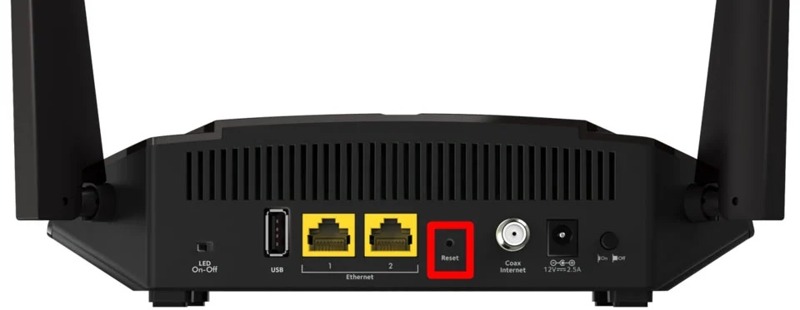
Sometimes the router itself is the source of connection issues. A quick restart can refresh its settings and resolve temporary glitches affecting your Wi-Fi signal.
Unplug the router, wait about 30 seconds, then plug it back in. This simple step often resolves problems that might otherwise seem complex and time-consuming to diagnose.
Secure Your Wi Fi Connection
Securing your Wi-Fi connection is essential for protecting your personal data and ensuring a seamless internet experience. Whether you’re resetting your cell phone to connect to your router or just performing regular security checks, safeguarding your network is crucial. A secure connection not only keeps intruders at bay but also enhances your browsing speed. Let’s dive into some simple yet effective strategies to lock down your Wi-Fi.
Change Default Router Password
Your router comes with a default password that is often easy to guess. Changing this password is one of the simplest ways to enhance your Wi-Fi security. Imagine the relief of knowing your network isn’t vulnerable to anyone with basic tech skills.
- Access your router’s admin panel using its IP address, usually found on the device itself or in the manual.
- Look for the password settings and change it to a strong, unique password.
- Use a mix of letters, numbers, and symbols to create a robust password.
Have you ever had the unsettling feeling that someone might be piggybacking on your network? Changing the default password can instantly alleviate such worries.
Enable Network Encryption
Encryption is like a secret code that only your devices understand. By enabling encryption, you ensure that the data transmitted over your network is safe from prying eyes. This step is critical in securing your Wi-Fi connection.
- Navigate to your router settings and find the security options.
- Select WPA2 or WPA3 encryption, as these are the most secure options available.
- Save the settings and ensure all connected devices are compatible with the chosen encryption type.
Consider how much sensitive information passes through your network daily. From banking details to personal emails, encryption acts as a shield, keeping your data protected from cyber threats.
By making these adjustments, you not only secure your Wi-Fi but also gain peace of mind knowing your personal information is safe. What steps will you take today to bolster your network security?
Credit: helpdeskgeek.com
Credit: www.apeaksoft.com
Frequently Asked Questions
How Do I Reset My Phone’s Wi-fi Connection?
To reset your phone’s Wi-Fi, turn off Wi-Fi, restart your phone, then turn Wi-Fi back on. Reconnect to your router’s network by selecting it and entering the password.
Why Reset My Phone’s Connection To Router Wi-fi?
Resetting fixes network glitches, improves speed, and resolves connection drops. It refreshes your phone’s link to the router for stable internet access.
How To Forget And Reconnect To A Router Wi-fi?
Go to Wi-Fi settings, tap your router’s network, select “Forget. ” Then scan for networks, choose your router, and enter the password to reconnect.
Can Resetting Wi-fi Fix Slow Internet On Phone?
Yes, resetting clears temporary issues causing slow speed. It helps your phone get a fresh IP address and better signal from the router.
Conclusion
Resetting your cell phone’s connection to the router Wi-Fi is simple. Just follow the steps carefully and take your time. This helps fix common connection problems fast. You can enjoy better internet without stress. Remember to check your router settings if issues continue.
Staying connected keeps your phone working smoothly. Try these tips anytime your Wi-Fi acts up. Easy to do, and it saves you time. Keep your device updated for the best results. Simple steps make a big difference in daily use.