
Are you looking to capture a quick video using your Mac’s built-in webcam but don’t know where to start? Whether you want to record a personal message, create content for social media, or just test your camera, this guide will show you exactly how to do it—step by step.
You’ll discover simple tools and easy tricks that make recording smooth and hassle-free. Keep reading, and by the end, you’ll be confident recording videos on your Mac like a pro.

Credit: www.youtube.com
Choose The Right App
Choosing the right app to record video on your Mac webcam can make a huge difference in your experience and the quality of your videos. Some apps are simple and easy to use, while others offer advanced features that can help you create professional content. Think about what you want to achieve with your recordings and pick the app that fits your needs best.
Built-in Options
Your Mac already comes with tools that let you record video without downloading anything extra. QuickTime Playeris one such app that offers straightforward webcam recording. You just open QuickTime, select “New Movie Recording,” and start filming.
Built-in options like QuickTime are perfect if you need fast, no-fuss recordings. They might not have fancy editing features, but they handle basic tasks well. If you want to record a quick tutorial or a video message, these tools get the job done with minimal effort.
Third-party Software
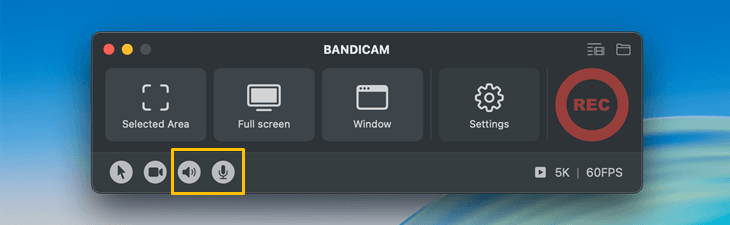
If you want more control and extra features, third-party apps can be a great choice. Programs like OBS Studioor Ecamm Liveoffer options such as screen sharing, overlays, and live streaming.
Third-party software often requires a bit of a learning curve, but the payoff is worth it if you plan to create polished videos regularly. Ask yourself: do you need simple recording, or would you benefit from features like multi-camera support or custom backgrounds?
- OBS Studio:Free, open-source, great for streaming and recording.
- Ecamm Live:User-friendly, designed for live broadcasts and interviews.
- ManyCam:Adds effects, filters, and supports multiple video sources.
Choosing the right app means balancing ease of use with the features you actually need. Trying out a few options can help you find what works best for your style and goals.

Credit: apps.apple.com
Set Up Your Mac Webcam
Setting up your Mac webcam properly is the first step to capturing clear and professional-looking videos. It’s not just about turning on the camera; it’s about making sure everything around it works in your favor. A well-prepared setup can make your video more engaging and save you from frustrating retakes.
Check Camera Settings
Before you start recording, open the app you plan to use for capturing video, like QuickTime Player or Photo Booth. Make sure your Mac’s built-in camera is selected as the video input source. Sometimes, if you have external devices connected, your Mac might default to another camera.
Adjust the resolution settings if available. Higher resolution means better video quality but can take more storage space and processing power. Testing the camera preview helps spot any issues early on.
Adjust Lighting And Background
Good lighting can dramatically improve your video’s appearance. Position yourself facing a natural light source like a window, or use soft artificial lights to avoid harsh shadows on your face. Avoid sitting with bright lights directly behind you, as this creates silhouettes.
Your background should be tidy and free from distractions. A plain wall or a neatly arranged bookshelf works well. Ask yourself: does your background support your message, or does it pull attention away from you?
Record With Quicktime Player
Recording videos on your Mac using the built-in webcam can be a straightforward task, especially when you utilize QuickTime Player. This versatile application is not just for playing media; it also offers robust recording features that can capture high-quality video directly from your Mac’s webcam. Whether you’re creating content for social media, documenting a personal event, or conducting an online meeting, QuickTime Player provides an easy-to-use platform that can help you achieve professional results without needing additional software. Let’s dive into the specifics of how to make the most of this tool.
Start A New Movie Recording
To begin, open QuickTime Player from your applications folder. Once the application is running, click on “File” in the top menu bar and select “New Movie Recording.” This will activate your Mac’s webcam, displaying a live feed on your screen. You might be surprised at how effortless it is to get started—it’s just a click away.
Consider this scenario: You have a spontaneous idea for a video and want to capture it before the inspiration fades. QuickTime Player allows you to start recording almost instantly, saving you from the hassle of setting up complex equipment. Do you often find yourself delaying projects because of technical difficulties? With QuickTime, those delays could be a thing of the past.
Customize Recording Settings
Once your webcam is activated, you’ll notice a small arrow next to the record button. Clicking it reveals options to adjust your video and audio input settings. Select the desired microphone to ensure clear audio capture—this is crucial if you’re recording a tutorial or speaking directly to your audience.
Additionally, you can choose the video quality setting that suits your needs. Opting for high-quality settings can significantly improve the visual experience for your viewers. Did you know better video quality can hold viewers’ attention longer? It’s worth considering if viewer engagement is your priority.
Save And Export Your Video
After recording, it’s time to save your video. QuickTime Player allows you to save your file in various formats. Click “File” in the menu bar, then “Save” to store it locally on your Mac. You can choose the file name and location, making it easy to organize your work.
Exporting your video is equally simple. Select “Export As” to choose different resolutions and formats that suit your intended use. Whether you’re uploading to YouTube or sharing on social media, QuickTime offers flexibility in how you present your video. How often have you struggled with video formats? This straightforward process can alleviate those headaches.
Recording video on your Mac webcam with QuickTime Player can be a game-changer for your content creation process. By simplifying these tasks, it allows you to focus more on creativity and less on technicalities. Why not give it a try and see the difference it can make?
Use Photo Booth For Easy Recording
Using Photo Booth to record video on your Mac webcam is one of the simplest ways to capture moments quickly. This app comes pre-installed on every Mac, so you don’t need to download anything extra. It offers a straightforward interface that makes recording and reviewing videos a breeze, even if you’re new to video recording.
Launch And Navigate Photo Booth
Start by opening the Photo Booth app from your Applications folder or Launchpad. Once it’s open, you’ll see your webcam feed displayed on the screen.
Along the bottom, you’ll find three main buttons: take a photo, take a burst of photos, and record a video. Click the video icon to switch to video recording mode.
Adjust your position and background to make sure you’re happy with what the camera sees before hitting record. Have you ever noticed how small changes in lighting can totally change your video’s feel? Try moving near a window for natural light.
Record And Review Clips
Click the red record button to start filming. You’ll see a timer showing how long you’ve been recording, which helps you keep your videos concise.
When you’re done, click the record button again to stop. Your video clip will appear as a thumbnail at the bottom of the window.
Click on the thumbnail to watch your recording. This instant playback lets you check if you need to try again or if you nailed it on the first take.
- Want to save the clip? Drag it to your desktop or right-click to export it to your preferred folder.
- Need to retake? Simply hit the record button again and start fresh.
Photo Booth’s simplicity means you can focus on your message instead of wrestling with complicated software. What’s the first video you want to create with ease?
Enhance Video Quality
Enhancing the quality of your webcam videos on a Mac goes beyond just hitting the record button. Small improvements can make a huge difference in how your videos look and sound. By focusing on clear audio, better lighting, and clean editing, your recordings will feel more professional and engaging to your audience.
Improve Audio
Good audio is often more important than video clarity. Background noise, echoes, or muffled voices can distract viewers from your message. Try recording in a quiet room and close any windows or doors to reduce outside noise.
Consider adjusting the input volume in your Mac’s sound settings to avoid distortion. Testing your audio before recording helps catch issues early. Have you noticed how much easier it is to stay focused on a video when the sound is crystal clear?
Use External Microphones
Built-in Mac microphones are convenient but usually don’t capture the full range of your voice. Using an external microphone can dramatically improve sound quality. USB mics or lavalier microphones are easy to set up and offer clearer, richer audio.
Even a simple headset mic can reduce background noise and make your voice stand out. When I switched to an external mic, my viewers immediately commented on the improved clarity. What kind of microphone can you try to boost your recordings?
Edit And Trim Videos
Raw footage often contains awkward pauses, mistakes, or unnecessary parts. Editing lets you polish your video by cutting out these sections. Mac’s built-in apps like iMovie provide user-friendly tools for trimming and enhancing clips.
Adding simple transitions, adjusting brightness, or including captions can also increase viewer engagement. Have you ever watched a video that kept your attention because it was clean and well-paced? That’s the power of good editing.
Troubleshoot Common Issues
Troubleshooting common issues is key to recording videos smoothly on your Mac webcam. Problems with the camera or audio can stop your recording before it starts. Fixing these issues quickly helps you save time and effort. Below are simple tips to solve frequent problems.
Fix Camera Not Working
Check if your Mac’s camera is blocked by another app. Close apps using the camera and try again.
Restart your Mac to refresh the system. This often solves minor glitches.
Verify camera permissions in System Preferences under Security & Privacy. Allow apps to access the camera.
Reset the System Management Controller (SMC). This can fix hardware-related camera issues.
- Shut down your Mac.
- Hold Shift + Control + Option and the power button for 10 seconds.
- Release all keys and turn on your Mac.
Try using a different app to test the camera. This helps identify if the problem is app-specific.
Resolve Audio Problems
Check microphone input settings in System Preferences under Sound. Ensure the correct microphone is selected.
Increase input volume if the sound is too low.
Make sure no other app is blocking the microphone access.
Restart your Mac to reset audio settings.
Test the microphone using the Voice Memos app to confirm it works.
- Open Voice Memos.
- Record a short audio clip.
- Play it back to check sound quality.
If problems persist, try using an external microphone for better quality.
Credit: www.bandicam.com
Frequently Asked Questions
How Do I Record Video Using Mac Webcam?
To record video on Mac webcam, open the built-in app called QuickTime Player. Click File > New Movie Recording. Select your webcam, then press the red record button to start. Press stop when finished, and save your video file.
Can I Record Webcam Video Without Quicktime Player?
Yes, you can use other apps like Photo Booth or third-party software. Photo Booth allows simple webcam recording with filters. For advanced features, apps like OBS Studio or Camtasia offer more control and editing options.
How To Improve Webcam Video Quality On Mac?
Improve webcam video quality by ensuring good lighting and a clean lens. Use natural light or a ring light for brightness. Adjust webcam settings in apps if available. Position yourself close to the camera for clearer video.
Is It Possible To Record Audio With Mac Webcam Videos?
Yes, Mac webcam videos can include audio. QuickTime Player records sound through your Mac’s built-in microphone by default. For better audio, consider using an external microphone connected to your Mac.
Conclusion
Recording video on your Mac webcam is simple and quick. Just follow the steps carefully and adjust settings as needed. Practice a few times to feel comfortable and improve your videos. Use good lighting and clear sound for the best results.
With these tips, anyone can create quality videos right from their Mac. Keep experimenting and enjoy your new skills!