
Do you want to get more out of your Logitech mouse? Imagine turning those extra buttons into powerful shortcuts that save you time and boost your productivity.
Programming your mouse buttons is easier than you think, and once you learn how, you’ll wonder how you ever worked without it. In this guide, you’ll discover simple steps to customize your Logitech mouse exactly the way you want. Ready to unlock your mouse’s full potential?
Let’s dive in!
Choosing The Right Logitech Software
Choosing the right software to program your Logitech mouse is crucial. It shapes how easily you can customize buttons and improve your workflow. Not all Logitech software serves the same purpose, so picking the one that fits your needs can save you time and frustration.
Logitech Options Vs G Hub
Logitech offers two main software options: Logitech Optionsand G HUB. Options is designed for everyday users who want simple customization for productivity-focused mice. It provides an intuitive interface to remap buttons, adjust pointer speed, and create application-specific profiles.
G HUB targets gamers and advanced users. It supports more complex customization like RGB lighting control, macro creation, and fine-tuned DPI settings. If your mouse is from the gaming lineup, G HUB is often the better choice, while Options works well for office or casual use.
Wondering which software your mouse supports? Check Logitech’s official site or the product manual—this can save you from downloading the wrong program.
Downloading And Installing Software
After deciding on the right software, head to Logitech’s official website to download it. Avoid third-party sites to prevent malware risks and ensure you get the latest version.
Installation is straightforward: run the downloaded file and follow the prompts. The software usually detects your connected Logitech mouse automatically, making setup quick.
If the software doesn’t recognize your mouse, try reconnecting it or restarting your computer. Remember, keeping the software updated helps you access new features and bug fixes, so check for updates regularly.

Credit: www.youtube.com
Setting Up Your Mouse
Setting up your Logitech mouse is the first step to enjoy its full potential. Proper setup ensures smooth performance and easy customization. Follow simple instructions to connect and prepare your mouse for button programming.
Connecting The Mouse To Your Pc
Start by turning on your Logitech mouse. Use the USB receiver or Bluetooth to connect it to your computer. For USB, plug the receiver into a free USB port. The PC will detect the mouse automatically.
For Bluetooth, enable Bluetooth on your computer. Press the mouse’s Bluetooth button to enter pairing mode. Select the mouse from the list of available devices on your PC. Wait for confirmation that the mouse is connected.
Checking Device Compatibility
Verify that your Logitech mouse works with your PC’s operating system. Most Logitech mice support Windows, macOS, and some Linux versions. Visit Logitech’s official website to check your mouse model’s compatibility.
Ensure you have the latest drivers installed. Updated drivers improve performance and enable button programming features. You can download drivers from Logitech’s support page. Installing Logitech Options or Logitech G HUB software is often necessary for customization.
Navigating The Software Interface
Open the Logitech software and locate the button programming section. Select the button you want to change and pick a new function from the list. Save your settings to customize how your mouse works quickly and easily.
Navigating the software interface of your Logitech mouse can feel like unlocking a secret world of customization. It’s your gateway to personalizing your mouse to fit your unique needs and preferences. Whether you’re a gamer seeking precision or a professional aiming for efficiency, understanding how to program buttons can transform your computing experience.Locating Button Customization
To start customizing your Logitech mouse buttons, first, open the Logitech software interface. This software often comes as Logitech Options or Logitech G Hub, depending on your mouse model. Once inside, look for the section labeled ‘Mouse’ or a specific tab dedicated to button settings. Here, you’ll find the list of buttons available for customization. Isn’t it exciting to see the variety of tasks each button can perform? From basic functions like copy and paste to complex macros, your mouse is about to become your most powerful tool.Understanding Button Layout
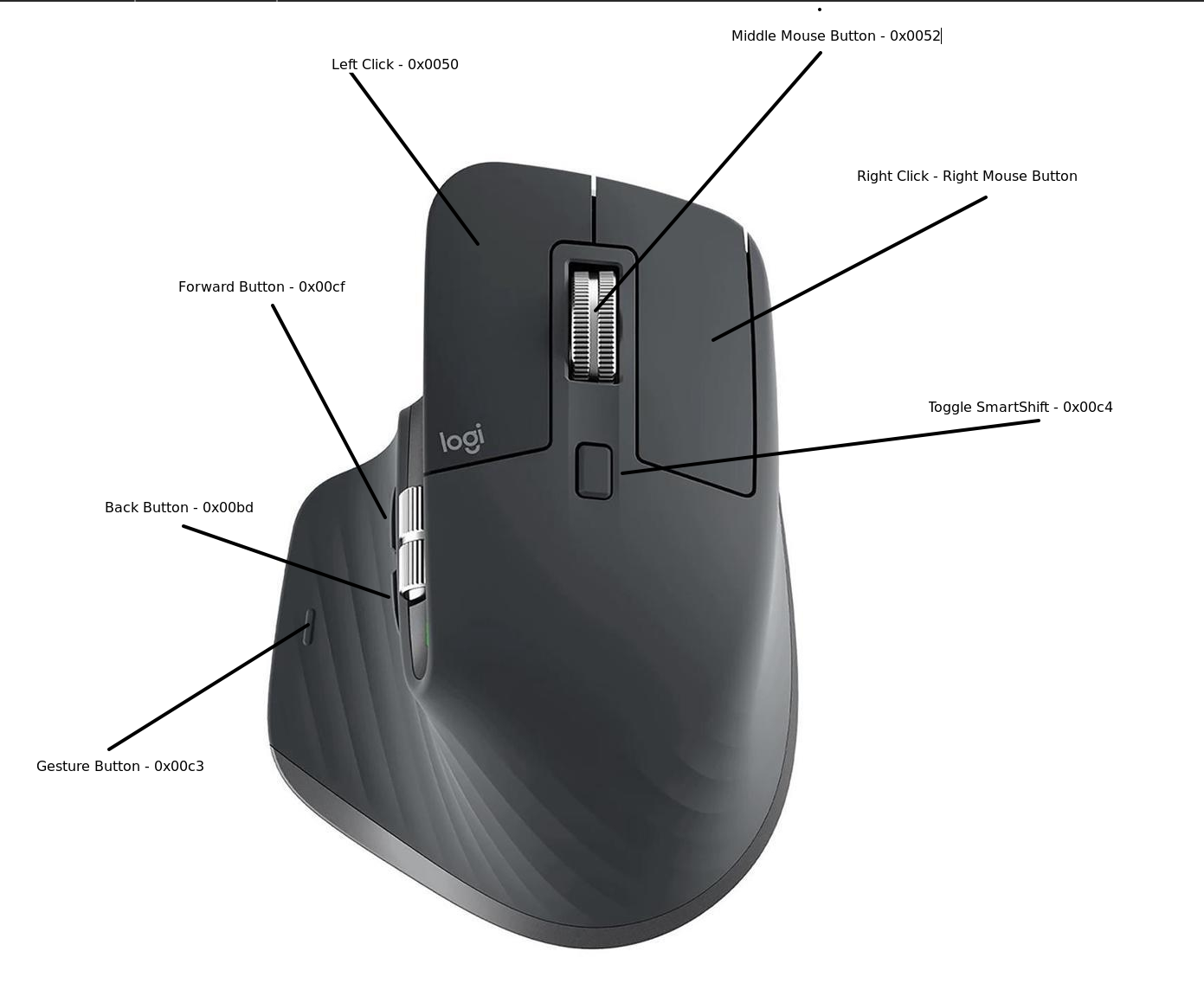
Understanding the button layout is crucial for effective customization. Each mouse model has a unique design, with buttons strategically placed for different functions. Use the visual map or diagram within the software to identify each button’s current assignments. This makes it easier to decide which functions to assign based on your usage style. Consider how you hold your mouse. Are there buttons that are easier to reach or press? Tailor your settings to make those the most important commands, optimizing your workflow and gaming efficiency. Programming your Logitech mouse buttons is not just about functionality; it’s about creating a seamless experience tailored to your needs.Programming Mouse Buttons
Programming mouse buttons can transform your Logitech mouse into a powerful tool tailored to your needs. Instead of relying on default clicks, you can customize each button to perform specific tasks. This not only boosts your productivity but also enhances your gaming or work experience by putting important actions at your fingertips.
Assigning Basic Functions
Start by assigning simple commands like copy, paste, or opening a specific program to your mouse buttons. Logitech’s software makes it easy to map these basic functions without any coding knowledge. You just select a button and choose from a list of common actions, so you can speed up everyday tasks.
Think about which actions you repeat often. Could you save time by clicking a button instead of using a keyboard shortcut? Customizing buttons for these tasks reduces strain and lets you focus more on your work or game.
Creating Custom Macros
Macros let you automate sequences of actions with a single click. You can record a series of keystrokes or mouse clicks and assign them to a button, which is a game-changer for complex workflows or gaming combos.
For example, if you often switch between tabs, open apps, and adjust settings, a macro can do all that instantly. Logitech’s software allows you to create and edit macros easily, so you can fine-tune them to work exactly how you want.
Using Application-specific Profiles
One of the best features is setting up different profiles for various applications. You can have one set of button functions for your web browser, another for your favorite game, and yet another for your design software.
This means your mouse adapts automatically when you switch programs. It’s like having multiple mice in one, each optimized for a different task. Have you thought about how much faster you could work if your mouse anticipated your needs?
Testing And Adjusting Button Functions
Once you have programmed your Logitech mouse buttons, it’s important to test and adjust their functions to make sure they fit your workflow perfectly. This process helps you catch any misassignments and fine-tune how your mouse responds to your actions. Paying attention to these details can save you time and improve your overall experience.
Verifying Button Assignments
Start by pressing each programmed button to see if it performs the expected action. If you assigned a button to open a specific app or execute a shortcut, check that it triggers immediately without delay.
Try out the buttons in different applications where you plan to use them most. Sometimes, certain functions may behave differently depending on the software. Have you noticed any buttons acting unexpectedly or not responding? This is your chance to identify and fix those issues.
Tweaking Sensitivity And Response
Adjusting sensitivity and response settings can greatly affect your comfort and efficiency. Logitech software usually allows you to change the click sensitivity and the speed at which buttons respond.
Experiment with these settings in small increments. If a button feels too sensitive and triggers accidentally, lowering the sensitivity can help. Conversely, if it feels sluggish, increasing sensitivity can improve reaction time.
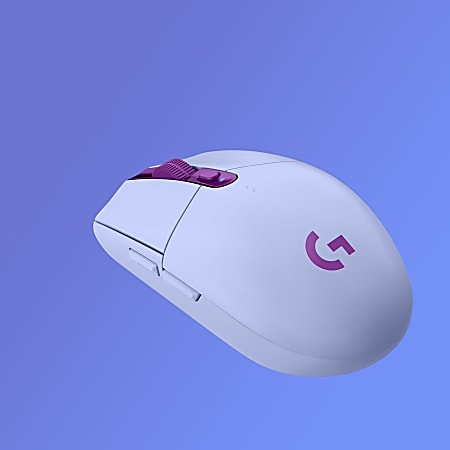
Don’t forget to test these adjustments while doing your regular tasks. This real-world testing reveals whether your tweaks genuinely enhance your workflow or need further fine-tuning.
Credit: www.odpbusiness.com
Troubleshooting Common Issues
Troubleshooting common issues when programming buttons on your Logitech mouse can save you time and frustration. Sometimes, even after following all the steps, things just don’t work as expected. Knowing how to identify and fix these problems quickly helps you get back to smooth, customized control.
Software Not Detecting Mouse
If your Logitech software doesn’t recognize your mouse, first check the connection. Try unplugging and reconnecting the USB receiver or cable. Also, verify that the mouse is powered on and has fresh batteries if it’s wireless.
Make sure you have the latest version of Logitech G HUB or SetPoint installed. Outdated software often fails to detect devices properly. Restarting your computer can clear temporary glitches blocking detection.
Have you checked if your USB ports work with other devices? Faulty ports might be the real culprit. Switching to a different port often solves detection problems immediately.
Button Assignments Not Working
When button assignments don’t respond, double-check that you saved your settings in the Logitech software. Sometimes changes don’t apply until you hit “Apply” or “Save.”
Confirm that the correct profile is active. If you use multiple profiles, the mouse might be running a different one without your custom button setup.
Try testing the buttons in a simple program like Notepad. If they don’t work there, the issue is likely with the mouse or software, not the application you’re using.
- Disable conflicting software that might override button functions.
- Check if firmware updates are available and install them.
- Reassign the button functions to different commands to see if one specific assignment is causing trouble.
Resetting To Default Settings
Resetting your mouse settings can fix stubborn issues by clearing any incorrect configurations. In Logitech G HUB, look for the reset or restore default option in the settings menu.
This action removes all custom profiles and button assignments, so you’ll start fresh. It’s a good way to identify if the problem lies within your custom setups or the hardware itself.
If the problem persists after resetting, consider reinstalling the Logitech software. Sometimes a clean install resolves deep software conflicts that a simple reset can’t fix.
Tips For Advanced Customization
Advanced customization lets you use your Logitech mouse beyond basic clicks. It helps create shortcuts that save time and boost productivity. Explore ways to combine buttons and sync devices to enhance your workflow.
Combining Buttons For Complex Commands
Assign multiple actions to one button by combining clicks. This works well for tasks needing several steps. Use Logitech’s software to set up macros easily.
For example, program a button to copy and paste with a single press. Or open apps while adjusting volume simultaneously. Test each command to ensure it runs smoothly.
- Open Logitech Options or G HUB software.
- Select the button you want to customize.
- Create a macro by recording keystrokes or mouse clicks.
- Assign the macro to the button.
- Save and test the setup.
Synchronizing With Other Logitech Devices
Use Logitech Flow to control multiple devices with one mouse. It moves your cursor across screens seamlessly. Copy and paste text or files from one device to another.
Enable Flow in Logitech Options software and connect your devices on the same Wi-Fi network. It works with Logitech keyboards and mice. This sync enhances multitasking and smooth workflow.
- Open Logitech Options software.
- Go to the Flow tab.
- Turn on Flow and connect devices.
- Move the cursor between screens to test.
Credit: medium.com
Frequently Asked Questions
How Do I Program Buttons On My Logitech Mouse?
Download Logitech Options software from the official site. Open it, select your mouse, and click “Customize Buttons. ” Assign functions or shortcuts to each button easily.
Can I Create Custom Shortcuts With Logitech Mouse Buttons?
Yes, Logitech software lets you assign custom shortcuts. You can map keyboard keys, launch apps, or execute macros via mouse buttons.
Is Programming Logitech Mouse Buttons Compatible With All Models?
Most Logitech mice support button programming through Logitech Options or G HUB. Check compatibility on Logitech’s website before proceeding.
How Do I Reset Logitech Mouse Button Settings?
Open Logitech Options or G HUB software. Navigate to your mouse settings and select “Restore Defaults” to reset button configurations.
Conclusion
Programming buttons on your Logitech mouse is simple and useful. It helps you work faster and easier. Follow the steps carefully to set each button as you like. Try different functions to find what fits you best. Practice makes perfect, so keep adjusting your settings.
Enjoy a personalized experience with your mouse every day.